
1. Setup and Initial Configuration
The OBDMATE OM201 Car Scanner is designed for ease of use with its plug-and-play functionality. Follow these steps for initial setup.
1.1 Connecting the Device
Locate the 16-pin OBDII diagnostic link connector (DLC) in your vehicle. This port is typically found under the dashboard on the driver's side. Connect the OM201 scanner's cable to the vehicle's DLC. The device will power on automatically upon successful connection.

Image: The OBDMATE OM201 Car Scanner connected to a vehicle's OBDII port, ready for use.
1.2 Ignition Requirements
For the scanner to communicate with your vehicle's systems, ensure the vehicle's ignition is turned to the 'ON' position. The engine does not need to be running unless performing specific live data tests.
1.3 Initial Settings
Upon powering on, you may access the 'Settings' menu to configure language and units of measure. The OM201 supports 8 languages: English, French, Spanish, German, Russian, Italian, Dutch, and Portuguese.
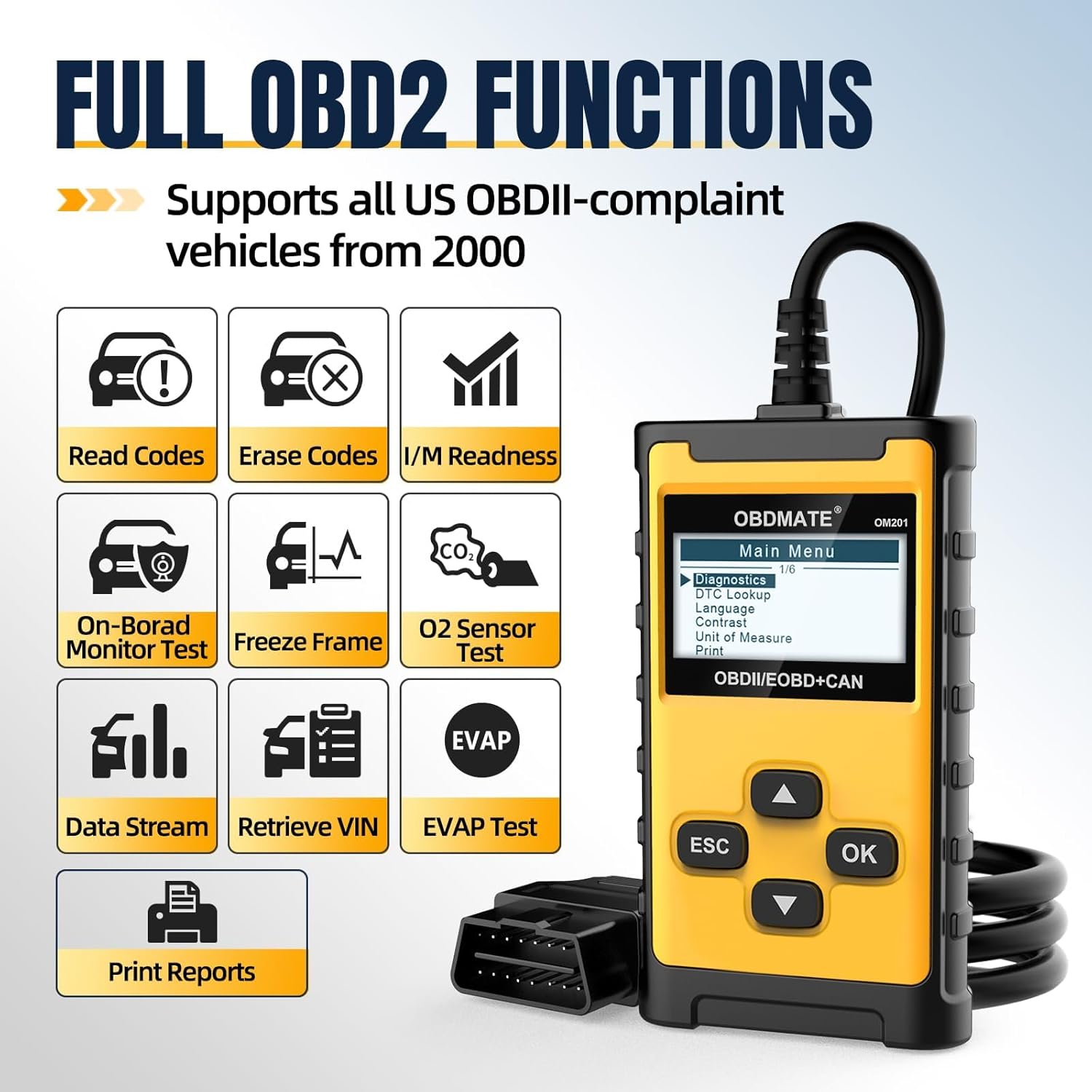
Image: The main menu of the OM201 Car Scanner, displaying options like Diagnostics, DTC Lookup, Language, Contrast, Unit of Measure, and Print.
2. Operating the OM201 Car Scanner
The OBDMATE OM201 provides a range of OBDII functions to help diagnose and monitor your vehicle's health.
2.1 Reading and Clearing Diagnostic Trouble Codes (DTCs)
The primary function of the OM201 is to read and clear DTCs. This allows you to identify why your check engine light (MIL) is illuminated and to turn it off after addressing the issue.
- Read Codes: Select 'Read DTC' from the main menu to retrieve current, pending, and permanent trouble codes stored in the vehicle's computer.
- Clear Codes: Select 'Clear DTC' to erase trouble codes and turn off the Malfunction Indicator Lamp (MIL). Ensure the underlying issue is resolved before clearing codes to prevent immediate re-illumination.
- DTC Lookup: The device has over 40,000 built-in code definitions. Use the 'DTC Lookup' function to understand the meaning of a specific code without needing external resources.

Image: The OM201 Car Scanner displaying the 'Erase Codes' prompt, asking for confirmation to clear trouble codes.
2.2 Live Data Stream
Monitor real-time engine data, including RPM, vehicle speed, coolant temperature, O2 sensor readings, and more. This data can be viewed numerically or graphically for easier analysis.

Image: The OM201 Car Scanner showing live graphic data for various engine parameters, providing real-time monitoring.
2.3 I/M Readiness
Check the readiness status of your vehicle's emission monitoring systems. This function is crucial for determining if your vehicle is ready for an emissions inspection.

Image: The OM201 Car Scanner displaying the I/M Readiness status, indicating whether the vehicle's emission systems are ready for testing.
2.4 EVAP Test
Perform the Evaporative Emission Control System (EVAP) test to check for leaks in the fuel system. This helps identify issues that could trigger the check engine light.
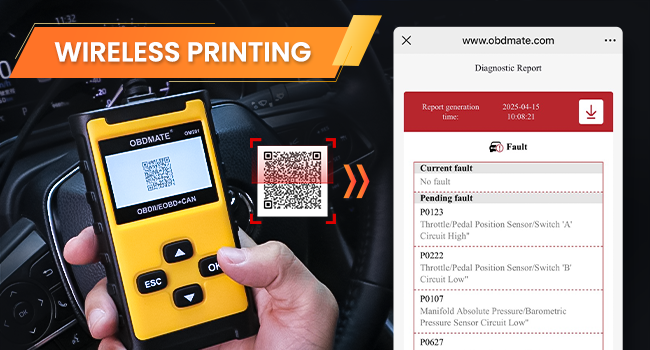
Image: The OM201 Car Scanner displaying the EVAP Test function, used to check for leaks in the evaporative emission system.
2.5 Wireless Printing
After a diagnostic scan, the OM201 can generate a detailed report. Scan the QR code displayed on the screen with your smartphone to instantly view and share the report. This report includes DTCs, VIN, live data, and freeze frame information.
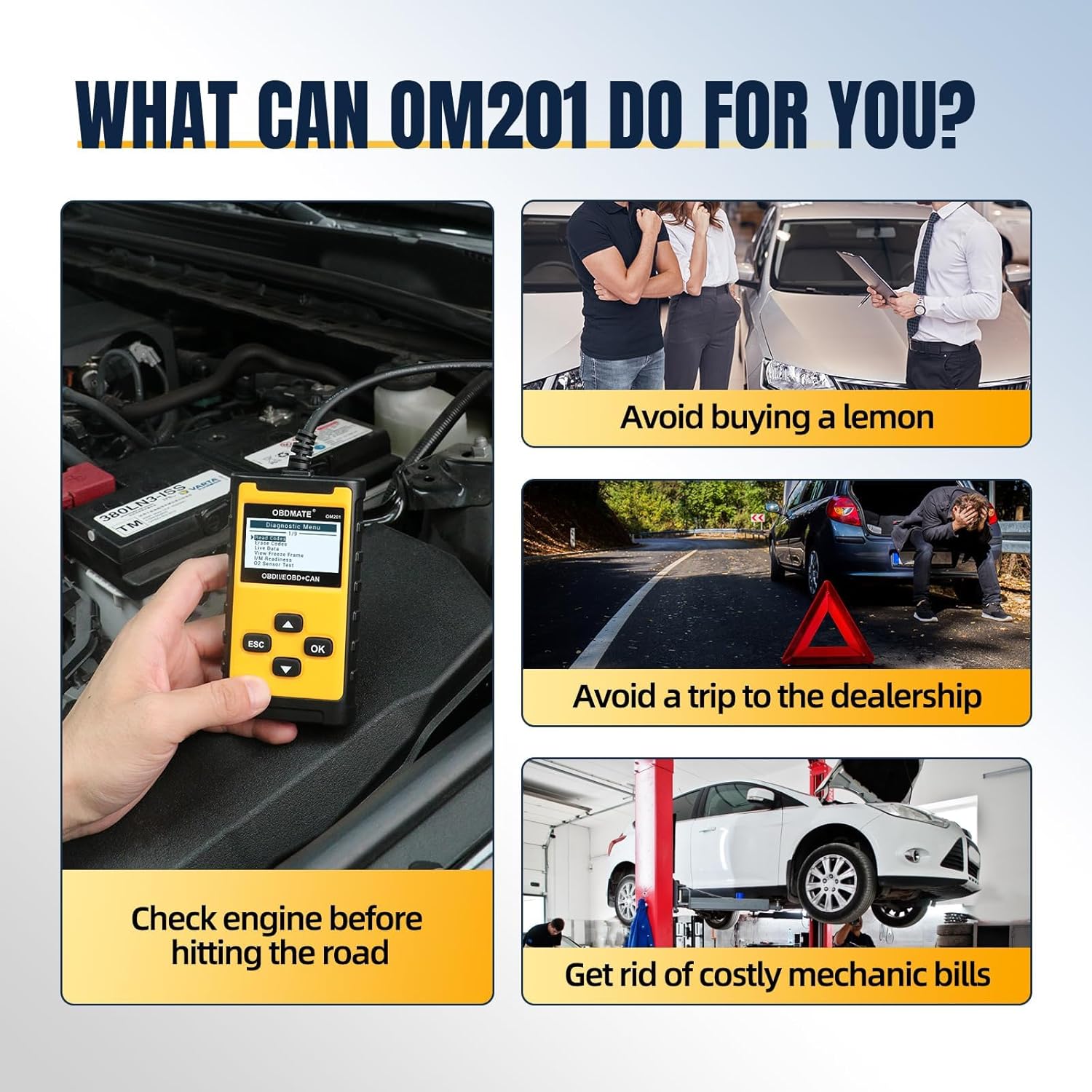
Image: The OM201 Car Scanner displaying a QR code on its screen, which can be scanned by a smartphone to access a diagnostic report for wireless printing.
2.6 Retrieve Vehicle Information
Access important vehicle information such as the Vehicle Identification Number (VIN), Calibration ID (CID), and Calibration Verification Numbers (CVN).
3. Troubleshooting
If you encounter issues while using your OBDMATE OM201 Car Scanner, refer to the following common problems and solutions.
- Device Does Not Power Up:
- Verify the OBDII cable connector is securely connected to the vehicle's DLC.
- Ensure the vehicle's ignition is in the 'ON' position.
- Check the vehicle's battery voltage. A low battery may prevent the scanner from powering on.
- Connection Error:
- Ensure the vehicle is OBDII compliant (most vehicles manufactured after 2000 in USA, 2002 in EU, and 2008 in Asia).
- Try connecting the scanner to another OBDII compliant vehicle to rule out a device malfunction.
- Incorrect Readings:
- Ensure the correct unit of measure is selected in the 'Settings' menu.
- Verify the vehicle's VIN matches the vehicle being scanned.
For specific Diagnostic Trouble Codes (DTCs), use the built-in 'DTC Lookup' function to understand the code's meaning and potential causes.
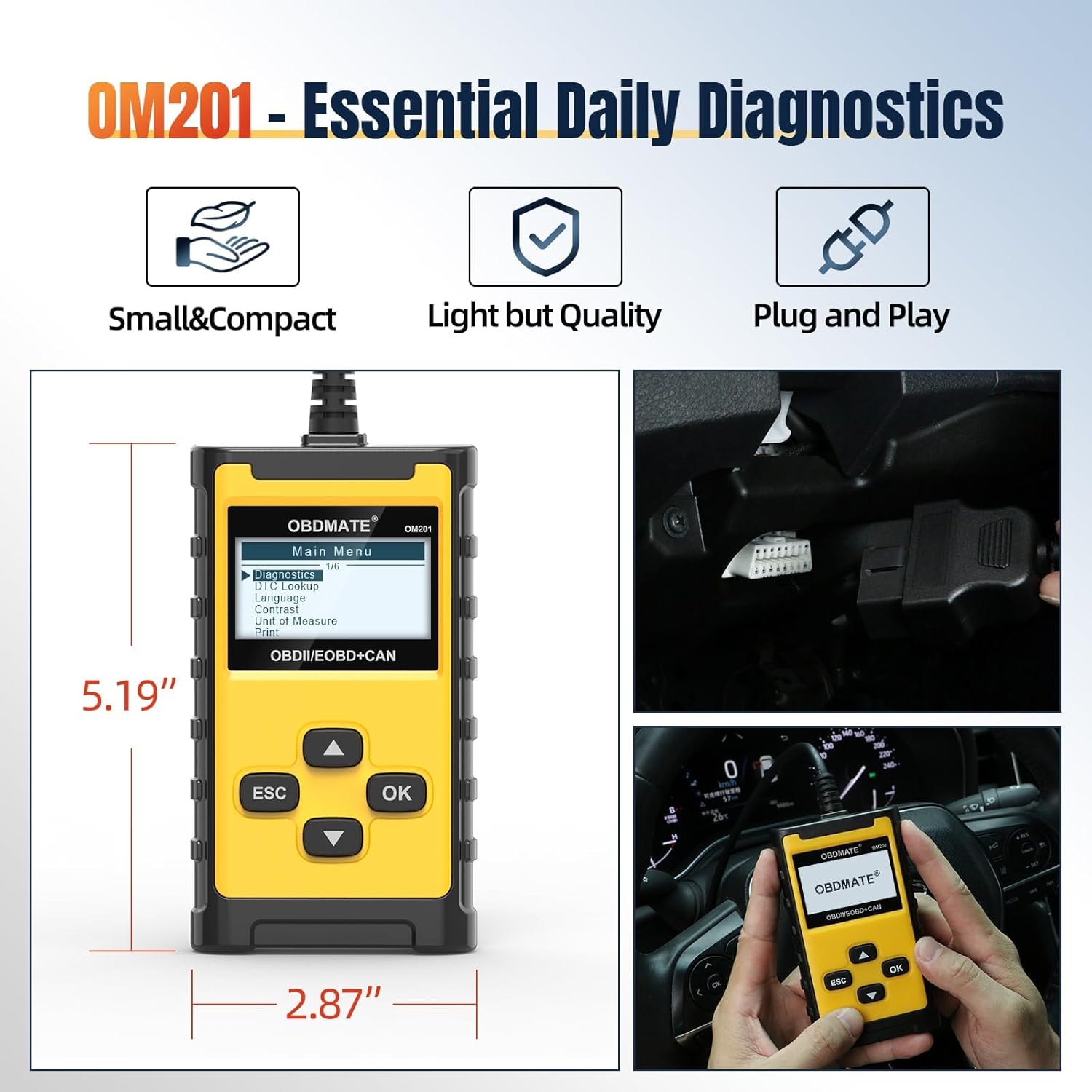
Image: The OM201 Car Scanner displaying the DTC Lookup function, allowing users to search for code definitions directly on the device.
4. Specifications
- Model: OM201
- Brand: OBDMATE
- Item Weight: 9.1 ounces
- Product Dimensions: 2.87"L x 0.95"W x 5.19"H
- Screen Size: 2.4 Inches
- Power Source: Corded Electric (powered by vehicle OBDII port)
- Operating System: Plug and Play
- Supported Protocols: All 9 standard OBDII protocols (CAN, KWP2000, J1850 VPW, J1850 PWM, ISO9141)
- Supported Languages: English, French, Spanish, German, Russian, Italian, Dutch, Portuguese
5. Maintenance
To ensure the longevity and optimal performance of your OBDMATE OM201 Car Scanner, follow these maintenance guidelines:
- Cleaning: Use a soft, dry cloth to clean the device. Avoid using abrasive cleaners or solvents.
- Storage: Store the scanner in a cool, dry place away from direct sunlight and extreme temperatures. Keep it in its original packaging or a protective case when not in use.
- Cable Care: Avoid bending or twisting the OBDII cable excessively. Inspect the cable regularly for any signs of damage.
- Software Updates: Periodically check the manufacturer's website for any available software or firmware updates to ensure compatibility with the latest vehicle models and diagnostic protocols.
6. Official Product Videos
Watch these official videos from OBDMATE for visual demonstrations of the OM201 Car Scanner's features and usage.
OBDMATE OM201 OBD2 Code Reader - Check Engine Light
Video: This video provides an overview of the OBDMATE OM201 OBD2 Code Reader, demonstrating how it can be used to check and understand engine light codes.
Quick Start: OBDMATE OM201 Car Scanner
Video: A quick start guide for the OBDMATE OM201 Car Scanner, showing basic setup and initial use.
OBDMATE OM201 Car Scanner Read&Clear Codes
Video: This video demonstrates the process of reading and clearing diagnostic trouble codes using the OBDMATE OM201 Car Scanner.
7. Warranty and Support
For warranty information, technical support, or any inquiries regarding your OBDMATE OM201 Car Scanner, please refer to the manufacturer's official website or contact their customer service directly. The user manual included in the product packaging also contains detailed contact information.


