
1. Introduction
This manual provides essential information for the setup, operation, maintenance, and troubleshooting of your MSI Codex R2 Gaming Desktop, model A14NVL5-454US. This system is equipped with an Intel Core i5-14400F processor, NVIDIA Geforce RTX 5060 graphics, 16GB DDR5 RAM, and a 1TB NVMe SSD, running on Windows 11 Home. Please read this manual thoroughly before using your new desktop to ensure proper functionality and longevity.
2. Package Contents
Verify that all items are present in the package:
- MSI Codex R2 Gaming Desktop
- Power Cable
- Keyboard
- Mouse
- Documentation (Quick Start Guide, Warranty Card)
Note: Additional accessories may vary by region or specific bundle.
3. System Overview
Familiarize yourself with the physical components and ports of your MSI Codex R2 Gaming Desktop.
3.1 Front Panel

Figure 3.1: Front view of the MSI Codex R2 Gaming Desktop, showcasing the mesh panel and three RGB fans.
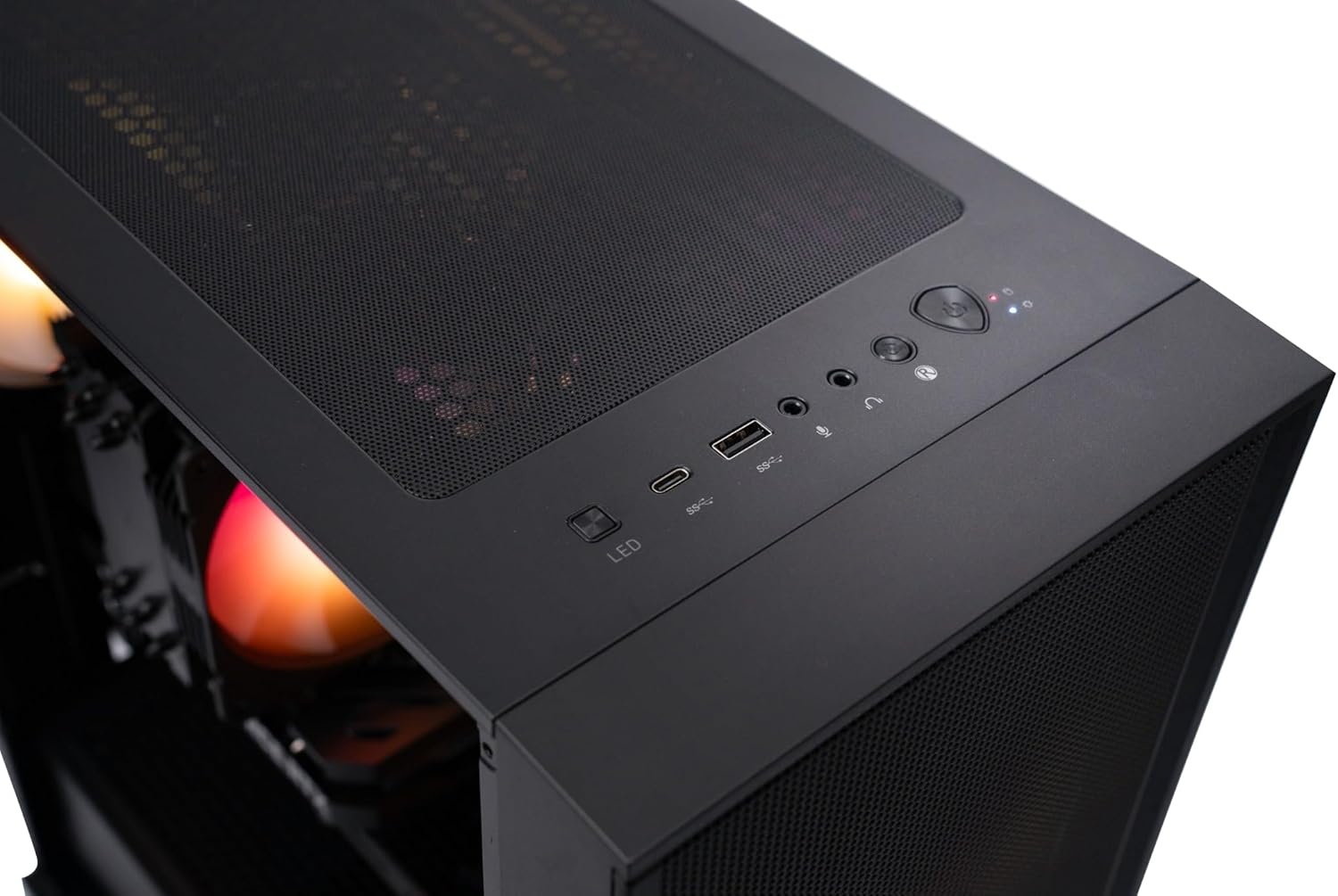
Figure 3.2: Top panel with front I/O ports, including USB, audio jacks, and power/reset buttons.
The front panel features a mesh design for optimal airflow and three pre-installed ARGB fans. The top section of the front panel provides convenient access to various ports and controls:
- Power Button: To turn the system on or off.
- Reset Button: To restart the system.
- USB 3.2 Gen 1 Type-A Ports: For connecting USB devices.
- USB 3.2 Gen 2 Type-C Port: For connecting modern USB-C devices.
- Mic-in/Audio-out Jacks: For connecting headphones and microphones.
- LED Switch: To cycle through various ARGB lighting effects.
3.2 Rear Panel
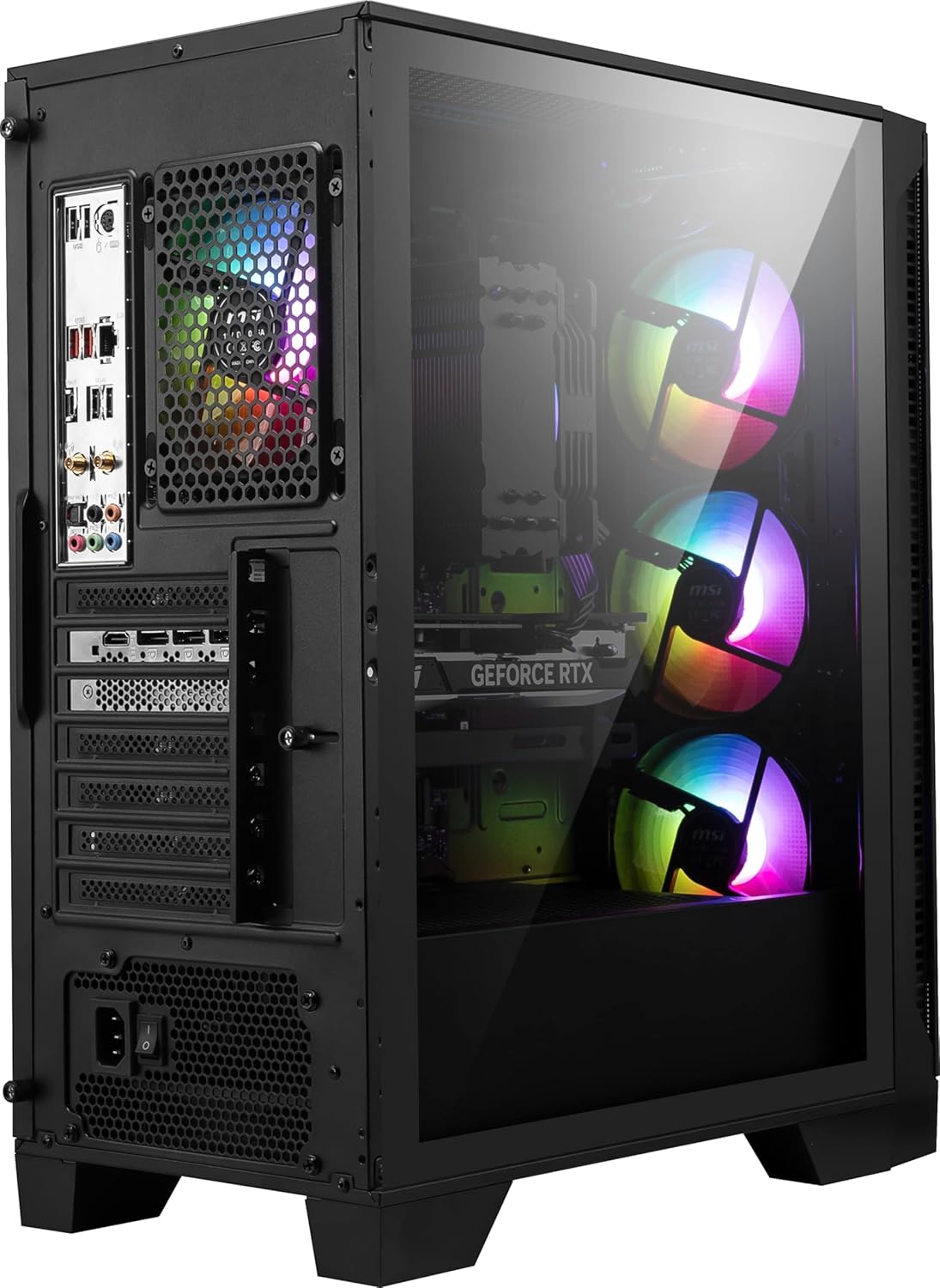
Figure 3.3: Rear view of the MSI Codex R2 Gaming Desktop, showing the I/O panel and expansion slots.
The rear panel provides connectivity for your monitor, network, and additional peripherals. Key ports include:
- Display Ports (HDMI, DisplayPort): For connecting monitors.
- USB Ports (USB 2.0, USB 3.0): For various USB devices.
- Ethernet Port: For wired network connection.
- Audio Jacks: For multi-channel audio output.
- Power Connector: For the power cable.
3.3 Internal Components

Figure 3.4: Internal layout of the MSI Codex R2 Gaming Desktop, showing key hardware components.
The tempered glass side panel allows visibility of the internal components, including the motherboard, CPU cooler with RGB lighting, DDR5 RAM modules, and the NVIDIA GeForce RTX 5060 graphics card. The system is designed for efficient airflow with multiple cooling fans.
4. Setup
4.1 Unpacking
- Carefully remove the desktop from its packaging.
- Place the desktop on a stable, flat surface with adequate ventilation.
- Remove any protective films or packaging materials from the exterior and interior of the case.
4.2 Connecting Peripherals
- Monitor: Connect your monitor to the graphics card's DisplayPort or HDMI output on the rear panel.
- Keyboard and Mouse: Connect the included keyboard and mouse to any available USB ports on the rear or front panel.
- Network: For a wired connection, connect an Ethernet cable to the Ethernet port on the rear panel. For wireless, ensure Wi-Fi antennas are connected if applicable, or the internal Wi-Fi module is enabled.
- Power: Connect the power cable to the power connector on the rear panel of the desktop, then plug the other end into a power outlet.
4.3 First Boot and Operating System Setup
- Press the power button on the front panel.
- The system will boot into Windows 11 Home setup. Follow the on-screen instructions to complete the initial operating system configuration, including language, region, network connection, and user account creation.
- Once setup is complete, ensure all drivers are installed and updated for optimal performance.
5. Operating Instructions
5.1 Power On/Off
- Power On: Press the power button on the front panel.
- Power Off: In Windows, go to Start > Power > Shut down. Alternatively, press and hold the power button for 4 seconds to force a shutdown (use only if the system is unresponsive).
5.2 ARGB Lighting Control
The desktop features customizable ARGB lighting for its fans and CPU cooler.
- LED Switch: Press the dedicated LED button on the top panel to cycle through pre-set lighting effects.
- MSI Center Software: For advanced customization, install and use the MSI Center software. This application allows for detailed control over lighting patterns, colors, and synchronization with other MSI components.
5.3 System Cooling
The MSI Codex R2 is equipped with an RGB CPU air cooler and four system cooling fans (three front, one rear) to maintain optimal temperatures during operation. Ensure adequate space around the desktop for proper airflow and avoid blocking ventilation openings.
6. Maintenance
6.1 Dust Cleaning
Regularly clean the desktop to prevent dust buildup, which can affect performance and cooling efficiency.
- Power off the system and disconnect the power cable.
- Use compressed air to clear dust from fan vents, mesh panels, and internal components. Hold fans to prevent over-spinning.
- Wipe exterior surfaces with a soft, dry cloth.
6.2 Software and Driver Updates
Keep your operating system, drivers, and software up to date for security, stability, and performance.
- Windows Updates: Regularly check for and install updates via Windows Settings.
- Graphics Drivers: Download the latest NVIDIA GeForce drivers from the official NVIDIA website.
- MSI Drivers/Utilities: Visit the official MSI website for your specific model to download the latest motherboard drivers and utility software like MSI Center.
6.3 System Backup
Regularly back up your important data to an external drive or cloud storage to prevent data loss.
7. Troubleshooting
If you encounter issues with your desktop, refer to the following common solutions:
- No Power:
- Ensure the power cable is securely connected to both the desktop and the power outlet.
- Verify the power outlet is functional.
- Check the power supply switch on the rear of the desktop is in the 'ON' position.
- No Display:
- Ensure the monitor is powered on and connected to the graphics card's output, not the motherboard's integrated graphics ports (if present).
- Try a different display cable or monitor.
- System Slowdown/Performance Issues:
- Check for background applications consuming resources.
- Ensure drivers (especially graphics drivers) are up to date.
- Monitor system temperatures to ensure proper cooling.
- Run a malware scan.
- ARGB Lighting Not Working:
- Press the LED switch on the top panel.
- Check MSI Center software for lighting control settings.
- Ensure all internal ARGB cables are properly connected.
For persistent issues, please contact MSI Technical Support.
8. Specifications
| Component | Detail |
|---|---|
| Model Name | MSI Codex R2 A14NVL5-454US |
| Processor | Intel Core i5-14400F (1.8 GHz base, up to 4.7 GHz) |
| Graphics Card | NVIDIA GeForce RTX 5060 (Dedicated, 8 GB GDDR6) |
| RAM | 16GB DDR5 (6000 MHz) |
| Storage | 1TB M.2 NVMe SSD |
| Operating System | Windows 11 Home |
| Wireless Connectivity | Wi-Fi 6E (802.11ax), Bluetooth |
| USB 2.0 Ports | 4 |
| USB 3.0 Ports | 4 |
| Dimensions (LxWxH) | 16 x 8.38 x 19 inches |
| Weight | 21.3 pounds |
| Power Supply | 80+ Gold PSU |
| Cooling | ARGB Fan Air Cooling (RGB CPU Air Cooler + 4 System Fans) |
Note: Specifications are subject to change without notice.
9. Warranty and Support
MSI provides a limited warranty for this product. For detailed warranty terms and conditions, please refer to the warranty card included in your package or visit the official MSI website.
For technical assistance, driver downloads, or service inquiries, please contact MSI Customer Support. When contacting support, have your product model (Codex R2 A14NVL5-454US) and serial number ready.
MSI Official Website: www.msi.com


