
1. Product Overview
The HP 255 Wireless Mouse is a versatile input device designed for comfortable and efficient use with various computing systems. It offers dual-mode connectivity, allowing connection via a 2.4GHz USB-A dongle or Bluetooth 5.0+.
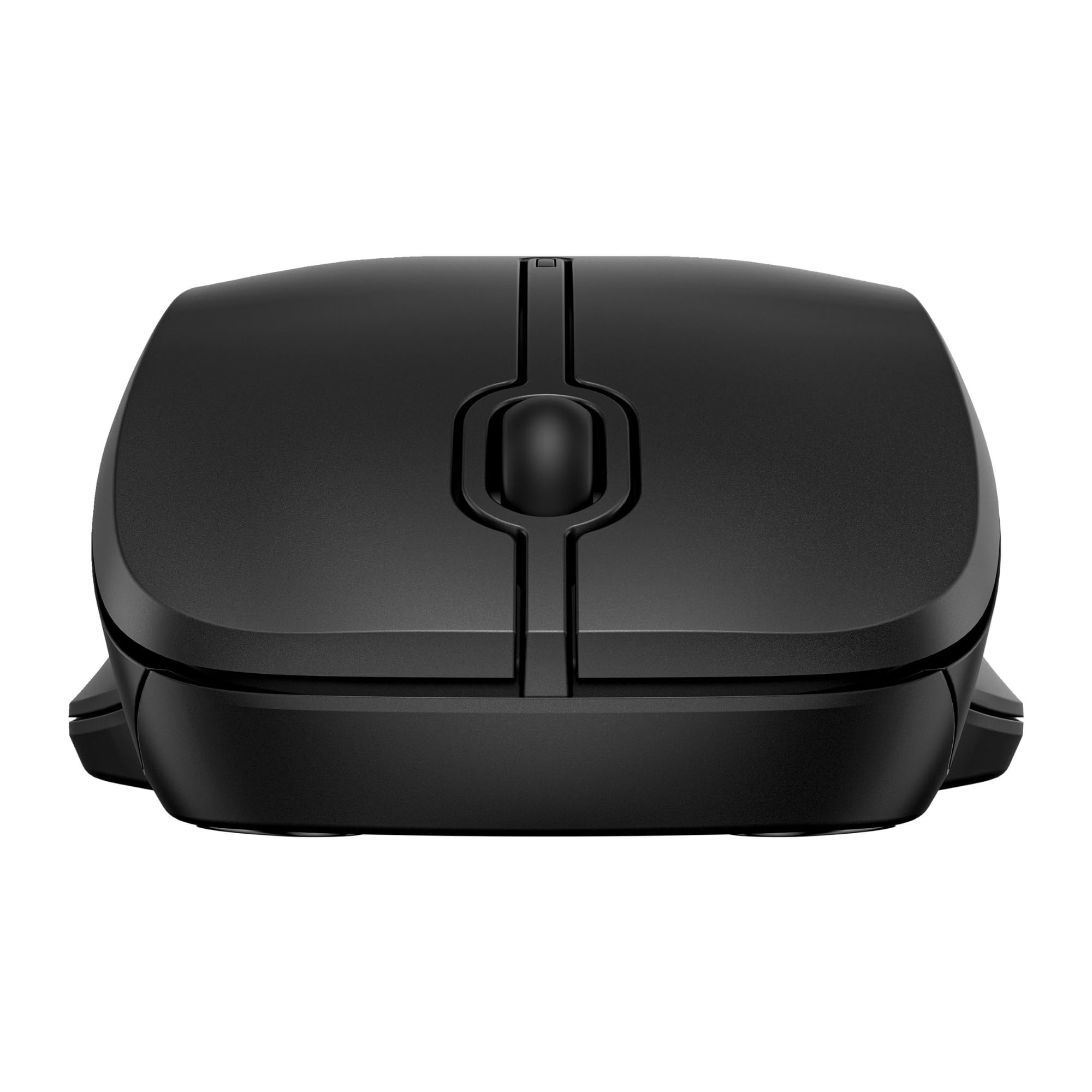
Image 1.1: Top-side view of the HP 255 Wireless Mouse, showcasing its ergonomic design.
2. Setup
2.1 Battery Installation
- Locate the battery compartment on the underside of the mouse.
- Slide the battery cover open.
- Insert one AA battery, ensuring correct polarity (+/-). An AA battery is included with the mouse.
- Close the battery cover securely.
2.2 Connecting the Mouse
The HP 255 Wireless Mouse supports two connection methods: 2.4GHz wireless via USB-A receiver and Bluetooth 5.0+.

Image 2.1: Underside of the mouse, illustrating the battery compartment, power switch, and connection button.
2.2.1 2.4GHz Wireless Connection
- Locate the USB-A receiver, typically stored inside the battery compartment of the mouse.
- Plug the USB-A receiver into an available USB port on your computer.
- Turn on the mouse using the power switch on its underside.
- The mouse should automatically connect to your computer.

Image 2.2: The HP 255 Wireless Mouse shown with its accompanying USB receiver.
2.2.2 Bluetooth Connection
- Ensure your computer's Bluetooth is enabled.
- Turn on the mouse using the power switch on its underside.
- Press and hold the 'Connect' button on the underside of the mouse until the indicator light begins to blink, signifying pairing mode.
- On your computer, go to Bluetooth settings and search for new devices.
- Select "HP 255 Wireless Mouse" from the list of available devices to complete the pairing process.
3. Operating the Mouse
3.1 Power On/Off
Use the ON/OFF switch located on the underside of the mouse to conserve battery life when not in use.
3.2 Basic Functions
- Left Button: Primary click function.
- Right Button: Secondary click function (context menu).
- Scroll Wheel: Scroll up or down. Can also be pressed for a middle-click function.
3.3 Performance
- Optical Sensor: The mouse features a 1600 DPI optical sensor for precise and smooth tracking on various surfaces.
- Wireless Range: Operates reliably within a 10-meter range from your connected device.
- Battery Life: A single AA battery provides up to 12 months of usage, depending on usage patterns.
4. Maintenance
4.1 Cleaning
To clean the mouse, gently wipe its surface with a soft, dry, lint-free cloth. Avoid using harsh chemicals, solvents, or abrasive materials, as these can damage the finish or internal components.
4.2 Battery Replacement
When the mouse performance degrades or it stops responding, replace the AA battery following the instructions in Section 2.1.
5. Troubleshooting
- Mouse not responding:
- Ensure the mouse is powered on.
- Check the battery level and replace if necessary.
- For 2.4GHz connection, ensure the USB receiver is securely plugged into a working USB port. Try a different USB port.
- For Bluetooth connection, ensure Bluetooth is enabled on your computer and the mouse is properly paired. Try re-pairing the mouse.
- Erratic cursor movement:
- Clean the optical sensor on the underside of the mouse with a soft, dry cloth.
- Ensure you are using the mouse on a suitable surface. Avoid highly reflective or transparent surfaces.
- Connection drops frequently:
- Move the mouse closer to the USB receiver or Bluetooth-enabled device.
- Minimize interference from other wireless devices.
6. Specifications
| Brand | HP |
| Model Number | 8R3U1UT#ABB |
| Connectivity Technology | Bluetooth 5.0+, 2.4GHz RF Wireless (USB Type-A receiver) |
| Movement Detection | Optical |
| Movement Resolution | 1600 DPI |
| Number of Buttons | 3 (Left, Right, Scroll Wheel) |
| Scroll Type | Wheel |
| Power Source | 1 AA Battery (included) |
| Battery Life | Up to 12 months |
| Wireless Range | 10 meters |
| Compatible Operating Systems | Windows 10, Windows 11, macOS, ChromeOS |
| Form Factor | Dual handed (ambidextrous) |
| Color | Black |
| Dimensions (W x D x H) | 69.3 mm x 115 mm x 38.2 mm |
| Weight | 68 g |
| Material | 50% recycled household plastics |
| Packaging | 100% recyclable |
7. Support Information
For further assistance, product safety regulations, or detailed support, please visit the official HP support website:


