
ECHTPower B0F845S96R
ECHTPower Wireless Controller User Manual
Model: B0F845S96R
Brand: ECHTPower
1. Introduction
This manual provides detailed instructions for the ECHTPower Wireless Controller, designed for seamless compatibility with Nintendo Switch, Switch Lite, iOS, Android, and PC. This versatile controller features a robust 1000mAh battery, customizable 9-color RGB lighting, Bluetooth connectivity, programmable macro buttons, precise 6-axis gyro, immersive dual vibration, and convenient turbo functions.
Please read this manual thoroughly before using the controller to ensure proper operation and to maximize your gaming experience.
2. Package Contents
Verify that all items are present in your package:
- 1 x ECHTPower Wireless Controller
- 1 x USB Charging Cable
- 1 x User Manual (this document)
3. Product Overview
The ECHTPower Wireless Controller features an ergonomic design with a standard gamepad layout, ensuring comfortable use during extended gaming sessions. Key components include:
- Dual Analog Sticks with RGB lighting
- Directional Pad (D-pad)
- ABXY Action Buttons
- L/R Shoulder Buttons
- ZL/ZR Trigger Buttons
- Home Button
- Capture Button
- Plus (+) and Minus (-) Buttons
- Two Programmable Macro Buttons (M1, M2) on the rear

Figure 3.1: Front view of the ECHTPower Wireless Controller.

Figure 3.2: Rear view of the ECHTPower Wireless Controller highlighting the M1 and M2 buttons.
4. Setup
4.1 Charging the Controller
Before first use, fully charge the controller. Connect the included USB charging cable to the controller's charging port and the other end to a USB power source (e.g., console, PC, or USB wall adapter). The controller's indicator lights will show charging status. A full charge typically takes 2-3 hours.
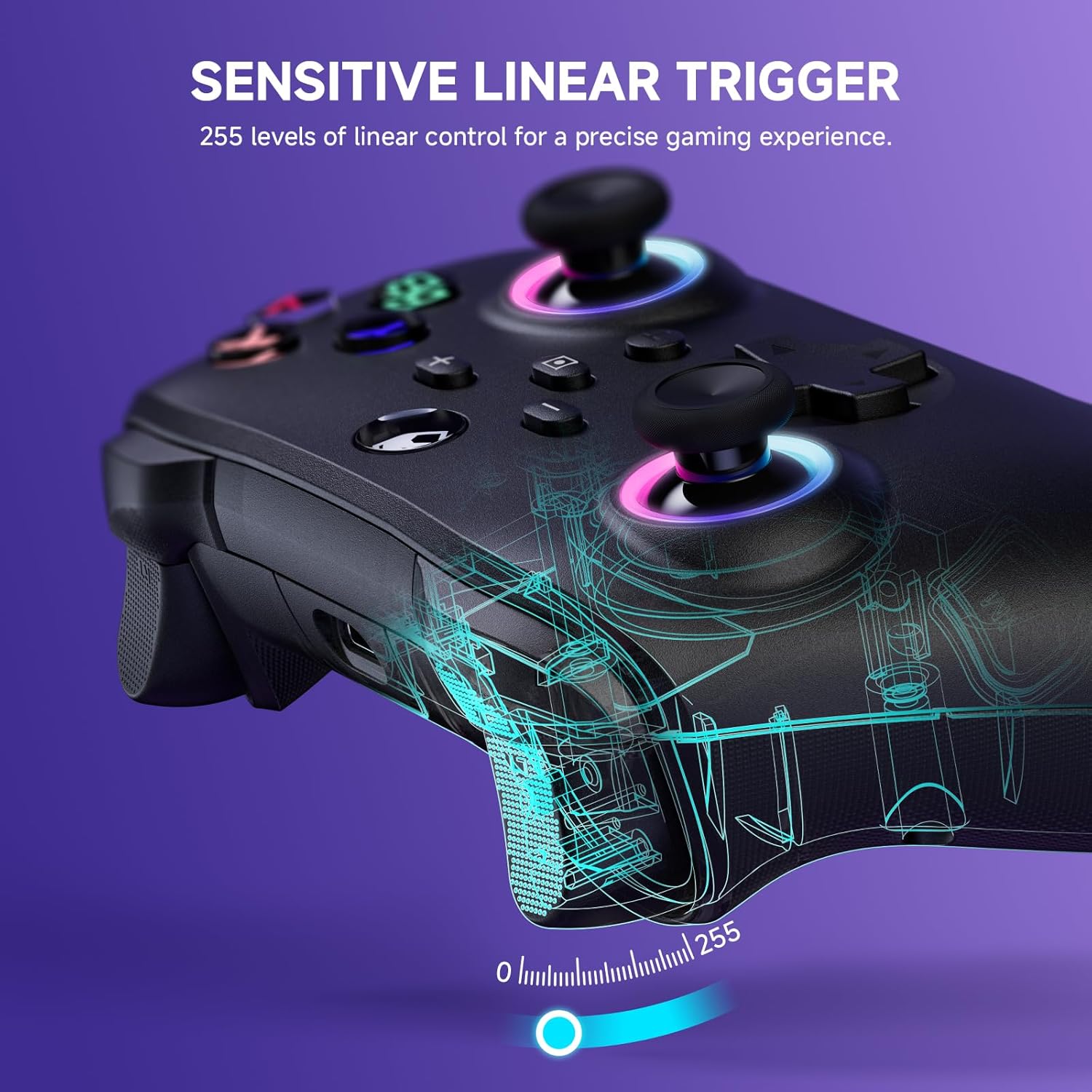
Figure 4.1: Charging the controller and battery life indication.
4.2 Pairing with Devices
The controller supports both wireless (Bluetooth) and wired connections across multiple platforms.
4.2.1 Wireless Connection (Bluetooth)
For the first-time connection, ensure the controller is sufficiently charged.
- Nintendo Switch/Switch Lite: From the HOME Menu, select 'Controllers' > 'Change Grip/Order'. While on this screen, press and hold the Y + HOME buttons on the ECHTPower controller simultaneously until the indicator lights begin to flash rapidly. Once paired, the corresponding player indicator light will illuminate solid.
- iOS/Android: Enable Bluetooth on your mobile device. On the controller, press and hold the Y + HOME buttons until the indicator lights flash. Select 'ECHTPower Controller' from the list of available Bluetooth devices on your phone/tablet.
- PC: Ensure your PC has Bluetooth enabled. Press and hold the Y + HOME buttons on the controller. In your PC's Bluetooth settings, add a new device and select 'ECHTPower Controller'.
For subsequent connections, simply press the HOME button on the controller to wake up and automatically reconnect to the last paired device.
4.2.2 Wired Connection
Connect the controller to your device (e.g., PC, Switch dock) using the USB charging cable. The controller will automatically switch to wired mode. This mode is ideal for stable connections and charging during gameplay.
5. Operating Instructions
5.1 RGB Lighting Effects
The controller features 9 different color effects and 3 distinct light models, with 4 levels of brightness adjustment (25%, 50%, 75%, 100%).
- Default Mode: Breathing cycle when powered on.
- Switching Effects: Press specific key combinations (refer to the quick start guide included with the controller for exact button presses) to cycle through the light effects. The sequence of modes is: Breathing Cycle > Laser Mode > Neon Mode.
- Adjusting Brightness: Use the designated button combination to adjust the brightness levels.

Figure 5.1: RGB Lighting on the controller.
5.2 Programmable Macro Buttons (M1, M2)
The M1 and M2 buttons on the back of the controller can be programmed to map single or multiple button functions, allowing for complex skill execution with a single press.
- Programming: Enter programming mode (refer to the quick start guide for specific button combinations). Select the button(s) you wish to map, then press M1 or M2 to save the macro.
- Usage: Once programmed, pressing M1 or M2 will execute the mapped sequence of actions.
5.3 Turbo Function
The turbo function allows for rapid, automatic pressing of a button, available in both auto and manual modes with three adjustable speeds: 5 rounds/s, 12 rounds/s, and 25 rounds/s.
- Activating Turbo: Select the desired button, then activate turbo mode (refer to the quick start guide for specific button combinations).
- Adjusting Speed: Cycle through the turbo speeds using the designated button combination.

Figure 5.2: Turbo Function illustration.
5.4 Adjustable Dual Vibration
Built-in dual vibration motors provide haptic feedback with four adjustable levels: Strong, Medium, Weak, and None. This enhances game immersion.
- Adjusting Vibration: Press the designated button combination to cycle through the vibration intensity levels to suit your preference.

Figure 5.3: Dual Vibration feature.
5.5 6-Axis Gyro Sensor
The integrated 6-axis gyro sensors enable precise motion perception control, providing a realistic gaming experience, particularly in games that utilize motion controls.
6. Specifications
| Feature | Detail |
|---|---|
| Model Number | B0F845S96R |
| Connectivity | Bluetooth, Wired (USB) |
| Battery Capacity | 1000mAh |
| Charging Time | Approx. 2-3 hours |
| Playing Time | Approx. 6-8 hours (with lights on) |
| Compatibility | Nintendo Switch/Switch Lite, iOS, Android, PC |
| Gyro Sensor | 6-axis |
| Vibration | Dual motors, 4 adjustable levels |
| RGB Lighting | 9 colors, 3 modes, 4 brightness levels |
| Dimensions | 6.3 x 4.72 x 2.72 inches |
| Weight | 9.91 ounces |
7. Maintenance
7.1 Cleaning
To clean the controller, use a soft, dry cloth. Do not use abrasive cleaners, solvents, or strong chemicals, as these may damage the surface or internal components.
7.2 Storage
Store the controller in a cool, dry place away from direct sunlight, extreme temperatures, and high humidity. Avoid placing heavy objects on the controller.
8. Troubleshooting
8.1 Controller Not Connecting/Pairing
- Ensure the controller is fully charged.
- Verify that Bluetooth is enabled on your device.
- Try re-pairing the controller by following the steps in Section 4.2.1.
- If connecting to PC, ensure necessary drivers are installed (usually automatic).
- Try connecting via wired mode to confirm basic functionality.
8.2 Input Lag or Unresponsiveness
- Check the controller's battery level; low battery can affect performance.
- Ensure there are no strong wireless interference sources nearby (e.g., other Bluetooth devices, Wi-Fi routers).
- Try moving closer to the connected device.
- Switch to wired mode to see if the issue persists.
8.3 Buttons or Joysticks Not Responding
- Restart the controller and the connected device.
- Ensure no debris is lodged around the buttons or joysticks.
- If the issue persists, contact customer support.
9. Warranty and Support
The ECHTPower Wireless Controller comes with a standard manufacturer's warranty. Please refer to the warranty card included in your package for specific terms and conditions.
If you encounter any issues not covered in this manual or require further assistance, please do not hesitate to contact ECHTPower customer support. Contact information can typically be found on the product packaging or the official ECHTPower website.
Ask a question about this manual
Ask about setup, troubleshooting, compatibility, parts, safety, or missing instructions. Manuals+ will review the question and use this page’s manual context to help answer it.