
EPOMAKER TH108
EPOMAKER TH108 Mechanical Keyboard User Manual
Model: TH108 | Brand: EPOMAKER
1. Product Overview
The EPOMAKER TH108 is a full-sized mechanical keyboard designed for gaming and office tasks, featuring 108 double-shot PBT keycaps and a robust build. It offers versatile connectivity options including wired USB-C, 2.4GHz wireless, and Bluetooth, ensuring low latency and stable performance across various devices. The keyboard is equipped with an 8000mAh battery for extended wireless use and customizable RGB backlighting.
Key Features:
- Full-Sized 108-Key Layout: Provides a complete set of keys including a Numpad, suitable for both gaming and productivity.
- Tri-Mode Connectivity: Seamlessly switch between wired (USB-C), 2.4GHz wireless, and Bluetooth modes for compatibility with PC, Mac, tablets, and gaming consoles.
- 8000mAh Battery: Offers up to 160 hours of wire-free usage with RGB backlight off, or 28 hours with RGB on.
- Gasket-Mounted Design: Features a 5-layer padded gasket structure for a soft, flexible typing feel and enhanced acoustic performance, reducing resonance and cushioning keystrokes.
- Hot-Swappable PCB: Allows users to easily change 5-pin mechanical switches without soldering, enabling customization of typing feel and sound.
- Customizable RGB Backlight: Dynamic RGB illumination with adjustable color, effect, brightness, and speed to personalize your setup.
- Custom Driver Software: Configure layouts, macros, backlight settings, and keyboard sensitivity for a tailored user experience.

Image: EPOMAKER TH108 Full Size Mechanical Keyboard in Blue&White color scheme with RGB backlighting.
2. Package Contents
Verify that all items are present in your package:
- EPOMAKER TH108 Mechanical Keyboard
- Keycap Puller
- USB Cable (Type-C)
- User Manual
- 2.4Ghz Wireless Receiver

Image: Contents of the EPOMAKER TH108 keyboard package, showing the keyboard, USB cable, keycap puller, and user manual.
Video: An unboxing video demonstrating the contents of the EPOMAKER TH108 keyboard package.
3. Setup and Connection
The EPOMAKER TH108 supports three connection modes: wired USB-C, 2.4GHz wireless, and Bluetooth. Ensure the mode switch located on the top edge of the keyboard is set correctly for your desired connection type.
3.1 Wired Connection (USB-C)
- Locate the USB-C port on the keyboard.
- Set the mode switch to the "USB" position.
- Connect the provided USB-C cable to the keyboard and the other end to your computer's USB port.
- The keyboard will be automatically recognized and ready for use.
3.2 2.4GHz Wireless Connection
- Locate the 2.4GHz wireless receiver stored in the keyboard's underside compartment.
- Set the mode switch to the "2.4G" position.
- Plug the 2.4GHz receiver into an available USB port on your computer.
- The keyboard will automatically connect. The indicator light will stop flashing once connected.
3.3 Bluetooth Connection
- Set the mode switch to the "BT" (Bluetooth) position.
- To enter pairing mode, hold down FN + Q, FN + W, or FN + E for 3-5 seconds. The indicator light above the corresponding key (Q, W, or E) will flash quickly, indicating it's ready to pair.
- On your device (PC, Mac, tablet, phone), open Bluetooth settings and search for "Epomaker TH108-1", "Epomaker TH108-2", or "Epomaker TH108-3" depending on which FN+key combination you pressed.
- Select the keyboard from the list to pair. Once connected, the indicator light will stop flashing.
- You can pair up to three Bluetooth devices and switch between them by short pressing FN + Q, FN + W, or FN + E.

Image: Close-up of the EPOMAKER TH108's connectivity switches for USB-C, 2.4GHz, and Bluetooth modes.
Video: A demonstration of the EPOMAKER TH108's tri-mode connection process, including Bluetooth pairing and 2.4GHz setup.
4. Operating Instructions
The EPOMAKER TH108 offers various functions and customization options to enhance your typing and gaming experience.
4.1 RGB Backlight Control
The keyboard features customizable RGB backlighting. Use the following key combinations to adjust lighting effects:
- FN + \ |: Cycle through backlight modes.
- FN + ↑ / ↓: Adjust backlight brightness.
- FN + ← / →: Adjust backlight speed/direction.
- Specific key combinations for color changes may be available through the custom driver software.
4.2 Hot-Swappable Switches
The TH108's hot-swappable PCB allows you to change mechanical switches without soldering. This enables easy customization of your typing feel and sound.
- Use the provided keycap puller to gently remove the keycap from the switch you wish to replace.
- Use the switch puller (often integrated with the keycap puller) to carefully pull the switch straight up from the PCB.
- Align the pins of the new 5-pin mechanical switch with the holes on the PCB and press it firmly until it clicks into place. Ensure pins are not bent.
- Replace the keycap.
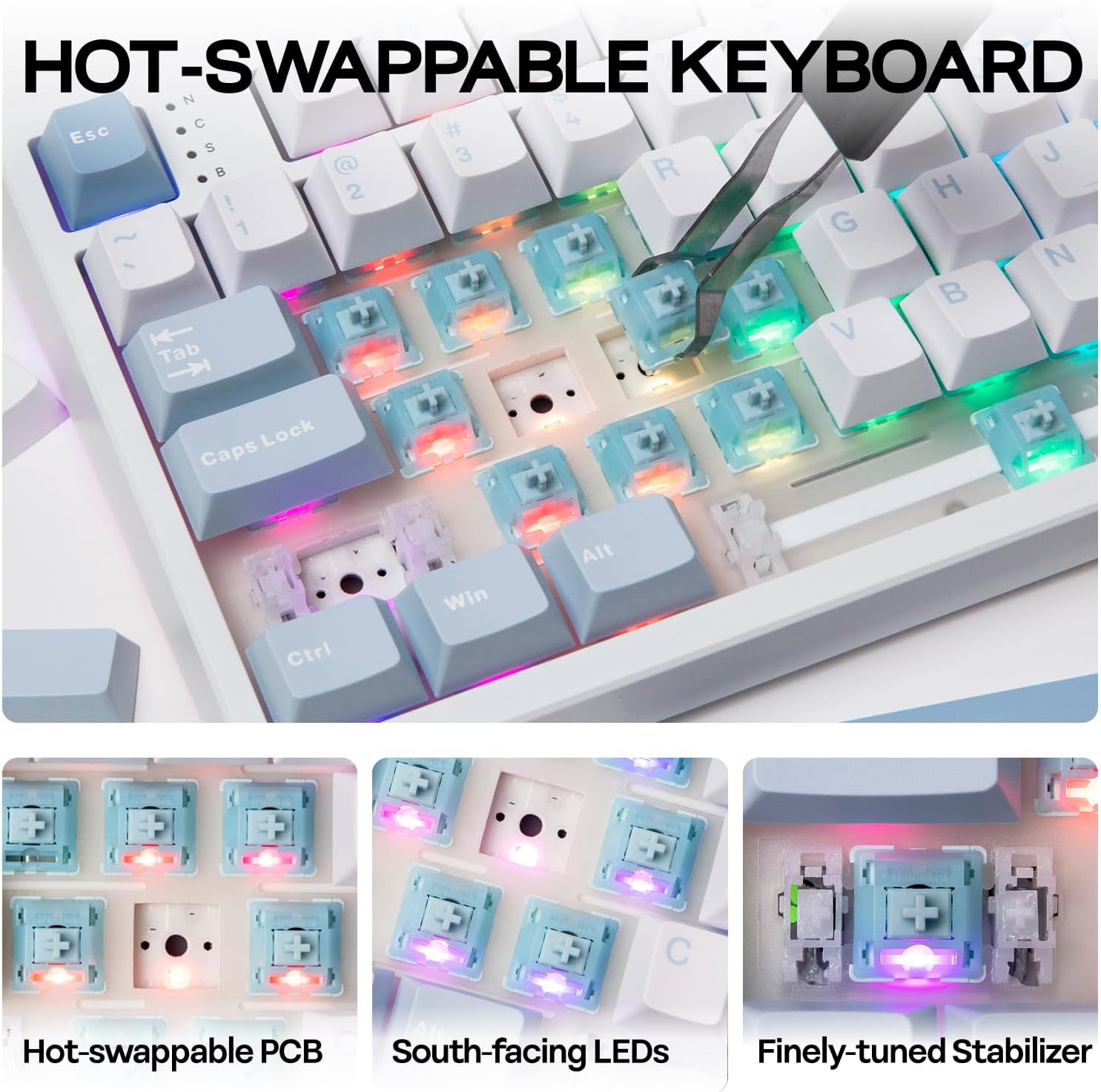
Image: Close-up view of the EPOMAKER TH108's hot-swappable PCB, showing south-facing LEDs and finely-tuned stabilizers.
Video: A comparison of different switch types on the EPOMAKER TH108, demonstrating the hot-swappable feature.
4.3 Custom Driver Software
Download the intuitive custom driver software from the official EPOMAKER website to unlock advanced customization options. With the software, you can:
- Configure key layouts and remap keys.
- Create and assign macros for complex commands.
- Customize RGB backlight effects, colors, and patterns.
- Adjust keyboard sensitivity and polling rate.

Image: Screenshot of the EPOMAKER TH108's customizable software interface, showing options for exclusive config, macro record, lighting mode, user lighting, music rhythm, and system settings.
5. Maintenance
Proper maintenance ensures the longevity and optimal performance of your EPOMAKER TH108 keyboard.
- Cleaning: Regularly clean the keycaps and keyboard body with a soft, dry cloth. For deeper cleaning, remove keycaps using the provided puller and use compressed air to clear debris from between switches.
- Switch Care: If you frequently swap switches, handle them carefully to avoid bending the pins. Store unused switches in a safe, dry place.
- Battery Care: To maximize battery lifespan, avoid fully discharging the keyboard frequently. Charge it when the battery indicator is low.
- Storage: When not in use for extended periods, store the keyboard in a cool, dry place away from direct sunlight and extreme temperatures.
6. Troubleshooting
If you encounter issues with your EPOMAKER TH108, refer to the following common solutions:
- Keyboard Not Responding (Wired):
- Ensure the USB-C cable is securely connected to both the keyboard and the computer.
- Try a different USB port on your computer.
- Verify the mode switch is set to "USB".
- Keyboard Not Connecting (2.4GHz Wireless):
- Ensure the 2.4GHz receiver is properly plugged into a USB port.
- Verify the mode switch is set to "2.4G".
- Try re-pairing by unplugging and re-plugging the receiver, then ensuring the keyboard is in 2.4G mode.
- Keyboard Not Connecting (Bluetooth):
- Ensure the mode switch is set to "BT".
- Confirm the keyboard is in pairing mode (indicator light flashing after holding FN+Q/W/E).
- Remove any previous "Epomaker TH108" entries from your device's Bluetooth list and attempt to pair again.
- Ensure your device's Bluetooth is enabled and discoverable.
- Keys Not Registering or Double-Typing:
- This might indicate a faulty switch. Since the keyboard is hot-swappable, try replacing the problematic switch with a spare one.
- Ensure the switch is fully seated in the PCB.
- RGB Backlight Not Working:
- Check brightness settings (FN + ↑).
- Ensure the keyboard battery has sufficient charge if in wireless mode.
- Reset lighting effects using the custom driver software.
7. Specifications
| Brand | EPOMAKER |
| Model Number | TH108 |
| Layout | Full Size (108 Keys) |
| Connectivity | 2.4Ghz Wireless, Bluetooth, USB-C Wired |
| Battery Capacity | 8000mAh |
| Keycap Material | Double-shot PBT |
| Switches | Hot-Swappable (5-pin compatible) |
| Backlighting | RGB |
| Dimensions | 17.5 x 5.5 x 1.65 inches |
| Item Weight | 3.69 pounds |
| Compatible Devices | Laptop, Smart TV, Gaming Console, PC, Tablet |
8. Warranty and Support
EPOMAKER products typically come with a manufacturer's warranty. Please refer to the official EPOMAKER website or the included user manual PDF for specific warranty terms and conditions.
For technical support, troubleshooting assistance, or to download the latest custom driver software, visit the official EPOMAKER website or contact their customer service.
You can also find the official User Manual (PDF) here.
Related documentsTH108


Ask a question about this manual
Ask about setup, troubleshooting, compatibility, parts, safety, or missing instructions. Manuals+ will review the question and use this page’s manual context to help answer it.