
Introduction
Welcome to the PRT MT610 Pro Thermal Printer user manual. This document provides essential information for setting up, operating, and maintaining your portable thermal printer. The MT610 Pro is a compact, inkless, wireless thermal printer designed for convenience and efficiency, ideal for travel, office, and school use. It supports both Bluetooth and USB connectivity for versatile printing options.
The accompanying carrying case is made of durable, high-quality EVA material, offering excellent shock resistance to protect your printer from bumps and scratches during transport.
Product Features
- Portable Design: Weighs only 1.1 pounds, making it easy to carry in a schoolbag or backpack.
- Inkless Thermal Printing: Utilizes thermal technology, eliminating the need for ink cartridges.
- Wireless Connectivity: Supports Bluetooth connection for iOS and Android devices via the HerePrint mobile app.
- USB Connectivity: Allows printing from computers via USB (driver download required).
- Durable Carrying Case: Lightweight, shock-resistant EVA material protects the printer.
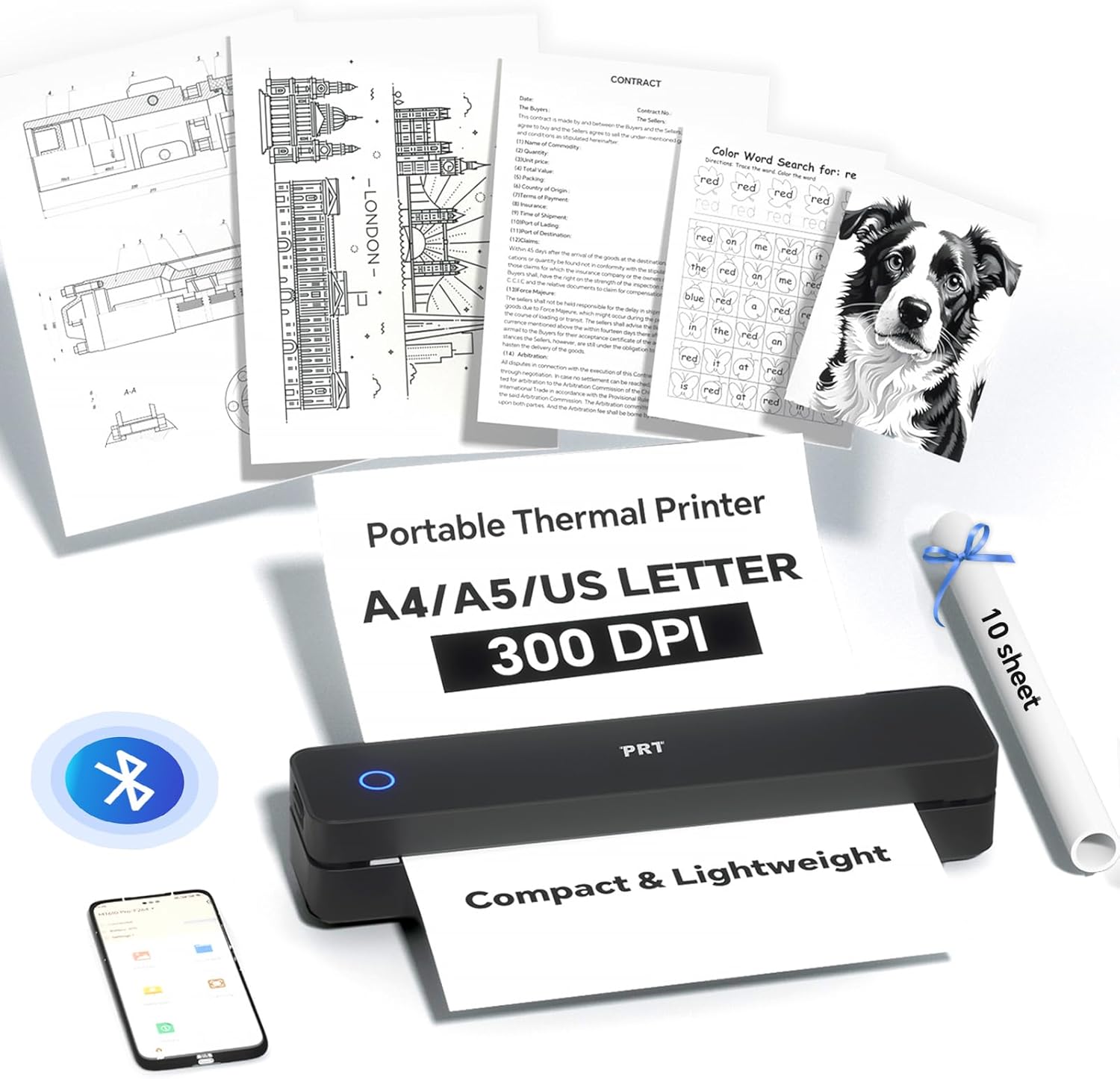
Image: The PRT MT610 Pro Thermal Printer shown with various documents it can print, including text, images, and forms. A roll of thermal paper and a carrying case are also visible, highlighting its versatility and portability.

Image: A close-up of the sleek black carrying case for the PRT MT610 Pro Thermal Printer, featuring a textured exterior and a branded logo.

Image: The PRT MT610 Pro Thermal Printer neatly placed inside its custom-fit carrying case, alongside accessories like charging cables and extra paper rolls.

Image: A detailed view of the carrying case's interior, highlighting its anti-scratch lining, easy organization compartments, and durable construction.

Image: The compact and lightweight carrying case for the PRT MT610 Pro Thermal Printer is shown being easily placed into a backpack, demonstrating its portability.
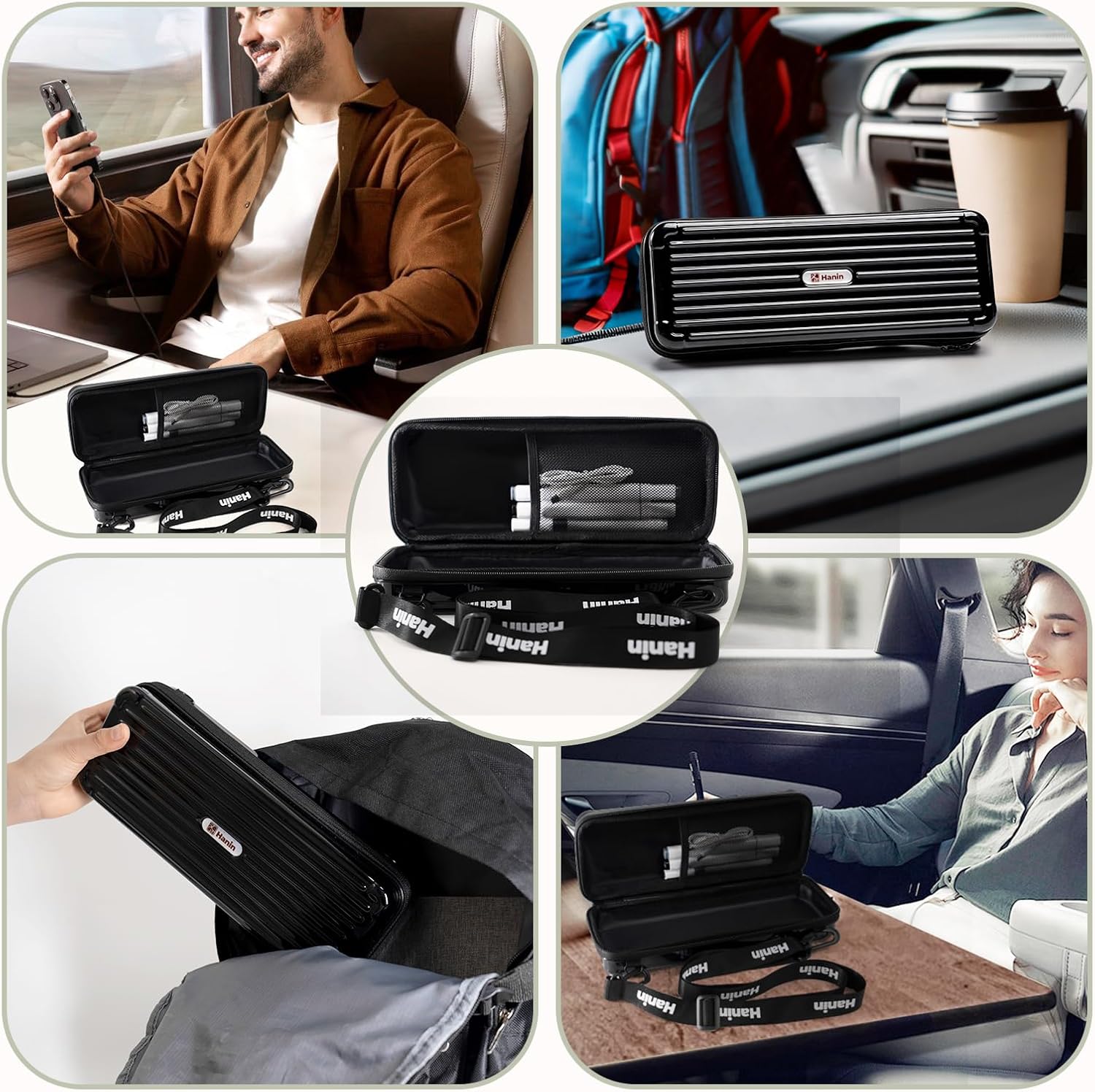
Image: A collage showing the PRT MT610 Pro Thermal Printer being used in different settings: on a train, in a car, at a desk, and being stored in a bag, emphasizing its versatility for mobile printing.

Image: The dimensions of the PRT MT610 Pro Thermal Printer carrying case are displayed, showing it measures 11.2 inches (28.5cm) in length, 4.3 inches (11cm) in width, and 2.7 inches (7cm) in height.

Image: The PRT MT610 Pro Thermal Printer is shown with illustrations of phone printing via Bluetooth (Android/iOS app) and computer printing via USB, along with QR codes for the HerePrint mobile app and driver downloads.
Setup
Follow these steps to set up your PRT MT610 Pro Thermal Printer for first-time use.
- Check Accessory List: Verify all components are present in the package.
- Familiarize with Printer: Identify the power button, indicator light, cover open buttons, paper output slot, reset hole, and Type-C charger port.
- Remove Protective Paper: If your printer contains disposable protective paper, press the cover open buttons and remove it in the direction of the arrow. Close the cover securely until it clicks.
- Turn On Printer: Press and hold the power button for 3 seconds. The indicator light will turn red if no paper is loaded, or green if paper is loaded.
- Connect Power: Use the original USB cable for charging and data transmission. The printer's light will turn on when successfully connected to a power source.
- Feed Paper: The printer requires specialized thermal paper. Place the non-printing side of the paper facing downwards. Insert the paper into the paper guide slot until the printer automatically pulls it in and the indicator light turns green.
- Download App: Download the "HerePrint" app from Google Play or the App Store.
- Connect Printer to App: Open the HerePrint app and follow the on-screen instructions to connect your printer via Bluetooth.
Video: This quick start guide video demonstrates the unboxing, identification of printer components, removal of protective paper, powering on, connecting the power cable, loading thermal paper, and connecting the printer to the mobile app for printing.
Operating Instructions
Once your PRT MT610 Pro Thermal Printer is set up, you can begin printing documents and images.
- Printing via Bluetooth (Mobile App):
- Ensure your printer is connected to the "HerePrint" app via Bluetooth.
- Within the app, select the document or image you wish to print.
- Adjust print settings such as density, paper size, and number of copies.
- Tap "Print" to send the job to your printer.
- Printing via USB (Computer):
- Download the necessary printer drivers from the official PRT website (refer to the QR code on the printer or in the app for the link).
- Connect your printer to your computer using the provided USB-C cable.
- Open the document or image on your computer and select the PRT MT610 Pro as your printer.
- Adjust print settings as needed and initiate printing.
Maintenance
To ensure optimal performance and longevity of your PRT MT610 Pro Thermal Printer, follow these maintenance guidelines:
- Cleaning the Print Head: Regularly clean the thermal print head with a soft, lint-free cloth lightly dampened with isopropyl alcohol. Ensure the printer is off and cooled down before cleaning.
- Paper Handling: Always use high-quality thermal paper recommended for the MT610 Pro. Store thermal paper in a cool, dry place away from direct sunlight or excessive heat to prevent premature discoloration.
- Battery Care: Charge the printer regularly, even if not in frequent use, to maintain battery health. Avoid completely draining the battery for extended periods.
- Storage: When not in use, store the printer in its protective carrying case to prevent dust accumulation and physical damage.
Troubleshooting
If you encounter issues with your PRT MT610 Pro Thermal Printer, refer to the following common troubleshooting tips:
- Printer Not Connecting:
- Ensure Bluetooth is enabled on your device and the printer is powered on.
- Restart both the printer and your device.
- Forget the device in your Bluetooth settings and re-pair.
- Verify the HerePrint app is up to date.
- Poor Print Quality:
- Check if the thermal paper is loaded correctly with the non-printing side facing the print head.
- Clean the print head as described in the Maintenance section.
- Ensure the thermal paper is not old or damaged.
- Adjust print density settings in the app or computer driver.
- Paper Jams:
- Turn off the printer. Open the top cover and carefully remove any jammed paper.
- Ensure the paper is inserted straight and aligned with the paper guides.
- Use only recommended thermal paper.
- Printer Not Powering On:
- Ensure the battery is charged. Connect the printer to a power source using the provided USB cable.
- If the issue persists, try resetting the printer using the reset hole (refer to printer diagram).
For further assistance, please contact customer support.
Specifications
| Attribute | Detail |
|---|---|
| Brand | PRT |
| Model | MT610 Pro |
| Printing Technology | Thermal (Inkless) |
| Connectivity | Bluetooth, USB Type-C |
| Weight | 1.1 pounds |
| ASIN | B0F83JQKWW |
| Date First Available | March 18, 2025 |
Warranty & Support
Your PRT MT610 Pro Thermal Printer comes with a standard manufacturer's warranty. Please refer to the product packaging or the official PRT website for specific warranty terms and conditions.
For technical support, troubleshooting, or warranty claims, please contact PRT customer service:
- Email: support@phomemo.com
- WhatsApp: +86 15338193665
- Office Hours: Mon-Fri 9AM-5PM (EST)


