
1. Introduction
This manual provides instructions for the use and maintenance of Celly Thermal Paper Rolls, model KIDSTHPAPER5. These rolls are specifically designed for the KIDSCAMPRINT mini printer, enabling the printing of black and white photographs.
2. Product Overview
The Celly Thermal Paper Rolls are designed to provide clear, black and white prints from compatible thermal printers, specifically the KIDSCAMPRINT children's camera. Each roll allows for approximately 70 prints.
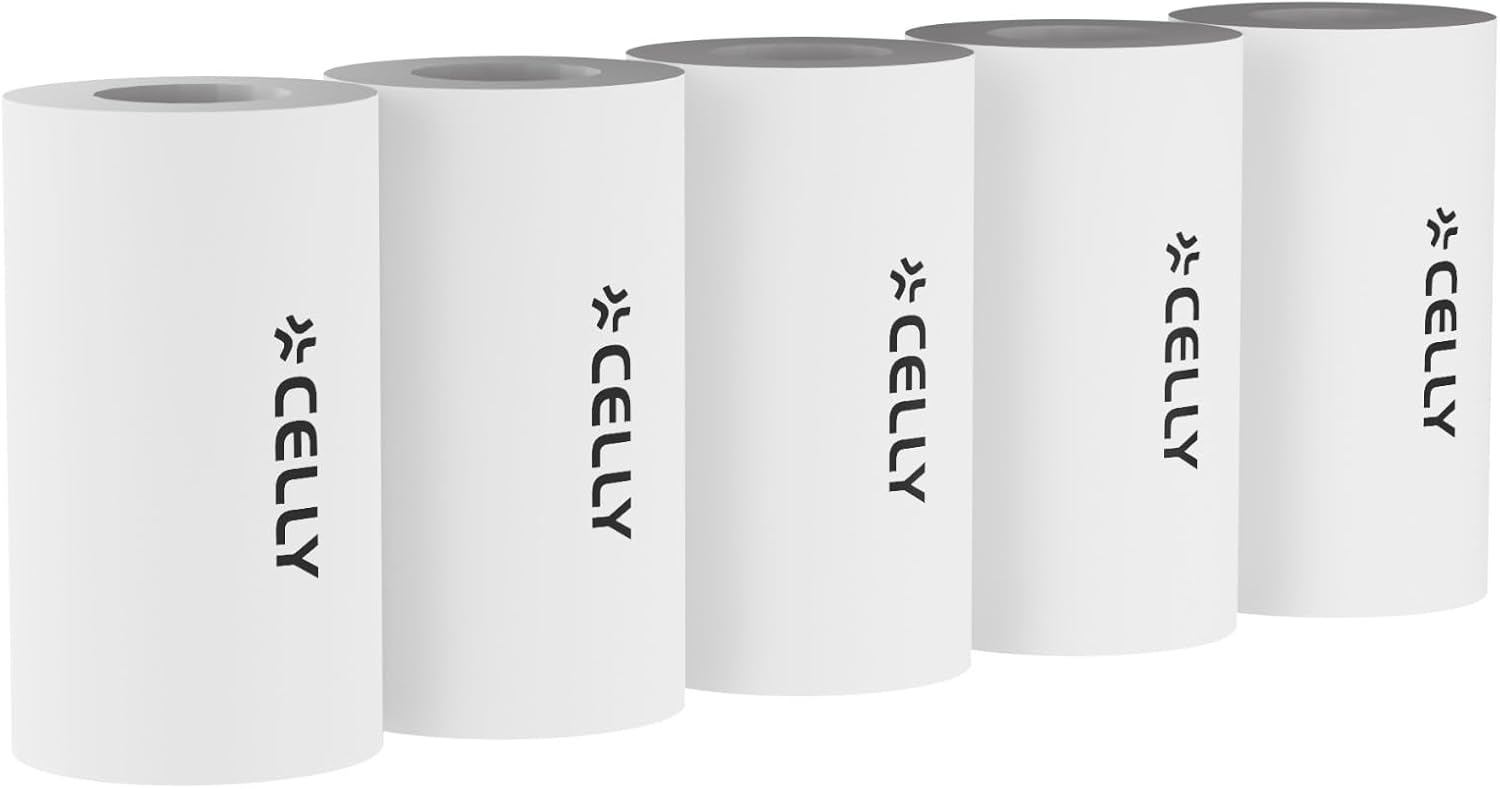
Image 2.1: Celly Thermal Paper Rolls. This image displays five individual rolls of thermal paper, each featuring the Celly brand logo printed vertically on its side. The rolls are white and cylindrical, indicating their purpose for thermal printing devices.

Image 2.2: Celly Thermal Paper Rolls Packaging. This image shows the product packaging, a white box with black accents. The text "Celly thermal paper rolls" is visible, along with a graphic representation of five paper rolls, confirming the product quantity.
3. Setup and Installation
- Prepare the Printer: Ensure your KIDSCAMPRINT camera is powered off before installing or replacing paper rolls.
- Open the Paper Compartment: Locate and open the paper compartment cover on your KIDSCAMPRINT camera. Refer to your camera's specific manual for exact instructions on opening the compartment.
- Insert the Roll: Place a new Celly thermal paper roll into the compartment. Ensure the paper feeds out from the bottom of the roll and is positioned correctly for the printer mechanism.
- Close the Compartment: Gently pull a small length of paper out of the compartment and then close the cover securely. The paper should protrude slightly from the printer's output slot.
- Tear Off Excess: If necessary, tear off any excess paper protruding from the slot to ensure a clean start.
4. Operating Instructions
Once the thermal paper roll is correctly installed, the KIDSCAMPRINT camera is ready for use. The printing process is managed by the camera itself.
- Taking Photos: Use your KIDSCAMPRINT camera as instructed in its user manual to capture images.
- Printing: After capturing an image, select the print option on your KIDSCAMPRINT camera. The camera will automatically feed the thermal paper and print the image in black and white.
- Removing Prints: Once printing is complete, gently tear the printed photo upwards against the printer's cutting edge.
Each roll provides approximately 70 prints. Replace the roll when the paper runs out or when print quality degrades significantly.
5. Maintenance and Storage
- Storage: Store thermal paper rolls in a cool, dry place away from direct sunlight and excessive heat. Exposure to heat or light can cause the paper to darken prematurely or reduce print longevity.
- Handling: Avoid touching the thermal surface of the paper with bare hands more than necessary, as oils and dirt can affect print quality.
- Cleaning: Do not attempt to clean the thermal paper rolls. If the printer's print head requires cleaning, refer to the KIDSCAMPRINT camera's user manual.
6. Troubleshooting
| Problem | Possible Cause | Solution |
|---|---|---|
| No print or faint print | Paper installed incorrectly (upside down), paper roll empty, or printer head issue. | Check paper orientation, replace roll if empty. If problem persists, consult KIDSCAMPRINT camera manual for printer head cleaning/troubleshooting. |
| Paper jam | Incorrect paper insertion, damaged roll, or foreign object in compartment. | Power off camera, open compartment, carefully remove jammed paper. Reinsert new roll correctly. |
| Poor print quality (streaks, dots) | Dust on printer head, old/damaged paper, or paper exposed to heat/light. | Clean printer head (refer to camera manual). Replace with a fresh roll of paper. Ensure proper storage of paper. |
7. Specifications
- Product Name: Celly Thermal Paper Rolls
- Model Number: KIDSTHPAPER5
- Brand: Celly
- Compatibility: Specifically designed for KIDSCAMPRINT mini printers
- Print Type: Black and White Thermal Printing
- Prints per Roll: Approximately 70 photos
- Quantity: 5 rolls per pack
- Paper Finish: Uncoated
- Color: White
8. Warranty and Support
For information regarding warranty coverage for Celly products, please refer to the warranty documentation provided with your KIDSCAMPRINT camera or visit the official Celly website. This thermal paper is a consumable accessory.
For technical support or further assistance, please contact Celly customer service through their official website or the retailer from whom the product was purchased.
Celly Official Website: www.celly.com
