
SUPVAN E11
SUPVAN E11 Bluetooth Label Maker Machine User Manual
Model: E11 | Brand: SUPVAN
1. Introduction
This manual provides detailed instructions for the setup, operation, and maintenance of your SUPVAN E11 Bluetooth Label Maker Machine. The E11 is designed for efficient and versatile labeling tasks, featuring both a physical keyboard and smart app connectivity for creating customized labels. It utilizes thermal printing technology, eliminating the need for ink or toner, and is powered by a rechargeable battery for portability.

Image: The SUPVAN E11 Label Maker demonstrating its inkless thermal printing capability with thermal paper.
2. What's in the Box
Please verify that all the following items are included in your package:
- SUPVAN E11 Label Maker Machine
- USB-C Charging Cable
- White Continuous Label Tape (1 roll)
- User Manual

Image: A visual representation of the SUPVAN E11 Label Maker, USB-C cable, a roll of white label tape, and the user manual, indicating the package contents.
3. Product Overview
The SUPVAN E11 Label Maker features a compact design with an integrated QWERTY keyboard and a clear display for direct input. It includes dedicated function keys for various settings and a side slot for label tape output. The device is powered by a built-in rechargeable battery.

Image: The SUPVAN E11 Bluetooth Label Maker Machine, showcasing its physical keyboard and a smartphone screen displaying the companion app interface.
4. Setup
4.1 Charging the Device
Before first use, fully charge the label maker. Connect the provided USB-C cable to the charging port on the device and plug the other end into a compatible USB power adapter (not included). The device features a built-in 1200 mAh rechargeable battery.
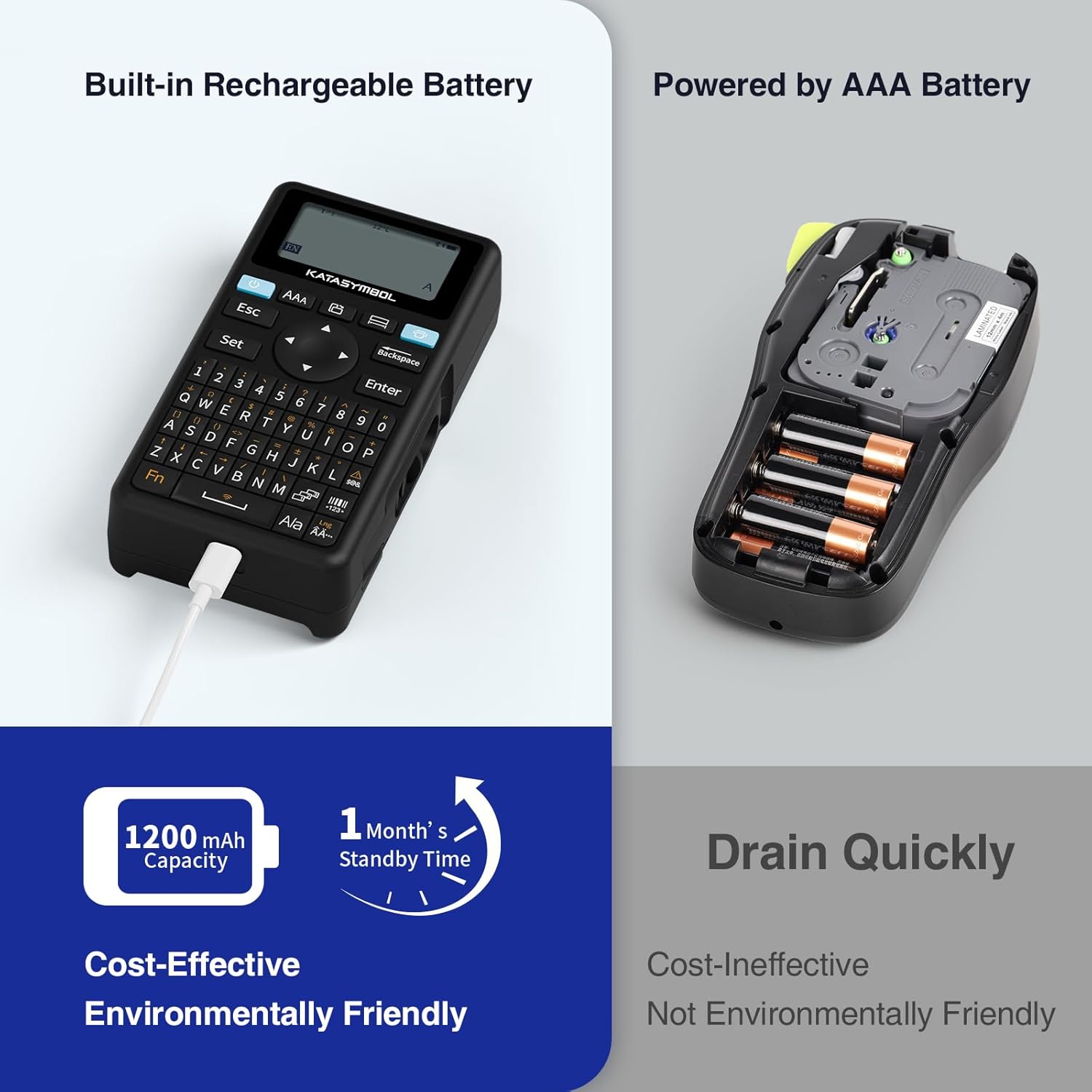
Image: The SUPVAN E11 Label Maker highlighting its built-in rechargeable battery and USB-C charging port.
4.2 Loading Label Tape
- Open the tape compartment cover on the back of the label maker.
- Insert the label tape roll into the compartment, ensuring the tape feeds correctly through the output slot. The tape should be positioned with the printable side facing up.
- Close the compartment cover securely.
4.3 App Installation (for Bluetooth Printing)
To utilize the smart app features, download the 'Katasymbol' app from your device's app store (Google Play Store or Apple App Store). Ensure Bluetooth is enabled on your smartphone or tablet.
5. Operating Instructions
5.1 Printing via Keyboard
- Press the power button to turn on the device.
- Use the QWERTY keyboard to type your desired label text.
- Adjust font size, style, or other settings using the dedicated function keys.
- Press the 'Print' button to generate the label.
5.2 Printing via Bluetooth App
- Ensure the label maker is powered on and Bluetooth is active on your mobile device.
- Open the 'Katasymbol' app and connect to your E11 label maker via Bluetooth.
- Use the app interface to design your label, including text, fonts, icons, and frames.
- Preview your label and then tap the 'Print' button in the app.
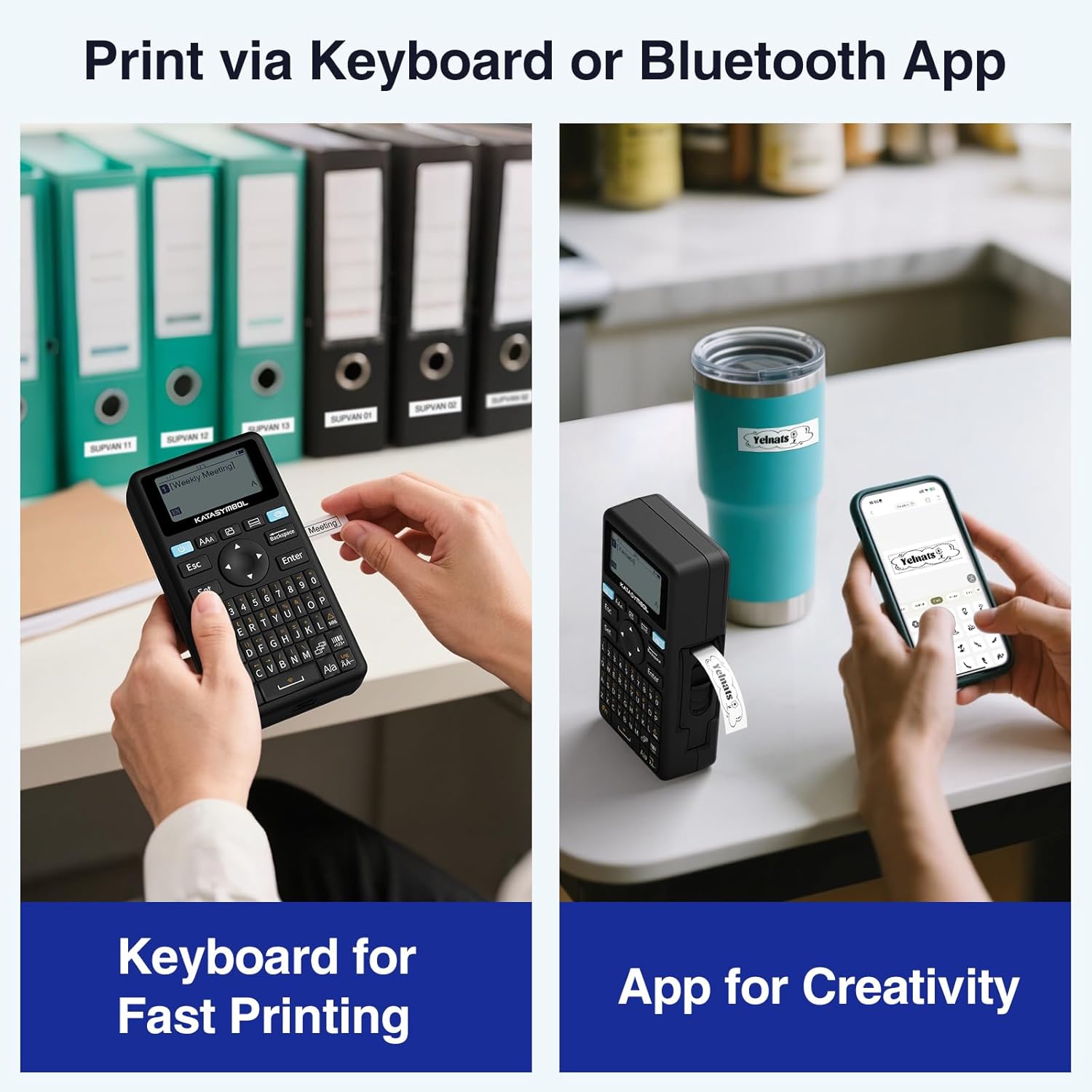
Image: A comparison showing two methods of printing with the SUPVAN E11: direct input via the physical keyboard and design/print via the Bluetooth-connected smartphone app.
5.3 App Features
The companion app offers extensive customization options:
- Fonts: Access to 40+ fonts.
- Icons: Choose from 650+ icons.
- Frames: Utilize 50+ frames for label borders.
- Templates: Create and save custom label templates.
- Language Support: Supports 17 languages, including Spanish and French.

Image: A smartphone screen displaying the SUPVAN E11 app interface, highlighting the wide range of editing functions including fonts, icons, and frames available for label customization.
5.4 Label Types and Features
The E11 supports both continuous and fixed-size labels. It features minimal margin printing (approximately 0.2 inches), reducing tape waste. Labels are designed to be waterproof, heat-resistant, low-temperature resistant, and BPA-free, making them suitable for various environments.

Image: A close-up of a label printed by the SUPVAN E11, illustrating the minimal margin feature (0.2 inches) compared to other label makers.
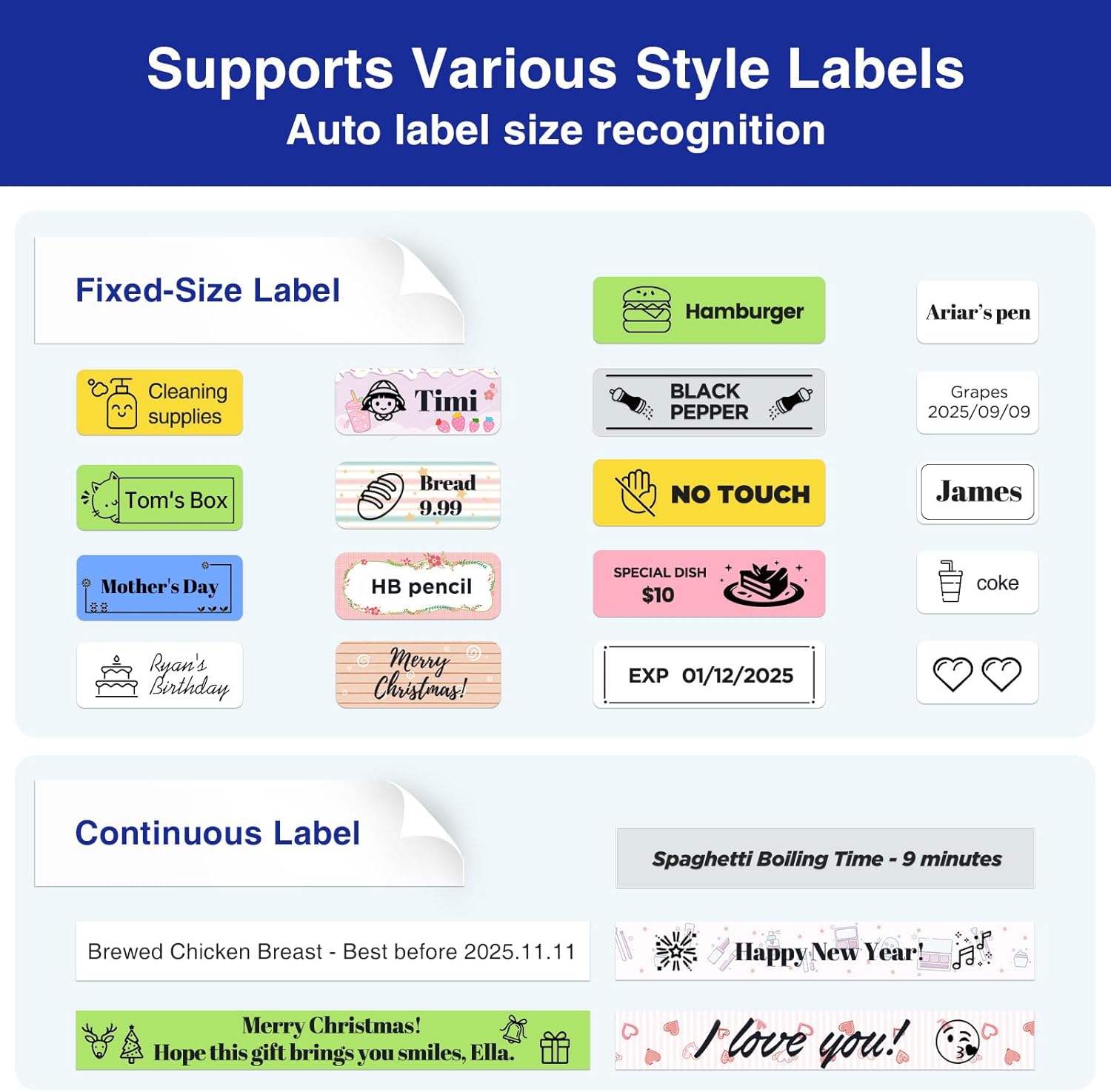
Image: Examples of various label styles and applications, including fixed-size labels for items like food and continuous labels for longer text, demonstrating the versatility of the SUPVAN E11.
6. Maintenance
- Cleaning: Use a soft, dry cloth to clean the exterior of the label maker. Do not use abrasive cleaners or solvents.
- Print Head: If print quality degrades, gently clean the thermal print head with a cotton swab lightly dampened with isopropyl alcohol. Ensure the device is off and dry before use.
- Storage: Store the label maker and tape rolls in a cool, dry place away from direct sunlight and extreme temperatures.
7. Troubleshooting
If you encounter issues with your SUPVAN E11 Label Maker, please refer to the following common solutions:
- Device not turning on: Ensure the battery is charged. Connect the USB-C cable and allow it to charge for at least 30 minutes before attempting to power on again.
- Poor print quality: Check if the label tape is loaded correctly. Clean the print head as described in the Maintenance section. Ensure you are using genuine SUPVAN thermal label tape.
- Bluetooth connectivity issues: Ensure Bluetooth is enabled on both the label maker and your mobile device. Restart both devices and try reconnecting through the 'Katasymbol' app.
- Label tape jamming: Verify the tape is inserted smoothly and not creased. Remove any jammed tape carefully.
- Label maker turns off unexpectedly: This may indicate a low battery. Recharge the device.
For further assistance, please contact SUPVAN customer support.
8. Specifications
| Model Name | E11 |
| Brand | SUPVAN |
| Product Dimensions | 5.7"D x 2.9"W x 1.3"H |
| Item Weight | 0.705 ounces (20 Grams) |
| Connectivity Technology | Bluetooth, USB Type C |
| Printing Technology | Thermal |
| Printer Output | Monochrome |
| Maximum Black and White Print Resolution | 203 Dots Per Inch |
| Maximum Media Size | 1/2 inch |
| Battery | 1200 mAh Rechargeable (1 AA battery equivalent included) |
| Special Features | Fast Keyboard, Minimal Margin, Rechargeable Battery, Smart App, Wide Label Compatibility |
9. Warranty and Support
For warranty information and customer support, please refer to the official SUPVAN website or contact their customer service directly. Contact details can typically be found on the product packaging or the SUPVAN official website.
10. Official Product Video
Watch the official product video for a visual guide on using your SUPVAN E11 Label Maker.
Video: An official product video demonstrating the features and usage of the SUPVAN E11 Label Maker Machine, including charging, keyboard printing, app printing, and tape loading.
Related documentsE11


Ask a question about this manual
Ask about setup, troubleshooting, compatibility, parts, safety, or missing instructions. Manuals+ will review the question and use this page’s manual context to help answer it.