
1. Introduction
This manual provides detailed instructions for the safe and efficient operation of your SUPVAN E11 Bluetooth Label Maker. Please read this manual thoroughly before using the device and retain it for future reference.
2. Product Overview
The SUPVAN E11 is a versatile, portable label maker designed for various labeling needs in home, kitchen, office, and school environments. It supports both direct keyboard input and smart app control via Bluetooth, offering extensive customization options without the need for ink or toner.
Key Features:
- Quick Printing via Keyboard & Smart App: Print directly from the integrated keyboard for frequent labeling tasks or design custom labels using the Bluetooth-enabled app.
- Portable with Rechargeable Battery: Compact (14×7×3 cm) and lightweight (227 g) with a 1200 mAh battery, providing up to 1 month of standby time for mobile and efficient labeling.
- Minimized Print Margins: Prints labels with only 0.5 cm margins, reducing material waste and maximizing efficiency.
- Advanced Editing Functions in the App: Customize labels with over 40 fonts, 50 frames, and 450+ icons. Create and save templates offline, all available for free.
- Compatibility with Various Label Types: Supports continuous, fixed-size, and cable labels, suitable for long texts, batch printing, and cable identification.
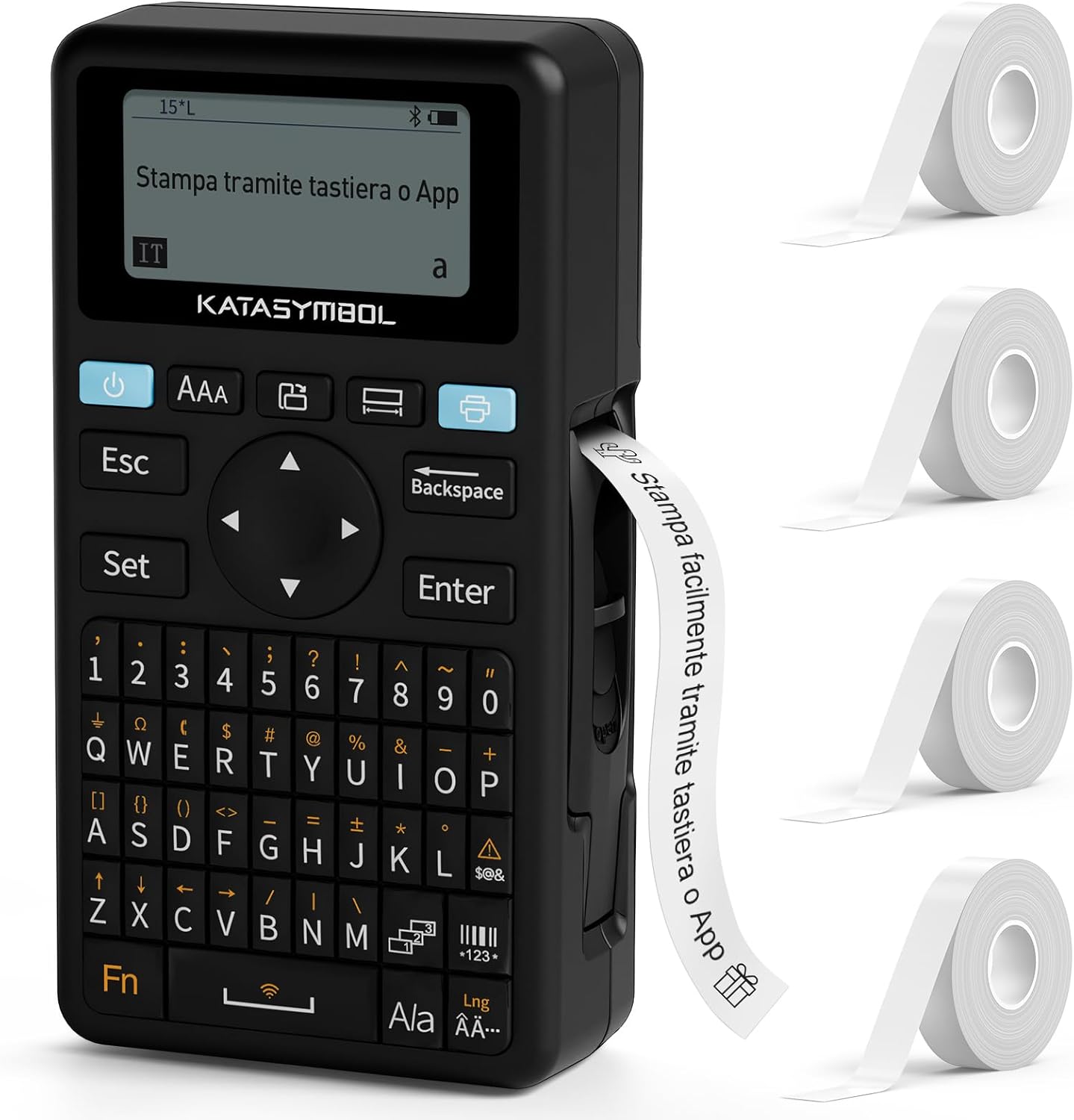
Image: The SUPVAN E11 label maker shown with four rolls of white label tape.

Image: Demonstrates printing using the integrated keyboard and designing labels via a smartphone app connected via Bluetooth.
3. Setup
3.1 Unpacking and Initial Inspection
- Carefully remove all components from the packaging.
- Verify that all items listed in the packing list are present.
- Inspect the device for any signs of damage. If damaged, do not use and contact customer support.

Image: Displays the SUPVAN E11 label maker, four rolls of white label tape, a USB-C charging cable, and the user manual.
3.2 Charging the Device
- Connect the provided USB-C cable to the charging port on the label maker and to a compatible USB power adapter (not included).
- The charging indicator will illuminate. Allow the device to fully charge before first use.

Image: Highlights the integrated 1200 mAh rechargeable battery, offering up to one month of standby time.
3.3 Installing Label Tape
- Open the label compartment cover.
- Insert a roll of SUPVAN label tape, ensuring the tape feeds correctly through the guide.
- Close the compartment cover securely.

Image: Illustrates the process of inserting thermal label paper into the SUPVAN E11 label maker, emphasizing that no ink or toner is required.
3.4 App Installation (Optional)
- Download the official SUPVAN app from your device's app store (Android and iOS compatible).
- Enable Bluetooth on your smartphone or tablet.
- Open the app and follow the on-screen instructions to pair with your E11 label maker.
4. Operating Instructions
4.1 Powering On/Off
- To power on, press and hold the power button until the screen illuminates.
- To power off, press and hold the power button until the device shuts down.
4.2 Printing from Keyboard
- Turn on the label maker.
- Use the QWERTY keyboard to type your desired text.
- Press the 'Print' button to print the label.
4.3 Printing via App (Bluetooth)
- Ensure the label maker is powered on and paired with the app.
- Open the SUPVAN app on your smartphone/tablet.
- Select a template or create a new label design.
- Utilize the app's editing features (fonts, icons, frames) to customize your label.
- Tap the 'Print' button within the app to send the label to the E11.

Image: Illustrates the two printing methods: direct input via the QWERTY keyboard and advanced editing and printing via the connected smartphone app.

Image: Showcases the app's extensive customization options, including over 40 fonts, 50 frames, 450+ icons, and support for barcodes and QR codes.
4.4 Label Types and Applications
The E11 supports various label types for diverse applications:
- Fixed-Size Labels: Ideal for standard item identification (e.g., food containers, office files).
- Continuous Labels: Suitable for longer texts or custom lengths.
- Cable Labels: Designed for organizing and identifying cables.
- Round Labels: Perfect for small items or decorative purposes.

Image: Displays examples of different label types supported by the E11, including cut-to-print, continuous roll, round, and cable labels.

Image: Shows various practical applications of the label maker, such as labeling bottles, office binders, storage boxes, and notebooks.
5. Maintenance
5.1 Cleaning the Print Head
- Ensure the device is powered off before cleaning.
- Gently wipe the print head with a soft, lint-free cloth moistened with isopropyl alcohol.
- Allow the print head to dry completely before use.
5.2 Battery Care
- Charge the battery regularly, even if the device is not in frequent use, to maintain battery health.
- Avoid exposing the device to extreme temperatures.
5.3 Label Storage
- Store label rolls in a cool, dry place away from direct sunlight to prevent degradation.
6. Troubleshooting
Common Issues and Solutions:
| Problem | Possible Cause | Solution |
|---|---|---|
| Device does not power on | Low battery; Device malfunction | Charge the device; Contact support if issue persists |
| Poor print quality | Dirty print head; Incorrect label type; Low battery | Clean print head; Ensure correct label tape is used; Charge device |
| Labels not feeding correctly | Improper tape installation; Tape jammed | Reinstall label tape correctly; Clear any jams carefully |
| Cannot connect via Bluetooth | Bluetooth off; Device not paired; App issue | Ensure Bluetooth is on; Re-pair device in app; Restart app/device |
7. Specifications
- Brand: SUPVAN
- Model: E11
- Product Dimensions: 17 x 9 x 5.2 cm
- Item Weight: 230 grams
- Battery: 1 Lithium Polymer (1200 mAh)
- Connectivity Technology: Bluetooth
- Printing Technology: Thermal
- Max Paper Size Supported: 15 mm x 6 m
- Max Print Resolution (Black & White): 203 dpi
- Max Print Speed (Black & White): 40 Pages per minute (Note: This is a standard printer metric, actual label printing speed may vary)
- Interface: USB-C (for charging)
- Input Interface: Keyboard
- Controller Type: Android and iOS (via app)
- Special Features: Portable, Inkless Printing, Minimized Margins
8. Warranty and Support
8.1 Warranty Information
Please refer to the warranty card included with your product for specific warranty terms and conditions. Typically, SUPVAN products come with a limited warranty covering manufacturing defects from the date of purchase.
8.2 Customer Support
For technical assistance, troubleshooting, or warranty claims, please contact SUPVAN customer support through the official website or the contact information provided in your product packaging. You can also visit the SUPVAN Brand Store for more information.


