
1. Introduction
Thank you for choosing the CUNPU 27-inch 2K QHD 120Hz IPS Monitor. This manual provides essential information for setting up, operating, and maintaining your monitor. Please read it thoroughly before use to ensure proper functionality and to maximize your viewing experience.
2. Safety Information
- Do not expose the monitor to rain or moisture to avoid fire or electric shock hazards.
- Do not open the monitor casing. There are no user-serviceable parts inside. Refer all servicing to qualified personnel.
- Place the monitor on a stable, flat surface to prevent it from falling.
- Ensure proper ventilation around the monitor. Do not block ventilation openings.
- Use only the power adapter supplied with the monitor.
- Disconnect the power cable from the outlet during lightning storms or when unused for long periods.
3. What's in the Box
Verify that all components are present:
- 1x CUNPU 27-inch Monitor
- 1x Monitor Stand
- 1x 12V4A Power Supplier
- 1x HDMI Cable
- 1x User Manual
4. Setup
4.1 Physical Assembly (Stand / VESA Mount)
To assemble the monitor stand, align the stand base with the monitor's mounting point and secure it with the provided screws. For VESA mounting, follow the instructions below. The monitor supports a 100x100mm VESA mount.

Image: Monitor rear view showing 100x100mm VESA mounting points.
For detailed VESA installation instructions, please refer to the video below:
Video: VESA Installation Guide. This video demonstrates how to properly install a VESA mount to the monitor using the provided screws and caps.
4.2 Connectivity
Connect your devices to the monitor using the available ports:
- HDMI 2.0: Connect to devices like PCs, gaming consoles (Xbox, PS5), or other HDMI-enabled devices. Supports QHD 2560x1440 resolution at 120Hz.
- DisplayPort 1.4 (DP): Connect to PCs or other DP-enabled devices for high-resolution and high-refresh-rate output. Supports QHD 2560x1440 resolution at 120Hz.
- USB: For powering devices.
- Audio Out: Connect external speakers or headphones.
- DC Power Input: Connect the provided 12V4A power adapter.

Image: Monitor dimensions and port layout for HDMI, DP, USB, Audio Out, and DC power.
5. Operating Instructions
5.1 Power On/Off
Press the power button located on the monitor to turn it on or off. The power indicator light will illuminate when the monitor is active.
5.2 On-Screen Display (OSD) Menu
The OSD menu allows you to adjust various monitor settings. Use the control buttons (usually located on the back or bottom of the monitor) to navigate the menu and make selections. Common settings include:
- Brightness/Contrast: Adjust the overall luminance and contrast ratio. The monitor features 300nit brightness and a 1000:1 contrast ratio.
- Color Settings: Fine-tune color temperature, gamma, and saturation. The IPS panel offers 99% sRGB coverage and 16.7 million colors for vibrant visuals.
- Resolution & Refresh Rate: Ensure your device is set to 2560x1440 (QHD) resolution and 120Hz refresh rate for optimal performance.
- Adaptive Sync: Enable Adaptive Sync (FreeSync & G-Sync compatible) to eliminate screen tearing and stuttering during gaming or fast-paced video content.
- HDR: High Dynamic Range can be enabled to enhance contrast between dark and light areas, revealing more details and bringing immersive visuals.
- Eye Care: Activate anti-blue light and flicker-free technologies to reduce eye strain during extended use.

Image: Visual representation of the monitor's color performance, highlighting 100% sRGB, 300cd/m² brightness, and 16.7 million display colors.

Image: Monitor showcasing 120Hz refresh rate for smooth visuals.

Image: Comparison of Adaptive Sync on vs. off, demonstrating tear-free performance.
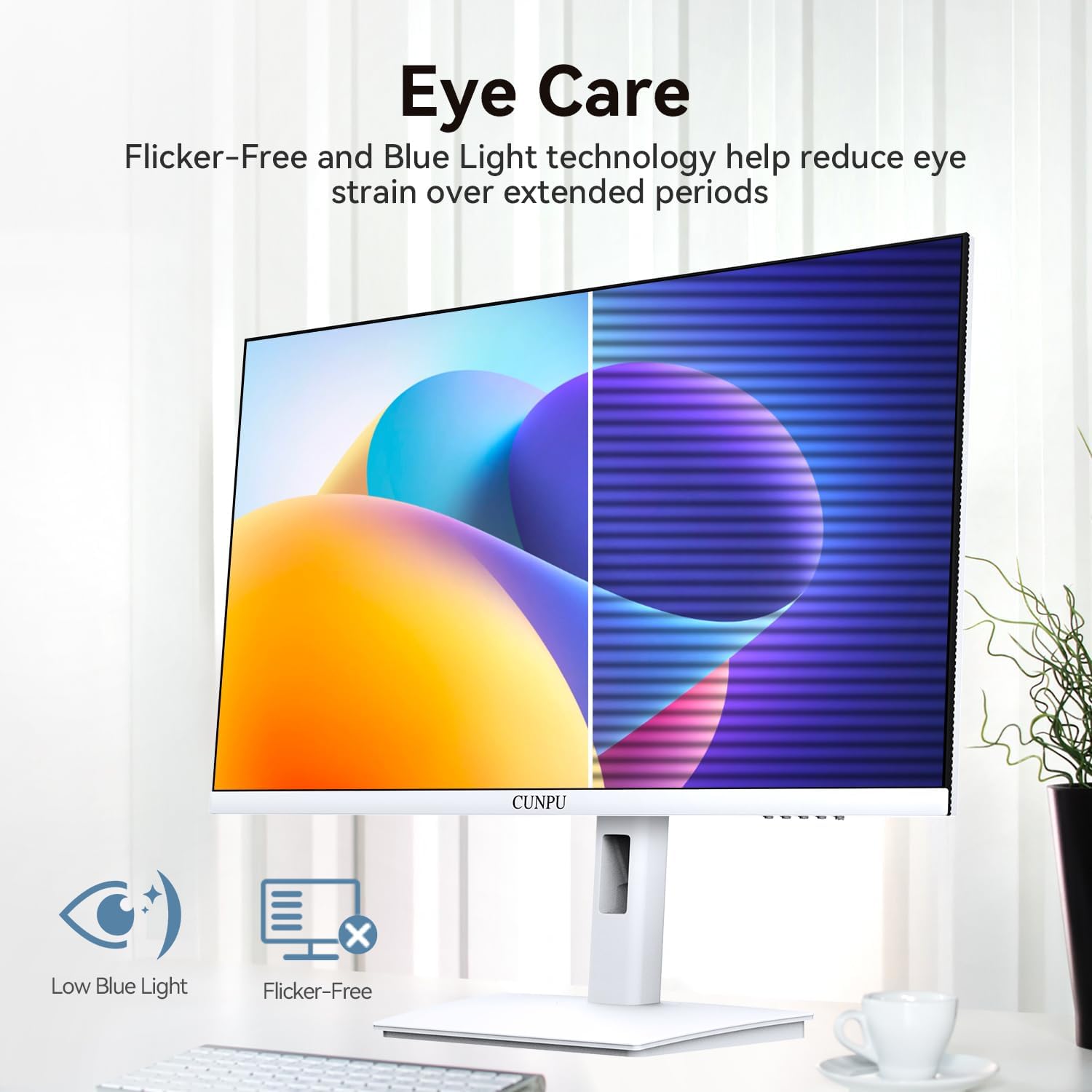
Image: Monitor demonstrating Eye Care features, including low blue light and flicker-free technology.
6. Maintenance
6.1 Cleaning the Monitor
- Always unplug the monitor before cleaning.
- Use a soft, lint-free cloth lightly dampened with water or a mild, non-abrasive screen cleaner.
- Do not spray cleaner directly onto the screen.
- Avoid using benzene, thinner, ammonia-based cleaners, or abrasive materials.
6.2 General Care
- Keep the monitor away from direct sunlight, heat sources, and extreme temperatures.
- Avoid placing heavy objects on the monitor or its cables.
- Do not touch the screen with sharp objects.
7. Troubleshooting
If you encounter issues with your monitor, refer to the following common problems and solutions:
| Problem | Possible Cause | Solution |
|---|---|---|
| No image on screen | Power cable disconnected; Video cable disconnected; Incorrect input source selected. | Check power and video cable connections; Select the correct input source via the OSD menu. |
| Image flickering or unstable | Loose video cable; Graphics card driver issue; Refresh rate mismatch; Faulty monitor. | Ensure video cable is securely connected; Update graphics drivers; Adjust refresh rate in display settings; Test with another device/cable. If flickering persists, contact support. |
| Colors appear incorrect | Color settings in OSD; Graphics card settings. | Adjust color settings in the OSD menu; Calibrate display colors through your operating system. |
| Monitor does not turn on | Power cable disconnected; Power adapter faulty; Power button issue. | Check power cable and adapter connection; Try a different power outlet; Contact support if the issue persists. |
8. Specifications
| Feature | Description |
|---|---|
| Product Dimensions | 7.5 x 24.11 x 20.97 inches |
| Item Weight | 13.9 pounds |
| Item Model Number | S027/32/34ES |
| Standing Screen Display Size | 27 Inches |
| Aspect Ratio | 16:9 |
| Resolution | 2560 x 1440 Pixels (QHD Wide 1440p) |
| Image Brightness | 300 lm (300 cd/m²) |
| Screen Surface Description | Matte |
| Refresh Rate | 120Hz |
| Panel Type | IPS |
| Color Gamut | 100% sRGB, 16.7M Colors |
| Connectivity | 2x HDMI 2.0, 1x DisplayPort 1.4, 1x USB, 1x Audio Out |
| VESA Compatibility | 100x100mm |
| Special Features | Adaptive Sync (FreeSync & G-Sync compatible), Eye Care (Anti-Blue Light, Flicker-Free), HDR |
9. Warranty and Support
For warranty information and technical support, please refer to the documentation included with your purchase or visit the official CUNPU website. Keep your purchase receipt as proof of purchase for warranty claims.
Manufacturer: CUNPU
Date First Available: June 16, 2025