
Packard Bell Carrera F3 Flex
Packard Bell Carrera F3 Flex 15.6-inch Touchscreen Laptop User Manual
Model: Carrera F3 Flex
1. Introduction
This manual provides essential instructions for setting up, operating, maintaining, and troubleshooting your Packard Bell Carrera F3 Flex 15.6-inch Touchscreen Laptop. This device is a versatile 2-in-1 laptop designed for adaptability and performance, featuring a 360-degree hinge and a responsive touchscreen display.
Please read this manual thoroughly to ensure proper use and to maximize the lifespan of your device. Keep it for future reference.

Figure 1.1: Packard Bell Carrera F3 Flex Laptop
This image shows the Packard Bell Carrera F3 Flex laptop from an angled front view, with the screen open and displaying the Packard Bell logo and "Carrera F3" model name. The keyboard and touchpad are visible, along with some ports on the left side.
2. Setup
2.1 Unboxing and Initial Inspection
Carefully remove your laptop and all accessories from the packaging. Verify that all components are present:
- Packard Bell Carrera F3 Flex Laptop
- Power Adapter
- Quick Start Guide (if included)
Inspect the laptop for any physical damage. If you find any damage or missing components, contact your retailer immediately.
2.2 Connecting to Power
Before first use, it is recommended to fully charge the laptop battery. Connect the power adapter to the charging port on the side of the laptop and then plug it into a power outlet. The charging indicator light will illuminate.

Figure 2.1: Front View of Laptop
This image provides a clear front view of the Packard Bell Carrera F3 Flex laptop, with the screen open at a standard angle, showcasing the display and the full keyboard layout.
2.3 Initial Boot and Windows 11 Pro Setup
Press the power button to turn on the laptop. The system will guide you through the initial setup process for Windows 11 Pro. Follow the on-screen instructions to:
- Select your region and keyboard layout.
- Connect to a Wi-Fi network.
- Accept the license terms.
- Create a user account or sign in with a Microsoft account.
- Set up privacy settings.
Ensure you have an active internet connection for the best setup experience, especially for Windows updates.
3. Operating Instructions
3.1 Power Management
- Power On: Press the power button located on the side of the laptop.
- Sleep Mode: Close the lid or press the power button briefly.
- Shut Down: Click the Start button, then Power, and select "Shut down."
- Restart: Click the Start button, then Power, and select "Restart."
3.2 Using the 360-Degree Hinge and Touchscreen
Your Carrera F3 Flex features a versatile 360-degree hinge, allowing it to transform into multiple modes:
- Laptop Mode: Standard laptop configuration for typing and productivity.
- Tent Mode: Fold the screen back to form an inverted 'V' shape, ideal for watching videos or presentations in confined spaces.
- Stand Mode: Fold the screen back further, resting the keyboard face down, for a display-focused experience.
- Tablet Mode: Fold the screen completely back against the base, converting the device into a tablet for touch-based interaction.
The 15.6-inch IPS FHD touchscreen supports multi-touch gestures. Use your fingers to navigate, zoom, and interact with applications. Windows 11 Pro automatically adjusts to tablet mode when the screen is folded beyond a certain angle.

Figure 3.1: 360-Degree Flexibility
This image illustrates the Packard Bell Carrera F3 Flex laptop's 360-degree hinge capability, showing the device in multiple positions: a standard laptop, a tent-like configuration, and a fully folded tablet mode, highlighting its versatility.
3.3 Keyboard and Touchpad
The integrated keyboard provides a comfortable typing experience. The touchpad supports multi-finger gestures for navigation and control. Refer to Windows 11 Pro settings for customizing touchpad gestures.
3.4 Connectivity and Ports
Your laptop is equipped with various ports and wireless connectivity options:
- Wi-Fi: Built-in 802.11 b/g/n/AC for wireless internet access.
- Bluetooth: Version 5.0 for connecting wireless peripherals like mice, keyboards, and headphones.
- USB Ports: Includes USB 2.0 and USB 3.0 ports for connecting external devices such as flash drives, external hard drives, and printers.
- Other Ports: (Refer to your specific model for exact port configuration, typically includes HDMI, audio jack, etc.)
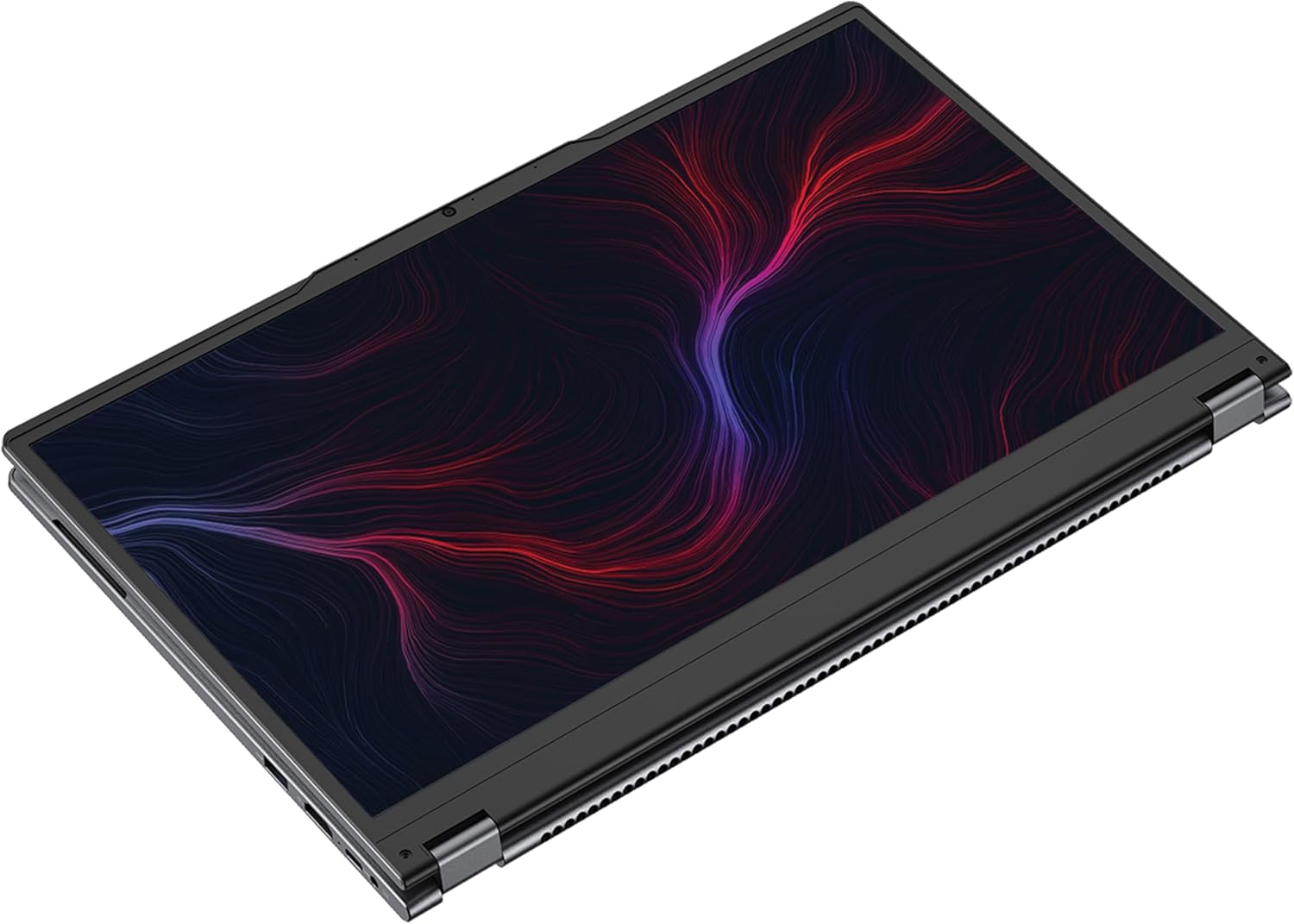
Figure 3.2: Side View with Ports
This image displays a side view of the Packard Bell Carrera F3 Flex laptop, highlighting the various input/output ports available for connecting external devices, including USB ports and potentially other connectors.
4. Maintenance
4.1 Cleaning Your Laptop
- Screen: Use a soft, lint-free cloth specifically designed for electronics. Dampen it slightly with water or a screen cleaner solution. Avoid harsh chemicals.
- Chassis and Keyboard: Use a soft, dry cloth. For stubborn dirt, a slightly damp cloth with mild soap can be used, ensuring no liquid enters openings. Compressed air can remove dust from keyboard crevices.
- Ports: Gently remove dust from ports using compressed air. Avoid inserting objects into ports.
Always power off and unplug the laptop before cleaning.
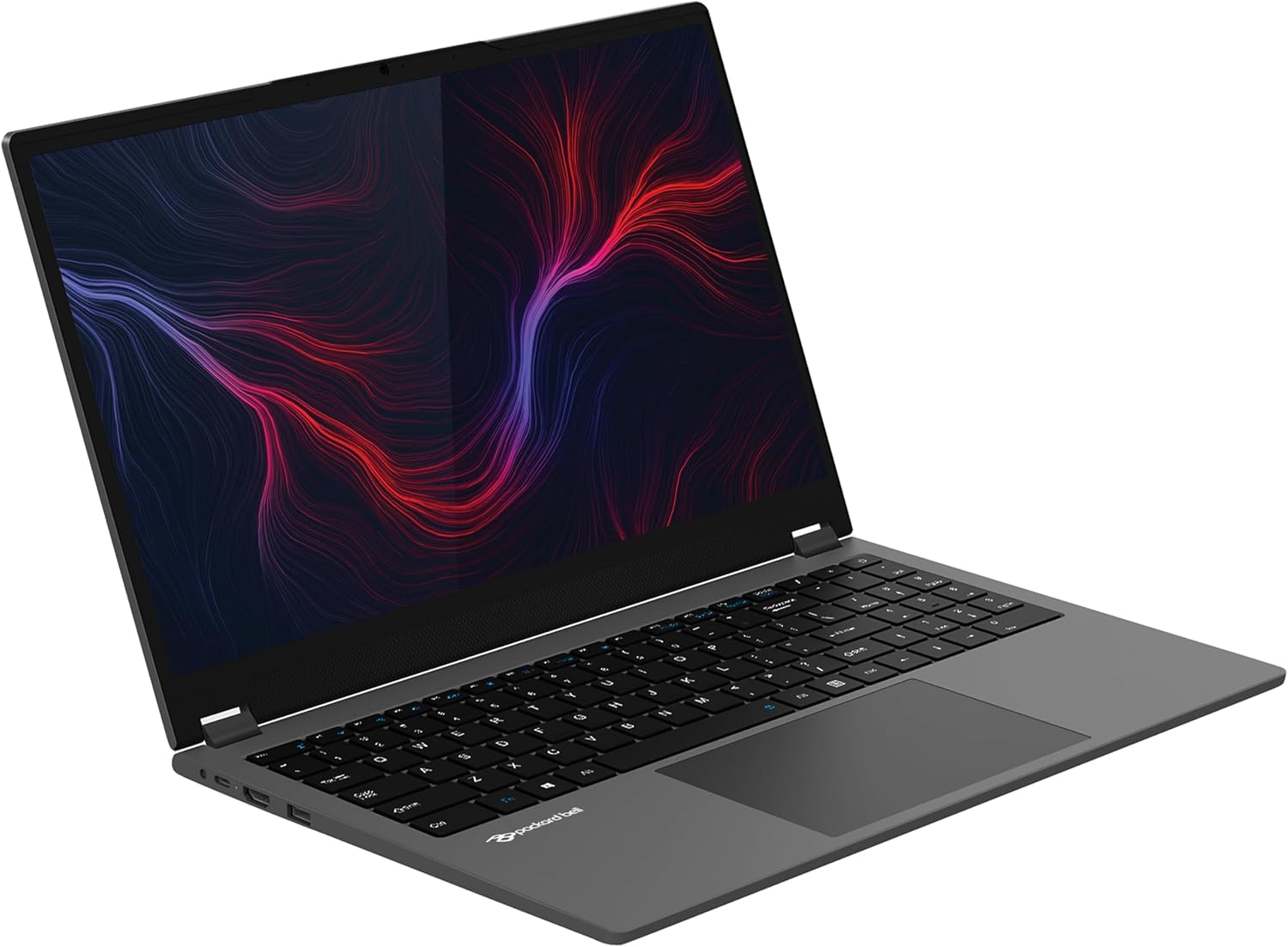
Figure 4.1: Back View of Laptop
This image shows the back of the Packard Bell Carrera F3 Flex laptop with the lid closed, displaying the sleek gray finish and the Packard Bell logo. The bottom vents are also visible, indicating areas for proper airflow and cooling.
4.2 Battery Care
- Avoid extreme temperatures.
- Do not fully discharge the battery frequently.
- For long-term storage, charge the battery to about 50-70%.
4.3 Software Updates
Regularly check for and install Windows updates to ensure your system has the latest security patches and performance improvements. Go to Settings > Windows Update to manage updates.
5. Troubleshooting
This section addresses common issues you might encounter. For more complex problems, refer to the Packard Bell support website or contact customer service.
5.1 Power Issues
- Laptop does not turn on:
- Ensure the power adapter is securely connected to both the laptop and a working power outlet.
- Verify the power outlet is functional by plugging in another device.
- Allow the battery to charge for at least 30 minutes before attempting to power on again.
- Battery not charging:
- Check the power adapter and cable for damage.
- Ensure the charging port on the laptop is clean and free of debris.
- Try restarting the laptop.
5.2 Display Issues
- Screen is blank or black:
- Ensure the laptop is powered on and not in sleep mode.
- Connect an external monitor to check if the display output works.
- Try adjusting the screen brightness using the function keys.
- Touchscreen unresponsive:
- Clean the screen to remove any dirt or smudges.
- Restart the laptop.
- Check device manager in Windows for touchscreen driver status.
5.3 Connectivity Issues
- Cannot connect to Wi-Fi:
- Ensure Wi-Fi is enabled in Windows settings.
- Restart your router and modem.
- Forget the network and reconnect.
- Update Wi-Fi drivers.
- Bluetooth device not connecting:
- Ensure Bluetooth is enabled on both the laptop and the device.
- Make sure the device is in pairing mode.
- Remove and re-pair the Bluetooth device.
6. Specifications
The following table outlines the key technical specifications of the Packard Bell Carrera F3 Flex laptop:
| Feature | Detail |
|---|---|
| Brand | Packard Bell |
| Model Name | Carrera-F3 |
| Operating System | Windows 11 Pro |
| Processor | AMD Ryzen 3 3200U (2.6 GHz) |
| RAM | 16 GB DDR4 |
| Storage | 512 GB SSD |
| Display | 15.6-inch IPS FHD Touchscreen (1920 x 1080) |
| Graphics | Integrated AMD Radeon Vega 3 |
| Connectivity | Wi-Fi 802.11 b/g/n/AC, Bluetooth 5.0 |
| Ports | 2x USB 2.0, 1x USB 3.0 (Other ports may vary by region/model) |
| Special Features | 360 Degree Flip, Touchscreen |
| Weight | 1.6 Kilograms |
7. Warranty and Support
7.1 Product Warranty
The Packard Bell Carrera F3 Flex laptop comes with a 1-Year Limited Warranty. This warranty covers manufacturing defects and hardware malfunctions under normal use conditions. Please retain your proof of purchase for warranty claims.
The warranty does not cover damage caused by misuse, accidents, unauthorized repairs, or normal wear and tear. For full warranty terms and conditions, please refer to the documentation included with your product or visit the official Packard Bell support website.
7.2 Customer Support
For technical assistance, troubleshooting beyond this manual, or warranty service, please contact Packard Bell customer support. You can typically find contact information and support resources on the official Packard Bell website:
Official Packard Bell Website: www.packardbell.com/support (Note: This is a placeholder URL; please refer to the actual Packard Bell support site for your region.)
When contacting support, please have your laptop's model name (Carrera F3 Flex) and serial number ready. The serial number is usually located on a sticker on the bottom of the laptop.
Ask a question about this manual
Ask about setup, troubleshooting, compatibility, parts, safety, or missing instructions. Manuals+ will review the question and use this page’s manual context to help answer it.