
Yoidesu Yoidesuuodtamx8hq-11
Yoidesu Mini Body Camera User Manual
Model: Yoidesuuodtamx8hq-11
1. Introduction
Thank you for choosing the Yoidesu Mini Body Camera. This 2.7K HD Head Mounted FPV Video Camera is designed for hands-free recording of your daily activities, travel, cycling, and more. Its compact and wearable design, combined with high-resolution video capabilities and WiFi app control, makes it an ideal companion for capturing immersive first-person perspective footage. This manual provides detailed instructions on how to set up, operate, and maintain your camera to ensure optimal performance.
2. Product Overview
2.1. Components

Figure 2.1: The Yoidesu Mini Body Camera shown both as a standalone unit and attached to a pair of glasses, illustrating its compact and wearable design.

Figure 2.2: The complete packing list, including the camera device, USB cable, user manual, glasses giftbox, anti-blue light glasses with zero prescription, and a pouch.
The Yoidesu Mini Body Camera package typically includes:
- Main Camera Unit: The core recording device with lens, screen, and control buttons.
- USB Cable: For charging and data transfer.
- User Manual: This guide.
- Glasses Giftbox: A protective case for the glasses.
- Anti-blue light glasses with zero prescription: Glasses designed for attaching the camera.
- Pouch: For convenient storage and transport.
2.2. Key Features
- 2.7K HD Recording: Captures immersive first-person perspective footage at 2.7K resolution.
- Two-Axis Rotational Stabilization: Ensures smooth, stable recordings by reducing shake.
- Lightweight and Compact Design: Ultra-portable for hands-free recording during daily activities.
- Extended Battery Life: Up to 120 minutes in 1080P mode and 90 minutes in 2.7K mode with a 250mAh rechargeable battery. Supports recording while charging.
- WiFi APP Control: Dedicated app (RoadCam) allows switching between horizontal/vertical modes, remote operation, capturing, editing, and saving videos directly to your phone.
- Simple One-Touch Recording: Intuitive operation for effortless capture of POV videos.
- 0.96-inch IPS Color Screen: Provides a clear display for monitoring.
- 110° Wide Angle Lens: Captures a broad field of view.
- Intelligent Noise Cancellation: For lossless audio recording.
- Voice Prompts: Functional prompts to indicate mode changes.
3. Setup
3.1. Charging the Device
Before first use, fully charge the camera. Connect the provided USB cable to the camera's Type-C port and the other end to a USB power adapter (not included) or a computer's USB port. The charging indicator light will show the charging status. The camera supports recording while charging.
3.2. Inserting a Memory Card
The camera requires a microSD card (TF card) for storing recordings. Locate the TF slot on the side of the camera. Gently insert a compatible microSD card (Class 10 or higher, up to 128GB recommended) with the gold contacts facing down until it clicks into place. To remove, push the card in again until it springs out.
3.3. Attaching to Glasses

Figure 3.1: The camera unit seamlessly attached to the temple of the provided glasses, ready for hands-free recording.

Figure 3.2: A detailed view of the FPV Glasses Camera, highlighting its discreet integration with eyewear for a first-person perspective.
The camera is designed to clip onto the temple of the provided anti-blue light glasses. Align the camera unit with the designated slot on the glasses' arm and gently slide it into place until it is securely fastened. Ensure the camera lens is facing forward and unobstructed for optimal recording.
4. Operating Instructions
4.1. Power On/Off
- Power On: Press and hold the Power/Down button for a few seconds until the screen lights up and the device vibrates.
- Power Off: Press and hold the Power/Down button again until the screen turns off and the device vibrates.
4.2. Recording Video

Figure 4.1: The camera's ability to shoot 2.7K video, capturing clear details in various environments.

Figure 4.2: The camera's 110-degree wide shooting angle, ideal for capturing dynamic scenes like cycling.
- From standby mode, press the Mode/Ok button once to start video recording. The recording indicator light will flash, and the screen will show a recording icon.
- To stop recording, press the Mode/Ok button again. The recording indicator light will stop flashing, and the video file will be saved to the microSD card.
- The camera supports 2.7K and 1080P recording modes. You can switch between modes via the mobile app or device settings if available.
4.3. Taking Photos
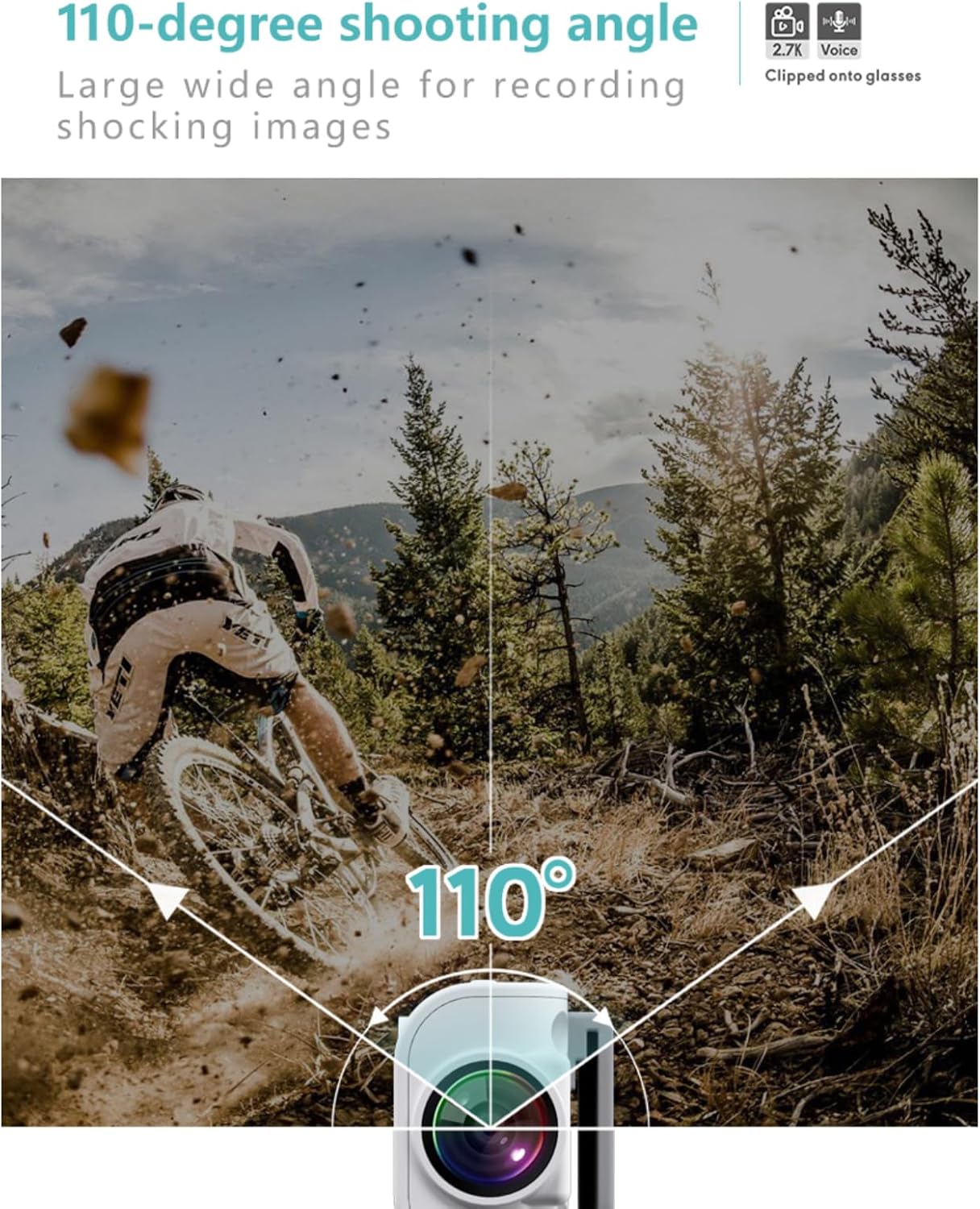
Figure 4.3: Examples of vivid photos taken with the camera, showcasing its 12 million pixel photo resolution.

Figure 4.4: The 0.96-inch IPS color screen displaying a live view, with side physical buttons for operation.
- From standby mode, press the Mic/Reset button once to take a photo. The screen will briefly flash, indicating a photo has been captured and saved.
- The camera captures 12 million pixel photos.
4.4. WiFi APP Control (RoadCam)

Figure 4.5: The WiFi APP interface on a smartphone, allowing for easy replay and management of recorded videos.

Figure 4.6: Visual representation of voice prompts and WiFi control features, including start/stop recording, taking pictures, and WiFi switch.
Download the "RoadCam" app from your smartphone's app store. Enable WiFi on your camera by pressing the WiFi/Up Mode button. Connect your smartphone to the camera's WiFi network (SSID and password usually displayed on the camera screen or in the manual). Through the app, you can:
- View live footage.
- Start and stop recording.
- Take photos.
- Switch between horizontal and vertical viewing modes.
- Access, edit, and save recorded videos and photos directly to your phone.
- Adjust camera settings.
4.5. Voice Prompts and Noise Cancellation
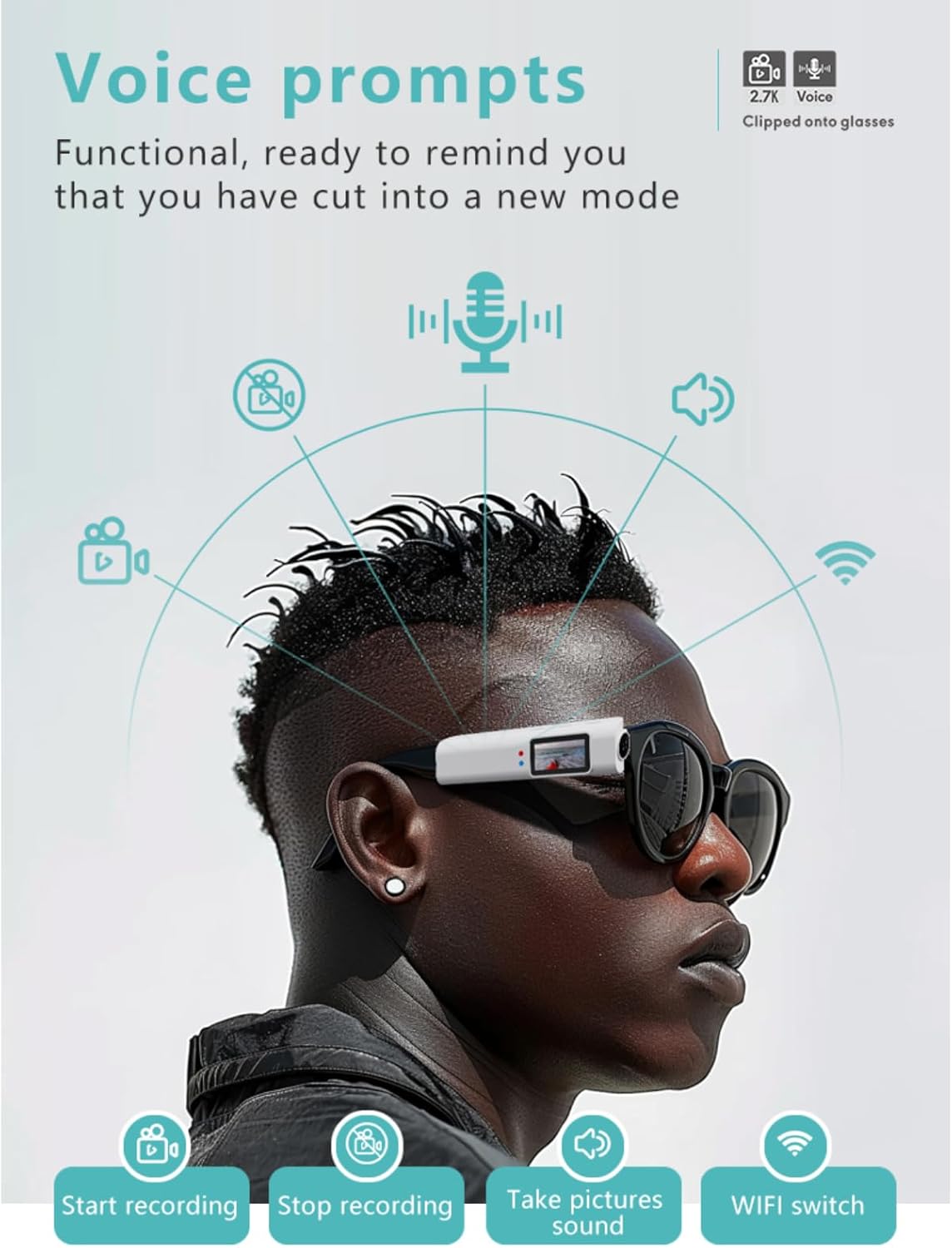
Figure 4.7: The camera's intelligent noise cancellation feature, suitable for various recording scenarios like meetings or interviews.
The camera provides functional voice prompts to inform you when you switch modes or perform certain actions. It also features intelligent noise cancellation for clearer audio recording, making it suitable for various scenarios such as classes, meetings, speeches, or interviews.
5. Maintenance
- Cleaning: Use a soft, dry cloth to clean the camera body. For the lens, use a specialized lens cleaning cloth and solution. Avoid harsh chemicals or abrasive materials.
- Storage: Store the camera in a cool, dry place away from direct sunlight and extreme temperatures.
- Battery Care: To prolong battery life, avoid fully discharging the battery frequently. Charge the camera regularly, even if not in use, to maintain battery health.
- Firmware Updates: Check the official Yoidesu website or the RoadCam app periodically for any available firmware updates to ensure optimal performance and new features.
6. Troubleshooting
| Problem | Possible Cause | Solution |
|---|---|---|
| Camera does not power on. | Low battery; device frozen. | Charge the camera for at least 30 minutes. If still unresponsive, try pressing the reset button (if available, often combined with Mic button) with a thin pin. |
| Cannot record video/take photos. | No microSD card; card full or corrupted; incorrect mode. | Ensure a compatible microSD card is inserted. Format the card (backup data first). Check if the camera is in the correct recording/photo mode. |
| WiFi connection issues. | Incorrect password; camera WiFi not enabled; app issues. | Verify WiFi password. Ensure camera WiFi is turned on. Restart both camera and smartphone. Reinstall the RoadCam app. |
| Poor video/photo quality. | Dirty lens; insufficient lighting; unstable recording. | Clean the camera lens. Ensure adequate lighting. Hold the camera steady or use the stabilization feature effectively. |
7. Specifications
| Feature | Detail |
|---|---|
| Brand Name | Yoidesu |
| Item Model Number | Yoidesuuodtamx8hq-11 |
| Video Resolution | Up to 2.7K HD |
| Photo Resolution | 12 Million Pixels |
| Wide Angle | 110° |
| Screen | 0.96-inch IPS Color Screen |
| Battery Life (1080P) | Up to 120 minutes |
| Battery Life (2.7K) | Up to 90 minutes |
| Battery Capacity | 250mAh |
| Connectivity | WiFi (APP Control), USB |
| Storage | MicroSD (TF) card support (up to 128GB recommended) |
| Item Weight | 8.4 ounces |
| Package Dimensions | 6.85 x 2.87 x 2.44 inches |
| Color | Black |
8. Warranty and Support
Specific warranty information for the Yoidesu Mini Body Camera is not provided in the product details. Please refer to the product packaging or contact the seller directly for warranty terms and conditions.
For technical support or further assistance, please contact Yoidesu customer service through the platform where you purchased the product or visit the official Yoidesu store page on Amazon: Yoidesu Store.
9. Official Product Videos
No official product videos from the seller were found in the provided product information.
Ask a question about this manual
Ask about setup, troubleshooting, compatibility, parts, safety, or missing instructions. Manuals+ will review the question and use this page’s manual context to help answer it.