
Introduction
Thank you for choosing the MANKIW X15 Wireless Gaming Headset. This manual provides detailed instructions for setting up, operating, and maintaining your headset to ensure optimal performance and longevity. Please read this manual thoroughly before use and retain it for future reference.
Package Contents
Please verify that all items are present in your package:
- MANKIW X15 Wireless Gaming Headset
- 2.4GHz USB Dongle (with Type-C and Type-A adapters)
- USB-C Charging Cable
- 3.5mm Audio Cable
- User Manual
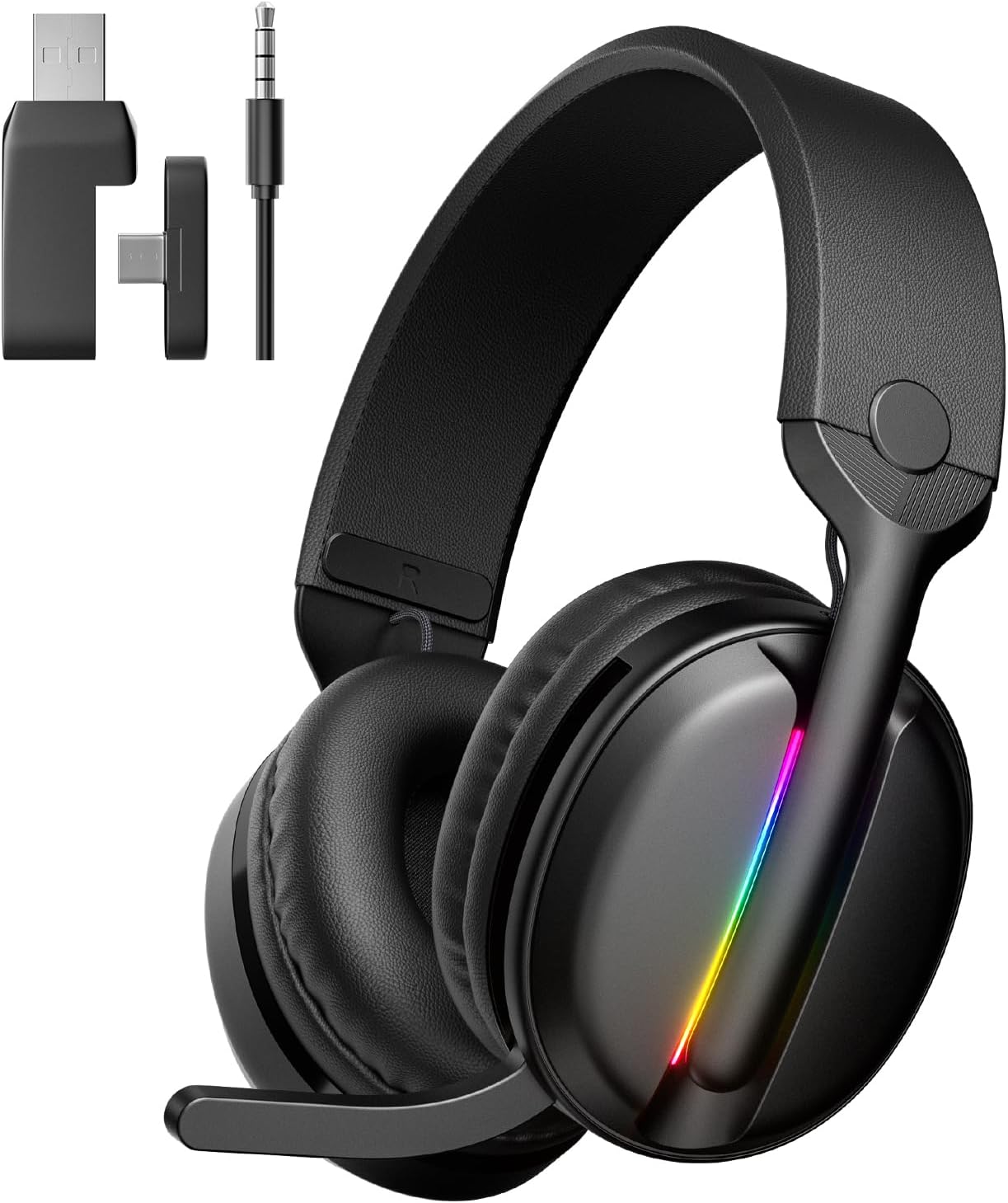
Image: MANKIW X15 Wireless Gaming Headset with its included 2.4GHz USB dongle, Type-C adapter, and 3.5mm audio cable.
Product Overview: Controls and Components
Familiarize yourself with the headset's controls and features:

Image: Detailed diagram illustrating the location and function of each control button on the MANKIW X15 headset.
- Type-C Charging Port / 3.5mm Wired Input: Used for charging the headset or connecting via the 3.5mm audio cable.
- Power Button / Light Control Button: Long press to power on/off. Single press to toggle RGB lighting. Triple press to enter Bluetooth pairing mode.
- Volume Down / Previous Track: Single press to decrease volume. Long press for previous track.
- Volume Up / Next Track: Single press to increase volume. Long press for next track.
- Multifunction Button: Single press for Play/Pause, Answer/Hang up calls. Double press to change sound effects. Long press to switch between 2.4GHz and Bluetooth modes.
- Pairing Indicator Light: Displays connection status (Green for 2.4GHz, Blue for Bluetooth, blinking blue for Bluetooth pairing).
The headset also features a detachable, omnidirectional microphone with advanced noise-canceling technology for clear communication.
Setup
1. Charging the Headset
Before first use, fully charge the headset. Connect the USB-C charging cable to the headset's Type-C port (1) and the other end to a USB power source (e.g., computer, wall adapter). The indicator light will show charging status and turn off when fully charged. A full charge takes approximately 2 hours.
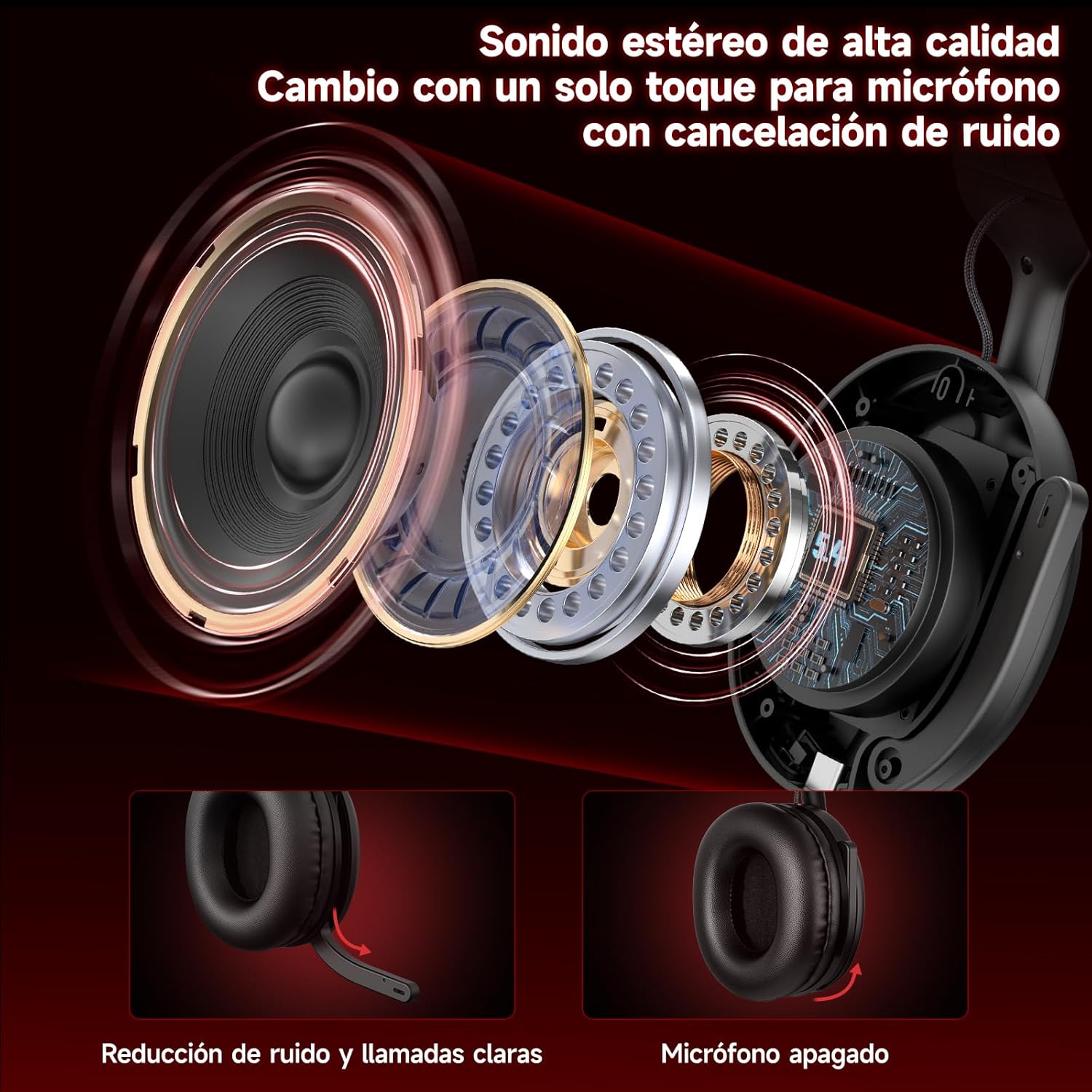
Image: The MANKIW X15 headset highlighting its long battery life, with icons indicating usage time for different modes and charging time.
2. Connecting the Headset
The MANKIW X15 offers three connection modes:
- 2.4GHz Wireless Mode (Low Latency):
1. Insert the 2.4GHz USB dongle into your device's USB port. Use the Type-A or Type-C adapter as needed.
2. Long press the Power Button (2) on the headset to turn it on.
3. The headset will automatically connect to the dongle. The indicator light (6) will show a solid green when connected.
4. This mode provides ultra-low latency (≤20ms) for optimal gaming performance. - Bluetooth 5.4 Mode:
1. Long press the Power Button (2) to turn on the headset.
2. Triple press the Power Button (2) to enter Bluetooth pairing mode. The indicator light (6) will blink blue.
3. On your device (smartphone, tablet, laptop), enable Bluetooth and search for "MANKIW X15".
4. Select "MANKIW X15" to pair. The indicator light (6) will turn solid blue when connected. - 3.5mm Wired Mode:
1. Connect one end of the 3.5mm audio cable to the headset's 3.5mm input (1).
2. Connect the other end to your device's 3.5mm audio jack.
3. Note: The microphone function is not available in 3.5mm wired mode.

Image: A visual guide demonstrating the MANKIW X15 headset's compatibility with various devices across 2.4GHz dongle, Bluetooth, and 3.5mm wired connections.
Operating Instructions
Power On/Off
- Power On: Long press the Power Button (2) until the indicator light illuminates.
- Power Off: Long press the Power Button (2) until the indicator light turns off.
Volume Control
- Increase Volume: Press the Volume Up button (4).
- Decrease Volume: Press the Volume Down button (3).
Audio Playback and Calls
- Play/Pause: Single press the Multifunction Button (5).
- Next Track: Long press the Volume Up button (4).
- Previous Track: Long press the Volume Down button (3).
- Answer/End Call: Single press the Multifunction Button (5).
- Change Sound Effects: Double press the Multifunction Button (5).
Switching Connection Modes
To switch between 2.4GHz wireless and Bluetooth modes, long press the Multifunction Button (5).
Microphone Usage
The detachable microphone features noise-canceling technology. Ensure it is securely plugged into the headset. Controls for muting the microphone are integrated into the earcup (refer to product diagram for specific location if available, otherwise use software controls on your device).

Image: An exploded view of the MANKIW X15 headset's audio drivers and a depiction of the noise-canceling microphone, illustrating its functionality.
RGB Lighting
The headset features dynamic RGB lighting. To toggle the RGB lights on or off, single press the Light Control Button (part of 2). Note that keeping the RGB lighting active will reduce the overall battery life from 40 hours to approximately 20 hours.
Multi-platform Compatibility
The MANKIW X15 headset is designed for broad compatibility:
- 2.4GHz Wireless: Compatible with PC, Mac, Laptops, PlayStation 4 (PS4), PlayStation 5 (PS5), and Nintendo Switch (via USB dongle).
- Bluetooth 5.4: Compatible with Smartphones, Tablets, and Laptops.
- 3.5mm Wired: Compatible with any device featuring a 3.5mm audio jack.
Maintenance
To ensure the longevity and performance of your MANKIW X15 headset, follow these maintenance guidelines:
- Cleaning: Use a soft, dry cloth to clean the headset. Avoid using harsh chemicals or abrasive materials.
- Storage: Store the headset in a cool, dry place away from direct sunlight and extreme temperatures.
- Battery Care: Avoid fully discharging the battery frequently. Charge the headset regularly, even if not in use for extended periods, to maintain battery health.
- Handling: Do not drop or expose the headset to excessive force, as this may damage internal components.

Image: A user wearing the MANKIW X15 headset, illustrating its comfortable design with breathable earcups and adjustable headband.
Troubleshooting
If you encounter issues with your MANKIW X15 headset, refer to the following common problems and solutions:
- No Sound:
- Ensure the headset is powered on and connected correctly (2.4GHz, Bluetooth, or 3.5mm cable).
- Check the volume levels on both the headset and your connected device.
- Verify that the correct audio output device is selected in your system settings. - Microphone Not Working:
- Ensure the microphone is securely plugged into the headset.
- Confirm that the microphone is not muted on the headset or in your device's settings.
- Remember that the microphone function is not available in 3.5mm wired mode.
- Check for any background noise cancellation settings on your device that might be affecting microphone input. - Connection Issues (2.4GHz/Bluetooth):
- Ensure the headset is within range of your device.
- For 2.4GHz, ensure the USB dongle is properly inserted and recognized by your device.
- For Bluetooth, try re-pairing the headset with your device (triple press Power Button to enter pairing mode).
- Disconnect other wireless devices that might cause interference. - Short Battery Life:
- RGB lighting consumes more power. Turn off RGB lights to extend battery life.
- Ensure the headset is fully charged before use.
Specifications
| Model Name | X15 |
| Brand | MANKIW |
| Connectivity Technology | 2.4GHz Wireless, Bluetooth 5.4, 3.5mm Wired |
| Driver Size | 50mm |
| Impedance | 32 Ohm |
| Latency (2.4GHz) | ≤20ms |
| Battery Life | Up to 40 hours (20 hours with RGB lighting) |
| Charging Time | Approx. 2 hours (via USB-C) |
| Weight | 360g |
| Dimensions | 21.2 x 18.1 x 9.9 cm |
| Microphone | Detachable, Omnidirectional, Noise-Canceling |
Warranty and Support
For warranty information and technical support, please refer to the documentation included with your purchase or contact MANKIW customer service through the official brand store or your retailer. Keep your proof of purchase for warranty claims.
For further assistance, visit the MANKIW Official Store.
