
1. Introduction
This manual provides detailed instructions for the installation, operation, and maintenance of your PHEZEN 9018 Car Radio Stereo. This head unit is specifically designed for Subaru Forester, Impreza, XV, WRX, and STI models manufactured between 2015 and 2018. It features a 9-inch IPS touch screen, built-in Apple CarPlay and Android Auto compatibility, Digital Sound Processor (DSP), Bluetooth, GPS navigation, FM/RDS radio, and WiFi connectivity.
Please read this manual thoroughly before installation and use to ensure proper function and to maximize your driving experience.
2. Package Contents
Verify that all items are present in the package before proceeding with installation:
- 1 x Android Stereo Radio
- 1 x Power Cable
- 1 x GPS Antenna
- 1 x Rear Camera Input Cable
- 1 x RCA Cable
- 2 x USB Cable
- 1 x AHD Camera
- 1 x Microphone
- 1 x Canbus Box
- 1 x Radio Adapter
- 1 x Instruction Manual (this document)

3. Installation Guide
Professional installation is recommended due to the complexity of car audio systems and vehicle-specific wiring. Incorrect installation can damage the unit or your vehicle's electrical system.
3.1 Compatibility Check
This unit is compatible with Subaru Forester, Impreza, XV, WRX, and STI models from 2015 to 2018. Ensure your vehicle's dashboard matches the provided images for proper fitment.

3.2 Wiring Connections
Refer to the wiring diagram below for connecting the power, speakers, GPS antenna, USB cables, RCA cables, and the AHD camera. Ensure all connections are secure to prevent malfunctions.
- Power Cable: Connect to the vehicle's power harness.
- GPS Antenna: Mount in a location with a clear view of the sky for optimal signal reception.
- USB Cables: For connecting external devices or for wired CarPlay/Android Auto.
- RCA Cables: For audio/video input/output, including subwoofer and amplifier connections.
- AHD Camera: Connect the rear camera input cable to the unit and the camera to the vehicle's reverse light power for automatic activation.
- Canbus Box: Connect the Canbus box to integrate with the vehicle's steering wheel controls and other factory features.

4. Key Features
- Android 13 System: Latest operating system for smooth performance.
- 9-inch IPS Touch Screen: 1024*600 resolution for sensitive and clear display.
- Wireless CarPlay & Android Auto: Seamless integration with iOS and Android smartphones via Bluetooth and Wi-Fi.
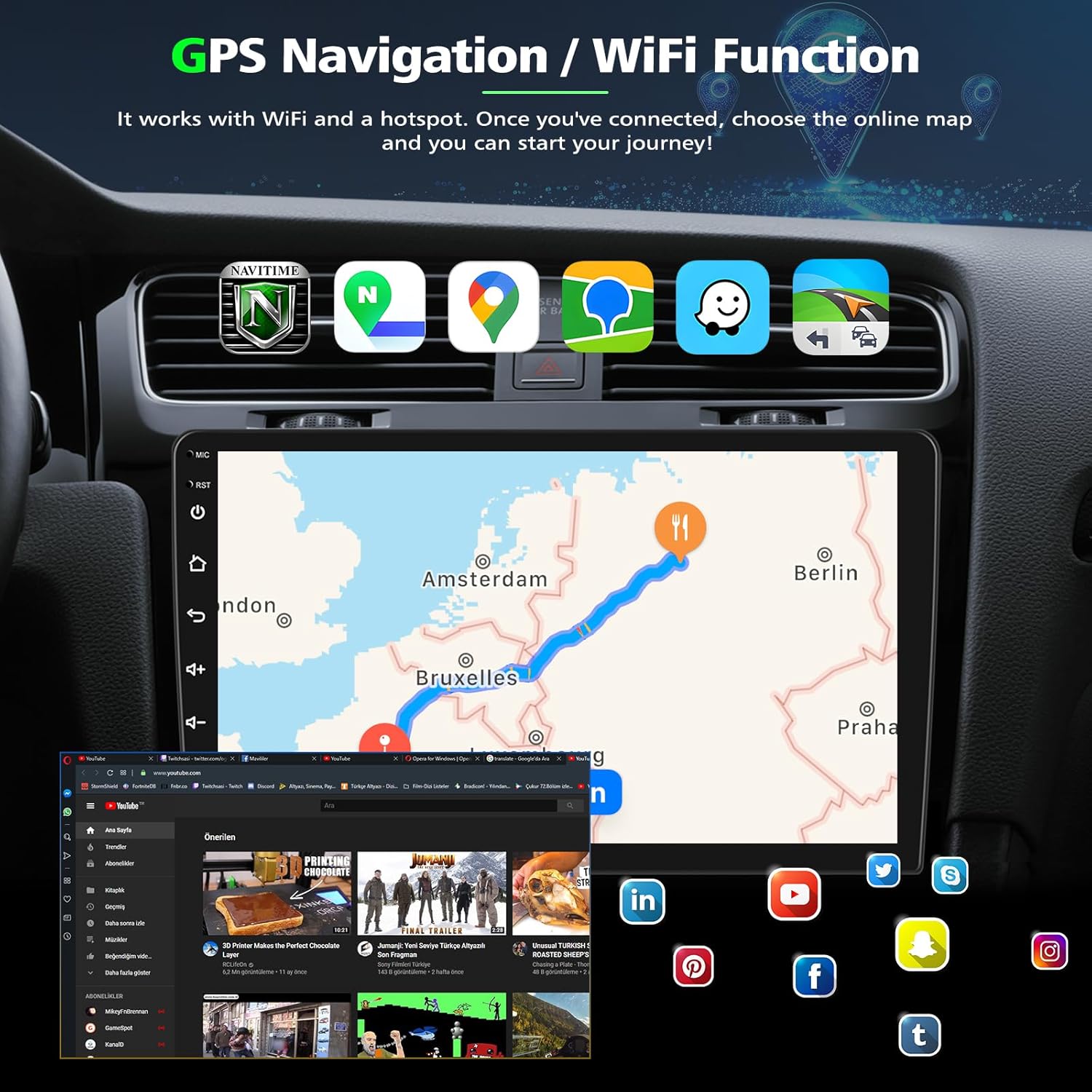
- GPS Navigation: Dual navigation system supporting both offline and online maps.
- WiFi Connectivity: Connect to a hotspot for online features and app usage.
- Steering Wheel Control: Compatible with existing steering wheel controls for safe operation.
- Backup Camera Support: Includes a 170° wide-angle, IP68 waterproof, night vision AHD camera for safe parking.
- Built-in Bluetooth 5.2: For hands-free calling and music streaming with built-in and external microphone support.
- FM/RDS Radio: Enjoy your favorite radio stations with clear reception.
- Digital Sound Processor (DSP): Enhanced audio quality and customization.
- Split Screen Functionality: Run two applications simultaneously on the screen.
- Voice Control: Use Siri or Google Assistant for hands-free control.

5. Initial Setup
5.1 Bluetooth Connection
To connect your smartphone via Bluetooth for calls and audio streaming:
- On the car stereo, navigate to the 'Apps' menu and select 'BT' or 'Bluetooth'.
- Go to 'Bluetooth Settings' on the car stereo. Note the 'Device name' (e.g., CarBT) and 'Device pin' (e.g., 0000).
- On your smartphone, enable Bluetooth and search for available devices.
- Select the car stereo's device name (e.g., CarBT) from your phone's list.
- Enter the 'Device pin' (e.g., 0000) on your phone when prompted to pair.
- Once connected, the car stereo will display 'mobile phone audio' and 'media audio' indicating a successful connection. If not, restart the Bluetooth on both devices and try again.
5.2 Wireless CarPlay / Android Auto (ZLINK) Connection
The unit supports wireless CarPlay and Android Auto via the ZLINK application. Ensure your phone's Bluetooth and Wi-Fi are enabled.
- On the car stereo, open the 'Apps' menu and select 'ZLINK'.
- On your smartphone, connect to the car stereo's Bluetooth as described in Section 5.1.
- The ZLINK app will attempt to connect. Follow any on-screen prompts on your phone to allow CarPlay or Android Auto.
- If the connection is not successful, proceed to Section 5.3 for manual Wi-Fi connection.
5.3 Manual Wi-Fi Connection for ZLINK
If ZLINK does not connect automatically, a manual Wi-Fi connection may be required:
- On the car stereo, go to 'Android Settings' (usually found under 'Factory Settings' or 'Car Settings' then 'Android Settings').
- Navigate to 'Network & Internet' and then 'Hotspot & tethering'.
- Enable 'Wi-Fi hotspot'. Note the 'Network name' (e.g., AndroidAP_B442) and 'Password'.
- On your smartphone, go to Wi-Fi settings and connect to the car stereo's hotspot network using the noted password.
- Once connected, the device name will be displayed under 'Connected users' on the car stereo's hotspot settings, indicating a successful Wi-Fi connection.
- After manually connecting to the Wi-Fi of the vehicle, the vehicle needs to delete the history record (if any previous ZLINK connection attempts failed), and then click ZLINK again to connect.


6. Operating Instructions
6.1 GPS Navigation
The unit features a dual navigation system. You can use pre-installed offline maps or connect to Wi-Fi to use online navigation apps like Google Maps, Waze, or others downloaded from the Play Store.
- To access navigation, tap the 'Nav' icon on the home screen or open your preferred navigation app from the 'Apps' menu.
- Ensure the GPS antenna is properly installed and has a clear view of the sky for accurate positioning.

6.2 FM/RDS Radio
To use the FM radio function:
- Tap the 'Radio' icon on the home screen or in the 'Apps' menu.
- Use the on-screen controls to scan for stations, save presets, or manually tune to a frequency.
- RDS (Radio Data System) provides additional information like station name and song title where available.
6.3 Steering Wheel Control
The unit supports your vehicle's existing steering wheel controls via the included Canbus box. This allows you to control volume, track changes, and answer calls without taking your hands off the wheel.
- If controls are not working automatically after installation, navigate to 'Car Settings' or 'Steering Wheel Learn' in the unit's settings menu to configure them.


6.4 Reverse Camera Display
The included AHD camera provides a clear view of the area behind your vehicle when reversing.
- When the vehicle is shifted into reverse gear, the display will automatically switch to the camera view.
- The camera features a 170° wide-angle lens, IP68 waterproof rating, and night vision for optimal visibility in various conditions.
6.5 Split Screen Functionality
To use two applications simultaneously:
- Open an application.
- Press and hold the recent apps button (usually a square icon) or drag an app to one side of the screen if supported by the Android interface.
- Select a second application to fill the other half of the screen.
6.6 Voice Control
Utilize voice commands for hands-free operation through Siri (for CarPlay) or Google Assistant (for Android Auto/Android system).
- Activate by saying