
1. Introduction
The Makayuron CS09 Smart Door Lock provides advanced security and convenient access to your home, office, or apartment. This biometric electronic lock offers multiple unlocking methods, including fingerprint, IC card, passcode, mechanical key, and smartphone application control. This manual provides detailed instructions for installation, operation, and maintenance to ensure optimal performance and security.

Image 1: The Makayuron CS09 Smart Door Lock highlighting its five unlocking methods: Fingerprint, Passcode, IC Card, Keys, and App Unlock.
2. Product Features
- 5-in-1 Unlocking Methods: Access your property using fingerprint, IC card (2 included), custom passcodes, traditional mechanical keys (2 included), or via the TUYA Bluetooth App.
- Fast Fingerprint Recognition: Features a 98% recognition rate, allowing door unlocking in approximately 0.2 seconds. Supports up to 50 unique fingerprints.
- TUYA App Control: Manage your lock remotely (within Bluetooth range) using the TUYA app. Functions include locking/unlocking, sharing E-codes, checking access logs, and user management. Note: This lock uses Bluetooth, not Wi-Fi, and incurs no app fees.
- Anti-Peeping Passcode: Enter your correct passcode within a sequence of random digits to prevent others from guessing your code. Passcodes can be up to 16 digits long.
- Auto-Lock & Anti-Lock Functions: Configure the lock to automatically secure itself 5 seconds after closing. The one-key anti-lock feature on the interior handle provides enhanced privacy and security, only allowing administrators to unlock from the outside.
- Easy Installation: Designed for straightforward installation on most standard left and right-handed doors without requiring additional drilling.
3. Package Contents
Please verify that all components are present in the package before beginning installation:
- Makayuron CS09 Smart Door Lock Unit
- 4 x AAA Batteries
- 2 x IC Cards
- 2 x Mechanical Keys
- User Manual
- Installation Accessories (screws, spindle, etc.)
4. Specifications
| Feature | Detail |
|---|---|
| Model Number | CS09 |
| Brand | Makayuron |
| Lock Type | Biometric Smart Lock |
| Unlocking Methods | Fingerprint, IC Card, Passcode, Mechanical Key, TUYA App |
| Material | Aluminum |
| Color | Black |
| Dimensions | 6.5 x 3 x 15 cm |
| Weight | 720 grams |
| Power Source | 4 x AAA Batteries (included) |
| Connectivity | Bluetooth (TUYA APP) |
| Recommended Use | Home, Hotel, Office, Apartment, Bedroom |
5. Setup and Installation
The Makayuron CS09 Smart Door Lock is designed for easy installation without the need for complex tools or drilling. Follow these general steps:
- Prepare the Door: Ensure your door is compatible with standard door lock dimensions. The lock is suitable for both left and right-handed doors.
- Install the Latch: Insert the latch mechanism into the door edge and secure it with screws.
- Install the Exterior Handle: Place the exterior handle assembly through the door, aligning it with the latch.
- Install the Interior Handle: Connect the interior handle assembly to the exterior unit, ensuring all cables are properly routed and connected. Secure with screws.
- Insert Batteries: Open the battery compartment on the interior handle and insert the 4 AAA batteries provided. Ensure correct polarity.
- Initial Setup: Follow the voice prompts from the lock for initial setup, including setting an administrator fingerprint and passcode.
- App Pairing: Download the TUYA app from your smartphone's app store. Follow the in-app instructions to pair your smart lock via Bluetooth.

Image 2: The battery compartment of the Makayuron CS09 Smart Door Lock, illustrating the placement of 4 AAA batteries.
6. Operating Instructions
6.1 Unlocking Methods
- Fingerprint Unlock: Place your registered finger on the fingerprint sensor. The lock will unlock in approximately 0.2 seconds upon successful recognition. Ensure the lock is 'woken up' before attempting to unlock.
- Passcode Unlock: Enter your registered passcode on the keypad. For enhanced security, you can use the anti-peeping function by entering random digits before or after your actual passcode. Press '#' to confirm. Ensure the lock is 'woken up' before attempting to unlock.
- IC Card Unlock: Present a registered IC card to the card reader area on the lock. The lock will unlock upon successful card recognition.
- Mechanical Key Unlock: Insert the mechanical key into the hidden keyhole and turn to unlock the door. This method is primarily for emergency access.
- App Unlock: Open the TUYA app on your paired smartphone. Within Bluetooth range, you can tap the unlock icon in the app to open the door.

Image 3: A hand demonstrating fingerprint unlock on the Makayuron CS09 Smart Door Lock.

Image 4: The Makayuron CS09 Smart Door Lock illustrating the anti-peeping passcode feature, where random digits can be entered around the correct code.
6.2 TUYA App Control
The TUYA app provides comprehensive control and monitoring features:
- User Management: Add, modify, or delete fingerprints, passcodes, and IC cards for various users.
- E-Code Sharing: Generate temporary or one-time passcodes to grant access to guests or service providers.
- Access Log Records: View a history of all lock and unlock events, including the method used and the time.
- Smart Notifications: Receive alerts for low battery, unauthorized attempts, or other security events.
- Auto-Lock Settings: Adjust the auto-lock timer or disable the feature as needed.
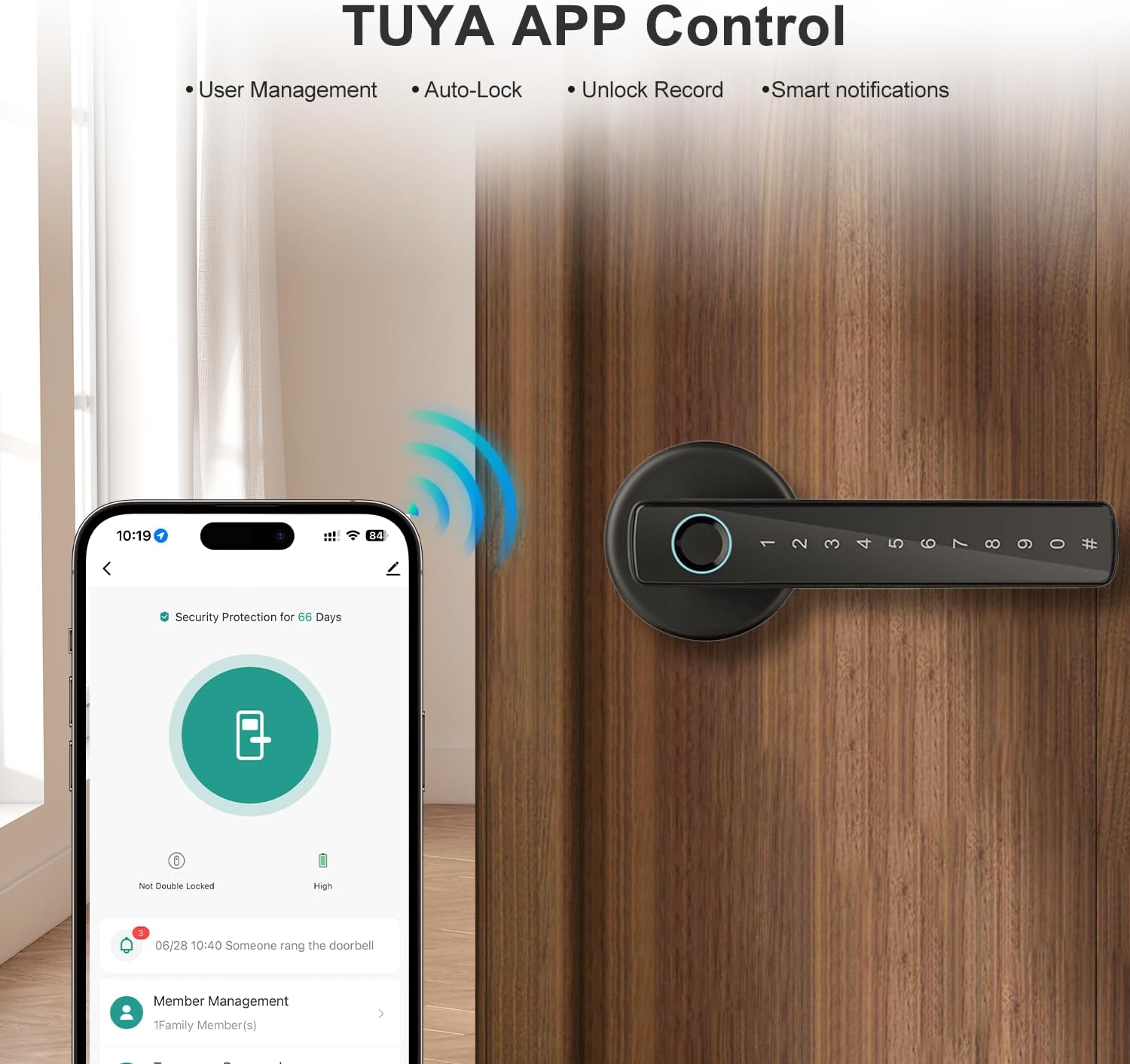
Image 5: A smartphone displaying the TUYA app interface, demonstrating control features for the Makayuron CS09 Smart Door Lock.

Image 6: A user viewing access records on the TUYA app, showing a list of unlock events for the Makayuron CS09 Smart Door Lock.
6.3 Auto-Lock and Anti-Lock
- Auto-Lock: The lock can be configured to automatically lock itself 5 seconds after the door is closed. This feature ensures your property is secured even if you forget to lock it manually.
- One-Key Anti-Lock: Located on the interior handle, this function provides an additional layer of privacy. When activated, only administrator credentials can unlock the door from the outside.
7. Maintenance
- Battery Replacement: When the low battery indicator appears or you receive a notification via the app, replace all 4 AAA batteries promptly. Always use new, high-quality alkaline batteries.
- Cleaning: Wipe the lock's surface with a soft, dry cloth. Avoid using abrasive cleaners, solvents, or harsh chemicals, as these can damage the finish and electronic components.
- Fingerprint Sensor Care: Keep the fingerprint sensor clean and dry for optimal performance. Avoid scratching the sensor surface.
- Mechanical Key Access: Periodically check that the mechanical keys function correctly as a backup.
8. Troubleshooting
- Lock not responding: Check battery levels. Replace batteries if low. Ensure the lock is 'woken up' by touching the keypad or sensor before attempting to unlock.
- Fingerprint not recognized: Ensure your finger is clean and dry. Try re-registering your fingerprint if the issue persists. Ensure the lock is 'woken up' before placing your finger.
- Passcode not working: Verify the correct passcode is being entered. Ensure the lock is 'woken up' before entering the passcode. Try re-setting the passcode via the app or administrator menu.
- IC Card not working: Ensure the IC card is properly registered. Try re-registering the card.
- App connectivity issues: Ensure Bluetooth is enabled on your smartphone and the app has location permissions. Make sure you are within Bluetooth range of the lock. Restart the app or your phone if necessary.
- Door not locking/unlocking smoothly: Check for any obstructions in the door frame or latch mechanism. Ensure the lock is installed correctly and aligned.
9. Warranty and Support
Makayuron provides a minimum of a 1-year product warranty from the date of purchase. This warranty covers manufacturing defects and ensures the proper functioning of your smart door lock under normal use.
For technical assistance, troubleshooting, or warranty claims, please contact Makayuron customer support through the contact information provided at the point of purchase or on the official Makayuron website. Please have your product model (CS09) and purchase details ready when contacting support.