
1. Introduction
This manual provides detailed instructions for the installation, operation, maintenance, and troubleshooting of your Vorally 9.7-inch Android Car Stereo. This unit is designed for specific Subaru Outback and Legacy models manufactured between 2010 and 2014. It features an HD IPS touchscreen, Android 14 operating system, wireless CarPlay and Android Auto, GPS navigation, Wi-Fi, Bluetooth, FM/RDS radio, and supports steering wheel controls and AHD rear cameras. Please read this manual thoroughly before installation and use to ensure proper function and safety.

Figure 1.1: The Vorally 9.7-inch Android Car Stereo unit with its custom bezel for Subaru Outback/Legacy.
2. Setup and Installation
Proper installation is crucial for the performance and safety of your car stereo. It is highly recommended that installation be performed by a qualified professional. Ensure the vehicle's battery is disconnected before beginning any electrical work.
2.1 Package Contents
Verify that all components are present in the package:
- 9.7-inch Android Car Stereo Unit
- Power Cable Harness
- RCA Input/Output Cables
- 2x USB Cables
- Camera Input Cable
- GPS Antenna
- Instruction Manual (this document)
- Mounting Screws
- AHD Rear Camera

Figure 2.1: Overview of the components included with your Vorally car stereo.
2.2 Wiring Connections
Connect the wiring harness to the corresponding ports on the back of the stereo unit and to your vehicle's wiring. Ensure all connections are secure to prevent intermittent issues.
- Power Cable: Connect to the vehicle's power supply (ACC, B+, Ground).
- RCA Cables: For external amplifiers, subwoofers, or auxiliary audio/video input/output.
- USB Cables: For connecting USB devices, such as flash drives or smartphones for wired CarPlay/Android Auto.
- Camera Input: Connect the provided AHD rear camera. Ensure the reverse trigger wire is connected to automatically display the camera feed when reversing.
- GPS Antenna: Mount the GPS antenna in a location with a clear view of the sky, typically on the dashboard or under the windshield.
- Steering Wheel Control (SWC): Connect the SWC wires to your vehicle's steering wheel control interface. Configuration will be done in the settings menu.

Figure 2.2: Rear connections of the car stereo unit.
2.3 Vehicle Compatibility
This unit is specifically designed for Subaru Outback and Legacy models from 2010 to 2014. Ensure your vehicle's dashboard console matches the compatible configuration shown below. If your console is of type B or C (as per common Subaru console variations), please consult with the seller for alternative models or adapters.

Figure 2.3: Compatible and incompatible dashboard configurations for installation.
3. Operating Instructions
3.1 Basic Navigation
The unit features a 9.7-inch HD IPS capacitive touchscreen. Tap icons to open applications, swipe to navigate between screens, and use the system's settings menu to customize preferences.
3.2 Wireless CarPlay & Android Auto
Connect your smartphone wirelessly to access CarPlay (for iOS) or Android Auto (for Android). This allows for seamless integration of phone features like navigation, music, calls, and messages directly on the stereo display.
- Ensure Bluetooth and Wi-Fi are enabled on your smartphone.
- On the car stereo, open the 'CarPlay' or 'Android Auto' application.
- Follow the on-screen prompts to pair your phone.

Figure 3.1: Wireless CarPlay and Android Auto interfaces.
3.3 GPS Navigation & Voice Control
The unit has a built-in GPS module supporting both offline and online navigation. Connect to Wi-Fi to download maps or use online navigation services like Google Maps. Voice control features allow for hands-free operation of navigation, calls, and music.

Figure 3.2: GPS Navigation with voice control capabilities.
3.4 Bluetooth, Wi-Fi, Split Screen & Steering Wheel Control
The stereo offers comprehensive connectivity and control options:
- Bluetooth: Pair your phone for hands-free calling and audio streaming.
- Wi-Fi: Connect to a Wi-Fi hotspot for internet access, app downloads, and online services.
- Split Screen: Run two applications simultaneously, such as navigation and music, for enhanced multitasking.
- Steering Wheel Control (SWC): Program your vehicle's steering wheel buttons to control stereo functions like volume, track changes, and call management.

Figure 3.3: Bluetooth, Wi-Fi, Split Screen, and Steering Wheel Control features.
3.5 Rear Camera Input
When the vehicle is shifted into reverse, the stereo automatically displays the feed from the connected AHD rear camera, providing a 170° wide viewing angle for safer parking and reversing maneuvers.

Figure 3.4: Rear camera display and parking assistance.
3.6 Wireless Mirror Link
The Wireless Mirror Link function allows you to mirror your smartphone's screen onto the car stereo display, providing a larger visual experience for compatible apps and content.
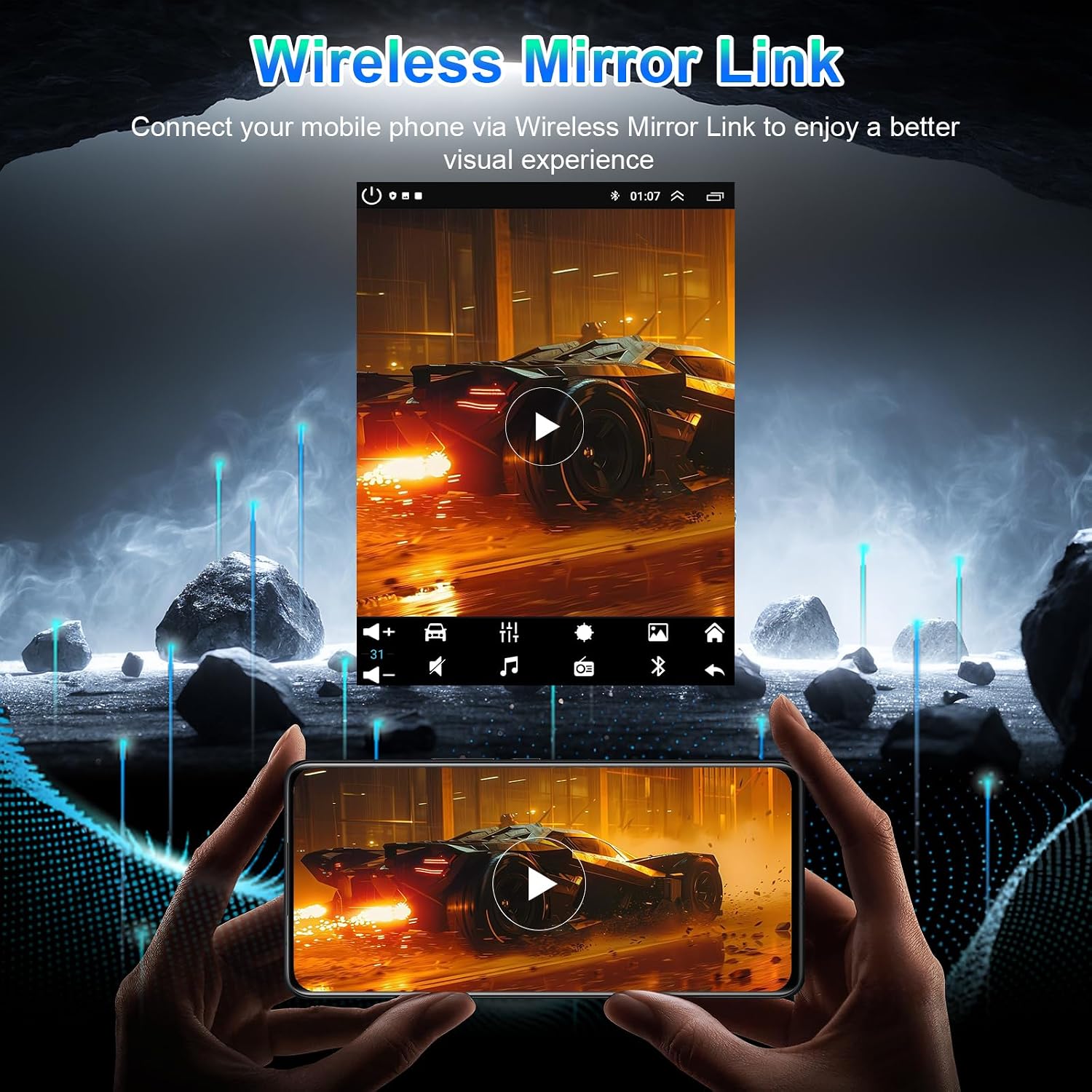
Figure 3.5: Wireless Mirror Link functionality.
4. Maintenance
To ensure the longevity and optimal performance of your Vorally car stereo, follow these maintenance guidelines:
- Screen Cleaning: Use a soft, lint-free cloth slightly dampened with water or a screen cleaner specifically designed for electronic displays. Avoid harsh chemicals or abrasive materials.
- Software Updates: Periodically check for system updates via the Wi-Fi connection in the settings menu. Keeping the software updated ensures the best performance and access to new features.
- General Care: Avoid exposing the unit to extreme temperatures, direct sunlight for prolonged periods, or excessive moisture. Do not attempt to open the unit or perform repairs yourself, as this may void the warranty.
5. Troubleshooting
If you encounter issues with your car stereo, refer to the following common problems and solutions:
| Problem | Possible Cause | Solution |
|---|---|---|
| Unit does not power on | Loose power connection, blown fuse, vehicle battery issue | Check power cable connections, inspect vehicle fuses, ensure vehicle battery is charged. |
| No sound output | Volume too low, mute activated, speaker wiring issue, incorrect audio source | Increase volume, check mute status, verify speaker connections, select correct audio source. |
| GPS not acquiring signal | GPS antenna improperly placed or disconnected, interference | Ensure GPS antenna has a clear view of the sky and is securely connected. Move away from potential interference sources. |
| Bluetooth connection issues | Phone not in pairing mode, incorrect pairing process, interference | Ensure phone's Bluetooth is on and discoverable. Delete previous pairings and re-pair. Restart both devices. |
| Rear camera not displaying | Camera cable loose, reverse trigger wire not connected, camera malfunction | Check camera input cable and reverse trigger wire connection. Test camera functionality if possible. |
| Unit is slow or unresponsive | Too many apps running, low memory, software glitch | Close unnecessary applications. Restart the unit. If issues persist, consider a factory reset (back up data first). |
6. Specifications
Key technical specifications for the Vorally 9.7-inch Android Car Stereo:
- Model Number: VIKA-CHANZH-310A
- Screen Size: 9.7 Inches
- Display Type: HD IPS Capacitive Touchscreen
- Operating System: Android 14
- CPU: 1.3GHz Quad-Core
- RAM: 2GB
- Internal Storage (ROM): 32GB
- Audio Output: 4x45W Surround Stereo
- Connectivity: Bluetooth, Wi-Fi, USB
- Navigation: Built-in GPS module, supports offline and online maps (North America)
- Special Features: Wireless CarPlay, Wireless Android Auto, Voice Assistant, Steering Wheel Control (SWC), AHD Rear Camera Input, Split Screen, Wireless Mirror Link, FM/RDS Radio
- Vehicle Service Type: Car (Subaru Outback/Legacy 2010-2014)
- Item Weight: 2105 Grams
7. Warranty and Support
7.1 Warranty Information
For specific warranty terms and conditions, please refer to the documentation provided with your purchase or contact the seller directly. Warranty coverage typically includes manufacturing defects for a specified period from the date of purchase.
7.2 Technical Support
If you require technical assistance or have questions regarding installation or operation, please contact Vorally customer support. You can typically find support contact information on the seller's page where you purchased the product, or through the 'Ask a question' feature on the product listing page.
No official product videos from the seller were found to be embedded in this manual.