
Introduction
This manual provides detailed instructions for the installation, operation, and maintenance of your MSXTTLY V-Stream 3-in-1 Wireless CarPlay & Android Auto Adapter. This device converts your car's wired CarPlay system into a wireless one, and also enables video streaming capabilities. Please read this manual thoroughly before use to ensure optimal performance and safety.
Package Contents
Verify that all items listed below are included in your package:
- 1 x MSXTTLY V-Stream Wireless CarPlay & Android Auto Adapter
- 1 x USB-A to USB-C Cable
- 1 x USB-A Extension Cable
- 1 x User Manual
- 1 x 3M Adhesive Tape

This image displays the complete package contents: the V-Stream adapter, USB-A to USB-C cable, USB-A extension cable, user manual, and 3M adhesive tape.
Compatibility
The MSXTTLY V-Stream adapter is designed for specific vehicle and phone configurations:
- Vehicle Compatibility: Works exclusively with vehicles equipped with original wired CarPlay from 2017 onwards.
- Phone Compatibility: Compatible with iPhone (iOS 10+) and Android smartphones (Android 11+).
- Exclusions: Not compatible with B-M-W or Tesla vehicles.
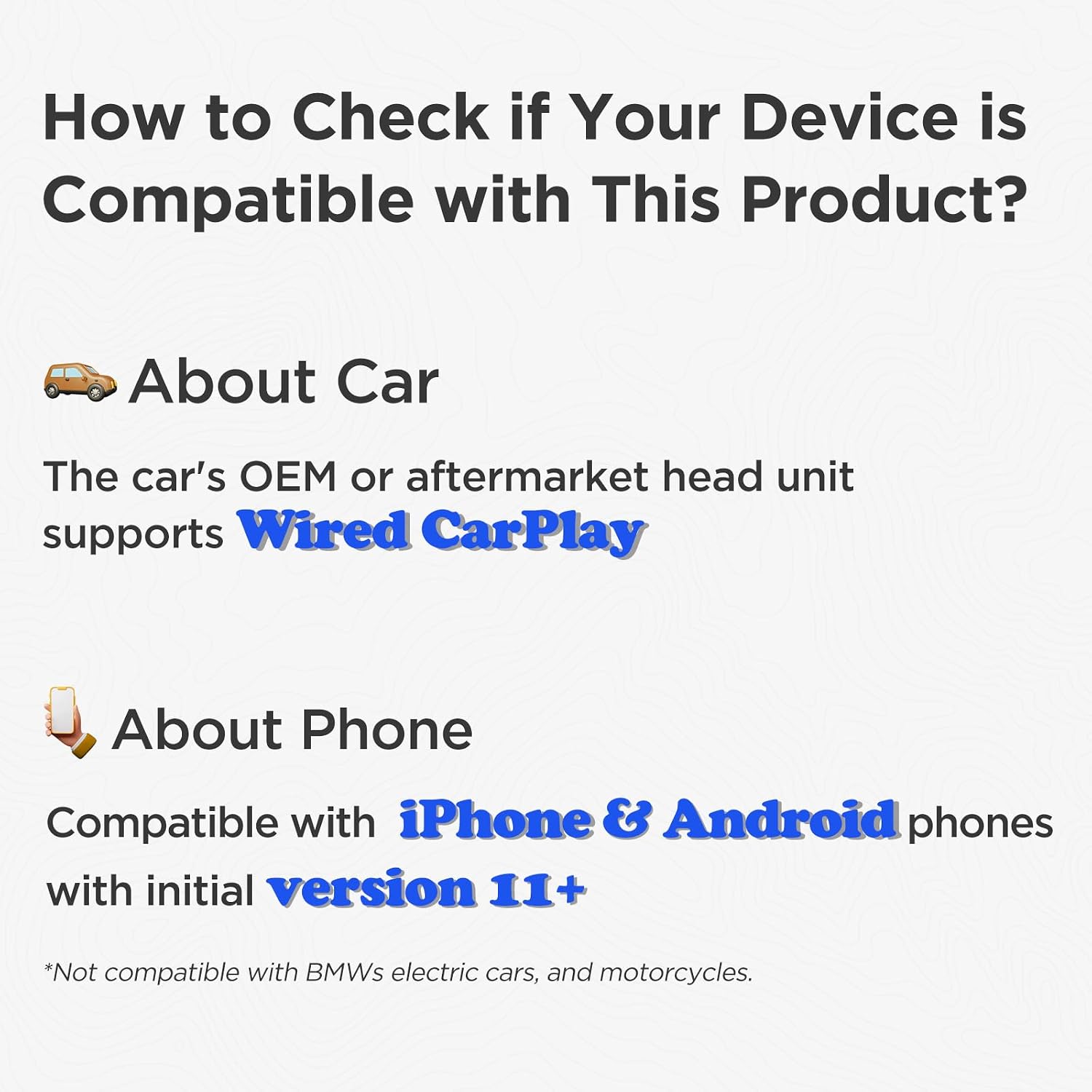
This image illustrates the compatibility requirements: the car must have wired CarPlay, and the phone must be iPhone (iOS 10+) or Android (Android 11+). It also notes incompatibility with BMW and Tesla.
Setup Instructions
Follow these steps to set up your MSXTTLY V-Stream adapter:
1. Initial Connection to Your Vehicle
- Ensure your vehicle's engine is running.
- Locate an available USB port in your car.
- Connect the MSXTTLY V-Stream adapter to the USB port. You can use the built-in USB port, the USB-A to USB-C cable, or the USB-A extension cable as needed for your car's configuration.
- Wait for the V-Stream main screen to appear on your car's display.

This image demonstrates the three available connection methods: direct plug-in, using a USB-A to USB-C cable, or using a USB-A extension cable to connect the adapter to your car's USB port.
2. Connecting to Wireless CarPlay (for iPhone users)
- On your iPhone, activate both Bluetooth and Wi-Fi.
- On your car's screen, wait for the V-Stream main interface to appear, then tap on the CarPlay icon.
- On your iPhone, go to Bluetooth settings and pair with "V-Stream-XXXX" (where XXXX is a unique identifier).
- Confirm the pairing request on your iPhone by tapping "Pair" and then "Allow" and "Use CarPlay".
- The connection should complete within 5 to 15 seconds, and your car's screen will switch to Apple CarPlay.

This image provides a visual guide for connecting your iPhone to wireless CarPlay via the V-Stream adapter, showing the steps from activating Bluetooth/Wi-Fi to pairing and launching CarPlay.
3. Connecting to Wireless Android Auto (for Android users)
- On your Android phone, activate both Bluetooth and Wi-Fi.
- On your car's screen, wait for the V-Stream main interface to appear, then tap on the Android Auto icon.
- On your Android phone, go to Bluetooth settings and pair with "V-Stream-XXXX".
- Confirm the pairing request on your Android phone.
- The connection should complete within 5 to 15 seconds, and your car's screen will switch to Android Auto.

This image provides a visual guide for connecting your Android phone to wireless Android Auto via the V-Stream adapter, showing the steps from activating Bluetooth/Wi-Fi to pairing and launching Android Auto.
4. Automatic Reconnection
After the initial setup, the adapter will automatically reconnect to your phone within 15 seconds when you start your car, provided Bluetooth and Wi-Fi are enabled on your phone.
Operating Instructions
Wireless CarPlay and Android Auto Usage
Once connected, you can use your car's display to access navigation, music, calls, and other compatible applications wirelessly through CarPlay or Android Auto. The adapter utilizes 5GHz Wi-Fi and Bluetooth 5.3 for fast, stable connections with minimal latency.

This image displays the user interface for both Wireless Android Auto and Wireless CarPlay on a car's infotainment screen, highlighting the range of applications available.
This video demonstrates the connection steps for both wireless CarPlay and Android Auto, showing the seamless transition from wired to wireless functionality.
Video Streaming (V-Stream)
The V-Stream feature allows you to enjoy popular streaming applications like Netflix, YouTube, and Prime Video on your car's display. Note: Video apps require a Wi-Fi connection or a mobile hotspot from your phone. They do not function simultaneously with CarPlay/Android Auto.
- After connecting the V-Stream adapter to your car's USB port and seeing the main V-Stream screen, navigate to your car's system settings.
- Go to "Network & Internet" and connect to a Wi-Fi network or your phone's mobile hotspot. Ensure the Wi-Fi provides internet access.
- A safety reminder will appear. Confirm that video streaming is for passengers only and that the driver will adhere to local traffic laws.
- Open your desired video application (e.g., Netflix, YouTube) and log in with your valid account credentials to start streaming.

This image illustrates the process of enabling video streaming: connecting to Wi-Fi, acknowledging safety warnings, and launching a video app like YouTube or Netflix.

This image highlights the core features of the MSXTTLY V-Stream adapter, including its 5G chip, Bluetooth 5.3, 5.8 GHz Wi-Fi, and compatibility with popular video streaming applications.
Connectivity Features
- Bluetooth 5.3: Provides a fast and stable initial connection for CarPlay and Android Auto.
- 5GHz Wi-Fi: Ensures high-speed data transfer for seamless wireless projection and video streaming, reducing latency.
- Copper USB Connector: The gold-plated copper USB connector enhances conductivity, accelerates data transmission, and helps reduce overheating.

This image details the internal design improvements of the adapter, such as the gold-plated USB for enhanced conductivity and oxidation resistance, and a vented shell for reduced heat generation and improved stability.
Maintenance
To ensure the longevity and optimal performance of your MSXTTLY V-Stream adapter, follow these maintenance guidelines:
- Cleaning: Use a soft, dry cloth to wipe the adapter. Avoid using liquid cleaners or solvents, as they may damage the device.
- Storage: When not in use for extended periods, disconnect the adapter from the USB port and store it in a cool, dry place away from direct sunlight and extreme temperatures.
- Handling: Handle the adapter with care. Avoid dropping it or subjecting it to strong impacts.
- Firmware Updates: Periodically check the manufacturer's website or app (if available) for firmware updates to ensure the best performance and compatibility.
Troubleshooting
If you encounter issues with your MSXTTLY V-Stream adapter, refer to the following common solutions:
Connection Issues
- Adapter Not Recognized:
- Ensure the adapter is fully inserted into the car's USB port.
- Try a different USB port in your vehicle, if available.
- Verify your car supports wired CarPlay.
- Restart your car's infotainment system.
- Wireless CarPlay/Android Auto Not Connecting:
- Ensure Bluetooth and Wi-Fi are enabled on your smartphone.
- Forget the "V-Stream-XXXX" Bluetooth device on your phone and re-pair it.
- Restart both your phone and the car's infotainment system.
- Check if your phone's operating system (iOS 10+ or Android 11+) is compatible.
- Intermittent Connection/Lag:
- Ensure there are no other devices interfering with the Wi-Fi or Bluetooth signal.
- Try switching your mobile hotspot's Wi-Fi frequency if using it for video streaming (e.g., between 2.4GHz and 5GHz).
- Ensure the adapter is not overheating. The carbon fiber casing is designed to help with heat dissipation.
This video demonstrates how to check and switch your mobile hotspot's Wi-Fi band, which can help resolve video glitches or intermittent connection issues.
Video Streaming Issues
- Video Apps Not Working:
- Confirm the adapter is connected to a stable Wi-Fi network or mobile hotspot with internet access.
- Ensure you are logged into a valid account for the streaming service (Netflix, YouTube, Prime Video).
- Remember that video apps do not work simultaneously with CarPlay/Android Auto. Switch to the V-Stream interface for video.
General Issues
- Device Overheating: While the adapter is designed for heat dissipation, prolonged use in extreme conditions might cause it to warm up. If it feels excessively hot, disconnect it and allow it to cool down.
- No Audio: Check your car's audio input settings and ensure the volume is turned up on both your phone and the car's system.
Specifications
| Feature | Detail |
|---|---|
| Brand | MSXTTLY |
| Model Number | 2025 |
| Compatible Devices | Smartphones, Cars with wired CarPlay |
| Specific Uses | Car audio and video |
| Connector Type | USB |
| Color | Carbon Black |
| Item Dimensions (L x W x H) | 50 x 20 x 10 millimeters (1.97 x 0.79 x 0.39 inches) |
| Number of Ports | 1 |
| Power Plug Type | Type A – 2 pin (North America) |
| Country of Origin | China |

This image illustrates the compact dimensions of the MSXTTLY V-Stream adapter, shown next to a smartphone for size comparison, with measurements of 2.75 inches in length and 1.06 inches in width.
Warranty and Support
MSXTTLY is committed to providing high-quality products and excellent customer service.
- Warranty: Your MSXTTLY V-Stream adapter comes with a 365-day guarantee.
- Technical Assistance: Lifetime technical assistance is available for your product.
- Customer Support: Professional 24/7 fast support is available to assist you with any questions or issues.
- Contact: For support, please refer to the contact information provided on the product packaging or the official MSXTTLY website.

This image outlines the comprehensive support offered by MSXTTLY, including a 365-day guarantee, lifetime technical assistance, and 24/7 fast customer support.


