1. Introduction
This manual provides essential information for setting up, operating, maintaining, and troubleshooting your Sony BRAVIA 2M2 Series 4K Ultra HD Smart LED Google TV, model K-55S25BM2. Please read this manual thoroughly before using your television to ensure proper and safe operation.
The Sony BRAVIA 2M2 Series TV features a 4K Ultra HD display, Google TV operating system, and advanced audio technologies for an immersive viewing experience.
2. Setup
2.1 What's in the Box
Verify that all components are present in the packaging:
- 1 LED TV Unit
- 1 AC Power Cord
- 1 Remote Control
- 2 AAA Batteries (for remote control)
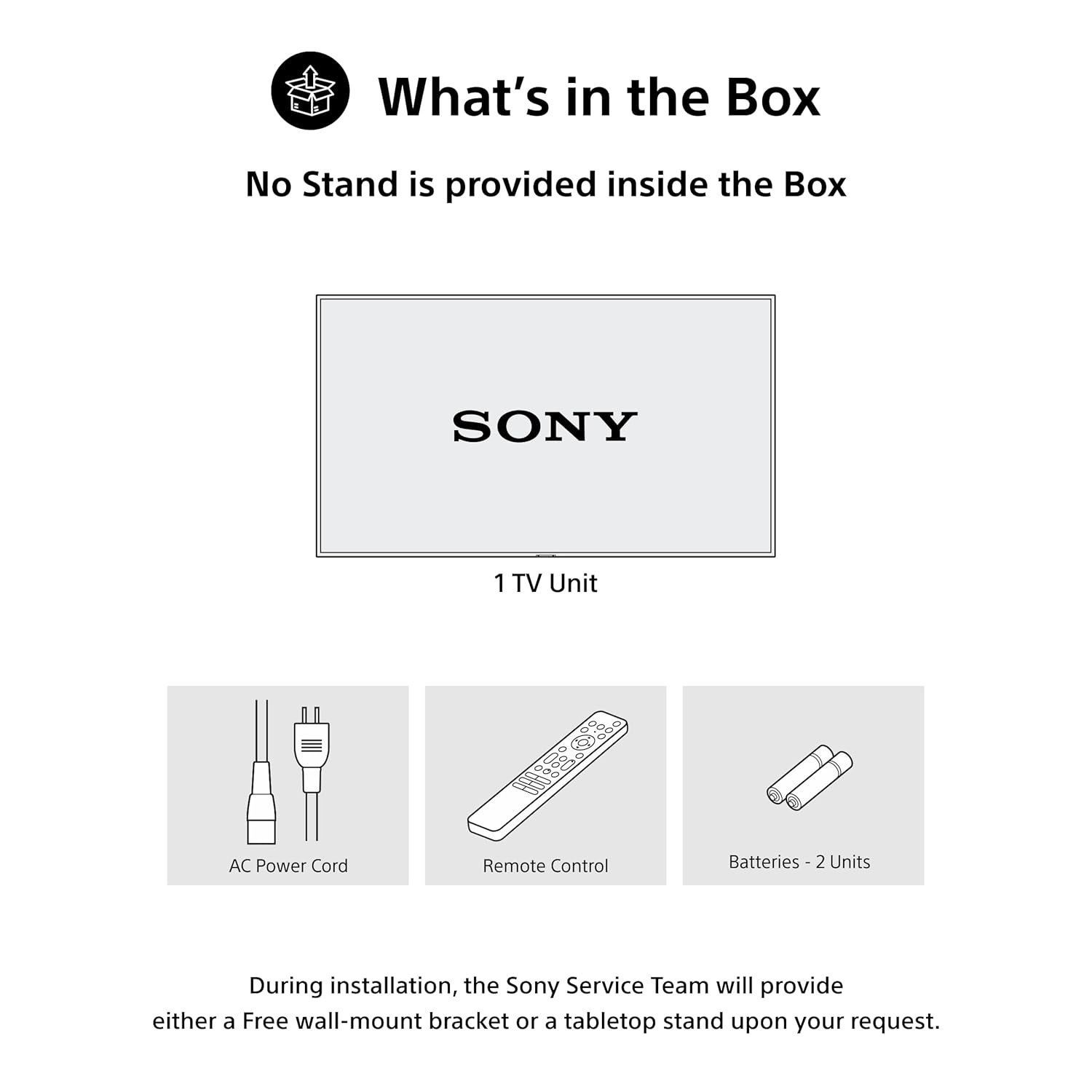
Figure 2.1: Included items in the product packaging. Note: A stand is not provided inside the box. During installation, the Sony Service Team will provide either a free wall-mount bracket or a tabletop stand upon your request.
2.2 Physical Installation
The television can be installed using a wall mount or a tabletop stand. Ensure the chosen location provides adequate ventilation and is away from direct sunlight or heat sources. Refer to the separate installation guide for detailed instructions on mounting the TV.
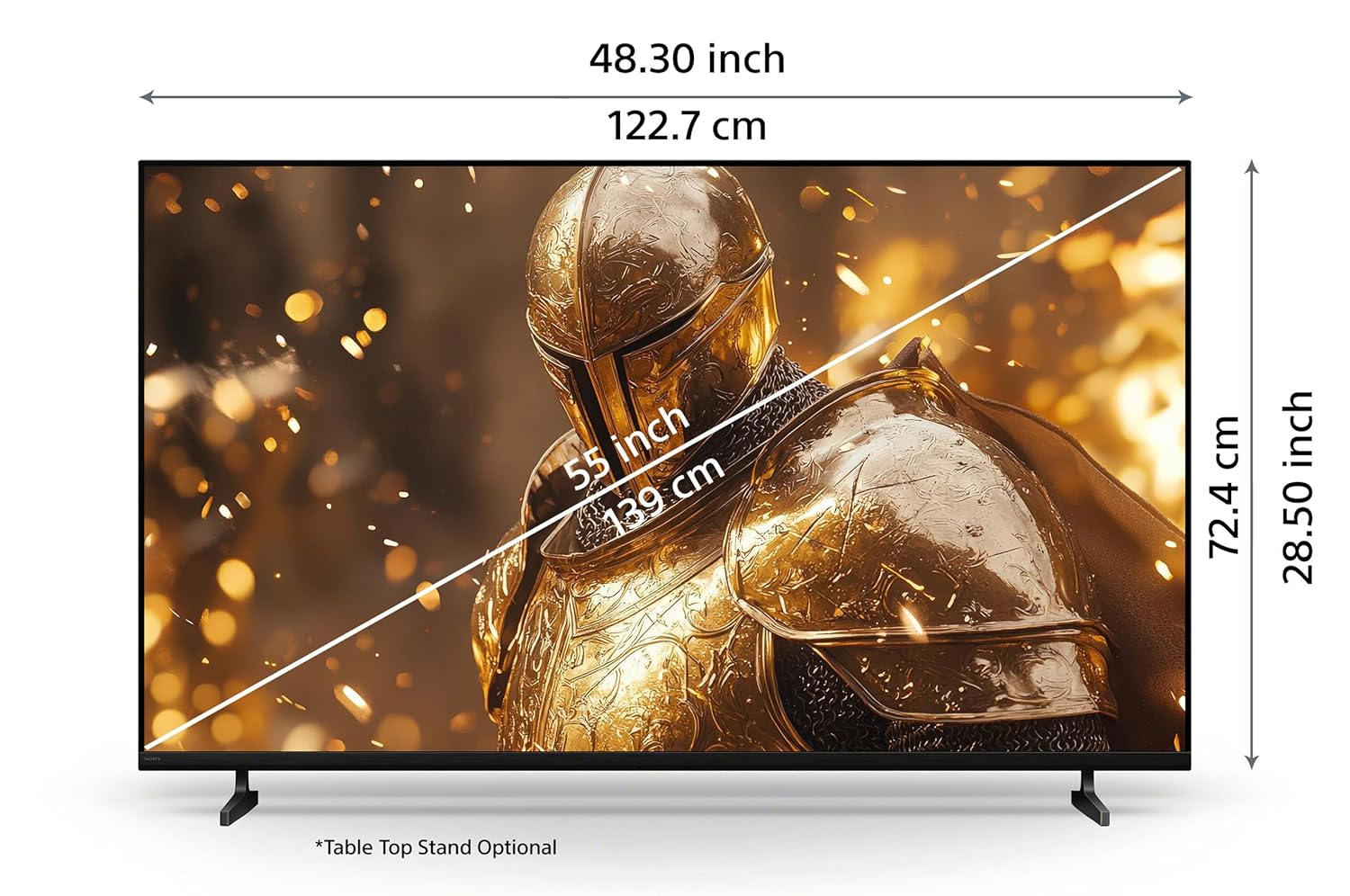
Figure 2.2: Product dimensions for the 55-inch model. Tabletop stand is optional.
2.3 Connecting Devices
Connect your external devices such as set-top boxes, Blu-ray players, gaming consoles, and USB storage devices to the appropriate ports on the TV. Ensure the TV is powered off before making any connections.
- HDMI Ports: The TV features 4 HDMI ports for high-definition audio and video input. HDMI 3 supports eARC/ARC for enhanced audio return channel functionality.
- USB Ports: Two USB ports are available for connecting hard drives and other USB devices.
- LAN Port: Use the LAN port for a wired internet connection.

Figure 2.3: Rear view of the TV showing various connectivity ports.
3. Operating Instructions
3.1 Powering On/Off
Press the power button on the remote control or on the TV to turn the television on or off. Ensure the power cord is securely connected to both the TV and a power outlet.
3.2 Remote Control Functions
The included remote control provides access to all TV functions. Insert the two AAA batteries into the remote control, observing the correct polarity.
- One Click Google Assistant: Use the dedicated button for voice commands.
- Quick Access Buttons: Direct access to Sony Picture Core, YouTube, Netflix, Sony Liv, Prime Video, and Crunchyroll.

Figure 3.1: Remote control layout with key function buttons.
3.3 Google TV Interface
Navigate the Google TV interface to access apps, streaming services, and personalized content recommendations. Use the directional pad and select button on the remote to browse.

Figure 3.2: Google TV home screen displaying various applications and content.
3.4 Voice Search
Utilize the built-in Google Assistant for voice commands. Press the Google Assistant button on your remote and speak clearly to search for content, control your TV, or get information.

Figure 3.3: Voice search functionality via the remote control.
3.5 Wireless Connectivity
The TV supports Wi-Fi, Bluetooth, Apple AirPlay 2, and Google Cast for seamless wireless connectivity.
- Wi-Fi: Connect to your home network for internet access and smart TV features.
- Bluetooth: Pair Bluetooth headphones or other compatible audio devices.
- Apple AirPlay 2 / Google Cast: Stream videos, photos, and music directly from your iOS or Android devices to the TV.

Figure 3.4: Streaming content from a smartphone to the TV.
3.6 Gaming Features
The TV is equipped with features to enhance your gaming experience:
- Game Menu: Access gaming-specific settings and adjustments for optimal performance.
- ALLM/eARC (HDMI 2.1 Compatible): Auto Low Latency Mode (ALLM) reduces input lag, and enhanced Audio Return Channel (eARC) provides high-quality audio passthrough to compatible sound systems.
4. Maintenance
4.1 Cleaning the TV
To clean the screen, gently wipe it with a soft, dry cloth. For stubborn marks, slightly dampen the cloth with water. Do not use harsh chemicals or abrasive cleaners. For the TV frame and stand, use a soft, dry cloth.
4.2 Power Saving (Eco Dashboard)
The Eco Dashboard 2 provides real-time energy consumption insights and allows you to optimize settings for eco-friendly performance. This includes adjusting brightness based on ambient light and other power-saving options.

Figure 4.1: Eco Dashboard 2 for managing power consumption.
5. Troubleshooting
If you encounter issues with your TV, refer to the following common problems and solutions:
- No Power: Ensure the AC power cord is securely connected to the TV and a working power outlet. Check if the power outlet is functional.
- No Picture/Sound: Verify that the correct input source is selected. Check all cable connections (HDMI, antenna, etc.) for secure fit. Restart connected devices.
- Remote Control Not Responding: Check the batteries in the remote control and replace them if necessary. Ensure there are no obstructions between the remote and the TV's IR sensor.
- Network Connection Issues: For Wi-Fi, ensure your router is on and within range. For wired connections, check the LAN cable. Try restarting your router and modem.
- Picture Quality Issues: Adjust picture settings (brightness, contrast, sharpness) in the TV menu. Ensure you are watching high-quality content (e.g., 4K content for optimal 4K display).
For more detailed troubleshooting or persistent issues, please contact Sony customer support.
6. Specifications
| Feature | Specification |
|---|---|
| Brand | Sony |
| Model | K-55S25BM2 |
| Model Name | Bravia |
| Screen Size | 55 Inches (139 cm) |
| Resolution | 4K Ultra HD (3840 x 2160) |
| Refresh Rate | 60 Hertz |
| Display Technology | LED |
| Processor | 4K Processor X1 |
| Operating System | Google TV |
| Sound Output | 20 Watts, 2ch, Open Baffle Speaker |
| Audio Features | DTS Digital Surround, DTS:X, Dolby Atmos, Dolby Audio |
| HDMI Ports | 4 (ALLM/eARC compatible) |
| USB Ports | 2 |
| Wireless Connectivity | Wi-Fi, Bluetooth |
| Smart TV Features | Google TV, Watchlist, Google Assistant, Google Cast, Game Menu, Apple Airplay 2, Apple Homekit, Alexa |
| Energy Rating | 2 Star |
| Product Dimensions (LxWxH) | 122.7 x 8.2 x 72.4 cm |
| Item Weight | 13.2 kg |
7. Warranty and Support
7.1 Warranty Information
Your Sony BRAVIA TV comes with a 1-year comprehensive warranty on the product from the date of purchase. This includes the remote control for technical issues. Please retain your purchase invoice to avail warranty services.
7.2 Customer Support
For assistance, technical support, or service requests, please contact Sony customer care:
- Customer Care Number: 080 6500 6500
- Email: Sonyindia.care@ap.sony.com
- Website: Visit sonyindia.co.in for product recycling information and further support.
Sony provides trained and verified experts for installation and support services.

Figure 7.1: Sony's customer support and installation services.