
M-Wave K5
M-VAVE Wireless MIDI Controller Mixer User Manual
Model: K5 | Brand: M-Wave
Introduction
The M-VAVE Wireless MIDI Controller Mixer is a versatile and portable device designed for music production. It offers wireless connectivity, dynamic keybed, 8 knobs, and seamless integration with various music software, providing an unhindered creative experience anywhere.

Figure 1: Front view of the M-VAVE Wireless MIDI Controller Mixer, showcasing its keys, pads, and knobs.
Setup
Follow these steps to set up your M-VAVE Wireless MIDI Controller Mixer for the first time.
Unboxing
- Carefully remove all components from the packaging.
- Verify that all items listed in the package contents are present: MIDI controller, USB charging cable.
Powering On and Charging
The controller features a built-in rechargeable battery for portable use. It can also be used while charging.
- Locate the power switch on the side of the unit.
- Slide the switch to the "ON" position.
- To charge the device, connect the provided USB cable to the USB port on the controller and to a compatible USB power source (e.g., computer USB port, USB wall adapter).

Figure 2: The MIDI controller connected via USB for charging, highlighting its built-in rechargeable battery.
Connectivity (Bluetooth & USB)
The M-VAVE controller supports both wireless Bluetooth MIDI and wired USB connectivity.
- Bluetooth MIDI:
- Ensure the controller is powered on.
- On your computer (Windows, Mac OS) or mobile device (iOS, Android), open your Digital Audio Workstation (DAW) or music application.
- Navigate to the MIDI settings or Bluetooth MIDI device setup within your application.
- Select "SMK25" (or similar M-VAVE device name) from the list of available Bluetooth MIDI devices to connect.
- The Bluetooth indicator light on the controller will confirm a successful connection.
- USB Connection:
- Connect the USB cable from the controller's USB port directly to your computer.
- The controller will be recognized as a standard MIDI device, and no additional drivers are typically required for most operating systems.
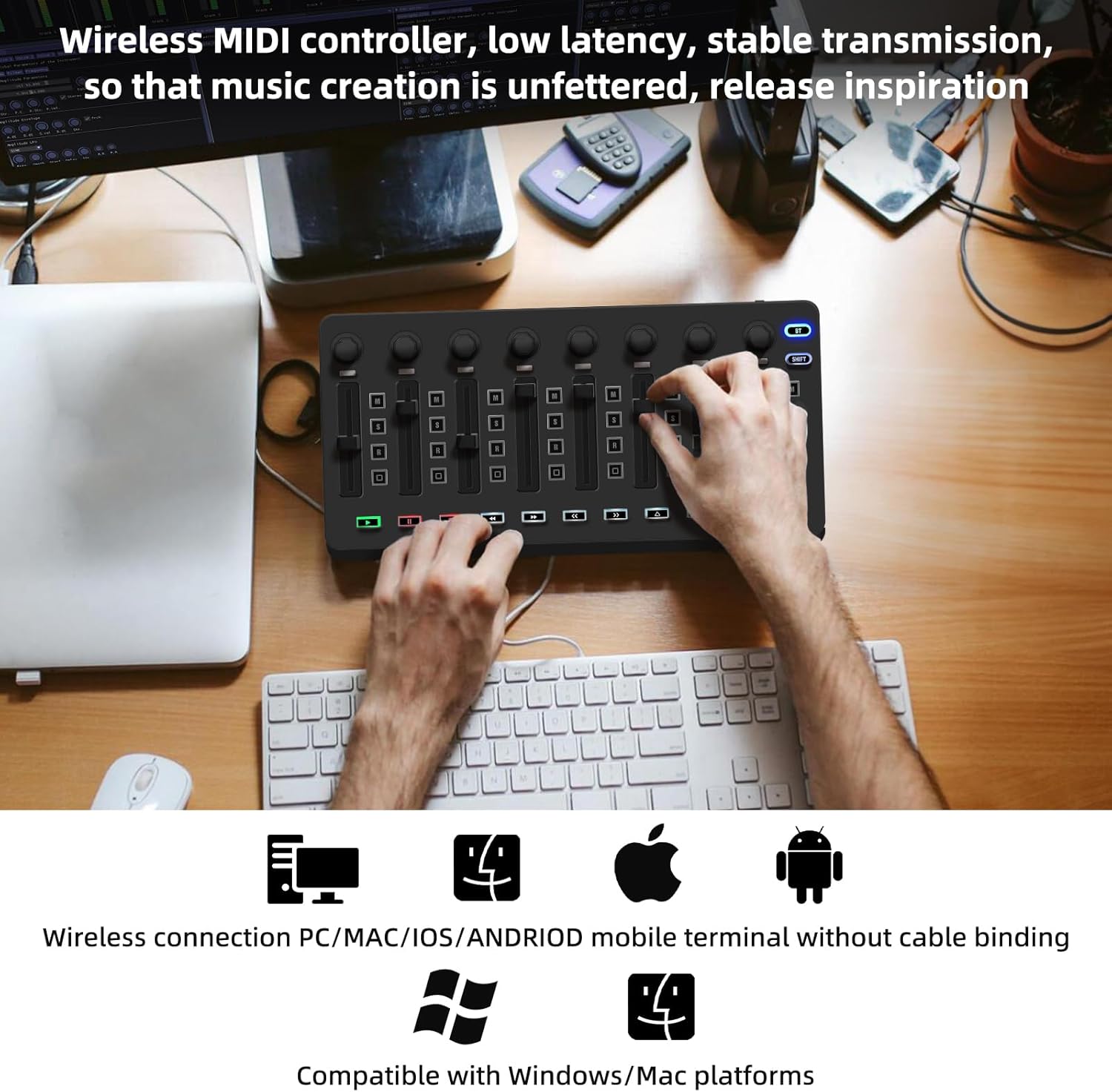
Figure 3: The wireless MIDI controller in use with a laptop, demonstrating its low latency and stable transmission for music creation.
Operating Instructions
This section details the functions of the M-VAVE controller's various components and how to use them effectively in your music production workflow.
Controls Overview
The M-VAVE controller is equipped with a range of intuitive controls:
- Keys: The semi-weighted dynamic keybed provides responsive playability for melodies and chords.
- Pads: Eight soft backlit silicone pads are velocity-sensitive, ideal for finger drumming and triggering samples.
- Knobs/Encoders: Eight 360-degree rotary encoders allow for precise control over parameters in your DAW. These can be customized for various functions.
- Touch Strips: Dedicated touch strips for pitch bend and modulation offer expressive control over your sounds.

Figure 4: Close-up view of the controller's soft backlit silicone buttons, designed for quiet operation and comfortable touch.

Figure 5: Detailed view of the faders and 360-degree rotary encoders, each with an indicator light for immediate visual feedback and customizable control.
Basic Operation
Once connected, the controller will automatically map to common functions in most DAWs. You can immediately start playing instruments, triggering drums, and adjusting parameters.
Advanced Features & DAW Integration
The M-VAVE controller is designed for seamless integration with leading DAWs like Ableton Live, FL Studio, Cubase, Logic Pro X, Bitwig, Reason, Studio One, and GarageBand (iOS). This eliminates the need for complex manual MIDI mapping.
- Customization: Each control unit can be customized using the companion software (if available) to create a unique music production experience.
- Real-time Feedback: Faders with indicator lights provide real-time visual feedback on host movements, aiding in precise control of audio tracks.

Figure 6: The controller seamlessly integrated into a music production studio setup, demonstrating its perfect compatibility with mainstream Digital Audio Workstations (DAWs).

Figure 7: The portable MIDI controller being used in diverse environments, including with a smartphone, tablet, and laptop, highlighting its versatility for music creation anywhere.
Maintenance
Proper care and maintenance will ensure the longevity and optimal performance of your M-VAVE Wireless MIDI Controller Mixer.
- Cleaning: Use a soft, dry cloth to wipe down the surface of the controller. Avoid abrasive cleaners or solvents that could damage the finish or electronic components.
- Battery Care: To prolong battery life, avoid fully discharging the battery frequently. Charge the device regularly, even if not in constant use. Store in a cool, dry place.
- Storage: When not in use, store the controller in a protective case or a clean, dust-free environment to prevent damage to keys, pads, and knobs.
Troubleshooting
If you encounter any issues with your M-VAVE Wireless MIDI Controller Mixer, refer to the following common solutions:
- Connectivity Issues:
- Bluetooth not connecting: Ensure the controller is powered on and within range. Check your device's Bluetooth settings to ensure it's enabled and discoverable. Try restarting both the controller and your host device.
- USB not recognized: Try a different USB port or cable. Ensure your operating system is up to date.
- Performance Problems:
- Latency with Bluetooth: While Bluetooth MIDI is designed for low latency, ensure no other high-bandwidth Bluetooth devices are interfering. Close unnecessary applications on your host device.
- Unresponsive controls: Check for any physical obstructions. If using customization software, ensure settings are correctly applied and saved.
- Hardware Malfunctions:
- If a key or pad is unresponsive, gently clean around the affected area. If the issue persists, contact customer support.
Specifications
| Feature | Detail |
|---|---|
| Item Weight | 1.32 pounds |
| Package Dimensions | 11.65 x 5.79 x 2.44 inches |
| Country of Origin | China |
| ASIN | B0F7WVH1WB |
| Item model number | K5 |
| Batteries | 1 Lithium Polymer batteries required. (included) |
| Color Name | Black Mixer |
| Compatible Devices | Windows, Mac OS, iOS, Android |
| Connector Type | Bluetooth, 1/4-Inch Stereo |
| Hardware Interface | Bluetooth |
| Supported Software | Ableton live, Fl Studio, Cubase, Logic Pro X, Bitwig, Reason, Studio One, GarageBand(iOS) |
| Instrument Key | Any |
| Number of Keyboard Keys | 25 |
| Battery type | Lithium Polymer |
| Brand | M-Wave |
| Number of Keys | 25 |
| Connectivity Technology | Bluetooth |
| Special Feature | Wireless, Bluetooth |
| Color | Black Mixer |
Warranty and Support
Warranty Information
This M-VAVE product is covered by a manufacturer's warranty. For specific details regarding warranty duration and coverage, please refer to the documentation included with your purchase or visit the official M-Wave website.
Extended protection plans may also be available for purchase:
- 3-Year Protection Plan
- 4-Year Protection Plan
- Complete Protect: One plan covers all eligible past and future purchases.
Contact Support
For technical assistance, troubleshooting not covered in this manual, or warranty claims, please contact M-Wave customer support through their official website or the retailer where the product was purchased.
Visit the M-Wave Store on Amazon for more information.
Related documentsK5


Ask a question about this manual
Ask about setup, troubleshooting, compatibility, parts, safety, or missing instructions. Manuals+ will review the question and use this page’s manual context to help answer it.