
Microsoft EP2-40518
Microsoft Surface Laptop Smurface Edition (2025) User Manual
Model: EP2-40518
Introduction
Welcome to the user manual for your new Microsoft Surface Laptop Smurface Edition (2025). This guide provides essential information for setting up, operating, maintaining, and troubleshooting your device. The Surface Laptop Smurface Edition combines powerful performance with a unique design, built for productivity and creativity.
What's in the Box
- Surface Device
- Power Supply
- USB-C Cable
Setup
1. Initial Charge and Power On
Before first use, ensure your Surface Laptop is adequately charged. Connect the power supply to the charging port on your device and a power outlet. Once charged, press the power button located on the keyboard to turn on the device.
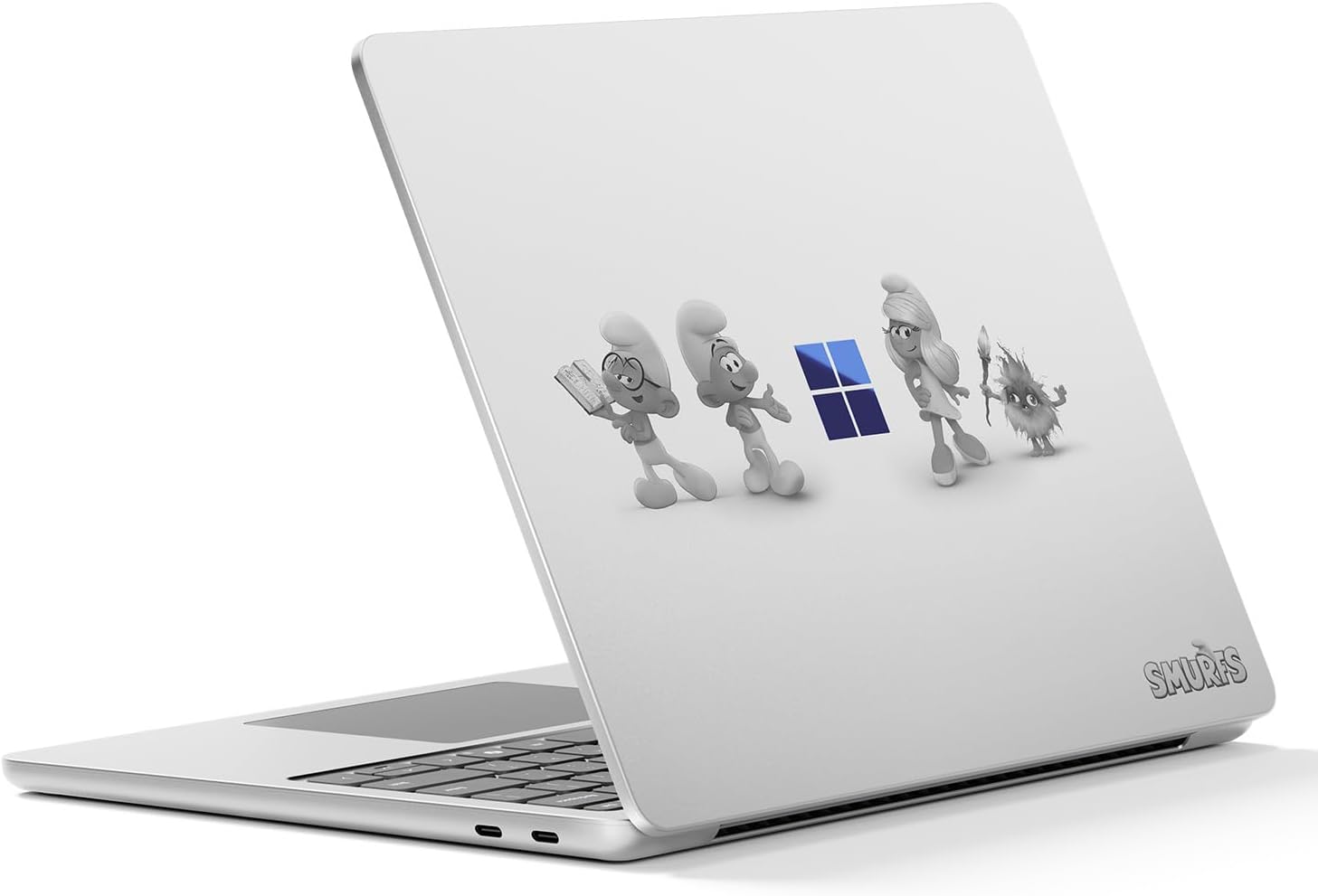
The Microsoft Surface Laptop Smurface Edition (2025) with its distinctive Smurfs design on the lid.
2. Connecting Peripherals
Your Surface Laptop features USB-C ports for connecting various peripherals such as external displays, storage devices, and other accessories. Use compatible USB-C cables for optimal performance.

Side view of the Surface Laptop highlighting the USB-C ports for connectivity.
3. Initial Windows Setup
Follow the on-screen prompts to complete the Windows 11 setup process. This includes selecting your region, connecting to a Wi-Fi network, and setting up your Microsoft account. Ensure you have an active internet connection for updates and account synchronization.

Front view of the Surface Laptop with the display showing the Windows desktop environment.
Operating Your Device
1. Basic Interaction
The Surface Laptop features a 13-inch touchscreen display, a full-size keyboard, and a precision touchpad. You can interact with the device using touch gestures, the keyboard for typing, and the touchpad for navigation and clicks.

The brilliant 13-inch PixelSense LCD touchscreen is ideal for streaming and entertainment.
2. Windows 11 and Copilot+ Features
Your Surface Laptop is a Windows 11 Copilot+ PC, powered by the Snapdragon X Plus processor and an AI engine. This enables advanced AI features through Copilot, your AI companion, to speed up tasks, provide personalized answers, and assist with creative endeavors directly from your taskbar.

Copilot, your AI companion, integrated into Windows 11 for enhanced productivity.
3. Battery Management
The device offers up to 23 hours of battery life for local video playback. Actual battery life varies based on usage, network configuration, and other factors. To optimize battery performance, adjust power settings and close unused applications.

Enjoy all-day battery life for work and creativity without needing to recharge frequently.
Maintenance
1. Cleaning
To clean your Surface Laptop, use a soft, lint-free cloth. For the screen, a microfiber cloth dampened with water or a screen-specific cleaner is recommended. Avoid harsh chemicals or abrasive materials.
2. Software Updates
Regularly check for and install Windows updates to ensure your system has the latest security patches, features, and performance improvements. Go to Settings > Windows Update to manage updates.
3. Battery Care
To prolong battery lifespan, avoid extreme temperatures and do not fully discharge the battery frequently. For long-term storage, charge the battery to about 50%.
Troubleshooting
Common Issues
- Device not powering on: Ensure the power supply is correctly connected and the battery has sufficient charge. Try a different outlet.
- Display issues: If the screen is blank or flickering, try restarting the device. Check display settings in Windows.
- Connectivity problems: For Wi-Fi or Bluetooth issues, ensure wireless adapters are enabled and try restarting your router or pairing device.
Contact Support
For further assistance, visit the official Microsoft Support website or contact their customer service. Provide your model number (EP2-40518) and a detailed description of the issue.
Specifications

Overview of the Surface Laptop's core specifications.
| Feature | Detail |
|---|---|
| Brand | Microsoft |
| Model Name | Surface Laptop |
| Item Model Number | EP2-40518 |
| Screen Size | 13 Inches |
| Screen Resolution | 1920 x 1280 pixels |
| Processor | Snapdragon X Plus (8 core), 3.4 GHz |
| RAM | 16 GB LPDDR5x |
| Hard Drive | 512 GB UFS |
| Operating System | Windows 11 Home |
| Graphics Card | Integrated (Qualcomm Adreno GPU) |
| Wireless Type | 802.11.be, 802.11a/b/g/n/ac, 802.11ax |
| USB Ports | 2 x USB 3.0 (USB-C) |
| Item Weight | 5.12 pounds |
| Product Dimensions | 12.01 x 9.22 x 2.35 inches |
| Color | Smurfs Limited Edition |

Physical dimensions of the Surface Laptop 13-inch model.
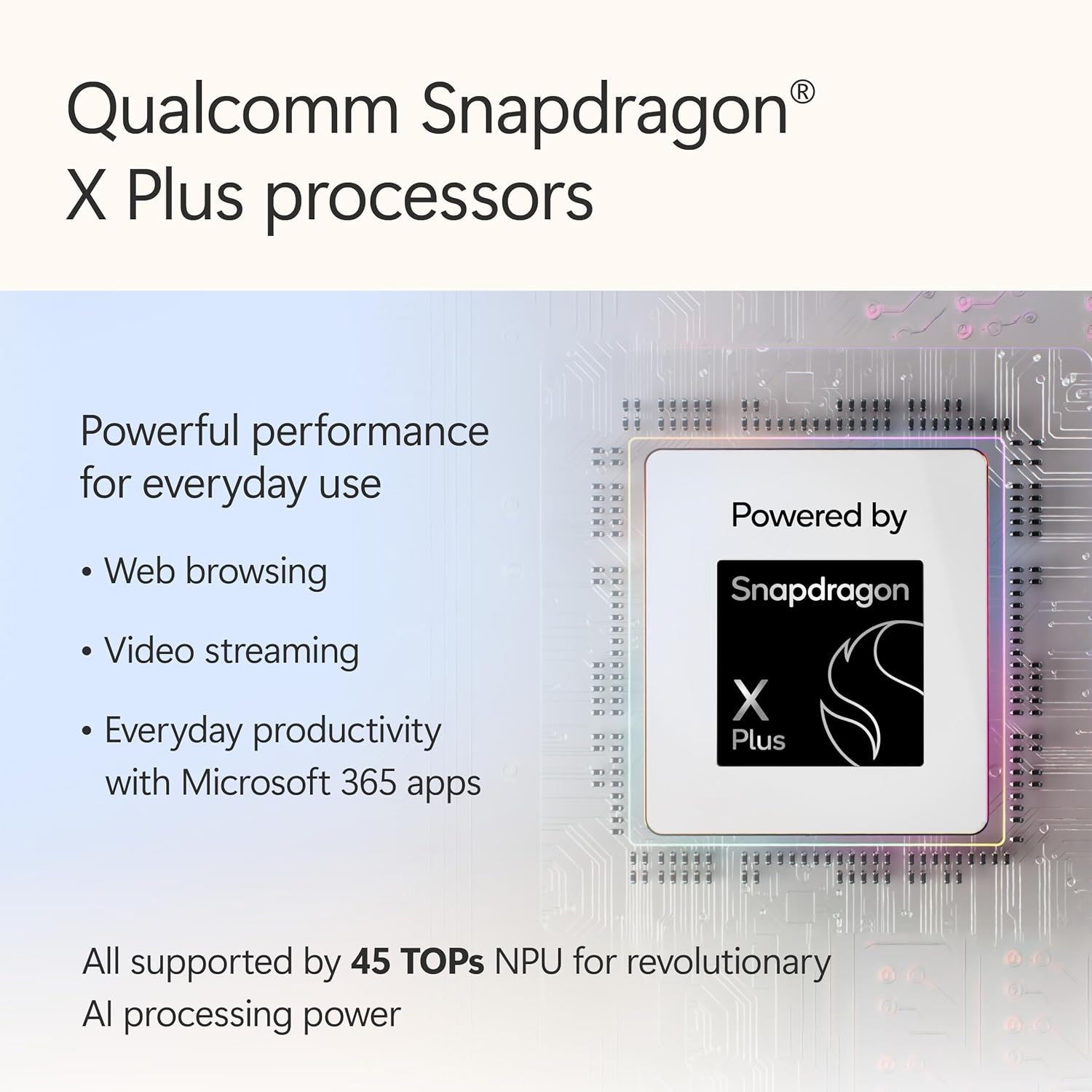
The Qualcomm Snapdragon X Plus processor provides powerful performance for everyday use.
Warranty and Support
Your Microsoft Surface Laptop Smurface Edition (2025) comes with a standard manufacturer's warranty. For detailed warranty terms and conditions, please refer to the documentation included with your purchase or visit the official Microsoft support website. For technical support, driver downloads, and service information, please visit support.microsoft.com.
Related documentsEP2-40518


Ask a question about this manual
Ask about setup, troubleshooting, compatibility, parts, safety, or missing instructions. Manuals+ will review the question and use this page’s manual context to help answer it.