
1. Introduction
This manual provides essential information for the safe and efficient use of your TCL 50P7K QLED TV. This 50-inch 4K UHD television features HDR10+ and Dolby Vision for enhanced picture quality, an AiPQ Processor for real-time visual optimization, and Google TV for smart functionality. It also includes hands-free voice control for convenient operation.
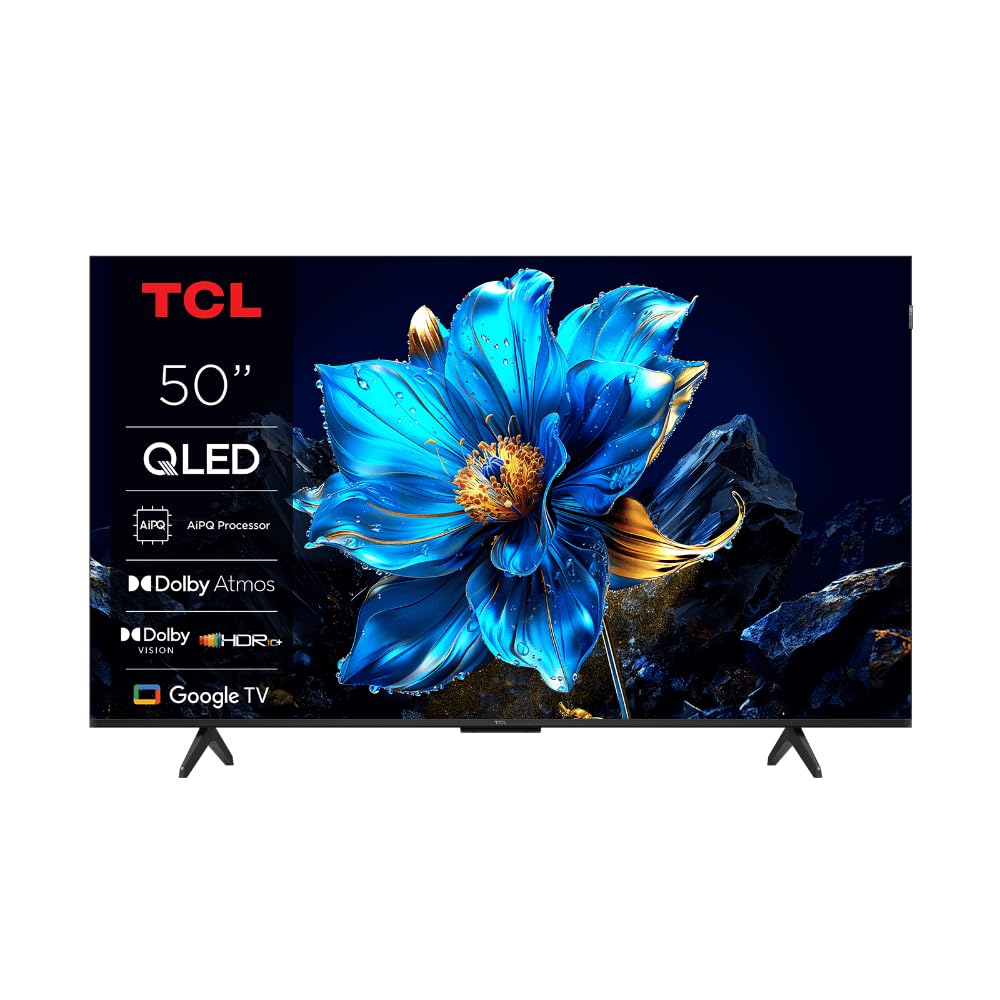
Image: Front view of the TCL 50P7K QLED TV, showcasing its slim design and display.
2. Important Safety Instructions
Please read all safety instructions carefully before operating your TV. Keep this manual for future reference.
- Power Source: Connect the TV only to an AC 100-240V, 50/60Hz power supply.
- Ventilation: Ensure adequate ventilation around the TV. Do not block ventilation openings.
- Water and Moisture: Do not expose the TV to rain or moisture. Do not place objects filled with liquids on the TV.
- Cleaning: Unplug the TV before cleaning. Use a soft, dry cloth. Do not use liquid cleaners or aerosol cleaners.
- Placement: Place the TV on a stable, level surface. Avoid placing it in direct sunlight or near heat sources.
- Children: Supervise children to prevent them from climbing on the TV or stand.
- Lightning: Unplug the TV during lightning storms or when unused for long periods.
- Servicing: Do not attempt to service this product yourself. Refer all servicing to qualified service personnel.
3. What's Included
Verify that all components are present in the packaging:
- TCL 50P7K QLED TV
- Remote Control
- Power Cable
- TV Stand (2 pieces)
- Screws for Stand Installation
- User Manual (this document)
4. Setup
4.1 Unpacking
Carefully remove the TV from its packaging. It is recommended to have two people for this process due to the size and weight of the television. Retain the packaging materials for future transport or servicing.
4.2 Stand Installation
To install the TV stand:
- Place the TV face-down on a soft, flat surface (e.g., a blanket or foam) to prevent screen damage.
- Align each stand piece with the corresponding slots on the bottom of the TV.
- Secure each stand piece using the provided screws. Ensure they are tightened firmly.
- Carefully lift the TV to its upright position on a stable surface.

Image: Front view of the TCL 50P7K QLED TV with its two-leg stand attached.

Image: Side view of the TCL 50P7K QLED TV, showing the profile with the stand.
4.3 Wall Mounting
The TV is compatible with VESA standard wall mounts. A wall mount kit is sold separately. Refer to the instructions provided with your wall mount for proper installation. Ensure the wall can support the weight of the TV.
4.4 Connecting Peripherals
Connect your devices (e.g., cable box, Blu-ray player, gaming console) to the TV's input ports. The TV features multiple HDMI ports, including HDMI 2.1 for smoother gameplay.
- HDMI: Connect HDMI cables from your devices to the HDMI ports on the TV.
- Power: Connect the power cable to the TV's power input, then plug it into a wall outlet.
- USB: Use the USB 3.0 port for connecting external storage devices.

Image: Rear view of the TCL 50P7K QLED TV, showing the location of various input and output ports.

Image: Angled rear view of the TCL 50P7K QLED TV, providing a clearer look at the port arrangement.
4.5 Initial Power On and First-Time Setup
After connecting all cables, plug in the TV and press the power button on the remote control. Follow the on-screen instructions to complete the initial setup, which typically includes:
- Language selection
- Network connection (Wi-Fi)
- Google account sign-in
- Channel scanning (if applicable)
5. Operating Your TV
5.1 Remote Control Overview
The remote control allows you to navigate the TV's features. Key functions include:
- Power Button: Turns the TV on or off.
- Directional Pad (D-Pad): Navigates menus and selects items.
- OK/Enter Button: Confirms selections.
- Back Button: Returns to the previous screen.
- Home Button: Accesses the Google TV home screen.
- Volume Up/Down: Adjusts the volume.
- Input Button: Selects input sources (HDMI 1, HDMI 2, etc.).
- Google Assistant Button: Activates voice control.
5.2 Google TV Interface Navigation
The Google TV interface organizes content from your apps and subscriptions. Use the D-Pad on your remote to browse recommendations, access your installed apps, and manage settings.
5.3 Using Hands-Free Voice Control
Your TCL 50P7K TV supports hands-free voice control. To activate, simply say "Hey Google" or "Ok Google" followed by your command. You can ask it to:
- Search for movies or shows.
- Control playback (play, pause, skip).
- Adjust volume or change channels.
- Open applications.
- Get information (weather, news).
5.4 Picture and Sound Settings
Access the TV's settings menu to customize picture and sound. Navigate to Settings > Display & Sound. Here you can adjust:
- Picture Mode: Standard, Dynamic, Movie, Sport, etc.
- Brightness, Contrast, Color: Fine-tune visual output.
- Sound Mode: Standard, Music, Movie, Clear Voice, etc.
- Equalizer: Customize audio frequencies.
5.5 Connecting to Wi-Fi
To connect your TV to the internet:
- Go to Settings > Network & Internet.
- Select your Wi-Fi network from the list.
- Enter the Wi-Fi password if prompted.
5.6 Using Smart Features
Your Google TV provides access to a wide range of streaming services. Popular pre-installed applications include Netflix, YouTube, and Amazon Prime Video. You can download additional apps from the Google Play Store.
6. Maintenance
6.1 Cleaning the Screen
To clean the TV screen, gently wipe it with a soft, dry, lint-free cloth. Do not use liquid cleaners, abrasive pads, or chemical sprays, as these can damage the screen surface.
6.2 Cleaning the TV Body
Wipe the TV's frame and back panel with a soft, slightly damp cloth. Avoid using harsh detergents or solvents. Ensure no moisture enters the ventilation openings.
6.3 Software Updates
Periodically check for software updates to ensure your TV has the latest features and performance improvements. Go to Settings > System > About > System update to check for and install updates.
7. Troubleshooting
Refer to the following table for common issues and their solutions:
| Problem | Possible Cause | Solution |
|---|---|---|
| No power | Power cable disconnected; power outlet faulty. | Ensure power cable is securely connected. Test the outlet with another device. |
| No picture, but sound is present | Incorrect input source selected; external device issue. | Press the Input button on the remote to select the correct source. Check the external device's connection and power. |
| No sound, but picture is present | Volume muted or too low; audio settings incorrect. | Unmute the TV or increase volume. Check audio output settings in the TV menu. |
| Remote control not working | Batteries depleted; obstruction between remote and TV. | Replace batteries. Ensure no objects block the remote's signal path to the TV. |
| Cannot connect to Wi-Fi | Incorrect password; router issue; TV too far from router. | Verify Wi-Fi password. Restart your router. Move TV closer to router or use a Wi-Fi extender. |
8. Specifications
Detailed technical specifications for the TCL 50P7K QLED TV:
| Feature | Detail |
|---|---|
| Model Name | 50P7K |
| Screen Size | 50 Inches |
| Display Technology | LCD (QLED) |
| Resolution | 4K UHD (3840 x 2160) |
| Refresh Rate | 60 Hz |
| HDR Format Supported | Dolby Vision, HDR10+ |
| Picture Enhancement | AiPQ Processor |
| Operating System | Google TV |
| Supported Internet Services | Google TV, Netflix, YouTube, Amazon Prime |
| Connectivity Technology | HDMI, Wi-Fi |
| HDMI Ports | Multiple (including HDMI 2.1) |
| USB Ports | 1 (USB 3.0) |
| Control Method | Remote, Voice (Hands-free) |
| Mounting Type | Wall Mount (VESA compatible) |
| Product Dimensions (D x W x H) | 28D x 111.1W x 69.7H Centimeters (with stand) |
| Item Weight | 16 Kilograms |
9. Warranty and Support
Your TCL 50P7K QLED TV comes with a manufacturer's warranty. Please refer to the warranty card included in your product packaging for specific terms and conditions, including warranty period and coverage details. For technical support, service requests, or further assistance, please contact TCL customer service through their official website or the contact information provided in your warranty documentation.


