
1. Product Overview
This manual provides comprehensive instructions for the installation, operation, and maintenance of your Smart WiFi Door Lock with Camera & Keypad. This advanced keyless deadbolt lock offers multiple unlocking methods, including fingerprint, passcode, RFID card, mechanical key, and remote control via the Tuya app. It features a built-in camera for real-time monitoring and an integrated doorbell for enhanced security and convenience.
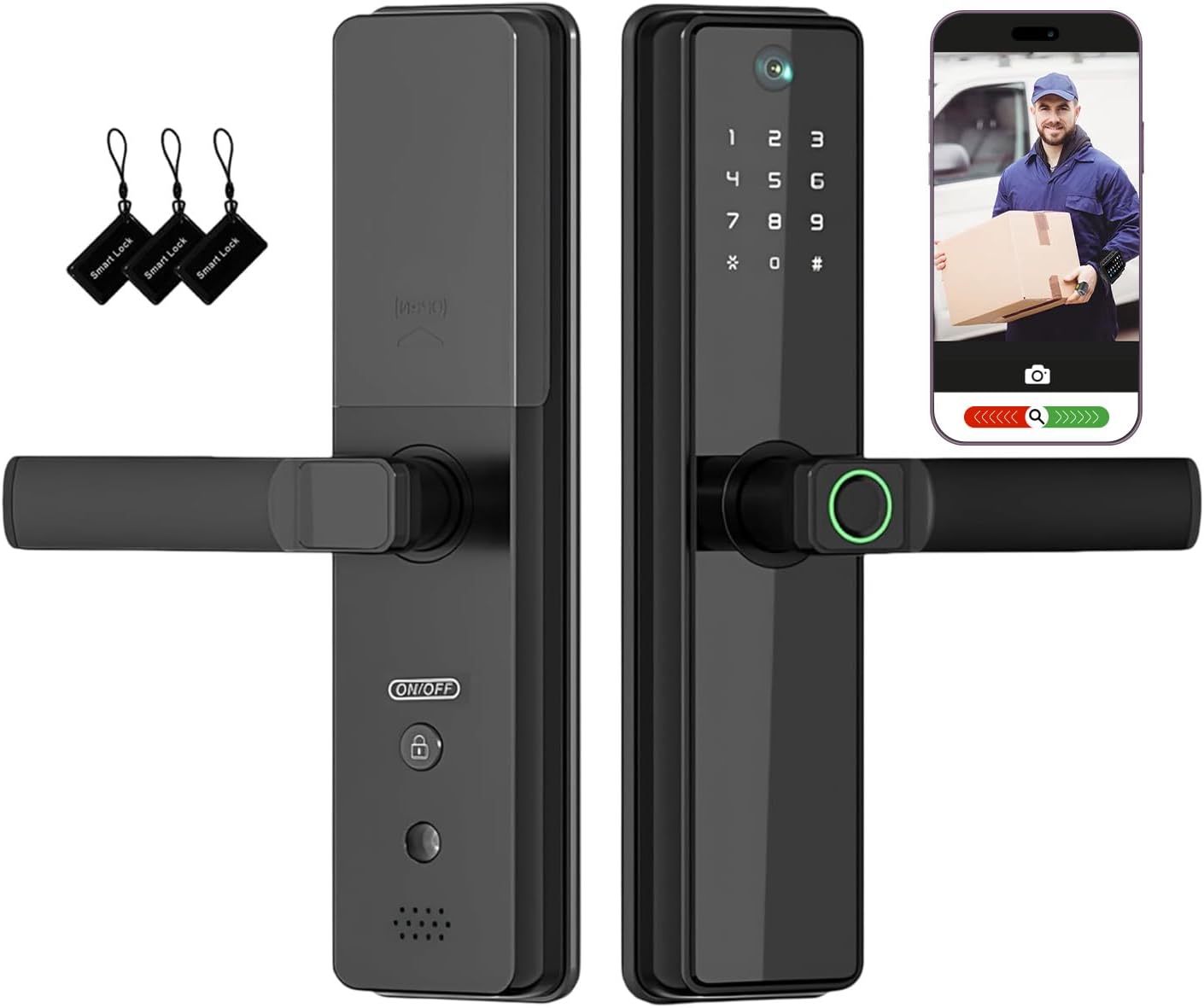
Figure 1.1: Front and rear view of the Smart WiFi Door Lock, showing the keypad, camera, fingerprint sensor, and included RFID cards.
2. Key Features
- Built-In Camera: Real-time monitoring of your front door directly from your smartphone.
- 5-in-1 Smart Unlocking: Supports fingerprint, passcode, RFID card, mechanical key, and Tuya app remote control.
- Integrated Smart Doorbell: Receive instant mobile notifications when visitors ring the doorbell.
- Tuya App Control: Full access management from anywhere via stable 2.4GHz WiFi, no additional hub required.
- Alexa-Enabled Voice Control: Convenient hands-free locking and unlocking with voice commands.
- Battery Powered: Operates on 4 AAA alkaline batteries for wireless installation and reliable performance.
- Auto-Lock Safety: Customizable automatic locking for enhanced security.
- DIY Installation: Designed for quick and easy setup on standard doors (35-55mm thickness).
- Waterproof & Weather-Ready: Durable construction suitable for both indoor and outdoor environments.

Figure 2.1: Illustration of the multiple unlocking methods available: Fingerprint, IC Card, Doorbell, Password, Camera, and Mechanical Key.
3. Package Contents
Verify that all components are present and in good condition before beginning installation.
- Smart Door Lock Assembly (Front and Rear Panels)
- 1 x User Manual
- 2 x Mechanical Keys
- 2 x IC Cards (RFID)
- 1 x Lock Body (Mortise)
- Mounting Screws and Hardware
- 1 x USB Cable (for emergency power)
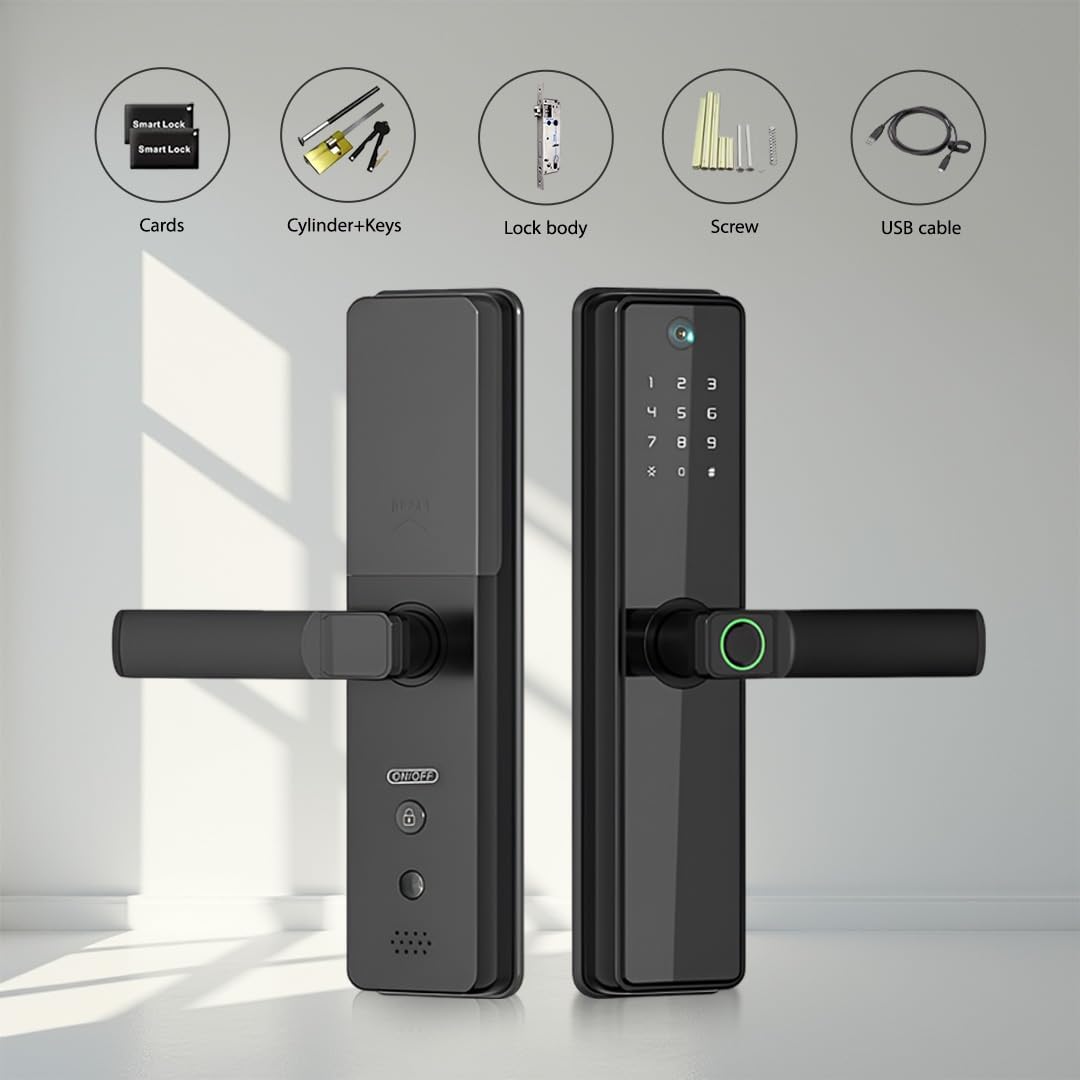
Figure 3.1: All components included in the package, such as the lock panels, IC cards, cylinder with keys, lock body, screws, and USB cable.
4. Product Specifications
| Attribute | Detail |
|---|---|
| Brand | We Technology |
| Model Name | Biometric Smart Door Lock (I24YC) |
| Lock Type | Biometric, Deadbolt |
| Material | Aluminum |
| Color | Black |
| Item Dimensions (L x W x H) | 3.5 x 3.5 x 10 inches (8.9 x 8.9 x 25.4 cm) |
| Item Weight | 6.5 pounds (2.95 kg) |
| Power Source | Battery Powered (4 x AAA Alkaline Batteries, 6 Volts) |
| Connectivity Protocol | Wi-Fi (2.4GHz) |
| Controller Type | Amazon Alexa, Android, Google Assistant, iOS (Tuya App) |
| Special Features | Alarm, Anti-Peeping Password, Auto-Lock, Fingerprint, Weather Resistant |
| Installation Method | Door Mount (Fits standard doors 35-55mm thickness) |
5. Installation (Setup)
5.1 Pre-Installation Check
Before starting the installation, ensure your door meets the required dimensions for the lock body and panels. This lock is designed for standard door thicknesses between 35mm and 55mm.

Figure 5.1: Detailed dimensions of the smart door lock and its mortise, crucial for checking compatibility with your existing door setup. Ensure your door's bore holes and backset align with these measurements.

Figure 5.2: Additional visual guide for checking door dimensions, including panel and mortise measurements, to ensure proper fit before purchase and installation.
5.2 Installation Steps
- Prepare the Door: If replacing an existing lock, remove it. Ensure the door's bore holes and mortise pocket are clean and correctly sized according to the provided template (if applicable, refer to the included manual for template details).
- Install the Mortise Lock Body: Insert the mortise lock body into the edge of the door and secure it with screws. Ensure the deadbolt and latch operate smoothly.
- Install the Spindle and Mounting Posts: Insert the square spindle through the mortise. Attach the mounting posts to the exterior panel.
- Mount the Exterior Panel: Carefully align the exterior panel with the spindle and mounting posts, then feed the cable through the door.
- Connect the Interior Panel: Connect the cable from the exterior panel to the interior panel. Secure the interior panel to the mounting posts using screws.
- Install Batteries: Open the battery cover on the interior panel and insert 4 AAA alkaline batteries, ensuring correct polarity.
- Test Operation: Test all unlocking methods (mechanical key, keypad, fingerprint) to ensure proper function before closing the door.
For detailed visual instructions, please refer to the step-by-step guide in the physical user manual included with your product.
6. Operation
6.1 Unlocking Methods
- Fingerprint Unlock: Place your registered fingerprint on the sensor. The lock will unlock upon successful recognition.

Figure 6.1: Demonstrates the quick and accurate biometric fingerprint identification for unlocking the door.
- Passcode Unlock: Enter your registered passcode on the keypad, followed by the '#' key. The lock supports anti-peeping password entry, allowing you to input random digits before or after your actual code to prevent others from guessing it.

Figure 6.2: A user entering a passcode on the smart lock's keypad, illustrating the anti-peeping password feature with random digits.
- RFID Card Unlock: Tap your registered RFID card against the card reader area on the lock.

Figure 6.3: A user conveniently unlocking the door by tapping an RFID card against the lock's sensor.
- Mechanical Key Unlock: In case of emergency or battery depletion, use the provided mechanical key to unlock the door.

Figure 6.4: The smart door lock with a mechanical key inserted, demonstrating the traditional backup unlocking method.
- Tuya App Remote Unlock: Refer to Section 7 for detailed instructions on using the Tuya app for remote unlocking.
6.2 Locking Methods
- Auto-Lock: The lock will automatically engage the deadbolt after a set period (customizable from 5 to 1800 seconds) once the door is closed.

Figure 6.5: Visual representation of the auto-lock function and the one-touch locking capability of the smart door lock.
- One-Touch Locking: Press the '#' key on the keypad to manually lock the door from the outside.
- Manual Locking (Inside): Use the thumb-turn or handle on the interior panel to manually lock the door.
6.3 Integrated Doorbell
When a visitor presses the doorbell button on the exterior panel, you will receive an instant notification on your smartphone via the Tuya app, allowing you to view live footage and communicate with the visitor.

Figure 6.6: The smart lock's exterior panel highlighting the doorbell function and quick opening handle.
7. Tuya App Control
The Tuya Smart app provides comprehensive control and monitoring capabilities for your smart door lock. Ensure your lock is connected to a stable 2.4GHz Wi-Fi network.
7.1 App Setup and Connectivity
- Download the "Tuya Smart" app from your smartphone's app store (iOS or Android).
- Register or log in to your Tuya account.
- Add your smart door lock device by following the in-app instructions. This typically involves putting the lock into pairing mode and connecting it to your home's 2.4GHz Wi-Fi network.
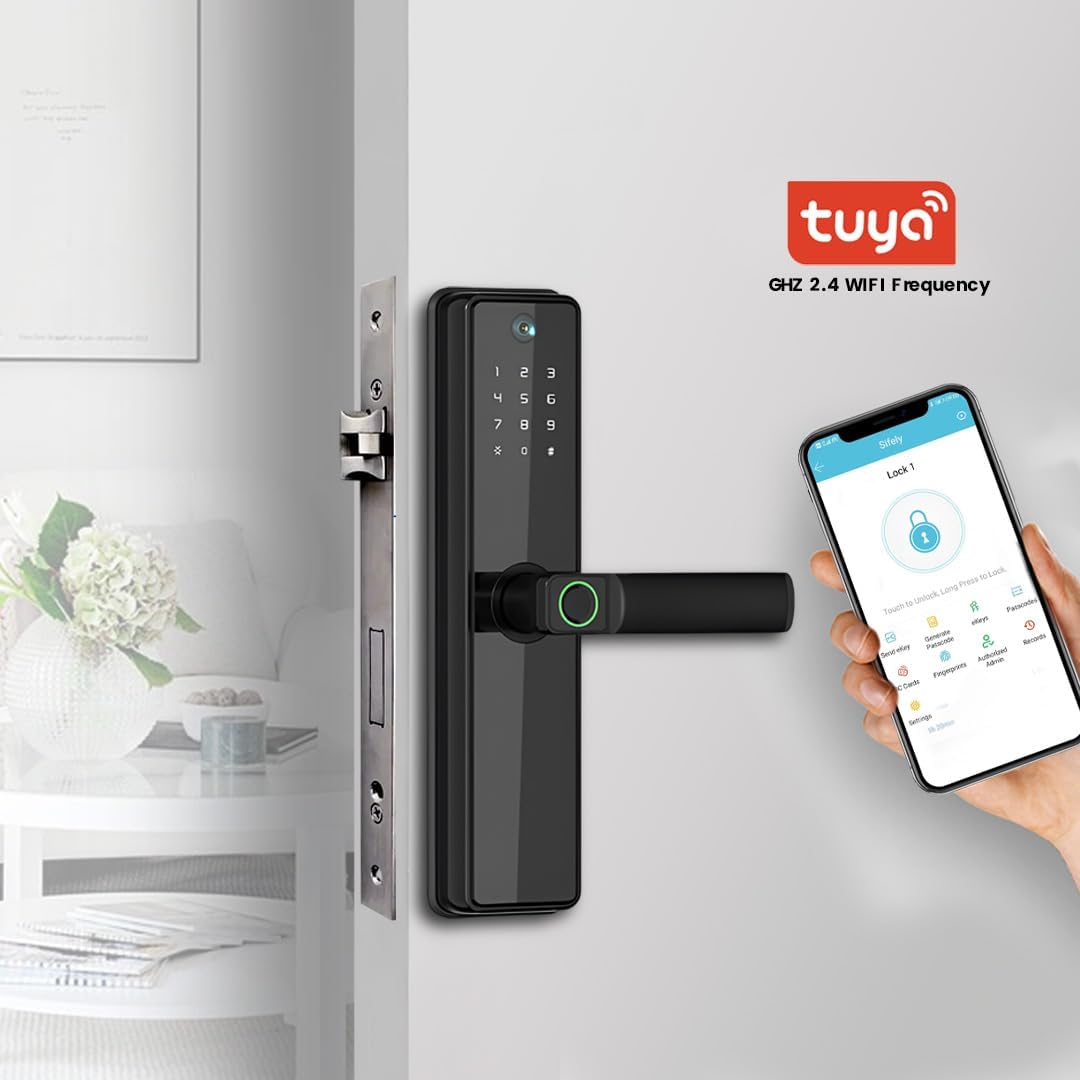
Figure 7.1: The Tuya app interface showing the main control screen for the smart door lock, including various unlocking options and settings.
7.2 App Features
- Real-time Monitoring & Notifications: View live camera feed and receive instant alerts for doorbell rings, unlocking events, and low battery warnings.

Figure 7.2: A smartphone screen showing real-time notifications from the Tuya app, indicating door activity and status updates.
- User Management: Add, modify, or delete users (family members, guests) and assign specific access permissions (e.g., permanent, scheduled, temporary passcodes).

Figure 7.3: The Tuya app's user management screen, allowing the owner to differentiate between family and guest access levels.
- Passcode Setting: Generate various types of passcodes:
- Permanent: For regular users.
- Scheduled: Valid only during specific times/days.
- Temporary: For one-time use or short durations.
- Offline Random: Generate a temporary passcode valid for 30 minutes, even without an internet connection.

Figure 7.4: The Tuya app's passcode setting interface, offering options for permanent, scheduled, and temporary access codes.

Figure 7.5: The Tuya app's generating an offline random passcode, valid for a limited time, useful for granting access without an internet connection.
- Log Record: View a detailed history of all lock activities, including who unlocked the door, when, and by what method.

Figure 7.6: The Tuya app's log record feature, displaying a chronological list of all door unlocking and locking events.
- Remote Sharing: Easily share access codes with family, friends, or guests via messaging apps.

Figure 7.7: The Tuya app's interface for sharing one-time PIN codes through various communication platforms.
7.3 Voice Control (Alexa)
Integrate your smart lock with Amazon Alexa for convenient voice control. Ensure your Tuya account is linked to your Alexa account through the Alexa app.
- Locking: Say, "Alexa, lock the front door."
- Unlocking: For security, unlocking via voice typically requires a voice code set up in the Alexa app. Say, "Alexa, unlock the front door," and provide your voice code when prompted.

Figure 7.8: A user demonstrating voice control of the smart door lock using an Amazon Alexa device.
8. Maintenance
8.1 Battery Replacement
The lock operates on 4 AAA alkaline batteries. When the battery level is low, you will receive a notification via the Tuya app, and an indicator light on the lock may alert you. Replace all four batteries simultaneously with new, high-quality alkaline batteries to ensure optimal performance.

Figure 8.1: The Tuya app displaying a low battery alert for the smart door lock, and an image showing the emergency USB power port.
In case of complete battery depletion, you can temporarily power the lock using a standard USB power bank connected to the emergency power port on the exterior panel.
8.2 Cleaning
Wipe the lock's surface with a soft, damp cloth. Avoid using abrasive cleaners, solvents, or harsh chemicals, as these can damage the finish and electronic components.
8.3 General Care
- Do not expose the lock to extreme temperatures or direct sunlight for prolonged periods.
- Ensure the fingerprint sensor and keypad are clean and free of debris for optimal performance.
- Regularly check that all screws are tight and the lock operates smoothly.
9. Troubleshooting
| Problem | Possible Cause | Solution |
|---|---|---|
| Lock does not respond / No power. | Dead batteries. | Replace all 4 AAA alkaline batteries. Use emergency USB power if needed. |
| Fingerprint not recognized. | Fingerprint sensor is dirty; Finger is wet or damaged; Fingerprint not properly registered. | Clean the sensor. Ensure finger is clean and dry. Re-register fingerprint in the app. Try different finger. |
| Passcode not working. | Incorrect passcode entered; Anti-peeping feature misunderstood; Passcode expired (for temporary/scheduled). | Verify the passcode. Ensure correct entry sequence. Check passcode validity in Tuya app. |
| Cannot connect to Wi-Fi / App offline. | Incorrect Wi-Fi password; Router too far; Only 5GHz Wi-Fi available; Network issues. | Ensure correct 2.4GHz Wi-Fi network and password. Move router closer or use Wi-Fi extender. Restart router and lock. |
| Doorbell notifications not received. | App notifications disabled; Lock not connected to Wi-Fi; App not running in background. | Check app notification settings. Ensure lock is online in Tuya app. Allow app to run in background. |
| Auto-lock not engaging. | Auto-lock feature disabled or timing set too long; Door not fully closed. | Check auto-lock settings in Tuya app. Ensure door is completely closed and aligned. |
10. Warranty and Support
For warranty information, technical support, or service inquiries, please refer to the contact details provided in the original product packaging or visit the official We Technology website. Keep your purchase receipt as proof of purchase for warranty claims.
You can also visit the We Technology Store on Amazon for additional product information and support resources.


