
1. Introduction
This manual provides comprehensive instructions for setting up, operating, and maintaining your ATTACK SHARK X11 Ultra-Light Triple Mode Gaming Mouse. Please read this manual carefully before use to ensure optimal performance and longevity of your device.
2. Package Contents
Verify that all items are present in your package:
- ATTACK SHARK X11 Gaming Mouse
- Magnetic Charging Dock
- USB-C to USB-A Cable
- 2.4GHz USB Receiver
- User Manual (this document)
3. Product Overview
Familiarize yourself with the components of your X11 gaming mouse.

Image 3.1: The ATTACK SHARK X11 Gaming Mouse with its magnetic charging dock.

Image 3.2: Exploded diagram showing internal components like the lightweight material case, engineering curved keys, PCB, lithium battery, TTC encoder, Huano switches, PAW3311 sensor, and mouse bottom case.
Mouse Components:
- Left/Right Click Buttons: Equipped with Huano micro switches for tactile feedback.
- Scroll Wheel: For navigation and additional programmable function.
- Side Buttons (x2): Programmable for various functions.
- DPI Button: Located on the underside for adjusting sensitivity.
- Mode Switch: Located on the underside to select connectivity mode (Wired, 2.4GHz, Bluetooth).
- USB-C Port: For wired connection and charging.
- Optical Sensor: PAW3311 sensor for precise tracking.
Magnetic Charging Dock:
- Magnetic Charging Pins: For effortless wireless charging.
- RGB Lighting: Customizable lighting effects.
- USB-A Port: To store the 2.4GHz USB receiver.
4. Setup Guide
4.1 Charging the Mouse
The X11 mouse can be charged using the magnetic charging dock or directly via the USB-C cable.
- Using the Magnetic Charging Dock:
- Connect the USB-C cable to the charging dock and then to a power source (e.g., computer USB port, USB wall adapter).
- Place the mouse onto the charging dock. The magnetic connection will secure it, and charging will begin automatically.
- The dock features touch-sensitive RGB lighting control. Tap the dock to cycle through lighting effects or turn them off.
- Direct USB-C Charging:
- Connect the USB-C cable directly to the mouse's USB-C port and then to a power source.
- The mouse can be used in wired mode while charging.

Image 4.1: The X11 mouse charging on its magnetic dock, showcasing the RGB lighting.
A full charge provides approximately 65 hours of usage. Charging time is typically 2-3 hours.
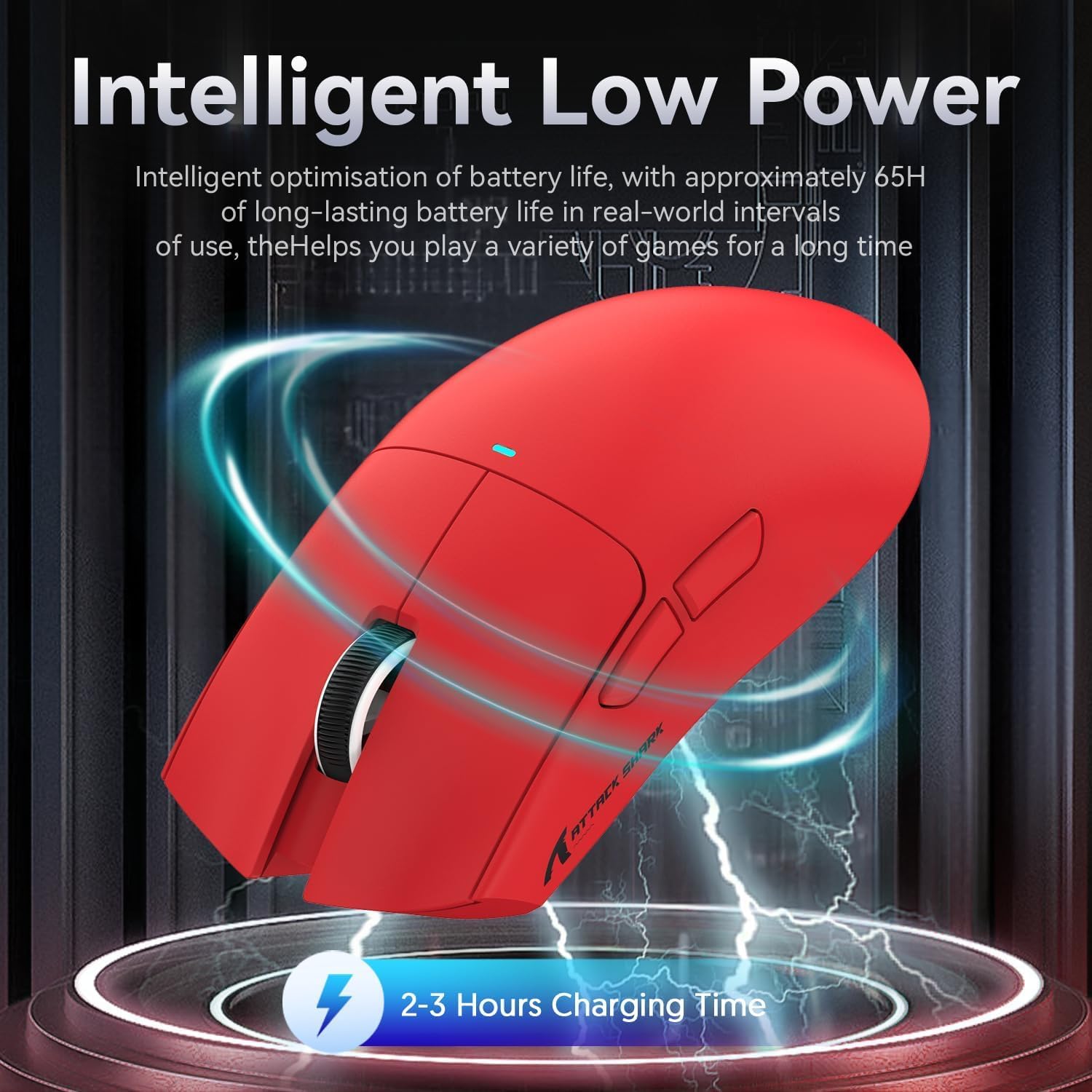
Image 4.2: Visual representation of the X11 mouse's intelligent low power consumption, offering 65 hours of use and a 2-3 hour charging time.
4.2 Connecting the Mouse (Triple Mode Connectivity)
The X11 mouse supports three connection modes: 2.4GHz Wireless, Bluetooth 5.0, and Wired USB-C.

Image 4.3: Illustration of the X11 mouse's triple-mode connectivity options.
- 2.4GHz Wireless Mode:
- Locate the 2.4GHz USB receiver, typically stored in the magnetic charging dock's USB-A port or in a compartment on the mouse's underside.
- Plug the USB receiver into an available USB-A port on your computer.
- Switch the mode selector on the underside of the mouse to "2.4G".
- The mouse should connect automatically.
- Bluetooth 5.0 Mode:
- Switch the mode selector on the underside of the mouse to "BT".
- Press and hold the Bluetooth toggle button (usually near the mode switch) for 3 seconds to enter pairing mode. The mouse's indicator light will flash.
- On your computer or device, go to Bluetooth settings and search for new devices.
- Select "ATTACK SHARK X11" (or similar) from the list to pair.
- The mouse supports up to three Bluetooth channels (BT1/BT2/BT3). Short press the Bluetooth key to switch between channels.
- Wired USB-C Mode:
- Connect the USB-C cable to the mouse's USB-C port and the other end to your computer's USB-A or USB-C port.
- The mouse will automatically switch to wired mode and begin charging.
4.3 Driver Installation (Optional)
For advanced customization, including programmable buttons, DPI settings, and macro functions, download the official ATTACK SHARK X11 driver software from the ATTACK SHARK official website or store page.

Image 4.4: The X11 driver software allows for comprehensive customization of mouse settings.
5. Operating Instructions
5.1 DPI Adjustment
The X11 mouse features a PixArt 3311 sensor with up to 22,000 DPI and 6 adjustable levels. The DPI button is located on the underside of the mouse.
- Press the DPI button to cycle through the preset DPI levels.
- Customize DPI levels and assign them to specific buttons using the driver software.

Image 5.1: Details of the PixArt PAW3311 sensor, highlighting its precision and adjustable DPI.
5.2 Programmable Buttons
The X11 mouse has 5 programmable buttons (left, right, scroll click, and two side buttons). Use the driver software to assign custom functions, macros, or keybinds to these buttons.
5.3 RGB Lighting Control
The magnetic charging dock and the mouse itself feature customizable RGB lighting. Use the driver software to adjust lighting effects, colors, and brightness. The dock's lighting can also be controlled by tapping its surface.
5.4 Angle Snap Feature
The Angle Snap feature helps to smooth out diagonal mouse movements, which can be useful for certain tasks requiring straight lines. This feature can be toggled On or Off via the driver software.
Video 5.1: Demonstration of the Angle Snap feature, showing how it can be toggled on and off in the software to affect mouse movement precision.
6. Maintenance
6.1 Cleaning
- Use a soft, dry cloth to wipe the mouse and charging dock.
- For stubborn dirt, slightly dampen the cloth with water or a mild cleaning solution. Avoid harsh chemicals.
- Do not immerse the mouse or dock in water.
6.2 Battery Care
- Avoid fully discharging the battery frequently to prolong its lifespan.
- Store the mouse in a cool, dry place if not used for extended periods.
7. Troubleshooting
| Problem | Solution |
|---|---|
| Mouse not responding in wireless mode. |
|
| DPI not changing. |
|
| Magnetic charging dock RGB not working. |
|
| Mouse cursor erratic or lagging. |
|
8. Specifications
| Feature | Detail |
|---|---|
| Model | X11 |
| Sensor | PixArt PAW3311 Optical Sensor |
| DPI | Up to 22,000 DPI (6 adjustable levels) |
| Connectivity | USB-C Wired, 2.4GHz Wireless, Bluetooth 5.0 |
| Weight | 63g (±3g) |
| Switches | Huano Micro Switches (20 million click lifespan) |
| Battery Life | Approx. 65 hours |
| Charging | Magnetic Charging Dock, USB-C |
| Programmable Buttons | 5 |
| Dimensions | 7.01 x 4.57 x 2.01 inches (Package) |
9. Warranty and Support
For warranty information, technical support, or further assistance, please visit the official ATTACK SHARK Store on Amazon or contact their customer service directly.
Please retain your proof of purchase for warranty claims.


