
cudinham Print Pods Mini Printer
cudinham Print Pods Mini Printer Instruction Manual
Model: Print Pods Mini Printer
Brand: cudinham
Introduction
This manual provides comprehensive instructions for the setup, operation, maintenance, and troubleshooting of your cudinham Print Pods Mini Printer. Please read this manual thoroughly before using the device to ensure proper functionality and longevity.

Image: The cudinham Print Pods Mini Printer, a compact white device, is shown alongside its pink hard storage case and multiple rolls of thermal printing paper. The printer is actively printing a document, demonstrating its inkless thermal technology.
Setup Guide
Follow these steps to set up your cudinham Print Pods Mini Printer for first use.
- Charge the Printer: Ensure the printer has sufficient battery charge. The built-in 1200mAh lithium-ion battery can be charged using the provided charging cable.
- Download the App: Download the "Tiny Print" application from your smartphone's app store (available on App Store and Google Play).
- Turn On the Printer: Press and hold the power button on the mini printer to turn it on.
- Connect via Bluetooth: Open the "Tiny Print" app on your smartphone. Enable Bluetooth on your phone and follow the in-app instructions to connect to the printer. The app will guide you through the pairing process.
- Load Thermal Paper: Open the paper compartment of the printer. Insert a roll of thermal printing paper, ensuring it is correctly aligned and the end of the paper extends slightly out of the compartment. The printer supports both adhesive and non-adhesive thermal paper rolls.

Image: A visual guide illustrating the four key steps for using the mini printer: 1) Downloading the "Tiny Print" app, 2) Connecting via Bluetooth, 3) Loading thermal paper, and 4) Using the app to print. This image provides a clear sequence for initial setup and operation.

Image: This image highlights the Bluetooth connectivity of the cudinham mini printer, showing a smartphone screen with the "Tiny Print" app interface. It emphasizes the ease of connecting the printer to a mobile device via Bluetooth 4.0 for wireless printing.
Operating Instructions
Once set up, your cudinham Print Pods Mini Printer is ready for use. The "Tiny Print" app offers various functionalities for printing.
- App Features: The "Tiny Print" app includes features such as free zoom and drag options, OCR functions (Optical Character Recognition), and a wide selection of templates for stickers, notes, and text.
- Printing: Select the desired content within the app (e.g., text, image, template). Adjust settings as needed, then initiate the print command from the app. The printer will use its thermal technology to produce the print without ink.
- Versatile Use: The printer is suitable for various applications, including creating labels, notes, photos, gift cards, shopping lists, and scrapbooking elements.

Image: A collage showcasing the diverse applications of the cudinham mini printer. Examples include printing for scrapbooks, creating labels for jars, making handwritten notes, printing small photos, designing gift cards, and generating shopping lists, highlighting its versatility.
Maintenance
Regular maintenance ensures optimal performance and extends the lifespan of your printer.
- Cleaning the Laser Bar: If print quality degrades or prints appear unclear after repeated use, the laser bar may need cleaning. Carefully open the paper loading compartment and use a cotton swab lightly dampened with alcohol to gently wipe the laser bar. Ensure the printer is off before cleaning.
- Case Care: The included hard storage case is designed to protect your printer from drops, scratches, impacts, and water splashes. Keep the case clean by wiping it with a soft, damp cloth. Avoid harsh chemicals.

Image: A cross-sectional diagram illustrating the multi-layered construction of the printer's storage case, emphasizing its shockproof and waterproof design. It shows the external PU layer for dustproofing, the middle EVA layer for waterproofing, and the internal velvet lining for shock absorption.
Troubleshooting
This section addresses common issues you might encounter with your cudinham Print Pods Mini Printer.
Issue: Unclear or Faded Prints
Possible Cause: The thermal laser bar may be dirty or obstructed.
Solution: Refer to the "Cleaning the Laser Bar" instructions in the Maintenance section. Use alcohol to wipe the laser bar located in the paper loading compartment. Ensure the paper is loaded correctly and is thermal printing paper.
Issue: Printer Not Connecting via Bluetooth
Possible Cause: Bluetooth is not enabled on your smartphone, the printer is off, or the app is not correctly initiating the connection.
Solution:
- Ensure the printer is turned on and fully charged.
- Verify that Bluetooth is enabled on your smartphone.
- Close and reopen the "Tiny Print" app.
- Restart both your smartphone and the printer, then attempt to reconnect.
Product Specifications
| Feature | Specification |
|---|---|
| Printing Technology | Thermal Inkless Printing |
| Resolution | 200 DPI |
| Battery | 1200mAh Lithium-ion (Rechargeable) |
| Connectivity | Bluetooth (via "Tiny Print" App) |
| Case Dimensions | 6.7" x 4.72" x 3.15" (17cm x 12cm x 8cm) |
| Weight (Printer) | Approximately 180g (featherlight) |
| Included Paper | 5 rolls adhesive printing paper, 5 rolls thermal printing paper |
| ASIN | B0F7R77X64 |
| First Available Date | May 7, 2025 |
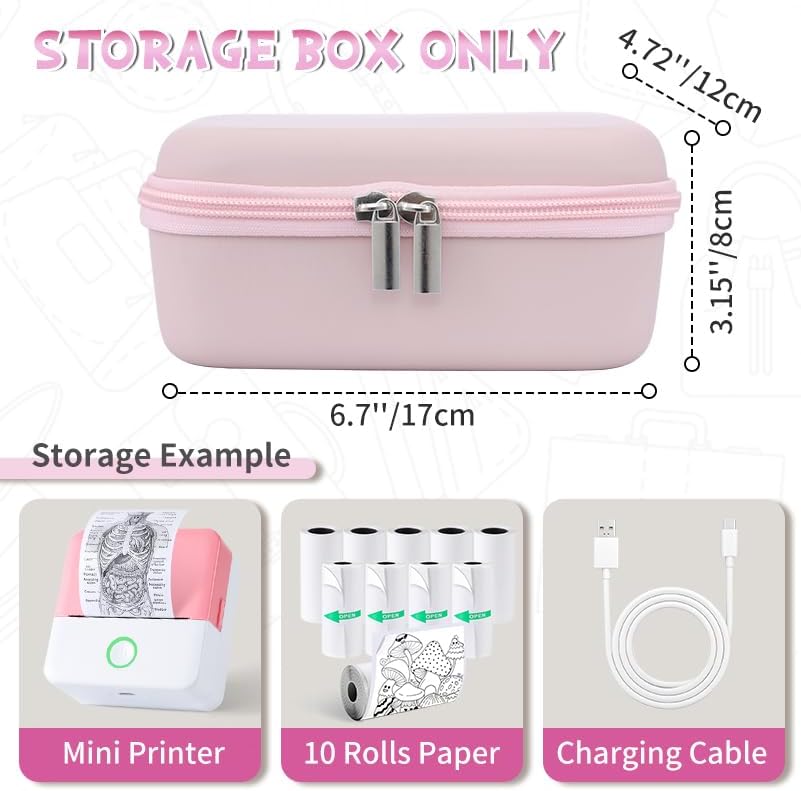
Image: A detailed diagram illustrating the dimensions of the cudinham storage box (17cm x 12cm x 8cm or 6.7" x 4.72" x 3.15"). It also shows the typical contents included: the mini printer, 10 rolls of paper, and a charging cable.
Warranty Information
Specific warranty details for the cudinham Print Pods Mini Printer are not provided in this manual. For information regarding warranty coverage, terms, and conditions, please refer to the product packaging, any included warranty cards, or contact cudinham customer support directly.
Customer Support
If you require further assistance, have questions, or encounter issues not covered in this manual, please contact cudinham customer support. You may find contact information on the product packaging or by visiting the official cudinham store page on Amazon.
Online Support: Visit the cudinham Store on Amazon
Ask a question about this manual
Ask about setup, troubleshooting, compatibility, parts, safety, or missing instructions. Manuals+ will review the question and use this page’s manual context to help answer it.