
Introduction
This manual provides comprehensive instructions for the Redragon M921 MMO Gaming Mouse. It covers initial setup, operational features, maintenance, and troubleshooting to ensure you get the most out of your device. Please read this manual carefully before use.
Setup
Connecting the Mouse
To begin using your Redragon M921 mouse, connect its USB cable to an available USB port on your computer. The mouse is plug-and-play for basic functionality. For access to advanced features, customization, and macro programming, driver installation is required.
Software Installation
Download the dedicated Redragon software from the official Redragon website. Follow the on-screen instructions to install the software. This software is essential for customizing DPI settings, programming buttons, and managing RGB lighting effects.
Operating Instructions
DPI Adjustment
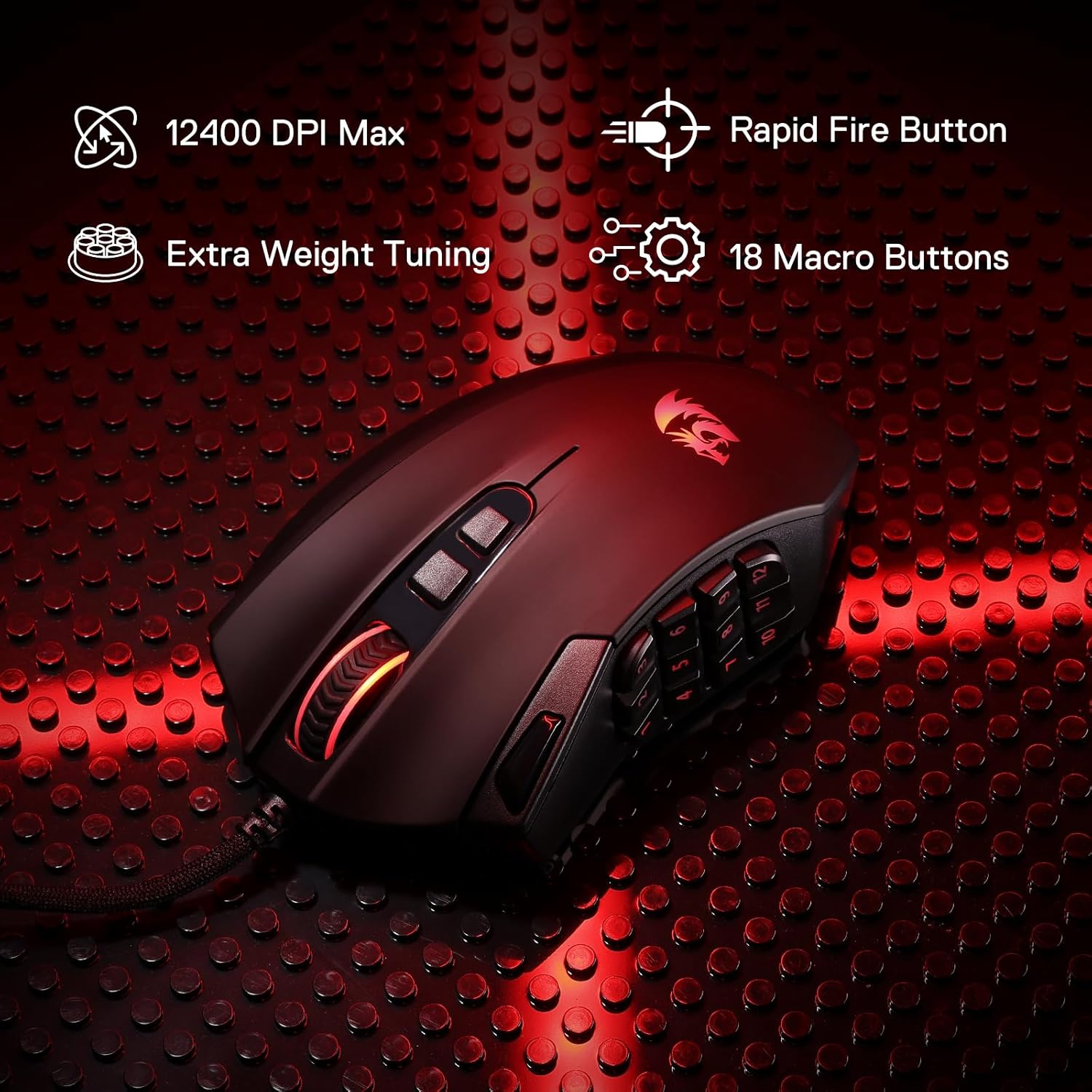
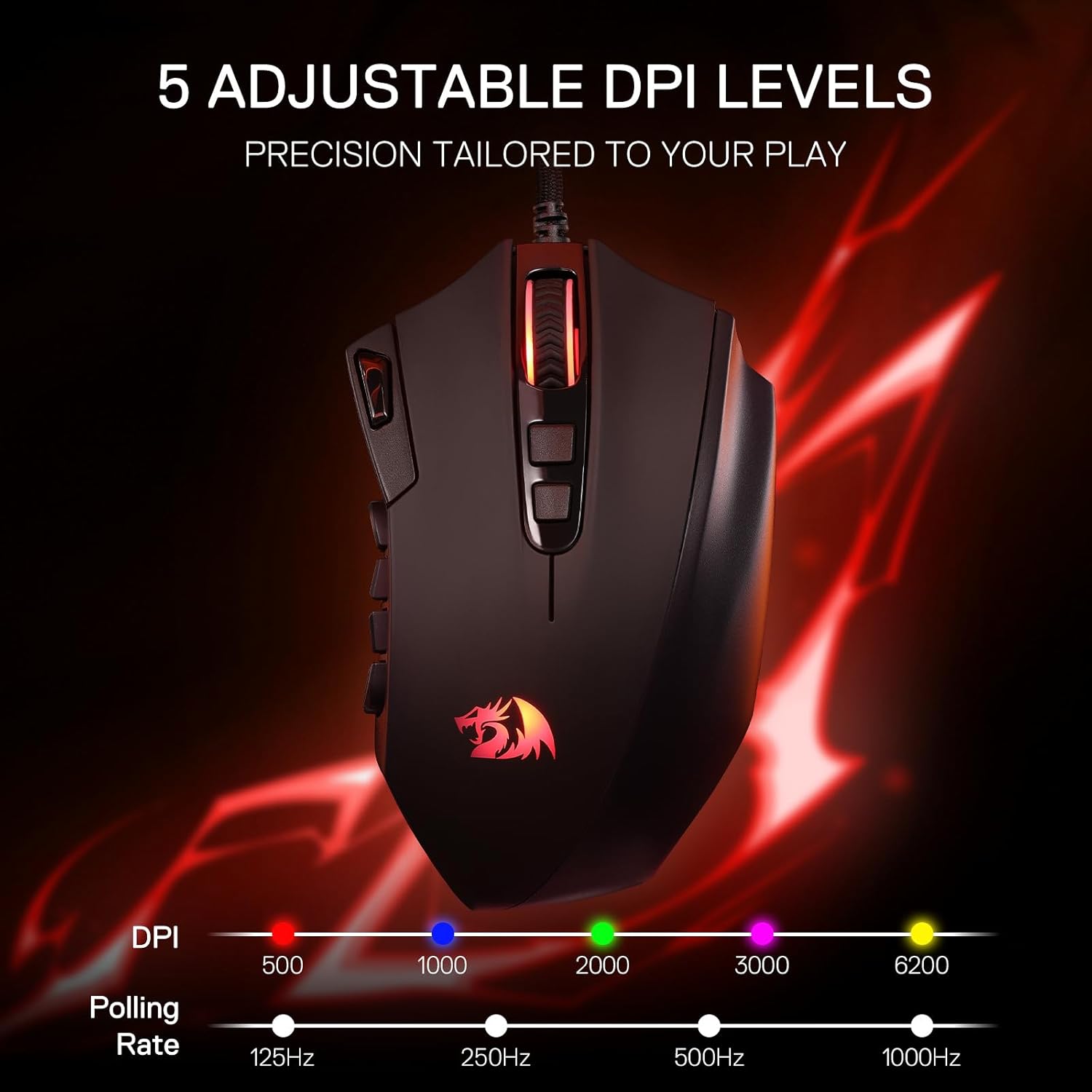
The Redragon M921 features 5 redefinable DPI levels, with default settings at 500, 1000, 2000, 3000, and 6200 DPI. You can cycle through these preset levels using the dedicated DPI buttons, typically located below the scroll wheel. For precise adjustments, the software allows for DPI customization between 200 and 12400 DPI.
Programmable Buttons
The mouse is equipped with 18 programmable buttons, including 12 side macro keys and a dedicated rapid-fire button. These buttons can be assigned various functions, macros, or keybinds through the Redragon software to suit your specific gaming or work requirements.

Weight Tuning System
The M921 includes an 8-piece weight tuning set, with each weight measuring 2.4g. To customize the mouse's weight and balance, locate the weight compartment on the underside of the mouse. Open the compartment and insert or remove weights as needed to achieve your preferred feel and control.

RGB Backlighting
The mouse features dynamic RGB backlighting with 5 distinct modes and 16.8 million color options. These lighting effects can be configured and customized using the Redragon software. The LED backlight can also be disabled if desired.

Software Configuration
The Redragon dedicated software provides a comprehensive interface for customizing all aspects of your M921 mouse. This includes remapping buttons, adjusting DPI stages, configuring polling rates, setting up macros, and personalizing RGB lighting. The software also allows you to save and switch between multiple user profiles.

Maintenance
Regular maintenance helps prolong the life and performance of your Redragon M921 mouse:
- Cleaning the Surface: Use a soft, dry, lint-free cloth to wipe the mouse's exterior. Avoid abrasive materials or harsh chemical cleaners.
- Cleaning the Optical Sensor: If tracking issues occur, gently clean the optical sensor lens on the underside of the mouse with a cotton swab lightly dampened with isopropyl alcohol. Ensure it is dry before use.
- Cable Care: Avoid sharply bending or pulling the USB cable to prevent internal damage.
Troubleshooting
Mouse Not Responding
- Ensure the USB cable is securely connected to a functioning USB port on your computer.
- Try connecting the mouse to a different USB port.
- Restart your computer.
- Test the mouse on another computer to determine if the issue is with the mouse or your system.
Buttons Not Functioning Correctly
- Verify that the Redragon software is installed and updated to the latest version.
- Check button assignments within the Redragon software to ensure they are configured as intended.
- Ensure no physical obstructions are preventing button presses.
- If you experience issues with rough edges or sticky buttons, contact customer support for assistance.
DPI or Lighting Issues
- Confirm that the Redragon software is running and the correct profile is active.
- Update the mouse firmware through the software if an update is available.
- Review the lighting settings within the software to ensure RGB effects are configured as desired.
Specifications
| Feature | Detail |
|---|---|
| Brand | Redragon |
| Model Name | M921 |
| Model Number | 835397276 |
| Connectivity Technology | USB (Wired) |
| Movement Detection Technology | Optical (PAW3327 Sensor) |
| Number of Buttons | 18 (Programmable) |
| Maximum Sensitivity | 12400 DPI |
| Polling Rate | Up to 1000 Hz |
| Tracking Speed | Up to 200 IPS |
| Acceleration | Up to 30g |
| Hand Orientation | Right |
| Compatible Devices | Personal Computer |
| Hardware Platform | PC |
| Enclosure Material | Plastic |
| Weight Tuning | 8 x 2.4g weights included |
| RGB Backlighting | 5 modes, 16.8 million colors |
Warranty Information
The Redragon M921 MMO Gaming Mouse is covered by a 1-year manufacturer's warranty. This warranty typically covers defects in materials and workmanship under normal use. To initiate a warranty claim, please retain your original proof of purchase and contact Redragon customer support. The warranty does not cover damage caused by misuse, accidents, unauthorized modifications, or normal wear and tear.
Customer Support
For technical assistance, driver downloads, firmware updates, or frequently asked questions, please visit the official Redragon website. You can also reach out to their customer support team directly for any product-related inquiries or issues.
Official Website: www.redragonusa.com


