
Introduction
This manual provides detailed instructions for the installation and operation of your Haudio 7-inch Double Din Car Stereo. This unit features wireless Apple CarPlay and Android Auto, a high-definition touchscreen, Bluetooth 4.1, FM/AM/RDS radio, Mirror Link functionality, GPS, WiFi, and includes a backup camera. Please read this manual thoroughly before installation and use to ensure proper function and safety.
What's in the Box
Carefully unpack all components and verify that you have received the following items:
- Main Device (Car Stereo Unit)
- Power Cable
- 4P-USB Wire
- 6P-USB Wire
- Rear View Interface Wire
- GPS Antenna
- 20P-RCA Wire
- Installation Screws (x6)
- User Manual
- Rear View Camera
- Brackets (x2)

Image: All components included in the package.
Product Overview
The Haudio 7-inch Double Din Car Stereo is designed to enhance your in-car entertainment and navigation experience. Key features include:
- Smart CarPlay & Android Auto: Supports both wireless and wired connections for seamless integration with your smartphone, allowing access to navigation, music, and voice control (Siri/Google Assistant).
- Mirror Link & HD Touchscreen: Synchronize your phone's content to the 7-inch HD touchscreen (1024×600 resolution) via wireless or USB connection. Supports 1080P video playback.
- Bluetooth 4.1 & FM Radio: Provides stable and fast Bluetooth connectivity for hands-free calling and high-quality audio streaming. The FM stereo radio offers manual or automatic station search.
- Effortless SWC Control: Integrated steering wheel controls allow for easy adjustment of volume, track changes, and voice commands without removing hands from the wheel.
- Backup Camera: Includes a 720P AHD backup camera with a 140° wide view and night vision for improved parking safety.
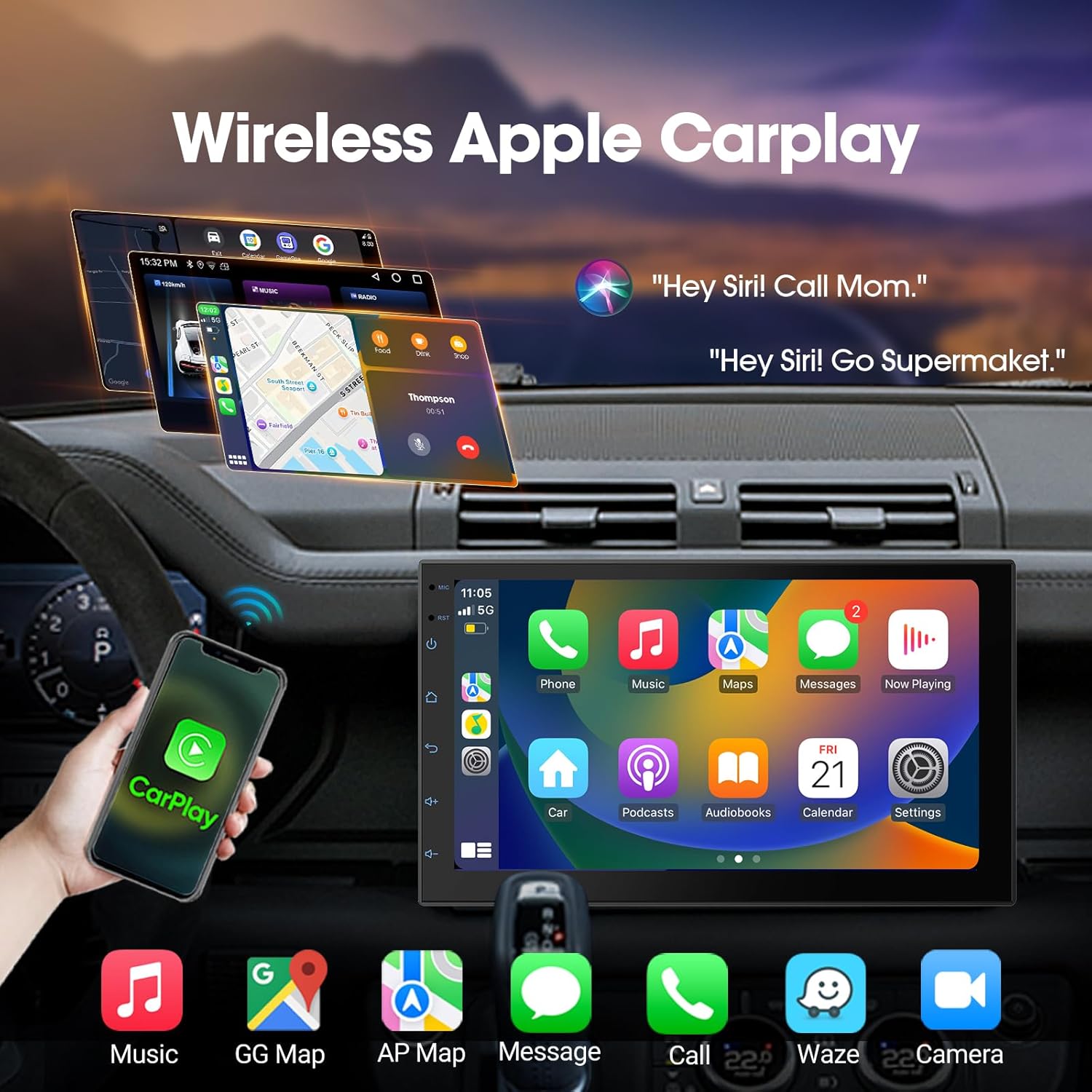
Image: Wireless Apple CarPlay interface.
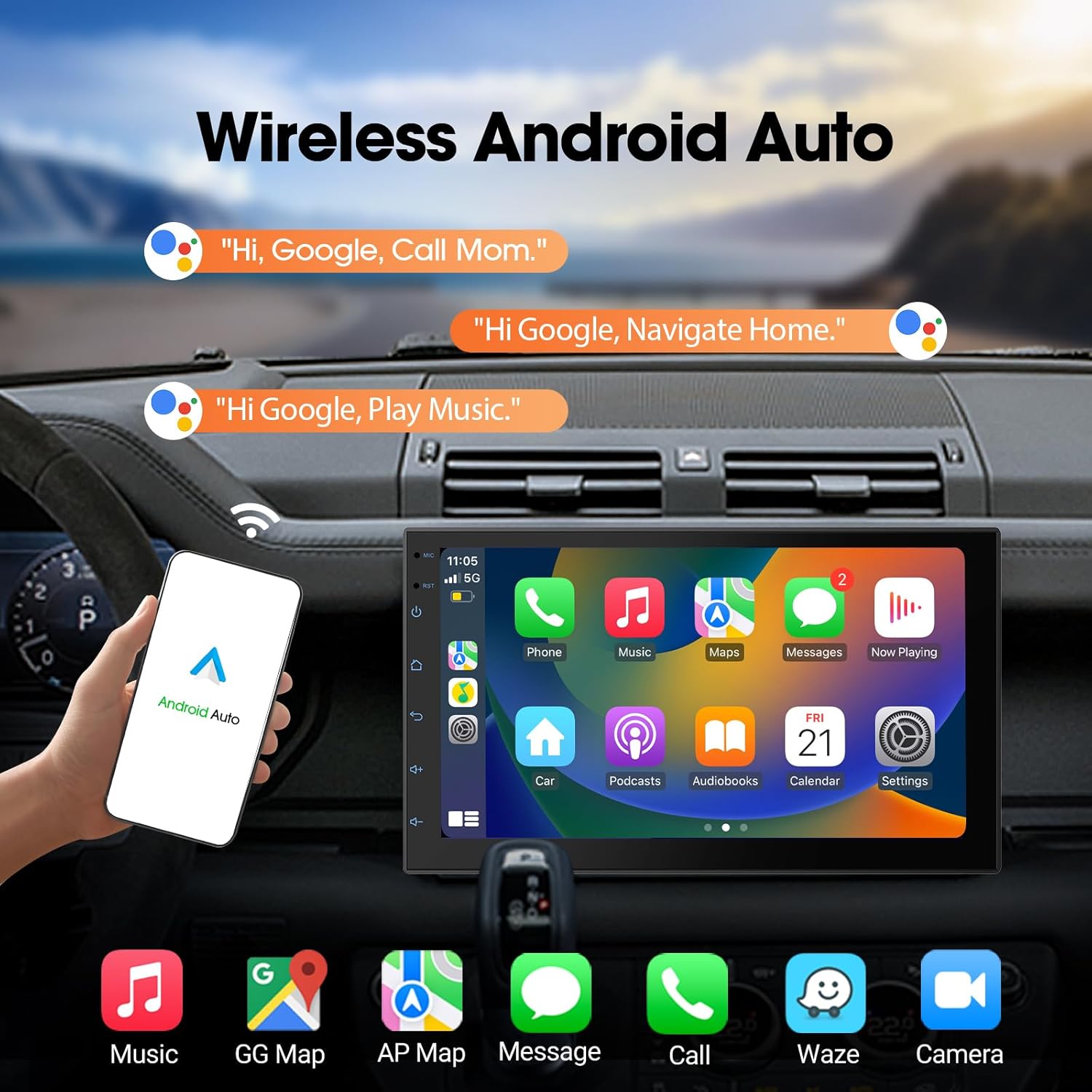
Image: Wireless Android Auto interface.

Image: Mirror Link function in use.

Image: 720P AHD Backup Camera view.
Installation Instructions
Important: Installation of this car stereo requires technical knowledge. It is highly recommended to have the unit installed by a professional car audio shop to ensure correct wiring and prevent damage. Some car models may require additional wire harness adapters and radio antenna adapters.
Installation Video Guide
Video: Detailed guide on how to install the Haudio 7-inch Double Din Car Stereo.
Step-by-Step Installation
- Remove the Original Vehicle Machine: Carefully remove the existing car stereo from your vehicle's dashboard. Disconnect all wires.
- Connect the Original Vehicle Line:
- Power Cable Selection: Identify the correct power cable for your vehicle. Some cars require a dedicated power cable, while others use a universal one. Refer to the wiring diagrams provided.
- Wiring Connections: Connect the gifted power cord to the wires corresponding to your original car's definition. Ensure all connections are fully insulated with electrical tape to prevent short circuits.

Image: Universal power cable wiring diagram (example for 2022 Highlander).
- Connect the Back Interface:
- GPS Antenna: Connect the GPS antenna to the designated port on the back of the unit.
- Radio Antenna: Connect your vehicle's radio antenna.
- 8-pin BREAK1.BACK CVBSIFI/BT/CanBus: Connect this cable for reverse camera trigger, Bluetooth, and CanBus functions if applicable.
- Power Cable: Connect the main power cable harness.
- USB Cables: Connect the two USB cables for external devices and charging.
- 20P-RCA Wire: Connect the RCA wire for audio input/output and other auxiliary connections.

Image: Rear operation panel with labeled ports.
- Start the Car and Test the Car Stereo: After all connections are made, carefully slide the new stereo into the dashboard. Start your vehicle and test all functions of the car stereo, including audio, radio, touchscreen, CarPlay/Android Auto, and backup camera.
Operation Guide
This section covers the basic operation of your Haudio car stereo.
User Interface Overview
Video: Overview of the Haudio 7-inch Double Din Car Stereo user interface, demonstrating music, radio, video playback, and CarPlay/Android Auto functionality.
Key Functions
- Wireless CarPlay & Android Auto: Connect your compatible smartphone wirelessly via Bluetooth and Wi-Fi, or via USB cable. Once connected, the CarPlay or Android Auto interface will appear on the stereo screen, allowing access to phone features, navigation, and media.
- Mirror Link: Use the Mirror Link function to display your smartphone screen directly on the car stereo. This can be done wirelessly or via USB, depending on your phone model.
- Bluetooth: Pair your phone via Bluetooth for hands-free calling and audio streaming. Access your call logs, contacts, and music playlists directly from the stereo.
- FM/AM/RDS Radio: Select the Radio application to access FM and AM stations. Use the search function to find stations manually or automatically. RDS (Radio Data System) provides station information where available.
- Media Playback: Play music and videos from connected USB devices or through CarPlay/Android Auto. The unit supports 1080P video playback.
- Steering Wheel Controls (SWC): If your vehicle supports SWC, configure them in the settings menu to control volume, tracks, and other functions directly from your steering wheel.
- GPS Navigation: Utilize navigation apps through CarPlay, Android Auto, or built-in GPS functionality (if applicable) for real-time directions.
Settings
Access the 'Settings' menu from the main screen to customize your car stereo. Common settings include:
- General: Adjust radio region, rear mirror display, and AUX mirror settings.
- Display: Configure screensaver, wallpaper, brightness, and illumination color.
- Sound: Adjust media volume, navigation gain, Bluetooth volume, and ring volume.
- Factory: This menu is for advanced settings and may require a password. It is generally not recommended for user adjustment.
Specifications
| Feature | Specification |
|---|---|
| Brand | Haudio |
| Model Number | CVD7621-AJ |
| Product Dimensions | 1.73"D x 7"W x 4.1"H |
| Connectivity Technology | Bluetooth, Ethernet, USB, Wi-Fi |
| Controller Type | Android |
| Special Features | Android Auto, Apple CarPlay, Built-In Bluetooth, Built-In Wi-Fi, FM/AM Tuner & Mirror Link & Voice Control, GPS Navigation & Hands-free Calling, Rear View Camera Input |
| Compatible Devices | CarPlay & Android Auto/Backup Camera/Siri/Bluetooth/Navigation/FM/AM/4.1 CHN 2 Subwoofers/SWC for All Vehicles, Smartphone |
| Connector Type | RCA |
| Audio Output Mode | Stereo |
| Surround Sound Channel Configuration | 4.1.2 |
| Video Encoding | H.264, H.265/HEVC |
| Output Power | 18 Watts |
| Wattage | 25 watts |
| Number of Channels | 5 |
| Control Method | App, Touch, Voice |
| Audio Output Type | Bluetooth, Headphones, Speakers |
| Wireless Technology | Bluetooth, Wi-Fi |
Troubleshooting
If you encounter issues with your car stereo, please refer to the following common troubleshooting steps:
- No Power: Check all power connections, including the main power cable and ground wire. Ensure the vehicle's fuse for the stereo is not blown.
- No Sound: Verify speaker connections are secure. Check the volume settings on the stereo and your connected device. Ensure the correct audio source is selected.
- CarPlay/Android Auto Not Connecting: Ensure your phone is compatible and that Bluetooth and Wi-Fi are enabled on both the phone and the stereo. For wired connections, try a different USB cable. Restart both the phone and the stereo.
- Backup Camera Not Displaying: Check the camera's power and video signal connections. Ensure the reverse trigger wire is correctly connected to the vehicle's reverse light circuit.
- Touchscreen Unresponsive: Try restarting the unit. If the issue persists, contact customer support.
Warranty and Support
Your Haudio 7-inch Double Din Car Stereo comes with a 1-year warranty from the date of purchase.
For technical assistance, troubleshooting, or warranty claims, please contact the seller, SHANGJINGEU, directly through your purchase platform. Provide your order details and a clear description of the issue for prompt support.


