
1. Introduction
This manual provides detailed instructions for setting up and operating your Sanorum 4G Smartwatch for Kids. Designed with children's safety and communication in mind, this smartwatch features 4G connectivity for calls and video calls, precise GPS tracking, an SOS function, and various educational and entertainment features. Please read this manual carefully to ensure proper use and maintenance of the device.

Image: Sanorum 4G Smartwatch for Kids, showcasing its design and screen.
2. Package Contents
Please verify that all the following items are included in your package:
- Sanorum Smartwatch (1 unit)
- Charging Cable (1 unit)
- User Manual (1 unit)
- Watch Strap (additional, 1 unit)
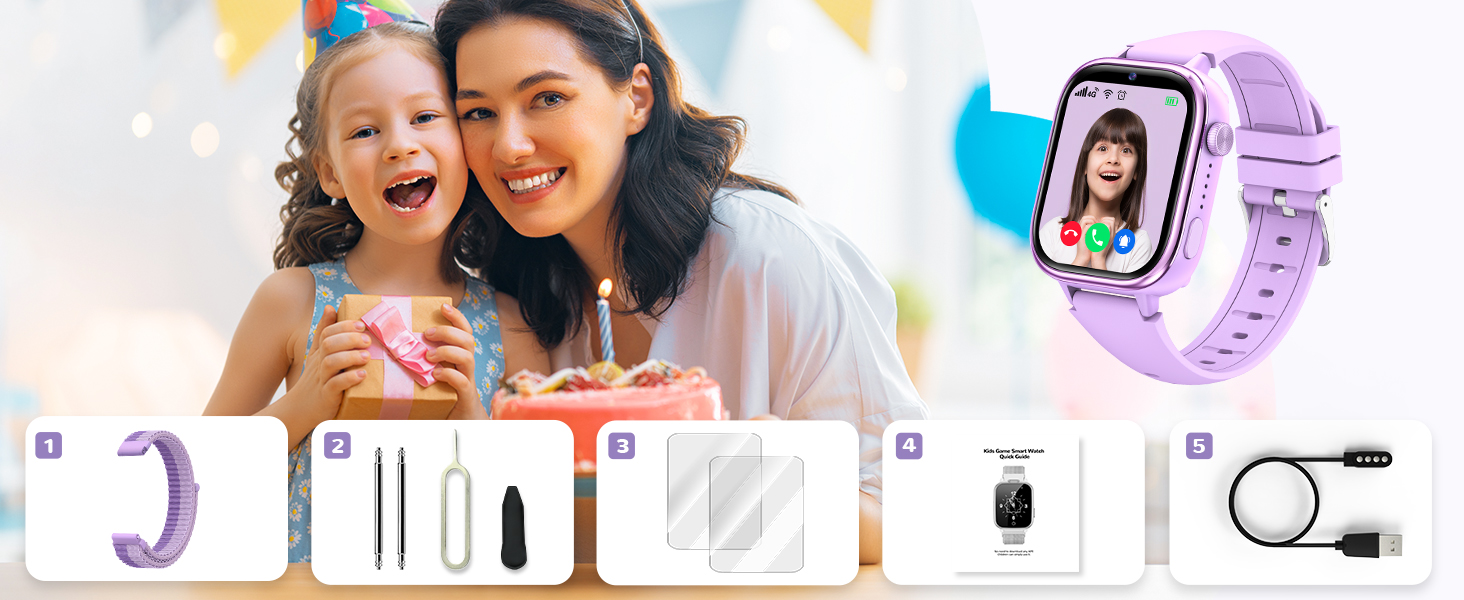
Image: Visual representation of the Sanorum Smartwatch package contents.
3. Setup Guide
3.1 SIM Card Installation
The Sanorum 4G Smartwatch requires a Nano SIM card (not included) for 4G functionality. Ensure the watch is powered off before inserting the SIM card.
- Power off the smartwatch completely.
- Locate the SIM card slot on the side of the watch.
- Carefully insert the Nano SIM card in the correct orientation until it clicks into place.
- Power on the smartwatch. Wait for the signal icon to appear in the top left corner of the screen, indicating successful SIM card recognition.

Image: Illustration of the Nano SIM card slot and correct insertion method.
3.2 App Setup (Setracker2)
To manage the smartwatch and access its full features, parents need to download and set up the Setracker2 application on their smartphone.
- Download the Setracker2 app from your smartphone's app store (e.g., Apple App Store or Google Play Store) or scan the QR code provided in the watch's packaging.
- Open the app, fill in the required information, and register an account.
- Log in to the app and scan the 15-digit IMEI barcode found on the watch or its packaging to bind the device to your account.
- Once connected, the phone and watch will synchronize, and all settings can be configured via the app.
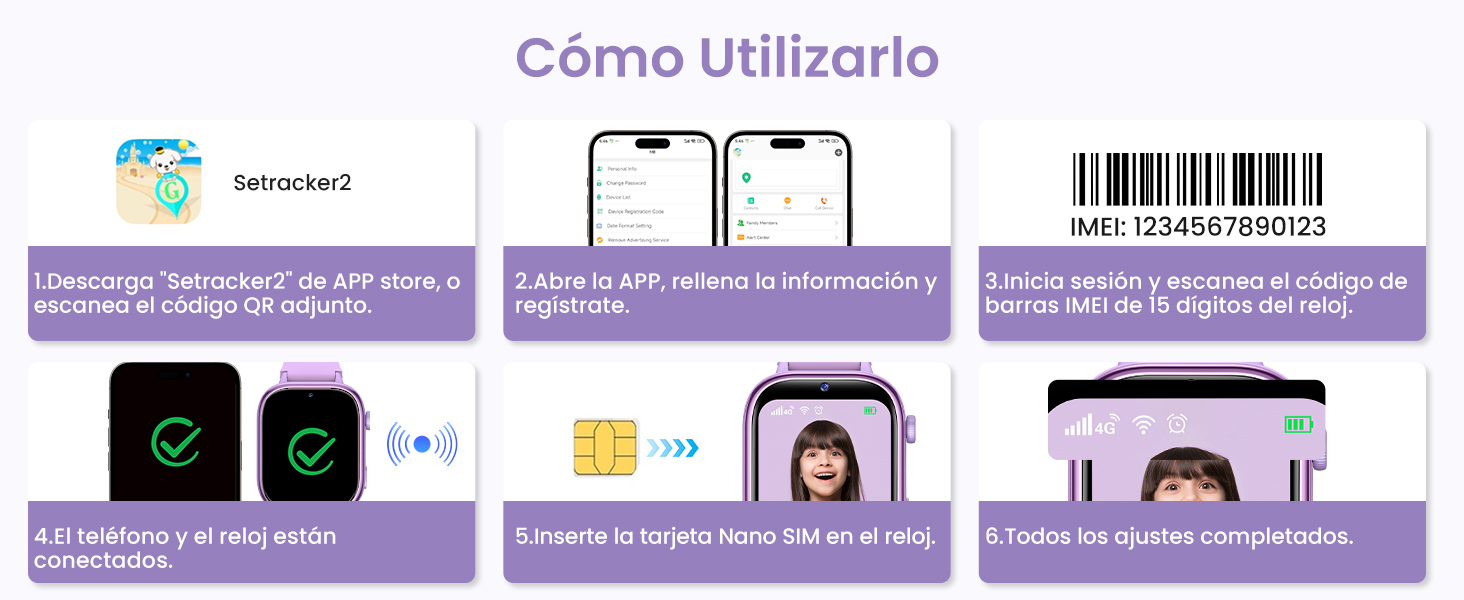
Image: Visual guide for connecting the smartwatch to the Setracker2 application.
4. Operating the Smartwatch
4.1 4G Communication
With a 4G SIM card inserted, the smartwatch enables seamless communication.
- Voice Calls: Make and receive calls with pre-approved contacts. Parents can block unknown calls via the Setracker2 app.
- Video Calls: Engage in clear video calls with family and friends.
- Voice Chat: Send and receive voice messages for quick communication.

Image: Features of 4G communication including video calls, voice calls, and voice chat.
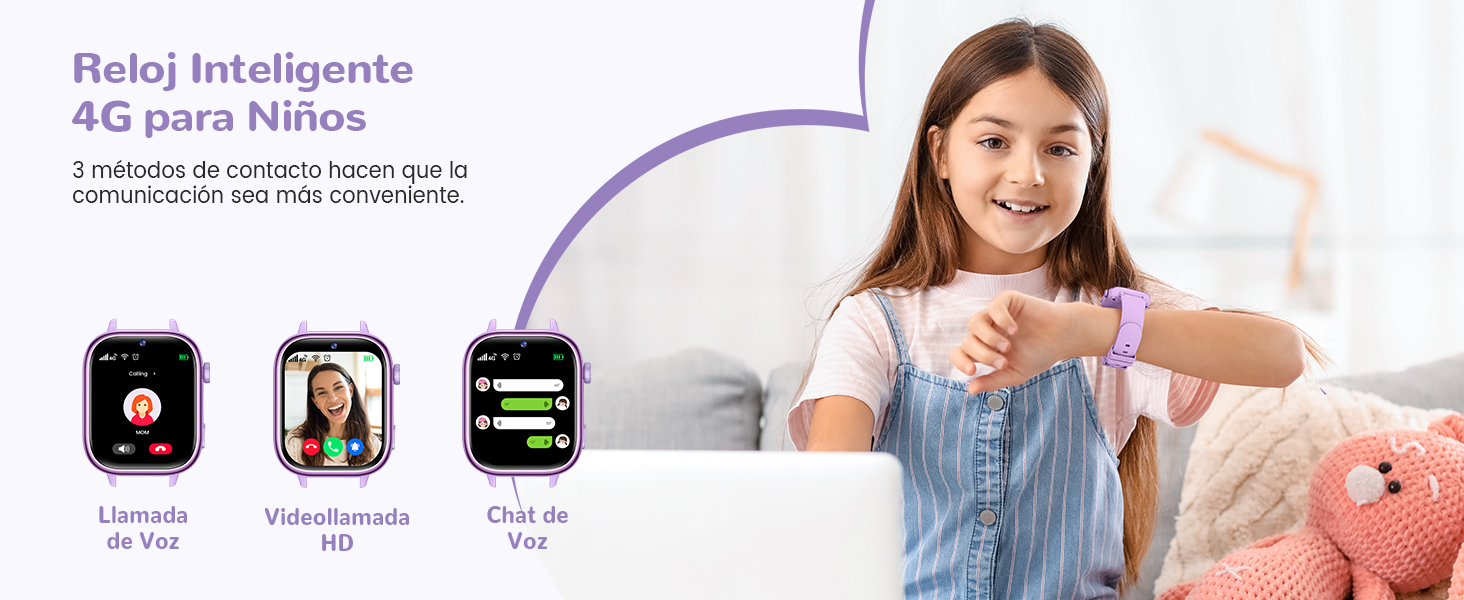
Image: Depiction of the smartwatch's communication capabilities.
4.2 Location Tracking (GPS/LBS/WiFi)
The smartwatch utilizes a triple positioning system (GPS, LBS, and WiFi) to provide accurate location tracking for your child.
- Real-Time Positioning: Monitor your child's location in real-time via the Setracker2 app.
- Safe Area: Set geofences (safe zones) and receive alerts when your child enters or leaves these areas.
- Historical Trajectory: Review your child's past movements and routes.

Image: Overview of the smartwatch's advanced positioning features.
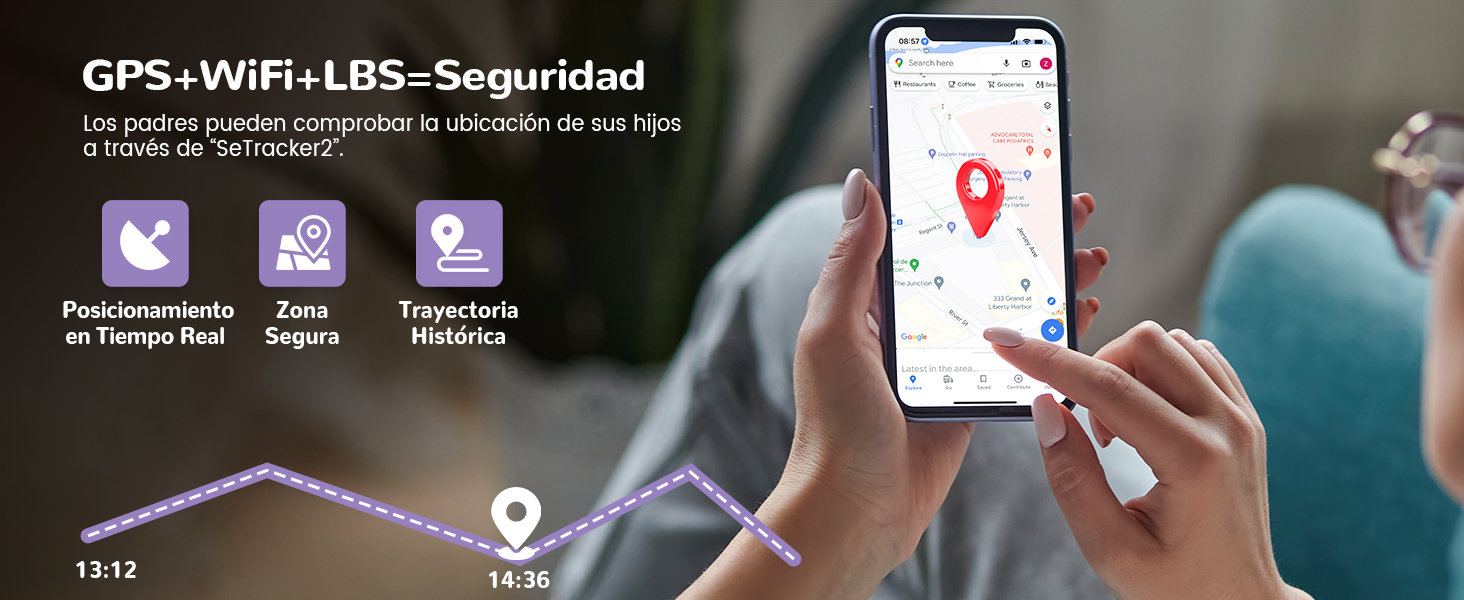
Image: Demonstrating the security features of GPS, WiFi, and LBS tracking.
4.3 SOS Emergency Call
In case of an emergency, the SOS function allows your child to quickly alert pre-set contacts.
- Press and hold the SOS button on the smartwatch for 2 seconds.
- The watch will automatically dial up to 3 emergency contacts in a loop until one answers.

Image: Visual of the SOS emergency call feature in action.
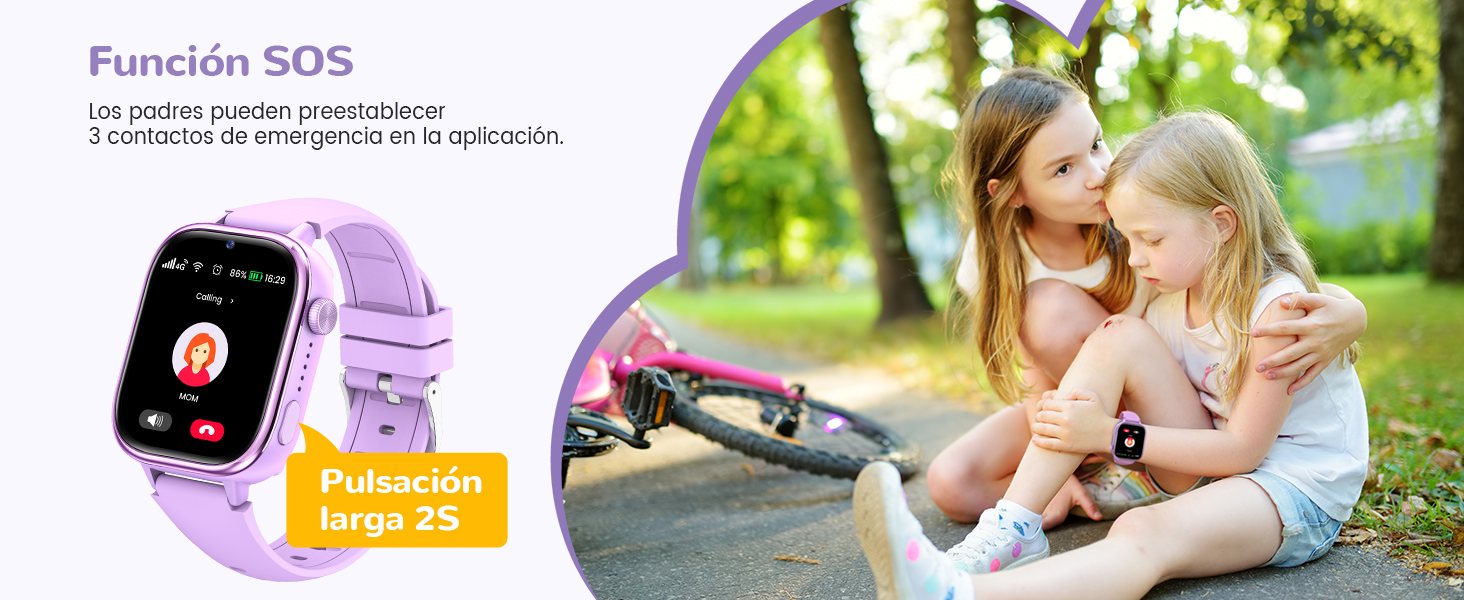
Image: Illustration of the SOS function activation by long-pressing the button.
4.4 School Mode
To help children focus during class, the School Mode can be activated via the app.
- Parents can set specific class schedules in the Setracker2 app.
- During School Mode, calls and notifications are blocked, and only the time is displayed.
- All functions automatically resume after the set class time ends.

Image: The smartwatch in School Mode, designed to minimize distractions.
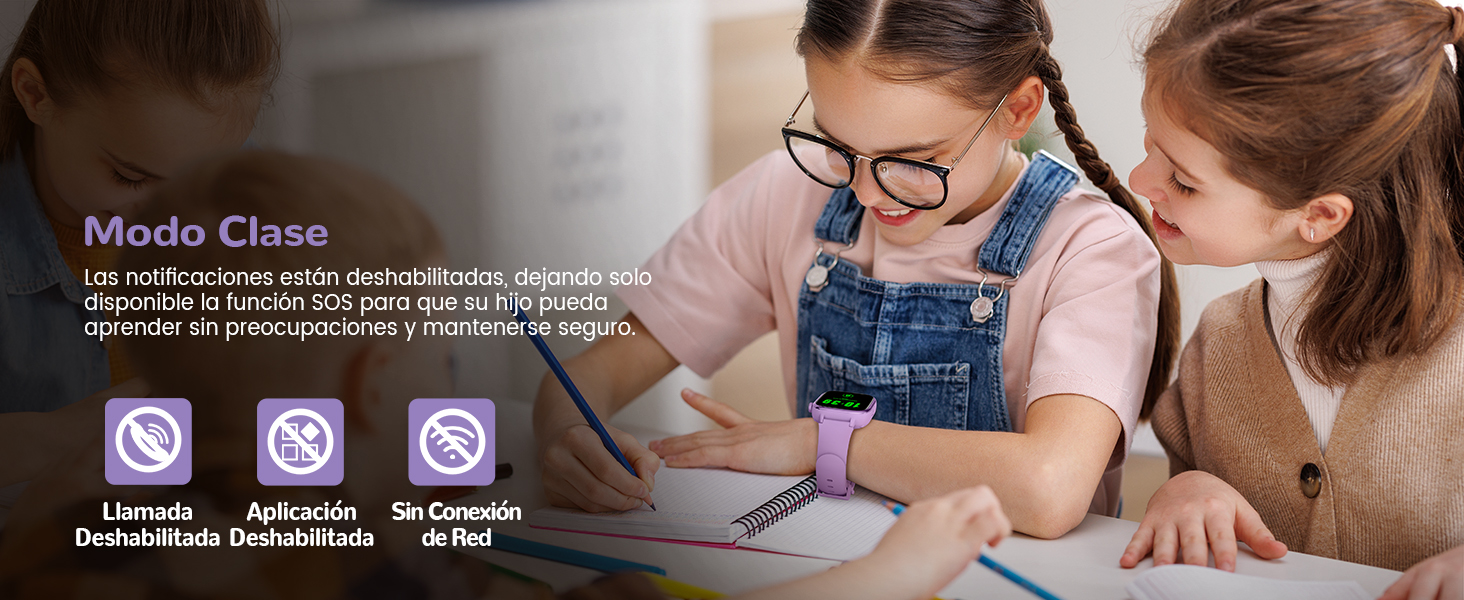
Image: School Mode ensures notifications are disabled for focused learning.
4.5 Other Functions
The Sanorum Smartwatch is equipped with a variety of useful features:
- Front HD Camera: Capture photos and store them in the photo album.
- Pedometer: Track daily steps and activity levels.
- 7 Puzzle Games: Engage in fun and educational games.
- Alarm Clock: Set multiple alarms for reminders.
- Calculator: Basic arithmetic functions.
- Timer/Chronograph: For various timing needs.
- Sleep Monitoring: Monitor sleep patterns.
- Reward of Love: Parents can send virtual 'love' rewards for good behavior.
- IP68 Waterproof: Resistant to splashes, sweat, and rain, but not suitable for hot showers or saunas.

Image: Various features of the smartwatch, including display, health tracking, and games.

Image: The front HD camera allows children to capture moments.
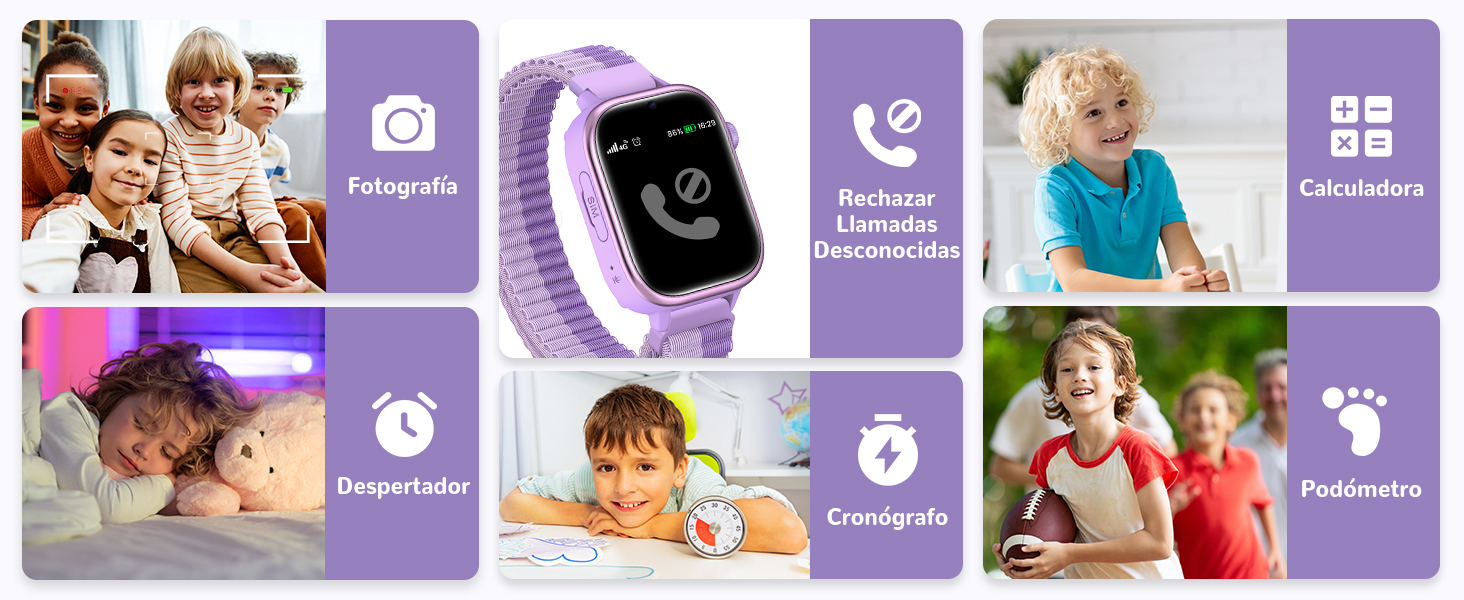
Image: A selection of the smartwatch's diverse functionalities.
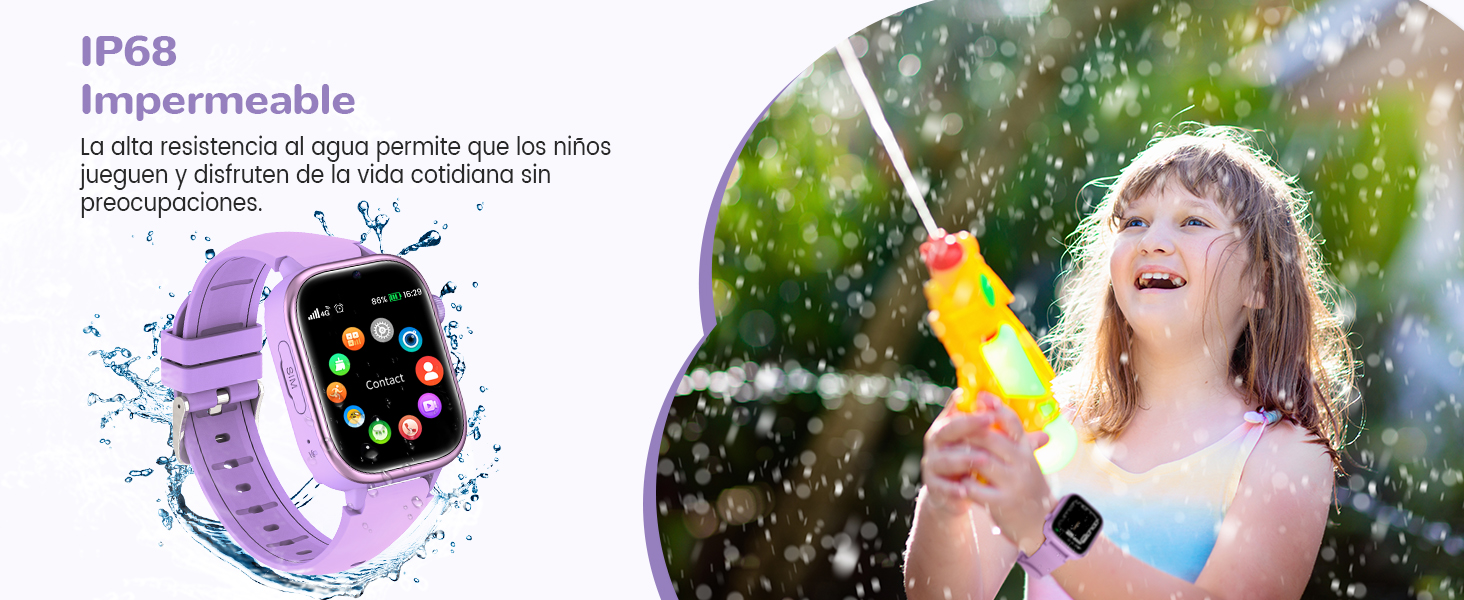
Image: The IP68 waterproof rating allows for worry-free daily use.

Image: The 'Reward of Love' feature encourages positive behavior.
5. Technical Specifications
| Feature | Specification |
|---|---|
| Brand | Sanorum |
| Model | T40 |
| Product Dimensions | 28.3 x 10.1 x 2.4 cm |
| Item Weight | 180 g |
| Screen Size | 1.83 inches |
| Screen Type | LCD |
| Connectivity Technology | Bluetooth, 4G GSM |
| GPS | Integrated GPS (GPS/LBS/WiFi positioning) |
| Water Resistance | IP68 |
| Compatible Devices | Smartphone |
| Human Interface Input | Microphone, Touchscreen |
| Included Components | Charging cable, User manual, Smartwatch, Watch strap |
| Special Features | Video Calls, SOS, Chat, 4G SIM, Class Mode, Contacts, Camera, Photo Album, Pedometer, Chronograph, Calculator, Sleep Monitor, Volume Control, Games, Alarm Setting |
6. Troubleshooting
If you encounter issues with your Sanorum Smartwatch, please refer to the following common solutions:
- Device Not Turning On: Ensure the watch is fully charged. If it still doesn't turn on, try connecting it to the charger and waiting a few minutes before attempting to power it on again.
- SIM Card Not Recognized:
- Ensure the watch is powered off before inserting the Nano SIM card.
- Verify the SIM card is inserted in the correct orientation and fully seated in the slot.
- Check if the SIM card is active and has a 4G data plan.
- Restart the watch after inserting the SIM card.
- Inaccurate GPS Location:
- GPS accuracy can be affected by environmental factors (e.g., indoors, dense buildings, bad weather). Try checking the location in an open outdoor area.
- Ensure the watch has a strong 4G signal, as LBS (Location Based Service) relies on cellular towers and WiFi positioning relies on available WiFi networks.
- Update the Setracker2 app to the latest version.
- Cannot Make/Receive Calls:
- Confirm the SIM card is active and has sufficient credit/data.
- Check if the numbers are correctly saved in the watch's contact list via the Setracker2 app.
- Ensure School Mode is not active, as it blocks calls.
- Verify that unknown call blocking is not enabled for the numbers you are trying to call.
Video: A demonstration of the smartwatch's features and functionality.
7. Care and Maintenance
To ensure the longevity and optimal performance of your Sanorum Smartwatch, follow these care guidelines:
- Cleaning: Wipe the watch with a soft, dry cloth. Do not use harsh chemicals or abrasive cleaners.
- Water Resistance: The watch is IP68 waterproof, meaning it can withstand splashes, sweat, and rain. However, it is not suitable for swimming, diving, hot showers, or saunas, as steam and hot water can damage the seals.
- Charging: Use only the provided charging cable. Avoid overcharging the battery.
- Storage: Store the watch in a cool, dry place away from direct sunlight and extreme temperatures.
- Avoid Impact: Protect the watch from drops and strong impacts, which can damage the screen or internal components.
8. Warranty and Support
Your Sanorum Smartwatch comes with a standard manufacturer's warranty. For specific warranty terms and conditions, please refer to the documentation included with your purchase or contact Sanorum customer support. If you require technical assistance or have questions not covered in this manual, please reach out to our support team via the contact information provided on the Sanorum official website or through your retailer.