
1. Introduction
The Sanorum T40 4G Kids Smartwatch is designed to provide a safe and connected experience for children, offering advanced communication features and precise location tracking for parents. This manual provides detailed instructions on how to set up, operate, and maintain your smartwatch to ensure optimal performance and safety.
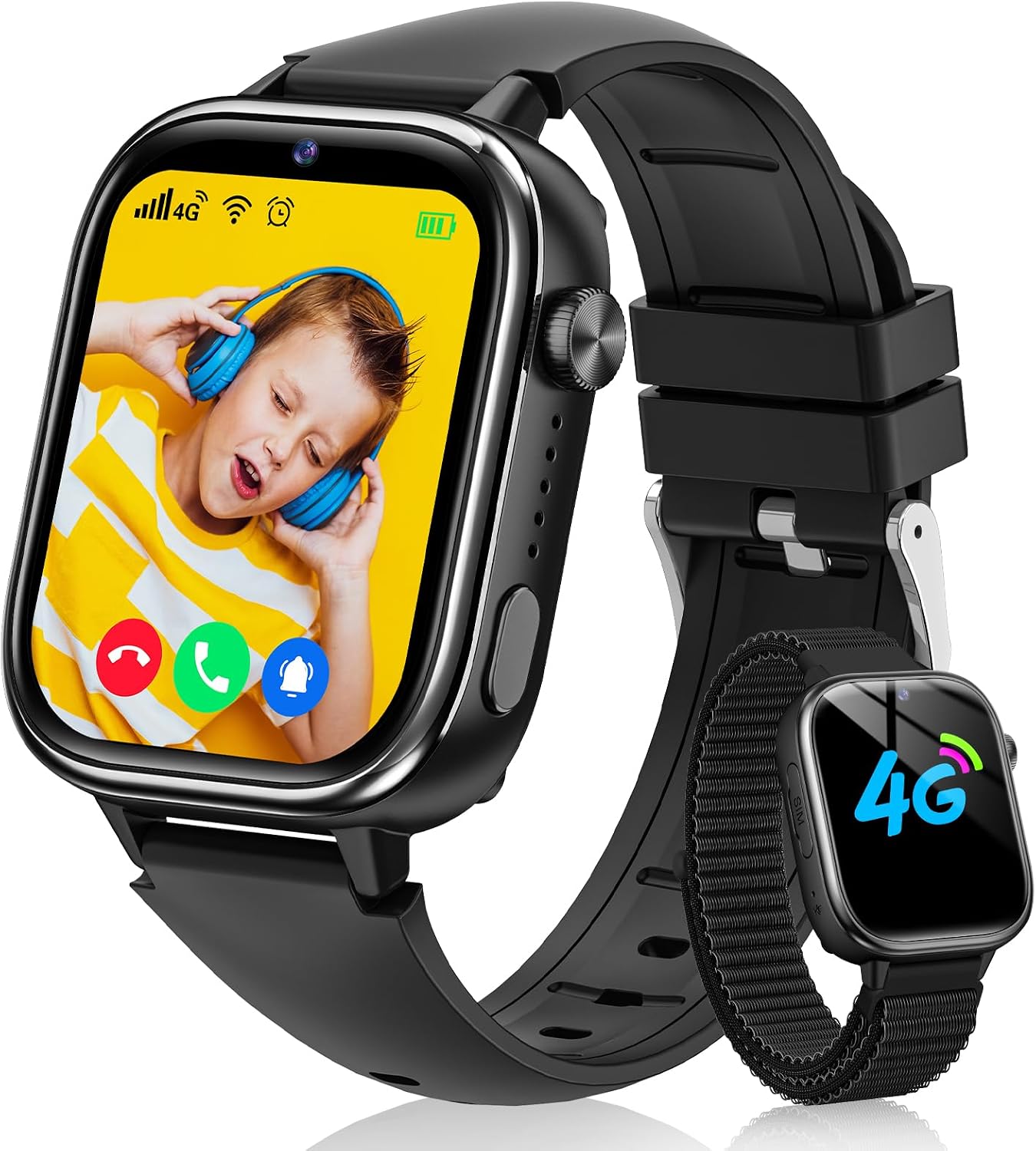
Image: Sanorum 4G Kids Smartwatch, showcasing its sleek design and vibrant display.
2. What's in the Box
Please check the package contents to ensure all items are present:
- Sanorum 4G Kids Smartwatch
- Charging Cable
- User Manual
- Watch Strap (additional/replacement)

Image: Contents of the Sanorum Smartwatch package, including the watch, charging cable, and an additional strap.
3. Setup Guide
3.1. SIM Card Installation
The Sanorum 4G Kids Smartwatch requires a Nano SIM card for 4G connectivity, video calls, and voice chat. Ensure the smartwatch is powered off before inserting the SIM card.
- Locate the SIM card slot on the side of the smartwatch.
- Using the provided tool, gently open the SIM card tray.
- Insert a Nano SIM card into the tray with the correct orientation (refer to the diagram on the tray).
- Close the SIM card tray securely.
- Power on the smartwatch. Wait for the signal icon to appear in the upper left corner of the screen, indicating successful SIM card recognition.

Image: Illustration of the SIM card slot and the correct Nano SIM card type for installation.
3.2. App Installation and Pairing
To manage the smartwatch and access its full features, download the 'Setracker2' application on your smartphone.
- Download 'Setracker2' from your device's app store (Google Play Store for Android or Apple App Store for iOS) or scan the QR code provided in the smartwatch packaging.
- Open the app and register a new account.
- Log in and scan the 15-digit IMEI barcode from the smartwatch to bind it to your account. The IMEI can usually be found on the watch's packaging or in its settings.
- Once connected, you can configure contacts, set up location tracking, and manage other smartwatch functions through the app.
4. Operating the Smartwatch
4.1. Basic Functions
- Power On/Off: Press and hold the power button (usually on the side) to turn the watch on or off.
- Navigation: Swipe left/right or up/down on the 1.83-inch HD display to navigate through menus and applications. Tap to select.
4.2. Communication Features
- 4G Calls, Video Calls, and Voice Chat: With a 4G SIM card inserted, the smartwatch supports clear video calls, voice calls, and real-time voice chat. Parents can block unknown calls via the Setracker2 app. The watch supports up to 15 pre-set contacts.

Image: Depiction of the smartwatch's 4G communication capabilities, including clear video calls, stable phone calls, and real-time voice chat.
- SOS Emergency Call: In an emergency, holding the SOS button for 2 seconds will automatically dial up to 3 pre-set emergency contacts until one answers, ensuring immediate assistance.

Image: Visual representation of the SOS emergency call feature, showing the watch dialing pre-set contacts.
4.3. Location Tracking
The smartwatch utilizes triple positioning technology (GPS/LBS/WiFi) for accurate real-time location tracking. Parents can monitor their child's location and set safe zones through the Setracker2 app.

Image: Diagram illustrating the GPS, WiFi, and LBS positioning methods used for real-time tracking, safe zones, and historical trajectory.
4.4. School Mode
Parents can define class schedules in the app. During School Mode, the smartwatch blocks calls and notifications, displaying only the time, to help children focus on their studies. All functions are automatically restored after class hours.

Image: A child wearing the smartwatch in a classroom setting, demonstrating the School Mode which disables distractions.
4.5. Other Features
- Camera: The integrated camera allows children to capture photos and cultivate observation skills. Photos are stored in the album.

Image: Children interacting with the smartwatch's front HD camera, highlighting its use for capturing moments.
- Pedometer: Tracks daily steps.
- Alarm Clock: Set multiple alarms for reminders.
- Calculator: Basic arithmetic functions.
- Timer/Stopwatch: For various activities.
- Games: Includes educational and fun puzzle games.
- Sleep Monitor: Monitors sleep patterns.
- Love Rewards: Parents can send virtual 'love rewards' to encourage good behavior.
5. Maintenance
- Water Resistance: The smartwatch is IP68 water-resistant, meaning it can withstand splashes, rain, and sweat. It is suitable for daily use and outdoor play. However, do not use it in saunas or hot showers, and avoid prolonged submersion.
- Cleaning: Wipe the watch and strap with a soft, damp cloth. Avoid harsh chemicals or abrasive materials.
- Charging: Use the provided charging cable. Connect the magnetic end to the watch's charging port and the USB end to a compatible power adapter (not included).
6. Troubleshooting
- Watch not turning on: Ensure the watch is fully charged. If it still doesn't turn on, try holding the power button for an extended period (10-15 seconds).
- SIM card not recognized: Ensure the SIM card is a Nano SIM and is inserted correctly. Power off the watch before inserting the SIM and then restart. Verify the SIM card is active and has a data plan.
- No signal/Cannot make calls: Check if the SIM card is properly installed and activated. Ensure there is 4G network coverage in your area. Verify that unknown calls are not blocked in the Setracker2 app.
- Inaccurate location: GPS accuracy can be affected by environmental factors (e.g., indoors, dense buildings). Ensure the watch has a clear view of the sky for better GPS reception. LBS and WiFi positioning provide supplementary location data.
- App connection issues: Ensure both the smartwatch and your smartphone have stable internet connections. Restart both devices and try pairing again.
- Battery drains quickly: Frequent use of video calls, GPS tracking, and games can consume battery faster. Reduce screen brightness or adjust usage patterns if necessary.
7. Specifications
| Feature | Description |
|---|---|
| Brand | Sanorum |
| Model | T40 |
| Connectivity Technology | Bluetooth, 4G SIM |
| Screen Size | 1.83 Inches |
| Display Type | LCD |
| Water Resistance | IP68 |
| Positioning | GPS, LBS, WiFi |
| Special Features | Video Calls, SOS, Chat, School Mode, Contacts, Camera, Photo Album, Pedometer, Stopwatch, Calculator, Sleep Monitor, Games, Alarm Clock |
| Product Weight | 180 g |
| Compatible Devices | Smartphone |
8. Warranty and Support
Sanorum products are designed for reliability and performance. For warranty information, please refer to the documentation included with your purchase or contact Sanorum customer support. If you encounter any issues not covered in this manual, please reach out to our support team for assistance.
For further assistance, please visit the official Sanorum store or contact your retailer.