
1. Introduction
Thank you for choosing the Sanorum T40 4G Smartwatch for Kids. This device is designed to provide communication, safety, and entertainment features for children, while offering peace of mind for parents. It includes 4G connectivity for calls and video calls, precise GPS tracking, an SOS emergency function, and a dedicated school mode to minimize distractions. Please read this manual carefully to ensure proper setup and operation of your smartwatch.

Image 1.1: The Sanorum T40 4G Smartwatch for Kids in blue, showcasing its display.
2. What's in the Box
Upon opening your Sanorum T40 Smartwatch package, you should find the following items:
- Sanorum T40 Smartwatch
- Watch Strap (additional strap may be included)
- User Manual
- Charging Cable
- SIM Card Ejector Tool
- Screen Protectors (2 units)
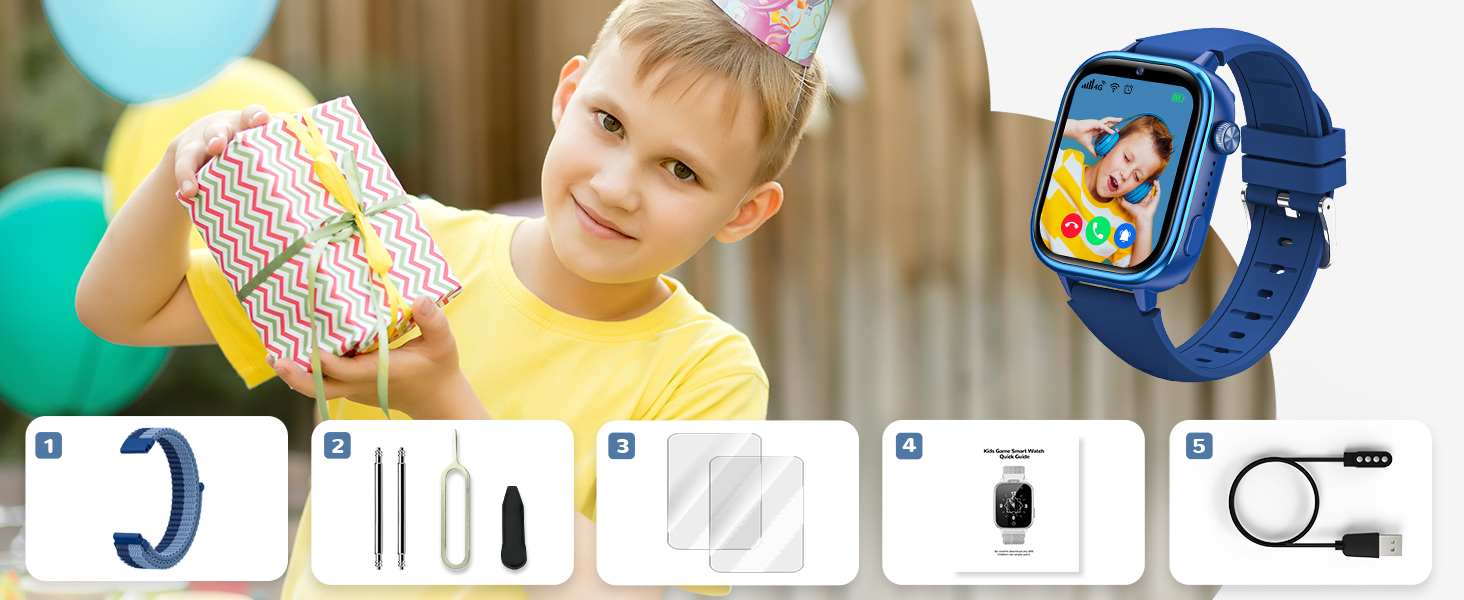
Image 2.1: Illustration of the Sanorum T40 Smartwatch package contents.
3. Setup
3.1 SIM Card Installation
The Sanorum T40 Smartwatch requires a 4G Nano SIM card for full functionality (calls, video calls, GPS, etc.). The SIM card is not included with the watch.
- Power Off the Smartwatch: Before inserting the SIM card, ensure the smartwatch is completely powered off.
- Locate SIM Slot: Use the provided SIM ejector tool to open the SIM card tray on the side of the watch.
- Insert Nano SIM: Carefully place the 4G Nano SIM card into the tray with the correct orientation. Refer to the diagram on the tray or in the quick start guide for guidance.
- Close SIM Tray: Gently push the SIM tray back into the watch until it clicks into place.
- Power On: Turn on the smartwatch. Wait for the signal icon to appear in the upper left corner of the screen, indicating successful SIM card detection and network connection.
Important: Only use a Nano SIM card. Do not attempt to use a cut SIM card, as this may damage the device.
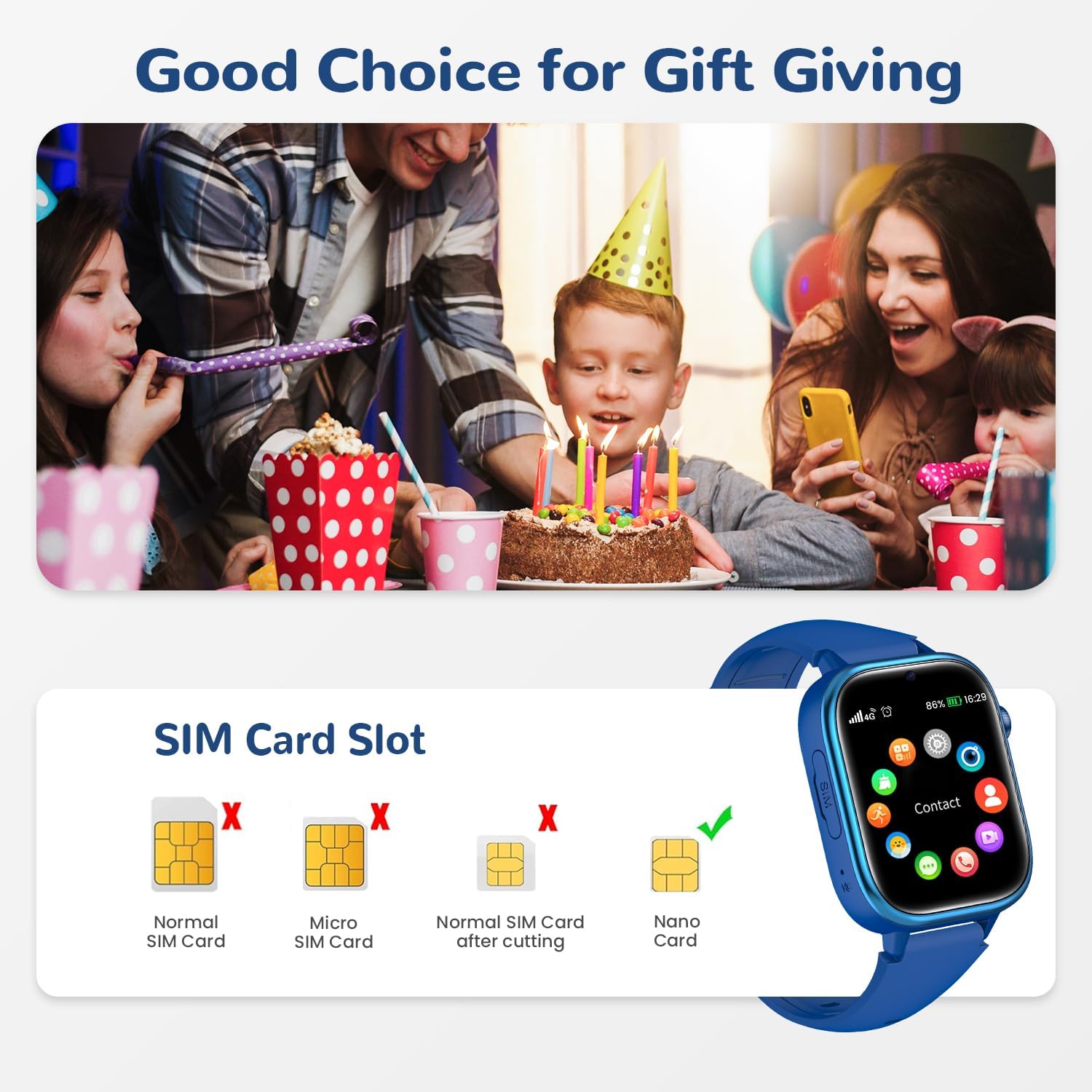
Image 3.1: Correct Nano SIM card insertion for the Sanorum T40 Smartwatch.
3.2 App Setup (Setracker2)
To manage the smartwatch and access its full range of features, parents need to install the 'Setracker2' application on their smartphone.
- Download App: Download the 'Setracker2' app from your smartphone's app store (Google Play Store for Android or Apple App Store for iOS). Alternatively, scan the QR code provided in the watch's packaging or on the watch screen during initial setup.
- Register Account: Open the app and follow the on-screen instructions to register a new account.
- Bind Smartwatch: Log in to your account. The app will prompt you to add a device. Scan the 15-digit IMEI barcode found on the back of the smartwatch or in its settings menu.
- Complete Settings: Once the watch is successfully bound, you can configure contacts, set up safe zones, activate school mode, and customize other settings within the app.
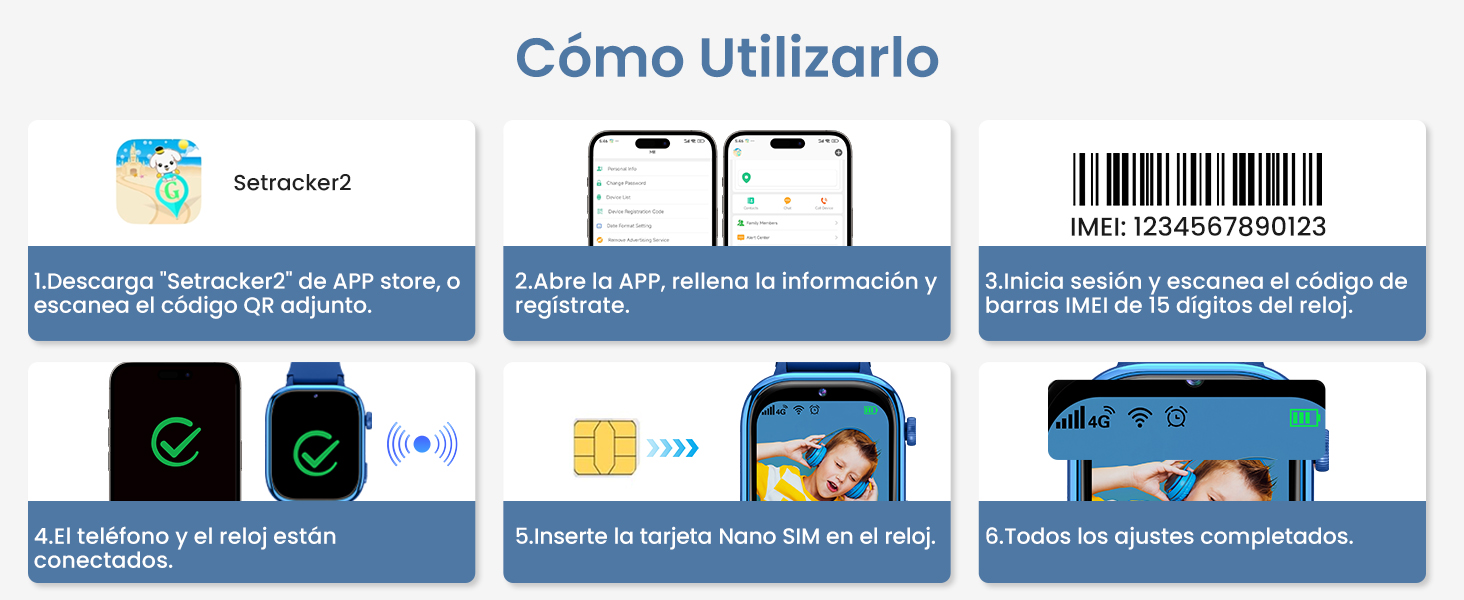
Image 3.2: Visual guide for connecting the smartwatch to the Setracker2 application.
4. Operating Instructions
4.1 Communication Features
The Sanorum T40 Smartwatch offers robust communication options for children and parents.
- 4G Calls: Once a 4G SIM card is installed and configured, the child can make and receive voice calls from pre-approved contacts. Parents can manage the contact list and block unknown calls via the Setracker2 app.
- Video Calls: The smartwatch supports 4G video calls, allowing for face-to-face communication between the child and approved contacts.
- Voice Chat: Children can send and receive short voice messages, similar to instant messaging, with approved contacts.

Image 4.1: Overview of the smartwatch's communication capabilities.
4.2 Location Tracking (GPS/LBS/WiFi)
The smartwatch utilizes a triple positioning system for accurate location tracking.
- Real-Time Positioning: Parents can view the child's current location on a map through the Setracker2 app.
- Safe Zones: Set up virtual boundaries (safe zones) in the app. You will receive notifications if the child enters or leaves these designated areas.
- Historical Trajectory: Review the child's past movements and routes for a specified period.

Image 4.2: Visual representation of the smartwatch's advanced positioning features.
4.3 SOS Emergency Call
In case of an emergency, the child can activate the SOS function:
- Activation: Press and hold the SOS button on the smartwatch for 2 seconds.
- Emergency Contacts: The watch will automatically dial up to 3 pre-set emergency contacts in a loop until one answers. Parents can configure these contacts in the Setracker2 app.

Image 4.3: How the SOS emergency call feature works.
4.4 School Mode
To help children focus during class, the smartwatch features a School Mode:
- Configuration: Parents can set specific class schedules within the Setracker2 app.
- Functionality during School Mode: During the defined class times, the smartwatch will block incoming calls, notifications, and games. Only the time display and the SOS function will remain active.
- Automatic Deactivation: All functions are automatically restored once the school mode period ends.

Image 4.4: The smartwatch's School Mode in action, promoting focus during study hours.
4.5 Other Functions
The Sanorum T40 Smartwatch includes a variety of other useful and entertaining features:
- Pedometer: Tracks daily steps and activity levels.
- Camera & Photo Album: The integrated camera allows children to capture photos, which are stored in the photo album.
- Games: Includes educational and entertaining puzzle games.
- Alarm Clock: Set multiple alarms for reminders.
- Calculator: A basic calculator for quick computations.
- Timer/Stopwatch: For various timing needs.
- Sleep Monitor: Monitors sleep patterns.
- Love Rewards: Parents can send 'love rewards' through the app to encourage good behavior.

Image 4.5: A selection of the smartwatch's diverse functionalities.
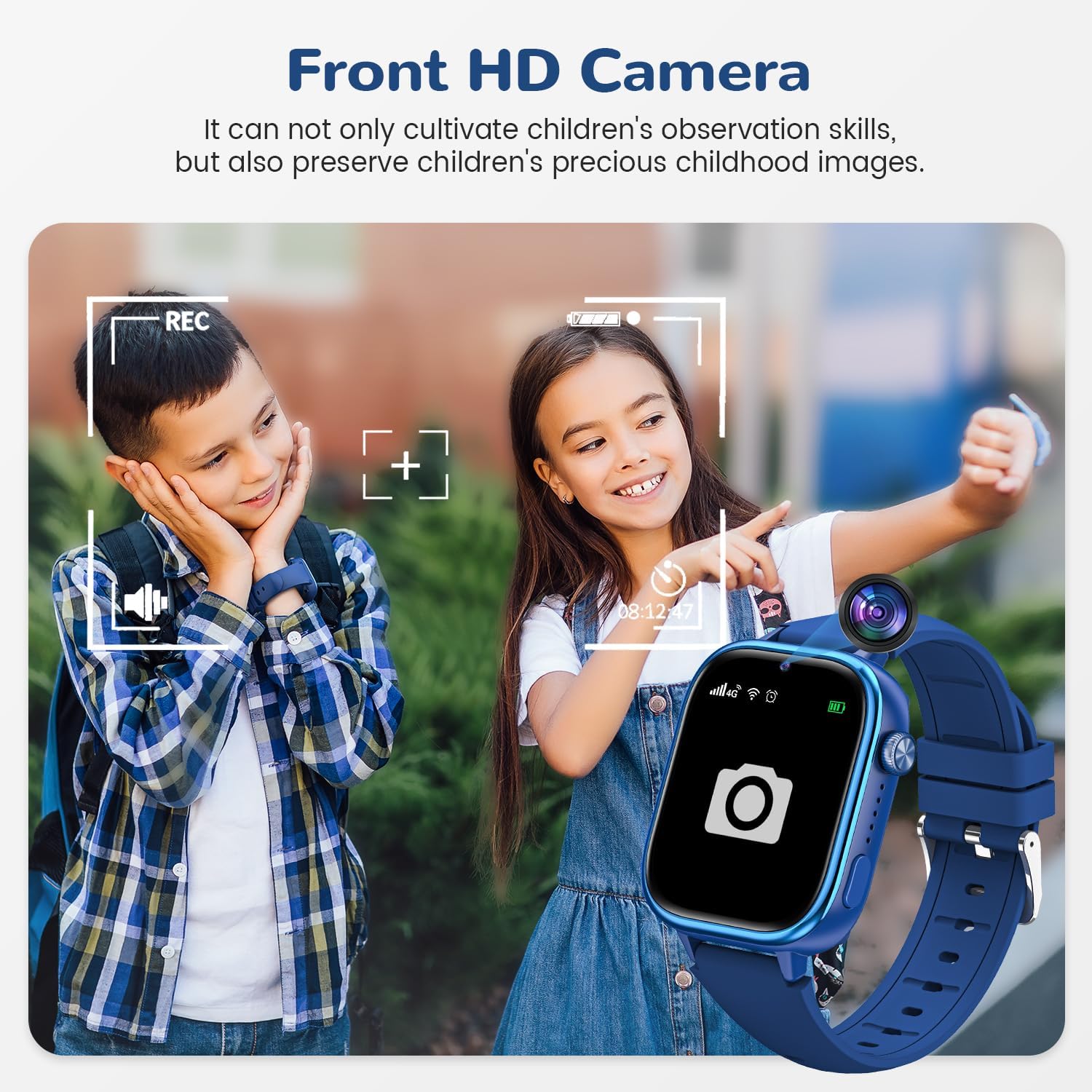
Image 4.6: The front HD camera feature, allowing children to capture moments.
5. Maintenance
5.1 Water Resistance (IP68)
The Sanorum T40 Smartwatch has an IP68 water resistance rating, meaning it is protected against dust and can withstand immersion in water up to 1.5 meters for up to 30 minutes. This makes it suitable for daily activities like hand washing, rain, and splashes.
- Do Not Use In: Saunas, hot showers, or prolonged swimming. Exposure to hot water or steam can compromise the water-resistant seals.
- After Water Exposure: If the watch gets wet, gently wipe it dry with a soft cloth.
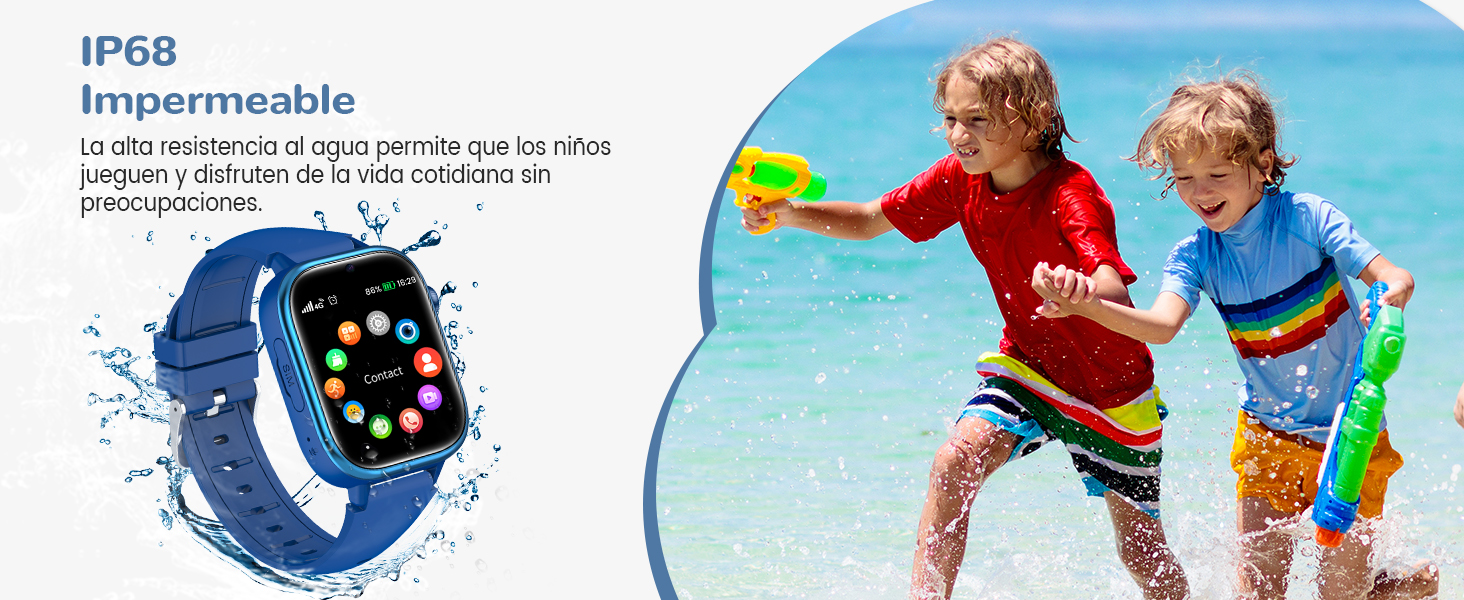
Image 5.1: The IP68 waterproof feature allows for worry-free daily use.
5.2 Cleaning
To keep your smartwatch in good condition:
- Wipe the screen and strap regularly with a soft, dry, lint-free cloth.
- Avoid using harsh chemicals or abrasive materials.
6. Troubleshooting
If you encounter issues with your Sanorum T40 Smartwatch, please refer to the following common solutions:
- No Signal/Cannot Make Calls:
- Ensure a 4G Nano SIM card is correctly inserted and activated.
- Check if the SIM card has sufficient balance or data plan.
- Restart the smartwatch.
- Verify network coverage in your area.
- App Cannot Connect to Watch:
- Ensure the smartwatch has a stable network connection (signal icon visible).
- Verify the IMEI number entered in the Setracker2 app is correct.
- Check if the app has the necessary permissions on your smartphone.
- Restart both the watch and the smartphone.
- Inaccurate Location:
- Location accuracy can vary based on environment (e.g., indoors, dense urban areas).
- Ensure the watch has a clear view of the sky for optimal GPS signal.
- Check if the SIM card has an active data plan for LBS/WiFi positioning.
- Battery Drains Quickly:
- Frequent use of video calls, GPS tracking, and games can consume more battery.
- Adjust the frequency of location updates in the Setracker2 app.
- Ensure the watch is fully charged.
7. Specifications
| Feature | Specification |
|---|---|
| Brand | Sanorum |
| Model | T40 |
| Connectivity | 4G (Nano SIM required), Bluetooth |
| Positioning | GPS, LBS, WiFi |
| Operating System | Wear OS |
| Screen Size | 1.83 Inches |
| Screen Type | LCD |
| Water Resistance | IP68 |
| Camera | Integrated Front HD Camera |
| Human Interface Input | Buttons, Touch Screen |
| Product Weight | 180 g |
| Dimensions | 28.2 x 10.1 x 2.4 cm |
| Compatible Devices | Smartphone |
8. Warranty and Support
For warranty information and customer support, please refer to the documentation included with your purchase or contact the seller directly through the platform where the product was purchased. Keep your proof of purchase for any warranty claims.