
Introduction
This manual provides comprehensive instructions for the setup, operation, maintenance, and troubleshooting of your 8BitDo All-Button Arcade Controller. Designed for precision and versatility, this controller is compatible with Nintendo Switch, Switch 2, and Windows platforms, offering multiple connectivity options and customizable features.
1. Setup
1.1 Package Contents
- 8BitDo All-Button Arcade Controller
- 2.4G Wireless Adapter
- USB-C Cable
- Instruction Manual (this document)
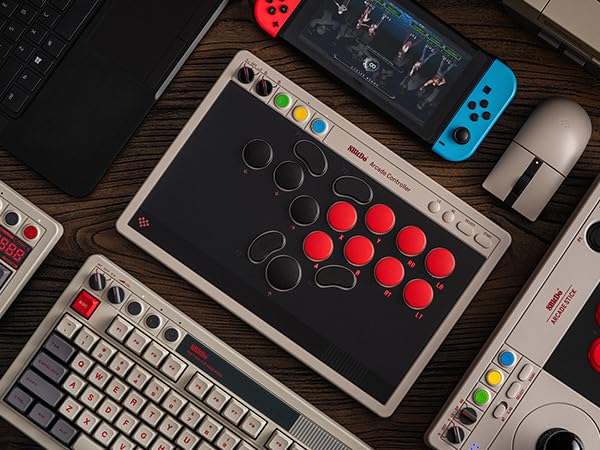
Image: The retail packaging for the 8BitDo All-Button Arcade Controller, showing the controller and included accessories.
1.2 Connectivity Options
The controller supports three connection methods:
- Bluetooth: For Nintendo Switch and Switch 2.
- 2.4G Wireless: For Windows devices using the included 2.4G adapter.
- Wired USB-C: For both Nintendo Switch/Switch 2 and Windows.
1.3 Initial Connection
- Power On: Locate the power switch on the top left side of the controller. Slide it to the desired mode (S for Switch, BT for Bluetooth, 2.4G for wireless, or OFF).
- Bluetooth Connection (Switch/Switch 2):
- Set the mode switch to 'S' or 'BT'.
- On your Switch, navigate to System Settings > Controllers and Sensors > Disconnect Controllers, then select "Change Grip/Order".
- Press and hold the Pair button on the controller until the indicator lights flash rapidly.
- The controller will appear on your Switch screen. Select it to pair.
- 2.4G Wireless Connection (Windows):
- Set the mode switch to '2.4G'.
- Insert the 2.4G wireless adapter into an available USB port on your Windows PC.
- The controller should automatically connect. If not, press the Pair button on the controller and the adapter.

Image: The 2.4G wireless adapter stored in its compartment on the underside of the controller.
- Wired Connection (Switch/Switch 2 & Windows):
- Connect the USB-C cable to the controller and to your device (Switch dock or PC).
- The controller will automatically be recognized.
Note: For Switch 2 compatibility, ensure your controller has the latest firmware update. Refer to the "Firmware Update" section.
2. Operating Instructions
2.1 Controller Layout

Image: Top-down view of the 8BitDo All-Button Arcade Controller, showing the button layout and control panel.
The controller features an all-button arcade layout with quad-movement design for precise inputs. Standard action buttons (A, B, X, Y), shoulder buttons (L, R, ZL, ZR), and directional buttons are present. Additional buttons include L3, R3, Select, and Start.

Image: Close-up of the control panel on the 8BitDo All-Button Arcade Controller, showing the mode switches and colored function buttons.
2.2 Programmable Buttons (P1-P4)
The controller includes four programmable buttons (P1, P2, P3, P4) located on the front and bottom of the device. These buttons can be remapped to any other button function using the fast mapping feature or the 8BitDo Ultimate Software V2.
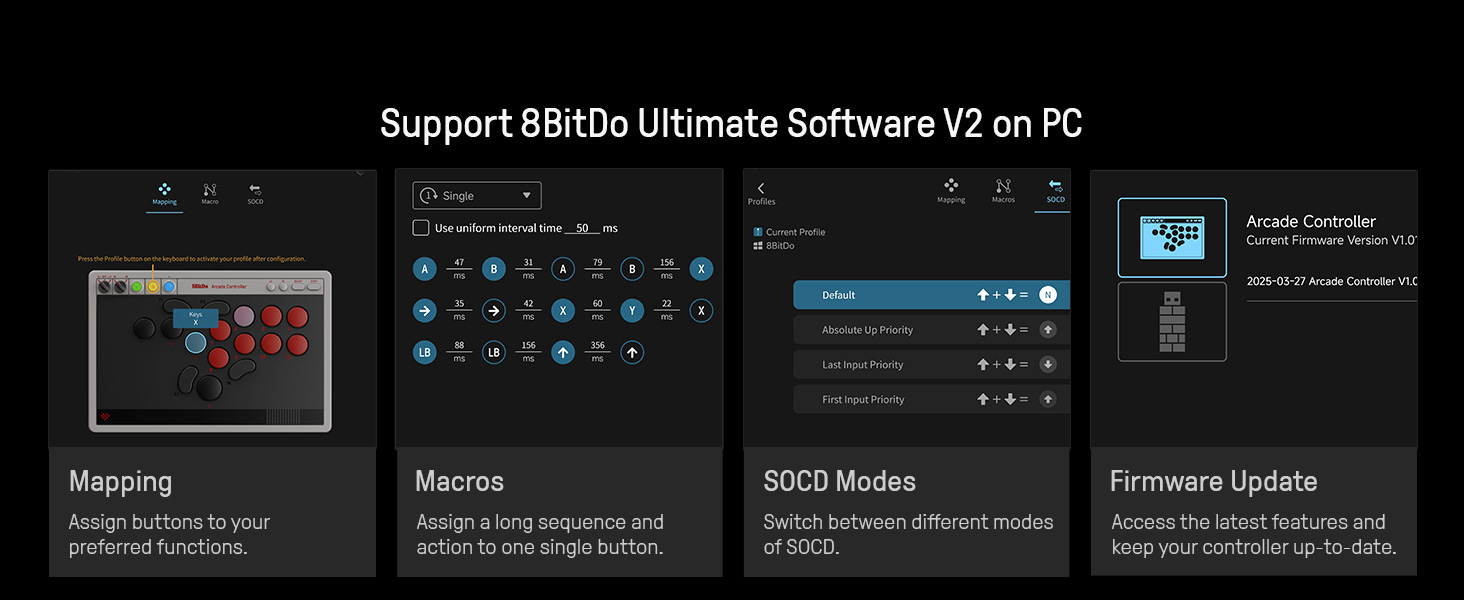
Image: A diagram illustrating the location and remapping capability of the P1, P2, P3, and P4 programmable buttons.
2.3 Dynamic Button Layout
When switching between Switch (S-Input) and PC (X-Input) modes, the controller's dynamic button layout automatically adjusts its visual representation to match the selected platform's standard button assignments.

Image: A visual representation of how the button labels change dynamically between Switch and PC input modes.
2.4 8BitDo Ultimate Software V2
Utilize the 8BitDo Ultimate Software V2 on your PC for advanced customization:
- Mapping: Assign buttons to preferred functions.
- Macros: Create and assign complex sequences of actions to a single button.
- SOCD Modes: Switch between different modes of Simultaneous Opposing Cardinal Directions (SOCD) cleaning.
- Firmware Update: Keep your controller up-to-date with the latest features and improvements.
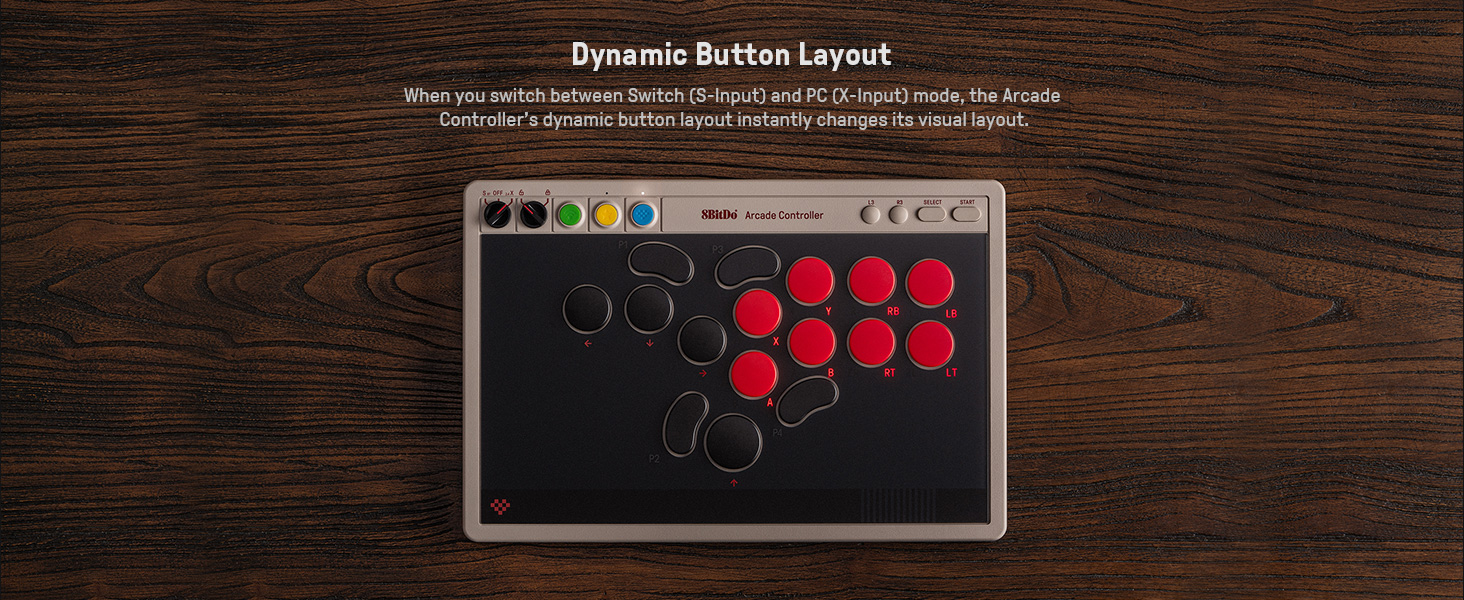
Image: Screenshots demonstrating the mapping, macro, SOCD modes, and firmware update features within the 8BitDo Ultimate Software V2.
2.5 Tournament Lock
The controller includes a tournament lock feature to disable certain functions, such as macros, during competitive play to comply with tournament rules. This can be activated via the independent control panel or Ultimate Software V2.
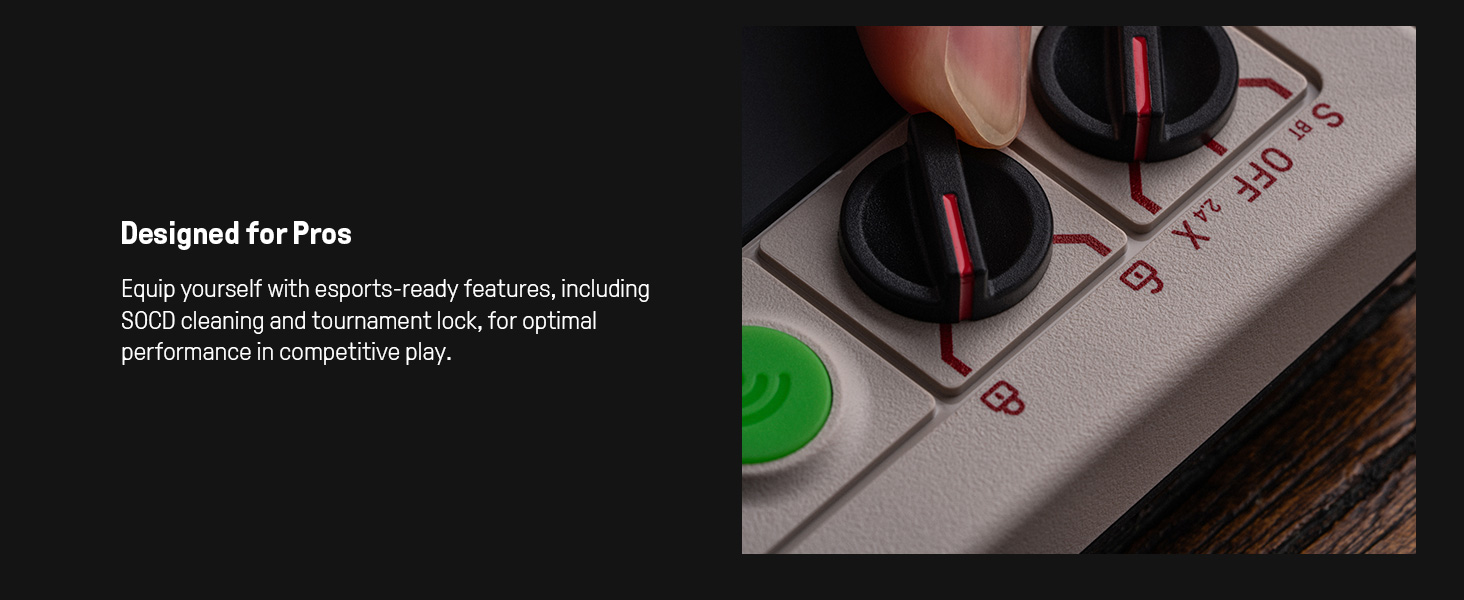
Image: A close-up view of the physical switch used to engage the tournament lock feature on the controller.
2.6 Independent Control Panel
The integrated control panel allows for quick adjustments of connection modes, volume, and button mapping without needing external software. This provides intuitive control with physical switches and dials.

Image: A detailed view of the independent control panel, highlighting the switches and dials for various settings.
3. Maintenance
3.1 Hot-Swappable PCB and Switches
The controller features a hot-swappable PCB, allowing users to easily replace the Kailh Wizard low-profile mechanical switches with other compatible switches to suit personal preferences. No soldering is required for switch replacement.

Image: An exploded view diagram illustrating the hot-swappable nature of the mechanical switches on the controller's PCB.
3.2 Replaceable Lock Caps
The controller includes replaceable lock caps for the programmable buttons (P1-P4). These caps can be used to disable specific buttons by making them flush with the controller surface, preventing accidental presses during gameplay.

Image: A close-up showing the replaceable lock caps designed to cover and disable programmable buttons.
3.3 Cleaning
The controller features a fingerprint-proof tempered glass faceplate. To clean, gently wipe the surface with a soft, dry cloth. Avoid abrasive cleaners or solvents.
Image: A close-up view of the sleek, smudge-resistant tempered glass faceplate of the controller.
4. Troubleshooting
4.1 Connectivity Issues
- Controller not connecting: Ensure the mode switch is set correctly for your device (S/BT for Switch, 2.4G for Windows). Try re-pairing the controller.
- 2.4G adapter not recognized: Ensure the adapter is fully inserted into a working USB port. Try a different USB port.
- Bluetooth pairing failure: Ensure no other Bluetooth devices are interfering. Try forgetting the controller on your device and re-pairing.
- Input lag: For optimal performance, especially in competitive play, consider using a wired USB-C connection.
4.2 Button Malfunction
- Unresponsive buttons: Check if any lock caps are installed over the programmable buttons. If using hot-swappable switches, ensure they are seated correctly.
- Incorrect button mapping: Use the 8BitDo Ultimate Software V2 to verify and adjust button assignments.
4.3 Firmware Updates
Regularly check for and install firmware updates using the 8BitDo Ultimate Software V2. Firmware updates can resolve bugs, improve performance, and add new features, including compatibility for future console versions like Switch 2.
5. Specifications
| Model Number | 6922621507611 |
| Compatibility | Windows 10 (1903) and above, Switch 3.0.0 and above |
| Connectivity | 2.4G Wireless, Bluetooth, Wired USB-C |
| Switches | Kailh Wizard low-profile mechanical switches (hot-swappable) |
| Special Features | All-button arcade design, 4 programmable buttons with fast-mapping, Independent control panel, SOCD cleaning, Tournament lock, 8BitDo Ultimate Software V2 support |
| Dimensions | Approximately 12.95 x 9.09 x 0.63 inches (32.9 x 23.1 x 1.6 cm) |
| Weight | Approximately 3.41 pounds (1.55 kg) |
| Battery | 1 Lithium Ion battery (included) |
6. Warranty and Support
For warranty information and technical support, please visit the official 8BitDo website or contact their customer service directly. Keep your proof of purchase for warranty claims.
Official 8BitDo Website: www.8bitdo.com