
Introduction
This manual provides comprehensive instructions for the setup, operation, and maintenance of your ProtoArc EK04 Mini Bluetooth Ergonomic Keyboard. Please read this manual thoroughly before using the product to ensure optimal performance and longevity.
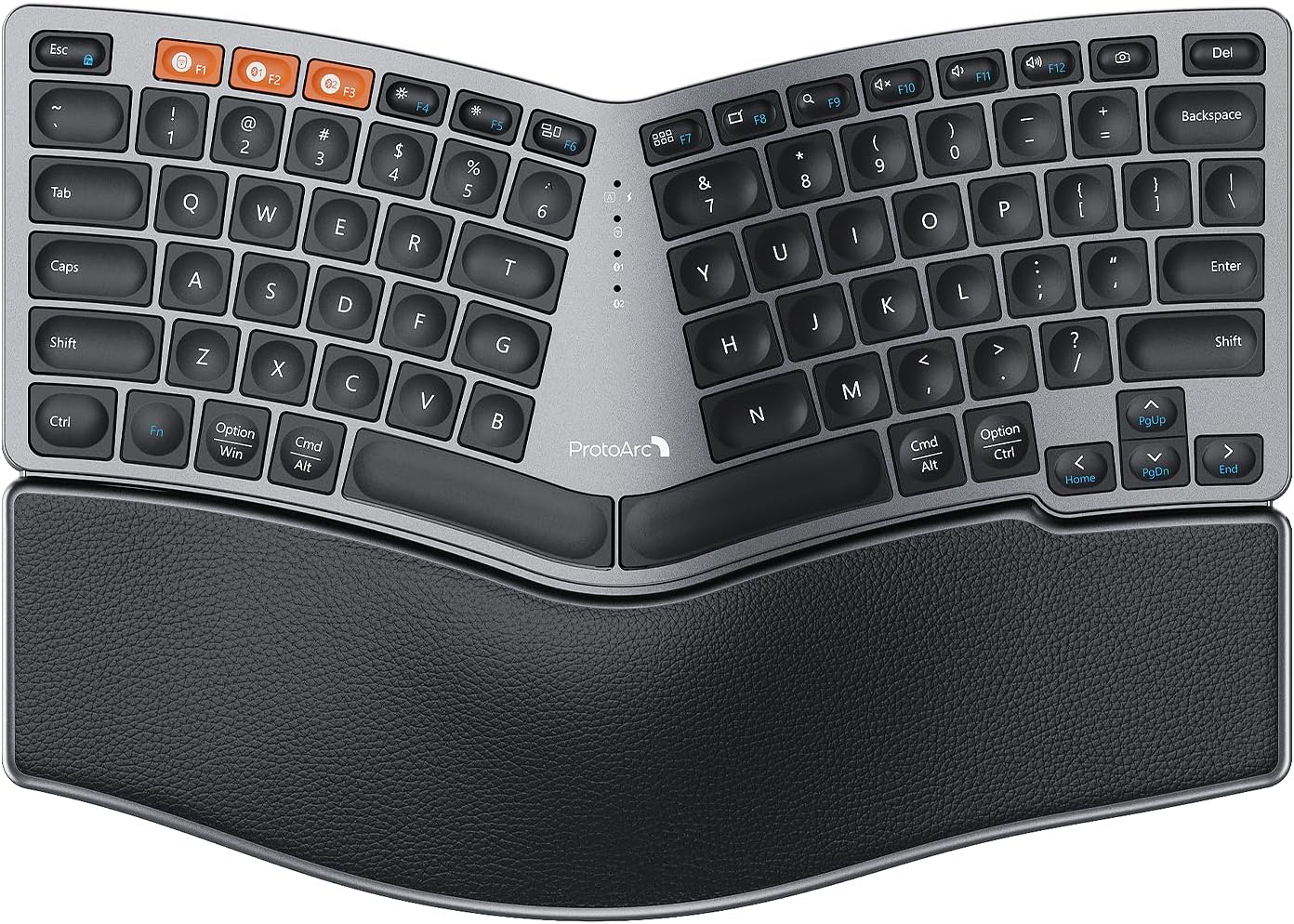
Figure 1: ProtoArc EK04 Mini Bluetooth Ergonomic Keyboard. This image displays the full keyboard with its split, curved design and integrated palm rest.
Package Contents
Verify that all items are present in the package:
- ProtoArc EK04 Mini Bluetooth Ergonomic Keyboard
- USB-C Charging Cable
- 2.4G USB Receiver
- User Manual (this document)

Figure 2: Contents of the ProtoArc EK04 Mini package, including the keyboard, charging cable, USB receiver, and user manual.
Setup
1. Charging the Keyboard
Before first use, fully charge the keyboard. The built-in rechargeable battery provides approximately 250 hours of standby time after a 2-hour full charge.
- Connect the provided USB-C charging cable to the keyboard's charging port.
- Connect the other end of the cable to a USB power source (e.g., computer USB port, USB wall adapter).
- The charging indicator light will illuminate during charging and turn off when fully charged.

Figure 3: The ProtoArc EK04 Mini keyboard connected to a power source via its USB-C charging cable.
2. Connecting the Keyboard
The EK04 Mini supports versatile connectivity via 2.4G USB receiver or Bluetooth, allowing connection to up to 3 devices.
2.1. 2.4G USB Receiver Connection
- Locate the 2.4G USB receiver, typically stored in a magnetic compartment on the bottom of the keyboard.
- Plug the USB receiver into an available USB-A port on your computer or device.
- Turn on the keyboard. The keyboard should automatically connect to the receiver.
2.2. Bluetooth Connection (Up to 2 Devices)
The keyboard has two dedicated Bluetooth channels (BT1 and BT2).
- Turn on the keyboard.
- Press and hold the BT1 or BT2 button for 3-5 seconds until the corresponding indicator light flashes rapidly, indicating pairing mode.
- On your device (computer, tablet, smartphone), enable Bluetooth and search for new devices.
- Select "ProtoArc EK04 Mini" from the list of available devices.
- Once connected, the indicator light will stop flashing and remain solid for a few seconds before turning off.
Note: The keyboard is compatible with Windows 7/8/10, Mac OS X 10.12, and Android 4.3 or higher.

Figure 4: The EK04 Mini keyboard demonstrating its multi-device connectivity, showing connections to a monitor (via 2.4G), a laptop (Bluetooth 2), and a tablet (Bluetooth 1).
Operating the Keyboard
Ergonomic Design and Comfort
The EK04 Mini features a compact 80-key layout with a curved and split keyframe, designed to promote a more natural typing posture and reduce strain. The compact size allows for closer mouse positioning, improving shoulder alignment.

Figure 5: A user's hands positioned naturally on the ergonomic, split design of the EK04 Mini keyboard, illustrating improved posture.
Integrated Palm Rest
The keyboard includes a non-removable, curved hard wrist rest with a leather surface. This provides extended typing comfort and support for your wrists, contributing to overall ergonomic benefits.

Figure 6: Overhead view of the EK04 Mini keyboard, emphasizing the integrated leather palm rest designed for all-day support.
Adjustable Tilt Legs
The EK04 Mini features two adjustable tilt legs located on the front underside of the keyboard. These legs help lift the bottom of the keyboard, providing a reverse incline that keeps your wrists in a relaxed and comfortable typing posture, especially when standing.

Figure 7: Side profile of the EK04 Mini keyboard, showing the two adjustable tilt legs in both retracted and extended positions, providing a 6-degree tilt.
Switching Between Devices
To switch between connected devices (2.4G, BT1, BT2), simply press the corresponding connection button (2.4G, BT1, or BT2) located on the keyboard. The keyboard will instantly switch to the selected device.
Maintenance
Cleaning
To clean your keyboard, gently wipe the surface with a soft, damp cloth. Avoid using harsh chemicals or abrasive materials that could damage the finish or keycaps. For dust and debris between keys, use compressed air.
Battery Care
To preserve battery life, the keyboard features an auto-sleep mode that activates after 30 minutes of no operation. To wake the keyboard, simply press any key. For long-term storage, ensure the keyboard is fully charged and turn it off to prevent battery drain.
Troubleshooting
- Keyboard not connecting:
- Ensure the keyboard is turned on and fully charged.
- For 2.4G connection, verify the USB receiver is securely plugged into a working USB port.
- For Bluetooth connection, ensure Bluetooth is enabled on your device and the keyboard is in pairing mode (rapidly flashing indicator light). Try re-pairing if necessary.
- Try connecting to a different USB port or device to rule out port/device issues.
- Keys not responding or delayed input:
- Check battery level and recharge if low.
- Ensure the keyboard is within the effective range of your device (typically up to 10 meters for Bluetooth/2.4G).
- Interference from other wireless devices might occur. Try moving the keyboard closer to your device or away from other electronics.
- Difficulty adapting to split layout:
It is common to take some time to adjust to an ergonomic split keyboard layout. Consistent use will help build muscle memory. Practice typing exercises to familiarize yourself with the new key positions. The benefits of reduced strain will become apparent with continued use.
Specifications
| Model | EK04 Mini |
| Brand | ProtoArc |
| Connectivity Technology | Bluetooth, 2.4G USB-A |
| Number of Keys | 80 |
| Keyboard Description | Ergonomic Split Design, Compact |
| Special Features | Ergonomic, Hard Wrist Rest, Rechargeable, Split Keyset Design |
| Power Source | Battery Powered (Rechargeable) |
| Full Charge Time | 2 Hours |
| Standby Time | 250 Hours |
| Compatible Devices | Laptop, PC, Tablet |
| Compatible OS | Windows 7/8/10, Mac OS X 10.12+, Android 4.3+ |
| Color | Gray |
| Item Weight | 2.46 pounds (approx. 1.11 kg) |
| Dimensions (L x W) | 13.1 inches x 8.9 inches (approx. 33.3 cm x 22.7 cm) |

Figure 8: Detailed dimensions of the ProtoArc EK04 Mini keyboard.
Warranty and Support
Warranty Information
Specific warranty details for your ProtoArc EK04 Mini keyboard are typically provided with the product packaging or can be found on the official ProtoArc website. Please retain your proof of purchase for warranty claims.
Customer Support
For further assistance, technical support, or inquiries, please visit the official ProtoArc store or contact their customer service. You can find more information at the ProtoArc Store on Amazon.