
KTC M27T6
KTC M27T6 QHD Mini LED Gaming Monitor User Manual
Model: M27T6 | Brand: KTC
Introduction
This manual provides essential information for setting up, operating, and maintaining your KTC M27T6 QHD Mini LED Gaming Monitor. Please read this manual thoroughly before use to ensure optimal performance and longevity of your device.
The KTC M27T6 is a 27-inch QHD (2560x1440) Mini-LED gaming monitor designed for an immersive visual experience. It features advanced Mini-LED backlight technology with 1152 local dimming zones, delivering true-to-life blacks and vibrant whites. With HDR1400 support, a 1,000,000:1 contrast ratio, and 1400cd/㎡ peak brightness, it produces stunningly detailed images. The monitor boasts a rapid 180Hz refresh rate and 1ms GTG response time, crucial for competitive gaming. Its ergonomic design allows for versatile adjustments including Tilt, Swivel, Pivot, and Height, and it supports VESA wall mounting for flexible placement. Connectivity options include HDMI 2.0, DisplayPort 1.4, and USB 2.0 ports.
What's in the Box
- 2K MiniLED Monitor (x1)
- Monitor Base (x1)
- DP Cable (x1)
- Adaptor (x1)
- Power Cord (x1)
- Quick Start Guide (QSG) (x1)
Setup
1. Assembling the Monitor Stand
Carefully remove the monitor and its components from the packaging. Attach the monitor base to the stand column, ensuring it clicks securely into place or is fastened with the provided screws. Then, attach the assembled stand to the back of the monitor, aligning the mounting points and securing it firmly. Refer to the Quick Start Guide for detailed visual instructions.
2. Connecting to a Power Source
Connect the power cord to the monitor's power input and then plug the other end into a wall outlet. Use the provided adaptor.
3. Connecting to a Device
Use the supplied DisplayPort (DP) cable to connect your computer's graphics card to the monitor's DP 1.4 input for optimal 180Hz refresh rate. Alternatively, you can use HDMI 2.0 cables for up to 144Hz refresh rate. Ensure all cables are securely connected.

Figure 1: Rear view of the KTC M27T6 monitor, highlighting the various input ports (HDMI, DisplayPort, USB) and the 100x100mm VESA mounting compatibility for alternative mounting solutions.
4. VESA Wall Mount Installation (Optional)
The monitor supports a standard 100x100mm VESA mount. If you choose to wall-mount or use a different monitor arm, remove the pre-attached stand and secure the VESA mount bracket using appropriate screws (not included). Ensure the mounting solution can support the monitor's weight (20 pounds).
Operating Instructions
1. Powering On/Off
Press the power button located on the monitor to turn it on or off. The power indicator light will illuminate when the monitor is active.
2. Navigating the On-Screen Display (OSD) Menu
Use the joystick or buttons (depending on model variation) on the back or bottom of the monitor to access and navigate the OSD menu. This menu allows you to adjust various display settings.
3. Display Settings
- Brightness/Contrast: Adjust these settings to optimize visual clarity for different lighting conditions.
- Color Temperature: Select from preset modes (e.g., Warm, Cool, User) or fine-tune RGB values for desired color balance.
- Picture Mode: Choose from various modes optimized for different content types (e.g., Standard, Game, Movie, Text).
- HDR (High Dynamic Range): The monitor supports HDR1400, providing superior contrast and color depth. Ensure HDR is enabled in your device's display settings for compatible content.
- Refresh Rate: The monitor supports up to 180Hz refresh rate via DisplayPort. Verify your device's display settings are configured to utilize the maximum refresh rate.
- Response Time: With 1ms GTG response time, ghosting and motion blur are minimized, enhancing fast-paced visuals.
- FreeSync & G-Sync Compatibility: This monitor is compatible with AMD FreeSync and NVIDIA G-Sync technologies to eliminate screen tearing and stuttering. Enable this feature in your graphics card control panel.
- Low Blue Light Mode: Activate this mode to reduce blue light emissions, which can help alleviate eye strain during prolonged use.
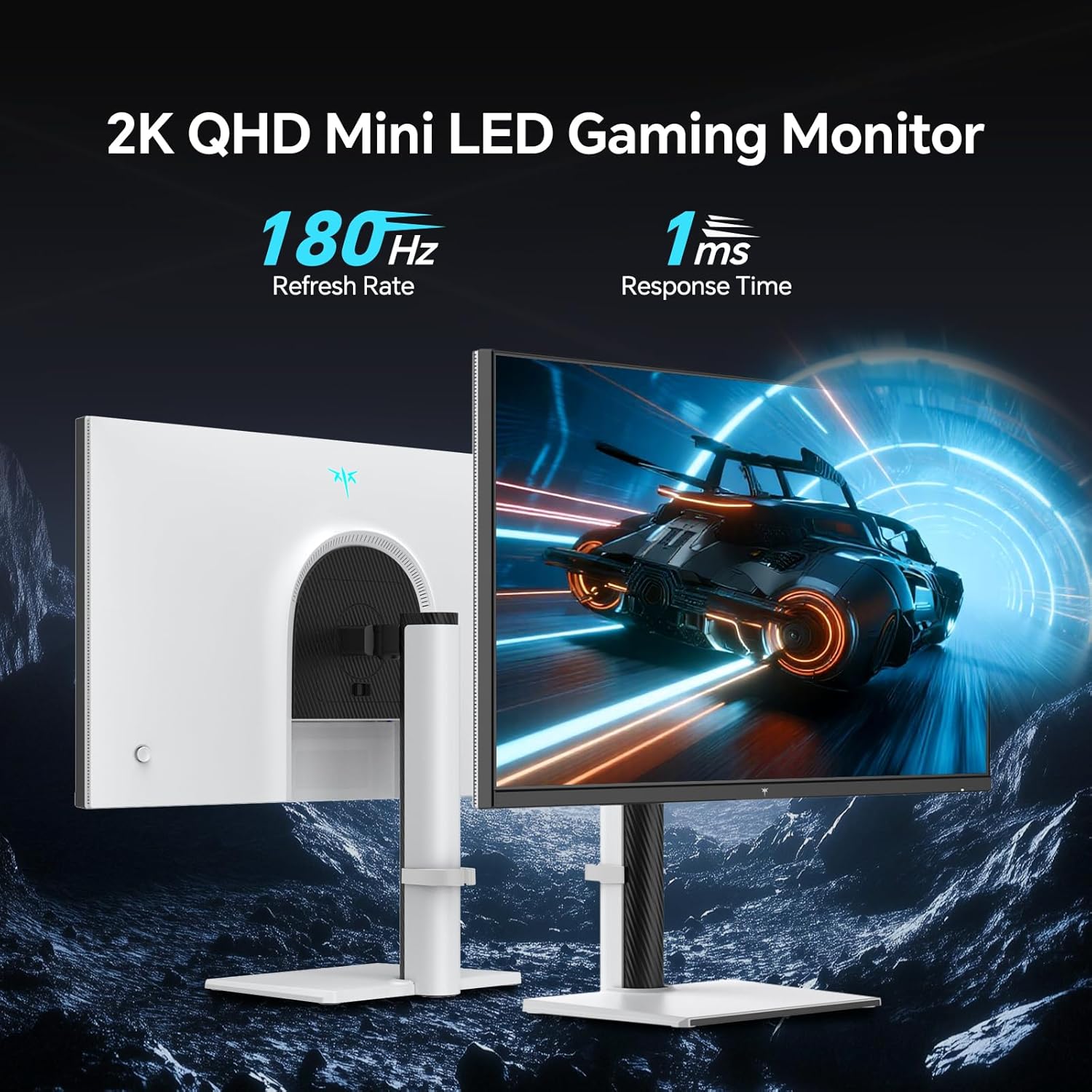
Figure 2: The KTC M27T6 monitor showcasing its high refresh rate (180Hz) and fast response time (1ms), essential for smooth gaming and dynamic content.

Figure 3: An illustration of the 1152-zone Mini LED panel, demonstrating its ability to achieve deep blacks and bright whites with high contrast ratios for both SDR and HDR content.
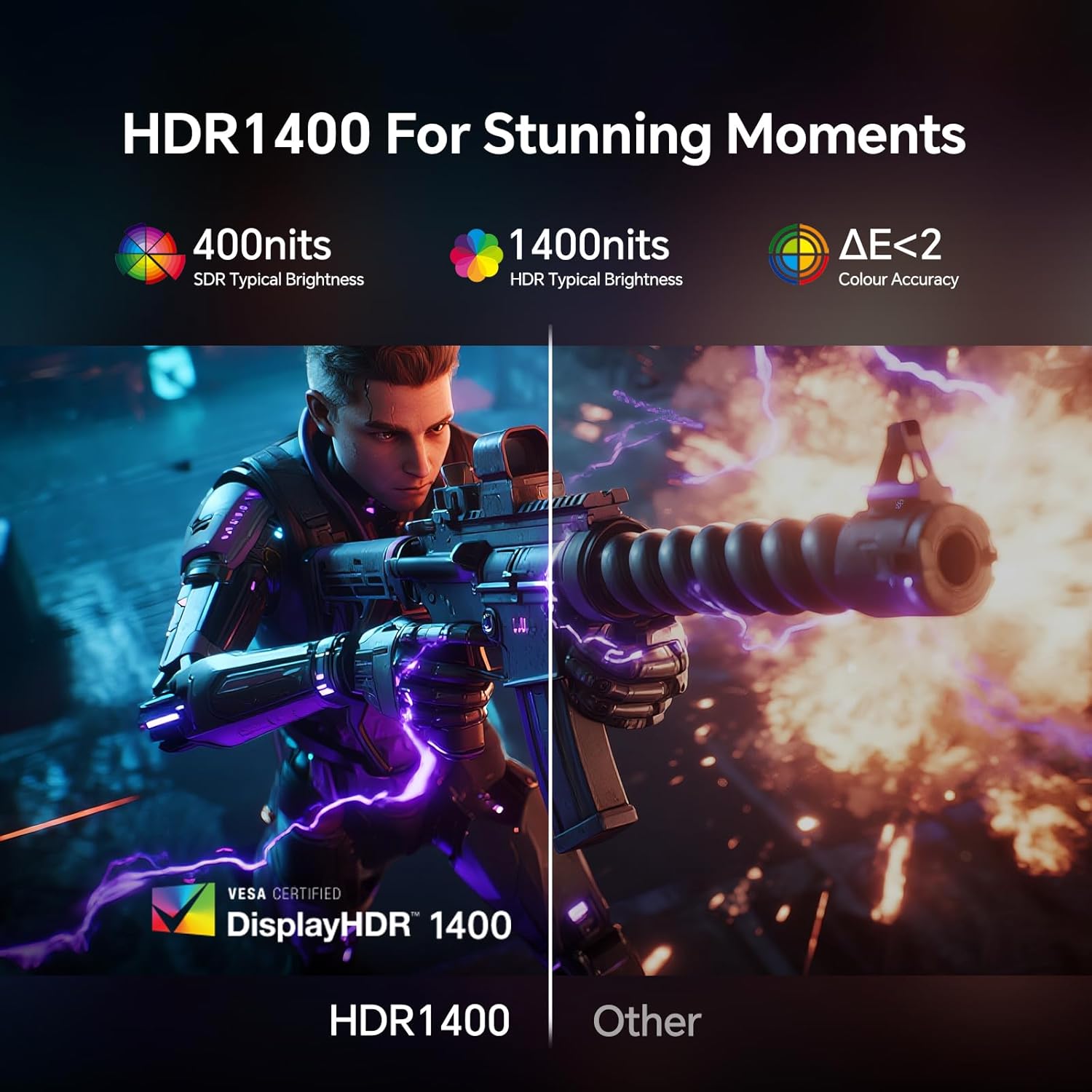
Figure 4: A visual comparison demonstrating the superior detail and brightness offered by HDR1400 technology on the KTC M27T6 monitor compared to a standard display.

Figure 5: The monitor's display showcasing integrated gaming features such as a customizable crosshair, on-screen timer, FPS counter, and RTS counter to enhance gameplay.

Figure 6: The KTC M27T6 monitor in a typical desk setup, emphasizing its Low Blue Light feature designed to protect user's eyes during extended viewing sessions.
4. Ergonomic Adjustments
The monitor stand allows for various ergonomic adjustments to achieve a comfortable viewing angle:
- Tilt: Adjust the screen vertically (up/down).
- Swivel: Rotate the screen horizontally (left/right).
- Pivot: Rotate the screen 90 degrees for portrait mode.
- Height Adjustment: Raise or lower the screen to eye level.
Maintenance
Proper maintenance ensures the longevity and optimal performance of your KTC M27T6 monitor.
1. Cleaning the Screen
Gently wipe the screen with a soft, lint-free cloth. For stubborn marks, lightly dampen the cloth with water or a non-ammonia, non-alcohol based screen cleaner. Never spray liquid directly onto the screen.
2. Cleaning the Monitor Casing
Use a soft, dry cloth to clean the monitor's casing. Avoid using abrasive cleaners or solvents that may damage the finish.
3. Power Management
Unplug the monitor from the power outlet during lightning storms or when left unattended for long periods to prevent damage from power surges.
4. Ventilation
Ensure proper ventilation around the monitor. Do not block the ventilation openings on the back or sides of the monitor, as this can lead to overheating.
Troubleshooting
If you encounter issues with your KTC M27T6 monitor, refer to the following common troubleshooting steps:
- No Power:
- Check if the power cord is securely connected to both the monitor and the power outlet.
- Ensure the power outlet is functioning correctly by plugging in another device.
- Verify the power adapter is properly connected.
- No Signal:
- Confirm that the video cable (DP or HDMI) is securely connected to both the monitor and your computer's graphics card.
- Ensure the correct input source is selected on the monitor's OSD menu.
- Try a different video cable or port on your computer/monitor to rule out faulty connections.
- Flickering/Distorted Image:
- Check the video cable for damage or loose connections.
- Adjust the refresh rate in your computer's display settings to match the monitor's supported rates (e.g., 180Hz for DP, 144Hz for HDMI).
- Disable or enable FreeSync/G-Sync compatibility in your graphics card settings to see if it resolves the issue.
- Ensure your graphics drivers are up to date.
- Dead Pixels/Stuck Pixels:
- While rare, a few dead or stuck pixels may be present. This is generally within acceptable manufacturing tolerances.
- Some online tools or software can attempt to "unstick" pixels by rapidly cycling colors.
- Audio Issues (if using monitor speakers/earphone jack):
- Ensure the audio cable (if separate) is connected, or that audio is being transmitted over DP/HDMI.
- Check the volume settings on both the monitor and your computer.
- Verify that the monitor is selected as the default audio output device in your computer's sound settings.
Specifications
| Feature | Detail |
|---|---|
| Brand | KTC |
| Model Number | M27T6 |
| Screen Size | 27 Inches |
| Resolution | QHD Wide 1440p (2560 x 1440) |
| Aspect Ratio | 16:9 |
| Refresh Rate | 180Hz (via DP1.4), 144Hz (via HDMI2.0) |
| Response Time | 1ms GTG |
| Backlight Technology | Mini-LED with 1152 Local Dimming Zones |
| HDR Support | HDR1400 |
| Image Brightness | 1400 Candela (peak) |
| Contrast Ratio | 1,000,000:1 (HDR) |
| Connectivity | HDMI2.0×2, DP1.4×1, USB2.0 ×1 (Upgrade Only), Earphone x1 |
| Ergonomics | Tilt, Swivel, Pivot, Height Adjustable |
| VESA Mount Compatibility | 100x100mm |
| Product Dimensions | 8 x 24 x 21 inches |
| Item Weight | 20 pounds |
| Country of Origin | China |
| First Available Date | July 1, 2025 |
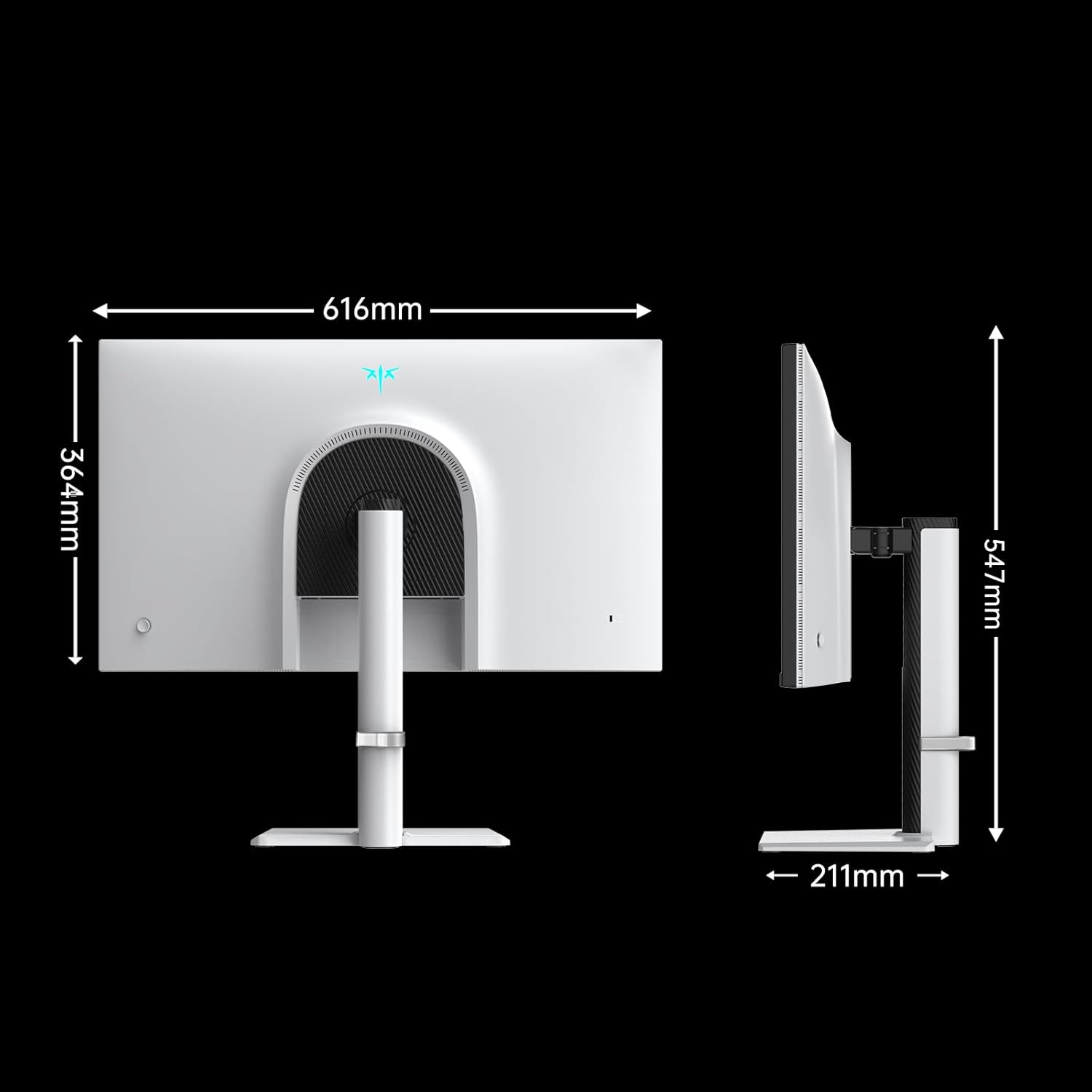
Figure 7: Detailed dimensions of the KTC M27T6 monitor, providing measurements for height, width, and depth.
Official Product Video
Watch the official product video for a visual overview of the KTC M27T6 QHD Mini LED Gaming Monitor's features and capabilities.
Video 1: Official KTC product video showcasing the QHD Mini LED Monitor 27 Inch 180Hz, highlighting its design, display quality, and key features.
Warranty and Support
KTC provides a limited warranty for this product. For detailed warranty terms, conditions, and registration, please refer to the warranty card included in your product packaging or visit the official KTC website. For technical support, troubleshooting assistance beyond this manual, or service inquiries, please contact KTC customer support through their official channels.
You can find more information and support on the KTC Store on Amazon.
Related documentsM27T6


Ask a question about this manual
Ask about setup, troubleshooting, compatibility, parts, safety, or missing instructions. Manuals+ will review the question and use this page’s manual context to help answer it.