
Hisense DH5024KP1G
Hisense 50-Pint Dehumidifier
User Manual
Model: DH5024KP1G
1. Introduction
Thank you for choosing the Hisense 50-Pint Dehumidifier. This manual provides important information for the proper operation, maintenance, and troubleshooting of your appliance. Please read it thoroughly before using the dehumidifier and retain it for future reference.
Important Safety Information
- Always place the dehumidifier on a level, stable surface to prevent tipping.
- Ensure adequate clearance around the unit (at least 8 inches) for proper airflow.
- Do not operate the dehumidifier near flammable gases or combustible materials.
- Unplug the unit before cleaning or performing any maintenance.
- Do not block the air inlet or outlet.
- Keep children and pets away from the dehumidifier during operation.
- Use only the power cord provided and connect to a properly grounded outlet.
2. Product Overview
Components
Familiarize yourself with the main components of your Hisense dehumidifier.
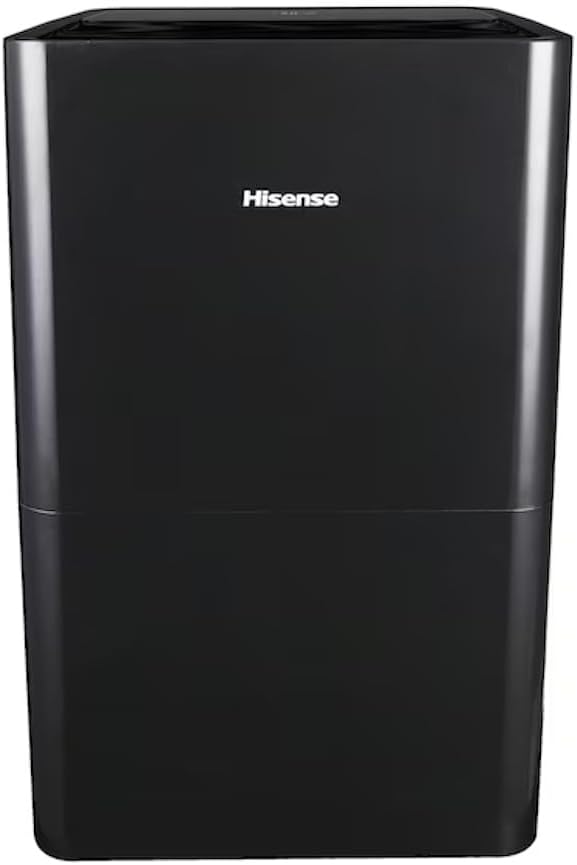
Figure 2.1: Front view of the Hisense DH5024KP1G Dehumidifier.

Figure 2.2: Dehumidifier with water collection bucket partially removed.

Figure 2.3: Side view showing handle and water level indicator.

Figure 2.4: Rear view with air filter and power cord.
Control Panel
The control panel allows you to manage all functions of the dehumidifier.

Figure 2.5: Control Panel Layout.
- 1. Digital Display: Shows current humidity level, set humidity, or timer settings.
- 2. Humidity Up/Down Buttons (+/-): Adjusts desired humidity level.
- 3. Timer Button: Sets the auto-on or auto-off time.
- 4. Mode Button: Cycles through Auto Dry, Continuous, and Manual Set modes.
- 5. Power Button: Turns the unit on or off.
- 6. Clean Filter Indicator: Illuminates when the air filter needs cleaning.
- 7. Fan Button: Adjusts fan speed (High/Low).
- 8. Pump Button: Activates the built-in pump for continuous drainage.
- 9. Empty Bucket Indicator: Illuminates when the water collection bucket is full.
3. Setup
Placement
For optimal performance, place the dehumidifier in a location where the humidity is highest and air circulation is good. Ensure the unit is on a level surface and there is at least 8 inches of space around all sides for proper airflow.

Figure 3.1: Example of proper dehumidifier placement in a room.
Drainage Options
Your Hisense dehumidifier offers multiple ways to remove collected water.
3.1 Manual Drainage (Bucket)
The dehumidifier will collect water in the internal bucket. When the bucket is full, the "Empty Bucket" indicator will illuminate, and the unit will automatically shut off. Carefully remove the bucket and empty the water. Replace the bucket securely to resume operation.
3.2 Continuous Drainage (Gravity)
For continuous operation without emptying the bucket, you can connect a standard garden hose (not included) to the gravity drain port. Ensure the hose is sloped downwards to allow water to drain by gravity into a floor drain or suitable receptacle.
3.3 Built-in Pump Drainage
This model features a built-in pump, allowing water to be pumped upwards or over a longer distance to a drain. Connect the included drain hose to the pump drain port. Ensure the hose is securely attached and directed to a sink, large bucket, or other suitable drain. Press the "Pump" button on the control panel to activate this function.

Figure 3.2: Built-in pump drainage system.
4. Operating Instructions
4.1 Power On/Off
Press the Power button to turn the dehumidifier on or off.
4.2 Setting Desired Humidity Level
When the unit is on, use the +/- buttons to set your desired humidity level. The display will show the set humidity for a few seconds, then revert to displaying the current room humidity. The recommended humidity range for comfort is 40% to 50%.
4.3 Operating Modes
Press the Mode button to cycle through the available operating modes:
- Auto Dry Mode: The unit automatically controls humidity based on the ambient conditions.
- Continuous Mode: The unit runs continuously regardless of the humidity level. Ideal for very damp conditions or drying clothes.
- Manual Set Mode: Allows you to manually set a specific desired humidity level using the +/- buttons.
4.4 Timer Function
Press the Timer button to set an auto-on or auto-off time (from 1 to 24 hours). Press the button repeatedly to cycle through hours or use the +/- buttons to adjust.
4.5 Fan Speed Control
Press the Fan button to switch between High and Low fan speeds.
4.6 Clean Filter Indicator
The Clean Filter indicator will light up after approximately 250 hours of operation, reminding you to clean the air filter. After cleaning, press and hold the Clean Filter button for 3 seconds to reset the indicator.
5. Maintenance
Regular maintenance ensures efficient operation and extends the lifespan of your dehumidifier. Always unplug the unit before performing any maintenance.
5.1 Cleaning the Air Filter
A dirty filter reduces airflow and efficiency. Clean the filter every two weeks or when the "Clean Filter" indicator illuminates.
- Turn off the dehumidifier and unplug it from the power outlet.
- Remove the air filter from the back of the unit.
- Wash the filter with warm, soapy water. Rinse thoroughly.
- Allow the filter to air dry completely before reinstalling. Do not expose to direct sunlight or heat.
- Reinstall the filter and plug in the unit.
- Press and hold the Clean Filter button for 3 seconds to reset the indicator.
5.2 Cleaning the Dehumidifier Body
Wipe the exterior of the unit with a soft, damp cloth. Do not use harsh chemicals, abrasives, or solvents.
5.3 Storage
If storing the dehumidifier for an extended period:
- Empty the water collection bucket and ensure it is completely dry.
- Clean the air filter.
- Coil the power cord neatly.
- Store the unit upright in a cool, dry place, away from direct sunlight and extreme temperatures.
6. Troubleshooting
Before contacting customer service, please refer to the following table for common issues and their solutions.
| Problem | Possible Cause | Solution |
|---|---|---|
| Dehumidifier does not turn on. | No power; Power cord not plugged in; Bucket full or not properly seated. | Check power outlet; Ensure power cord is securely plugged in; Empty and properly reseat the water bucket. |
| No water collected. | Humidity level too low; Room temperature too low; Air filter clogged; Unit in fan-only mode. | Adjust desired humidity lower; Ensure room temperature is above 38°F (3°C); Clean air filter; Select a dehumidifying mode (Auto Dry, Continuous, Manual Set). |
| Unit runs constantly. | Unit in Continuous mode; Desired humidity set too low; Room is very large or very humid. | Switch to Auto Dry or Manual Set mode; Increase desired humidity level; Consider using multiple units for very large spaces. |
| Loud noise during operation. | Unit not on a level surface; Air filter clogged; Obstruction in fan. | Place unit on a firm, level surface; Clean air filter; Check for and remove any obstructions. |
| "Empty Bucket" indicator is on, but bucket is not full. | Bucket not properly seated; Float switch malfunction. | Ensure bucket is fully inserted and aligned; If issue persists, contact customer support. |
7. Specifications
Technical data for the Hisense DH5024KP1G Dehumidifier.
| Feature | Value |
|---|---|
| Model Name | DH5024KP1G |
| Brand | Hisense |
| Capacity | 50 Pints/Day |
| Coverage Area | Up to 4500 sq. ft. |
| Color | Gray |
| Special Features | Energy Efficient, Drain Free Hose, Built-In Pump, Simple Controls, Low-temperature Operation (38°F) |
| Included Components | Dehumidifier, AC power cord, User Guide |
| Item Weight | 41 Pounds |
| Product Dimensions (L x W x H) | 15.1 x 10.7 x 24.8 inches |
| UPC | 724129246377 |
8. Warranty and Support
For detailed warranty information, please refer to the warranty card included with your product or visit the official Hisense website. Keep your purchase receipt as proof of purchase.
If you encounter any issues not covered in the troubleshooting section or require further assistance, please contact Hisense Customer Support:
- Website: www.hisense-usa.com/support (Example link, actual link may vary)
- Phone: Refer to your product documentation for the most current contact number.
Related documentsDH5024KP1G


Ask a question about this manual
Ask about setup, troubleshooting, compatibility, parts, safety, or missing instructions. Manuals+ will review the question and use this page’s manual context to help answer it.