
Introduction
This manual provides essential information for the installation, operation, and maintenance of your Western Digital 10TB WD Blue Internal Hard Drive (Model WD100EAGZ). The WD Blue series is designed for reliable performance in desktop PCs and office applications, offering ample storage for your data needs.
Product Features
- Reliable everyday computing performance.
- Built with Western Digital quality and reliability standards.
- Includes free Acronis True Image WD Edition cloning software for data migration.
- Available in capacities up to 12TB (this model is 10TB).
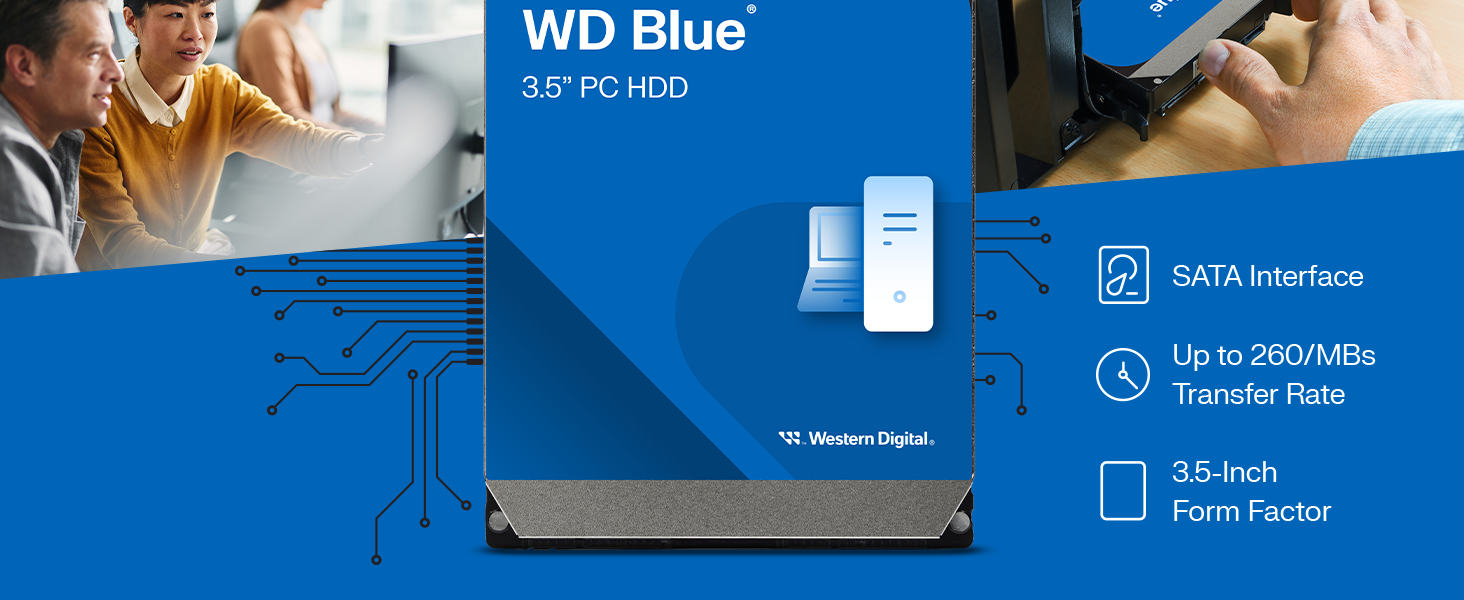
- SATA 6 Gb/s interface for fast data transfer.
- 7200 RPM rotational speed for responsive performance.
- 512 MB cache for improved data handling.
- 3.5-inch form factor, suitable for desktop PC bays.
What's in the Box
Your package should contain the following:
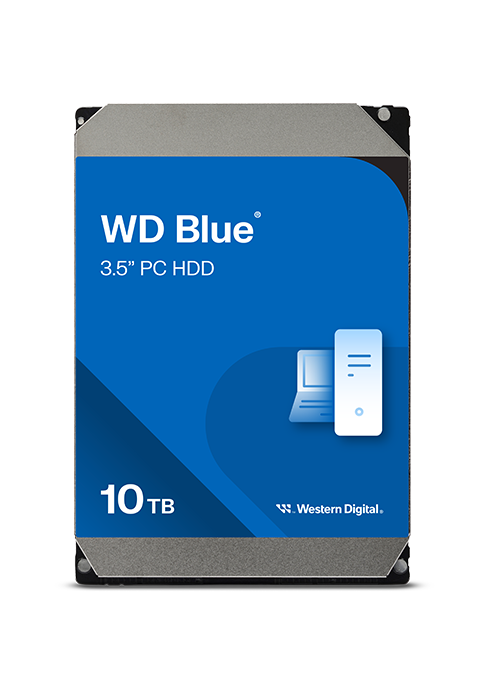
- Western Digital 10TB WD Blue Internal Hard Drive (Model WD100EAGZ)
Setup and Installation
1. Physical Installation
- Prepare your computer: Ensure your computer is powered off and unplugged from the wall outlet. Open the computer case.
- Mount the hard drive: Locate an available 3.5-inch drive bay in your computer case. Secure the WD Blue HDD into the bay using screws.
- Connect cables: Connect one end of a SATA data cable to the hard drive and the other end to an available SATA port on your motherboard. Connect a SATA power cable from your power supply unit (PSU) to the hard drive.
- Close the case: Once connected, close your computer case and reconnect the power cable.

2. Initializing and Formatting the Drive
After physical installation, the drive needs to be initialized and formatted by your operating system before use. For drives larger than 2TB, ensure you use a GPT (GUID Partition Table) partition style for full capacity recognition.
- Boot your computer: Power on your computer.
- Access Disk Management (Windows): Right-click on the Start button and select "Disk Management". For older Windows versions (XP/Vista/7 without SP1), consider using a modern partitioning utility like GParted to ensure proper 4KB sector alignment.
- Initialize the disk: The new drive should appear as "Disk Unknown" or "Not Initialized". Right-click on it and select "Initialize Disk". Choose GPT for drives over 2TB.
- Create a new simple volume: Right-click on the unallocated space on the new disk and select "New Simple Volume". Follow the wizard to assign a drive letter and format the volume (NTFS is recommended for Windows).
- Complete formatting: Once formatting is complete, your WD Blue HDD will be ready for use.
Operating Instructions
The Western Digital WD Blue HDD functions as a standard internal storage device. Once installed and formatted, it can be used for:
- Data Storage: Store documents, photos, videos, music, and other files.
- Application Installation: Install software applications and games.
- Operating System: Can be used as a primary drive for your operating system (though an SSD is often preferred for OS for speed).
- Backup: Serve as a reliable backup drive for your important data.
To transfer files, simply drag and drop them to the drive's assigned letter in File Explorer (Windows) or Finder (macOS), or use your preferred backup software.
Maintenance
To ensure the longevity and optimal performance of your WD Blue HDD:
- Regular Backups: Always back up critical data to another drive or cloud storage. Hard drives are mechanical devices and can fail.
- Monitor Drive Health: Use S.M.A.R.T. (Self-Monitoring, Analysis and Reporting Technology) tools (e.g., CrystalDiskInfo) to monitor the drive's health status.
- Proper Shutdown: Always shut down your computer properly. Avoid sudden power loss, which can damage the drive.
- Defragmentation (for HDDs): Periodically defragment the drive if your operating system does not do it automatically. This helps optimize file access times.
- Keep Cool: Ensure adequate airflow within your computer case to prevent overheating.

Troubleshooting
Drive Not Detected
- Check Cables: Ensure both SATA data and power cables are securely connected to the drive and motherboard/PSU.
- BIOS/UEFI Settings: Verify that the SATA port the drive is connected to is enabled in your computer's BIOS/UEFI settings.
- Power Supply: Ensure your power supply unit has sufficient wattage and available connectors for the drive.
- Disk Management: Check Disk Management (Windows) or Disk Utility (macOS) to see if the drive is detected but uninitialized/unformatted.
Slow Performance
- Cable Integrity: Try a different SATA data cable or port.
- Drive Health: Use S.M.A.R.T. tools to check for potential drive failures.
- Defragmentation: Ensure the drive is defragmented.
- Background Processes: Close unnecessary background applications that might be accessing the drive.
Data Loss or Corruption
- Immediate Action: If data loss occurs, stop using the drive immediately to prevent further corruption.
- Data Recovery Software: Consider using data recovery software.
- Professional Services: For critical data, consult professional data recovery services.
- MBR Issues: In rare cases, issues with the Master Boot Record (MBR) can cause detection problems. Advanced users might attempt MBR repair using specialized tools.
Technical Specifications
| Feature | Detail |
|---|---|
| Brand | Western Digital |
| Series | WD Blue |
| Model Number | WD100EAGZ |
| Digital Storage Capacity | 10 TB |
| Hard Drive Interface | Serial ATA-600 (SATA 6 Gb/s) |
| Hard Drive Rotational Speed | 7200 RPM |
| Cache | 512 MB |
| Hard Disk Form Factor | 3.5 Inches |
| Compatible Devices | Desktop, Laptop (with 3.5" bay) |
| Installation Type | Internal Hard Drive |
| Item Weight | 1.65 pounds |
| Special Feature | Acronis True Image, NoTouch Ramp Load Technology |
Warranty and Support
Western Digital products are manufactured to high standards of quality and reliability. For specific warranty details, please refer to the warranty information included with your product packaging or visit the official Western Digital support website.
For technical assistance, troubleshooting, or warranty claims, please contact Western Digital Customer Support through their official channels.
Online Resources: For additional support and resources, visit the Western Digital Store on Amazon or the official Western Digital website.


