
1. Introduction
This manual provides detailed instructions for the installation, operation, and maintenance of your SIXTOP Android 13 Car Stereo Radio. This unit is designed to enhance your driving experience with advanced features such as Apple CarPlay, Android Auto, GPS navigation, Bluetooth connectivity, and more. Please read this manual thoroughly before using the product to ensure proper function and safety.
2. Safety Information
- Always operate the device responsibly and in accordance with local traffic laws. Distracted driving can lead to accidents.
- Do not attempt to install or repair the unit yourself if you are not qualified. Improper installation can cause damage to the vehicle or the unit.
- Ensure all wiring is correctly connected to prevent short circuits or electrical hazards.
- Keep the unit away from water and excessive moisture.
- Avoid exposing the unit to extreme temperatures.
3. Package Contents
Verify that all items listed below are included in your package:
- Android Car Radio
- Camera
- RCA Cable
- GPS Antenna
- USB Cable
- Video Extension Cable
- Screw
- User Manual
- Power Cord
- Accessories
- MIC
- Tool

Image: Visual representation of all items included in the product package, such as the main unit, cables, camera, and tools.
4. Setup and Installation
4.1. Vehicle Compatibility
This Android car stereo is specifically designed for Hyundai Sonata models from 2015, 2016, and 2017. It is compatible with vehicles that do not have an original large screen or GPS navigation system. Please verify your car's original radio size and the shape of the center console before installation.

Image: Illustrates the compatible dashboard configuration for Hyundai Sonata 2015-2017 models, showing 'Before' and 'After' installation views and highlighting incompatible setups.
4.2. Wiring Diagram
Refer to the following diagram for proper connection of the rear camera and other components.

Image: Detailed wiring diagram for the rear camera, showing connections for power, RCA cable, and camera input to the car stereo.
4.3. Initial Power On
After completing all physical connections, turn on your vehicle's ignition. The car stereo should power on automatically. Follow any on-screen prompts for initial setup.
5. Operating Instructions
5.1. Apple CarPlay & Android Auto
The unit supports both wireless Apple CarPlay and Android Auto. This allows you to synchronize your phone's apps like navigation, music, and contacts directly to the car stereo. You can also use your phone's voice assistant for hands-free control.
- Wireless Connection: Ensure your phone's WiFi is on. Connect via Bluetooth to the car stereo. Open the "ZLINK5" app on the stereo to automatically connect.
- USB Connection: Alternatively, connect your phone using a USB cable and then open the "ZLINK5" app.

Image: Displays the car stereo screen showing the Apple CarPlay and Android Auto interfaces, highlighting wireless connection capabilities.
Video: Demonstrates the connection process for Apple CarPlay and Android Auto, showing how to pair a phone via Bluetooth and access phone features on the car stereo.
Video: Shows the wireless connection of Android Auto, including pairing steps and interface display on the car stereo.
5.2. Wireless Mirror Link (Screen Mirroring)
The Mirror Link function allows you to project your mobile phone screen onto the car stereo display. This is ideal for viewing videos or other content from your phone on a larger screen.
- Select the "ZLINK5" app and switch to the "Mirror Link" connection option.
- Follow the on-screen instructions to connect your iPhone or Android device. This typically involves enabling Personal Hotspot on your phone and selecting screen mirroring.
Video: Illustrates the process of connecting an iPhone for wireless screen mirroring, including setting up a personal hotspot and activating screen mirroring.
5.3. GPS Navigation & WiFi
The car stereo features built-in GPS navigation. Connect to WiFi to download various applications from the Play Store, stream online music, and watch videos. Online maps can also be used perfectly after connecting to WiFi.

Image: Shows the car stereo display with WiFi connection enabled and a GPS navigation map, along with icons for various downloadable applications.
5.4. Bluetooth & FM/RDS Radio
Enjoy hands-free calling, synchronize your phonebook, and play music from your mobile phone via Bluetooth. The FM/RDS radio supports stations from 87.5-108 MHz, providing news, music, and traffic information.

Image: Displays the car stereo interface for FM/RDS radio tuning and Bluetooth settings, including music playback and call functions.
5.5. Split Screen Function
The split-screen feature allows you to operate two applications independently on the same screen. Click the rectangle at the top of the screen, select a browse page, and drag it to the left or right side of the screen.
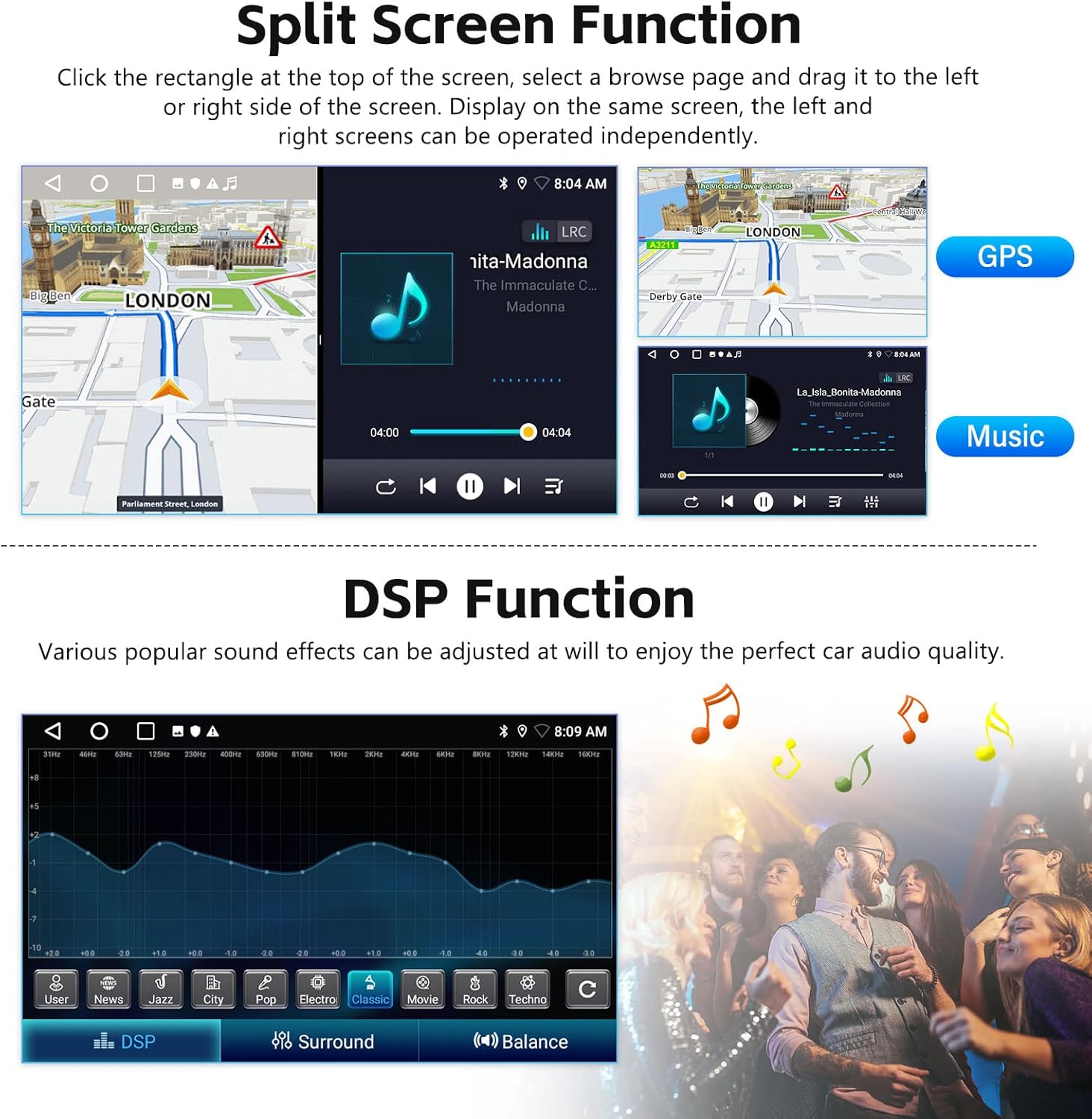
Image: Illustrates the split-screen mode, showing two applications (e.g., GPS and music player) running simultaneously on the car stereo display.
5.6. Steering Wheel Control (SWC)
Control the car audio system using your vehicle's original steering wheel buttons for safer and more convenient operation. The unit supports learning functions for various button assignments.

Image: Shows the car stereo interface for configuring steering wheel controls, with an overlay of a hand interacting with steering wheel buttons.
5.7. Backup Camera
The included waterproof night vision AHD camera provides a clear reversing image, automatically switching when reverse gear is engaged. Ensure the two short wires on the camera are connected. Set camera resolution to AHD 720/25fps in Factory Settings (Password: 000000).

Image: Depicts the car stereo screen displaying a clear reversing image from the AHD rear view camera, with parking guidelines.
5.8. EQ Sound Effects
Adjust various sound effects and balance settings to achieve optimal audio quality. The built-in equalizer (EQ) allows for customization of audio frequencies.
Image: Shows the car stereo interface for DSP (Digital Sound Processor) and EQ settings, allowing users to customize sound profiles.
5.9. UI Design and Themes
The Android 13 car stereo offers 26 desktop themes to personalize your visual experience. Long-press on a blank space on the homepage to change to your preferred theme.
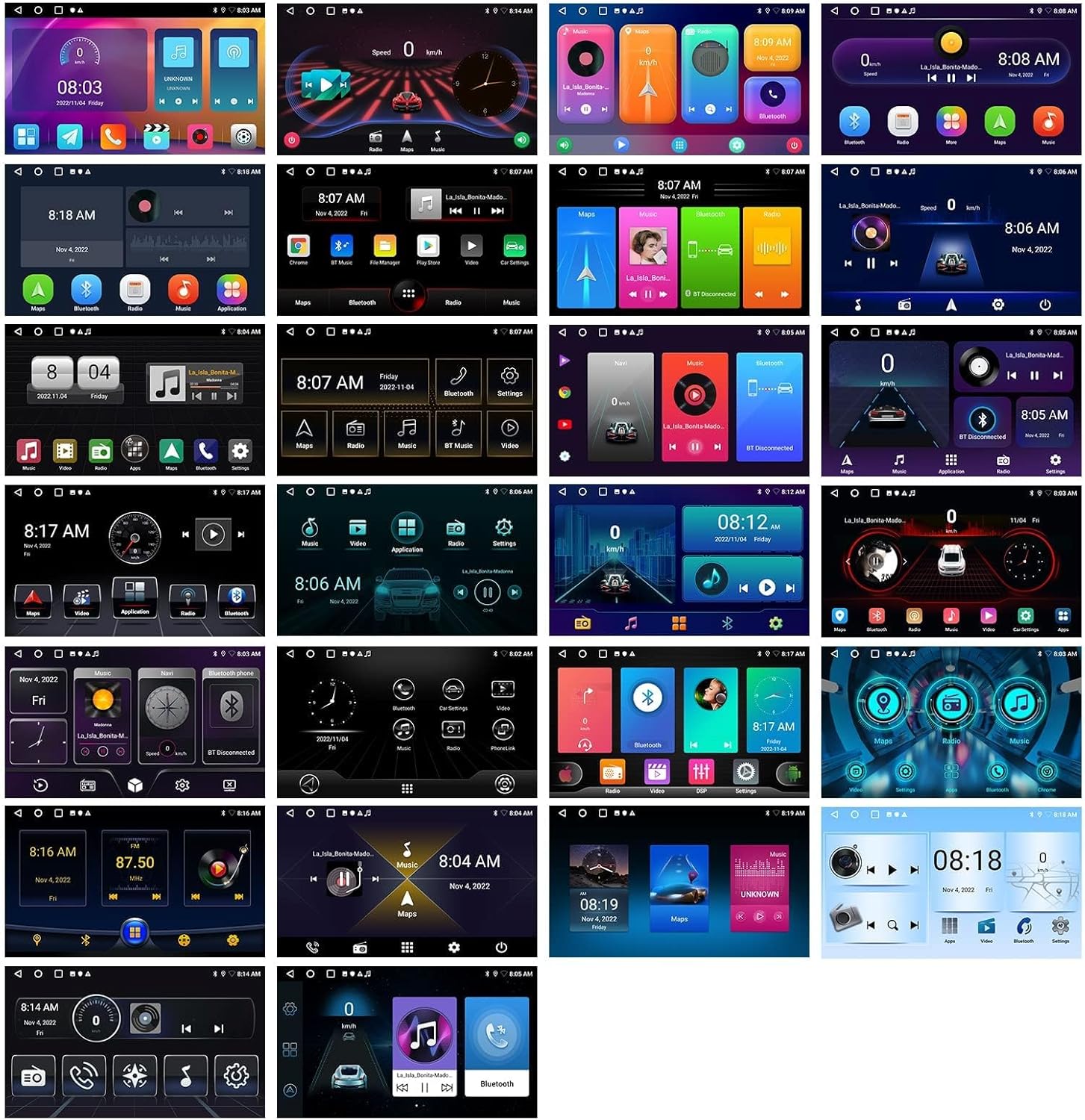
Image: Displays a gallery of various user interface (UI) themes available for the car stereo, showcasing different layouts and color schemes.
6. Maintenance
- Cleaning: Use a soft, dry cloth to clean the screen and exterior. Avoid abrasive cleaners or solvents.
- Software Updates: Periodically check for software updates through the system settings to ensure optimal performance and access to new features.
- Storage: Avoid storing the unit in direct sunlight or extreme temperatures when not in use.
7. Troubleshooting
If you encounter issues, please refer to the following common solutions:
- Power Cord Incompatibility: If the radio and frame match your car but the power cord socket is unsuitable (e.g., due to high configuration requiring a CANBUS protocol box), you may need an upgraded power cord. Contact customer service with pictures of your original car center console and car socket for assistance.
- No Power: Check all power connections. Ensure the ignition is on.
- No Sound: Verify speaker connections and volume settings. Check the EQ/Balance settings.
- GPS Signal Issues: Ensure the GPS antenna is properly installed and has a clear view of the sky.
- Bluetooth Connection Problems: Ensure Bluetooth is enabled on both the stereo and your phone. Try unpairing and re-pairing the devices.
8. Specifications
| Feature | Specification |
|---|---|
| Item Weight | 4.29 pounds |
| Package Dimensions | 21.57 x 9.37 x 6.68 inches |
| Display Size | 9 Inches |
| Voice Command | Touchscreen |
| ASIN | B0F7LP7D6P |
| Brand | SIXTOP |
| Vehicle Service Type | for Hyundai Sonata 2015 2016 2017 |
| Screen Size | 9 Inches |
| Special Feature | AHD Backup Camera and Steering Wheel Control, Built-in Bluetooth and WiFi, GPS Receiver, Touchscreen, Split Screen, Wireless CarPaly and Android Auto, Mirror Link |
| Connectivity Technology | Bluetooth, Wi-Fi |
| Map Type | North America, Worldwide |
| Included Components | Android Car Radio, camera |
| Audio Output Mode | Stereo |
| Mounting Type | Dashboard Mount |
| Operating System | Android |
9. Warranty Information
This SIXTOP Car Stereo Radio comes with a 1-year warranty from the date of purchase. Please retain your proof of purchase for warranty claims. The warranty covers manufacturing defects and malfunctions under normal use. It does not cover damage caused by misuse, accidents, unauthorized modifications, or improper installation.
10. Customer Support
For any questions, technical assistance, or warranty claims, please contact our customer support team. We are committed to providing excellent service and will assist you with any issues you may encounter.
- Online Support Email: SIXTOP123@163.com
- Lifetime Technical Support: Available for all product-related inquiries.
- 1-Year Replacement: For eligible product issues within the warranty period.
You can also reach out to the seller directly through the Amazon platform by clicking on the seller's name ('xinshunhang') and then selecting 'Ask a question'.

Image: Provides visual contact information for online support, including an email address.


