
Introduction
The TDTOD Android Smart Tracker is a compact Bluetooth device designed to help you locate your valuable items. It integrates seamlessly with the Google Find My Device network, allowing you to track keys, bags, wallets, and other personal belongings directly from your Android smartphone or tablet. This tracker features a replaceable battery and an IP66 water and dust resistance rating for durability.

Image: The TDTOD Android Smart Tracker, a small, black, circular device designed for attachment to items like keychains.
Safety Information
- Keep the device and its battery out of reach of children and pets. The CR2032 battery can be a choking hazard.
- Do not expose the device to extreme temperatures or direct sunlight for extended periods.
- Do not attempt to disassemble or modify the device, as this may void the warranty and cause damage.
- Dispose of batteries according to local regulations.
Setup
1. Compatibility
The TDTOD Smart Tracker is compatible exclusively with Android devices running Android 9 or later, equipped with Google Play Services. Apple and Huawei devices are not supported.

Image: Visual representation of Android phone compatibility, highlighting that the tracker works with various Android brands but not Apple or Huawei devices.
2. Initial Pairing
- Ensure your Android device has Bluetooth enabled and is connected to the internet.
- Download and open the official Google Find My Device app from the Google Play Store.
- Power on your TDTOD Smart Tracker. A pop-up notification should appear on your Android device, prompting you to connect.
- Follow the on-screen instructions in the Google Find My Device app to complete the pairing process. You may be asked to rename your tracker (e.g., "Car Keys," "Backpack").
- Once paired, the tracker will appear on the map within the Google Find My Device app.

Image: A visual guide demonstrating the three-step process for setting up the TDTOD Smart Tracker with the Google Find My Device application, from downloading the app to locating the device.
Operating Instructions
1. Locating Your Item
To find a lost item, open the Google Find My Device app. Select your TDTOD Smart Tracker from the list of devices. The app will display its last known location on a map. If you are within Bluetooth range, you can tap the "Play Sound" button to make the tracker emit an audible alert, helping you pinpoint its exact location.

Image: A user interacting with the TDTOD Smart Tracker, demonstrating how to use the Google Find My Device app to make the tracker emit a sound for easy location.
2. Left-Behind Reminders
The tracker can notify you if you leave an item behind. When your tracker moves out of Bluetooth range from your paired Android device, you will receive an alert on your phone, indicating that the item is no longer detected nearby and showing its last seen location.

Image: A visual example of the 'left-behind' reminder feature, showing a smartphone notification when the tracker (attached to keys) is separated from the user.
3. Global Tracking with Google Find My Network
Even if your item is out of your personal Bluetooth range, the Google Find My Device network, composed of millions of Android devices, can help locate it. If another Android device passes near your lost tracker, its location will be anonymously updated in your app, allowing you to see its approximate whereabouts.

Image: The TDTOD Smart Tracker highlighting its certification and integration with the Google Find My network, illustrating how other Android devices contribute to locating lost items.
4. Versatile Use
The compact design and included key ring allow the TDTOD Smart Tracker to be attached to a variety of items, including keys, wallets, bags, luggage, and even pet collars.
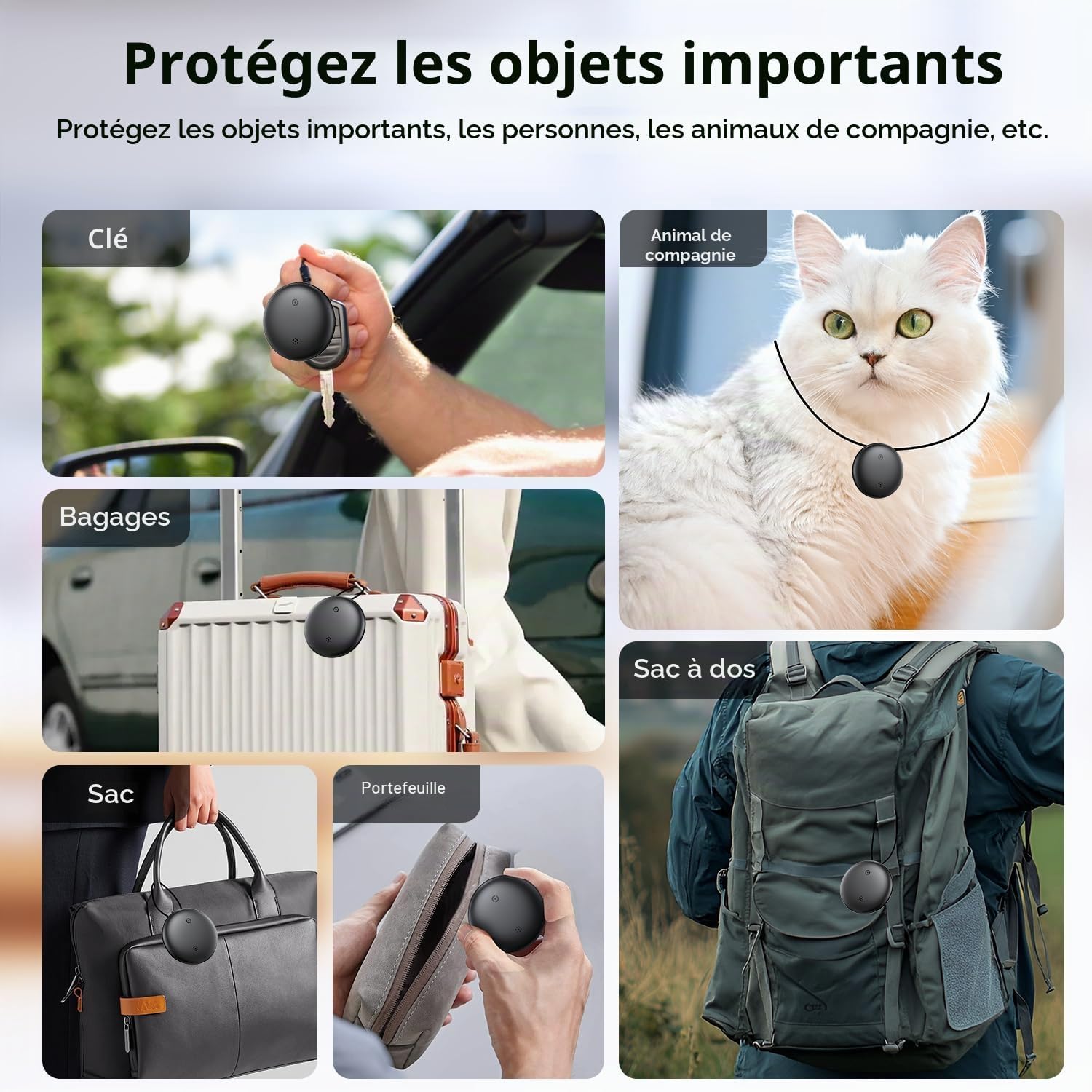
Image: Examples of how the TDTOD Smart Tracker can be used to protect important items such as keys, pets, luggage, bags, and wallets.
Maintenance
1. Battery Replacement
The TDTOD Smart Tracker uses a replaceable CR2032 coin cell battery, which typically lasts up to 12 months. When the battery is low, the device will send a notification to your paired Android device. To replace the battery:
- Gently open the tracker casing using the provided tool or a small, flat object.
- Remove the old CR2032 battery.
- Insert a new CR2032 battery with the positive (+) side facing up.
- Close the casing securely, ensuring the IP66 seal is maintained.
2. Cleaning
The device has an IP66 rating, making it resistant to dust and water splashes. To clean, wipe with a soft, damp cloth. Do not use harsh chemicals or abrasive materials. Ensure the device is completely dry before use.
Troubleshooting
- Tracker not connecting/pairing:
- Ensure Bluetooth is enabled on your Android device.
- Make sure the Google Find My Device app is installed and updated.
- Check if the tracker's battery is not depleted. Replace if necessary.
- Try restarting your Android device and the tracker (by removing and reinserting the battery).
- Ensure your Android device is running Android 9 or higher. - Cannot hear the sound alert:
- Ensure your Android device is within the Bluetooth range of the tracker (up to 100 meters/350 feet in open areas).
- The sound level is approximately 90-100dB. In noisy environments, it might be difficult to hear. Try moving to a quieter area.
- Check for obstructions between your phone and the tracker. - Location accuracy issues:
- Location accuracy depends on the density of the Google Find My Device network and GPS availability. In areas with fewer Android devices or poor GPS signal, accuracy may vary.
- Ensure your phone's location services are enabled. - Battery draining quickly:
- Ensure you are using a fresh, high-quality CR2032 battery.
- Frequent use of the sound alert feature can slightly reduce battery life.
Specifications
| Brand | TDTOD |
| Model Number | Wireless tag |
| Dimensions | 3L x 3W x 1H millimeters (approx. 32mm diameter, 8mm thickness) |
| Material | Plastic |
| Connectivity Technology | Bluetooth |
| Compatible Devices | Android devices only (Android 9 and above) |
| Battery Type | 1 x CR2032 (included, replaceable) |
| Average Battery Life | 365 days (12 months) |
| Water Resistance | IP66 (Dust tight, protected against powerful water jets) |
| Sound Level | 90-100 dB |
| Bluetooth Range | Up to 100 meters (350 feet) |

Image: Detailed specifications of the TDTOD Smart Tracker, including its physical dimensions, sound output, and Bluetooth range, overlaid on a map graphic.
Warranty
This TDTOD Smart Tracker comes with a 2-year warranty from the date of purchase. This warranty covers manufacturing defects under normal use. It does not cover damage caused by misuse, accidents, unauthorized modifications, or normal wear and tear. Please retain your proof of purchase for warranty claims.
Support
For further assistance, technical support, or warranty inquiries, please visit the official TDTOD website or contact their customer service through the platform where you purchased the product. Please have your product model and purchase details ready when contacting support.