1. Introduction
Welcome to the user manual for your new Samsung Crystal UHD U8079F 4K LED TV. This guide provides essential information for setting up, operating, maintaining, and troubleshooting your television. Please read this manual thoroughly to ensure safe and optimal performance of your device.
The Samsung U8079F series offers a stunning 4K resolution, powered by the Crystal Processor 4K for enhanced picture quality. Enjoy smart features with Tizen OS, seamless connectivity with SmartThings, and an immersive gaming experience through the Gaming Hub. Advanced security is provided by Knox Security, ensuring your privacy and data are protected.
2. Safety Information
Before using your TV, please read all safety instructions carefully. Failure to do so may result in electric shock, fire, or damage to the product.
- Do not expose the TV to rain or moisture.
- Do not block ventilation openings. Ensure adequate space around the TV for proper airflow.
- Do not place the TV on an unstable cart, stand, tripod, bracket, or table.
- Protect the power cord from being walked on or pinched.
- Unplug the TV during lightning storms or when unused for long periods.
- Refer all servicing to qualified service personnel.
3. Package Contents
Please check that the following items are included with your TV. If any items are missing or damaged, contact your dealer.
- Samsung Crystal UHD U8079F 4K LED TV (43-inch)
- Remote Control
- Power Cable
- Stand Components (Base and Neck)
- User Manual (this document)
- Batteries for Remote Control (2 AAA)
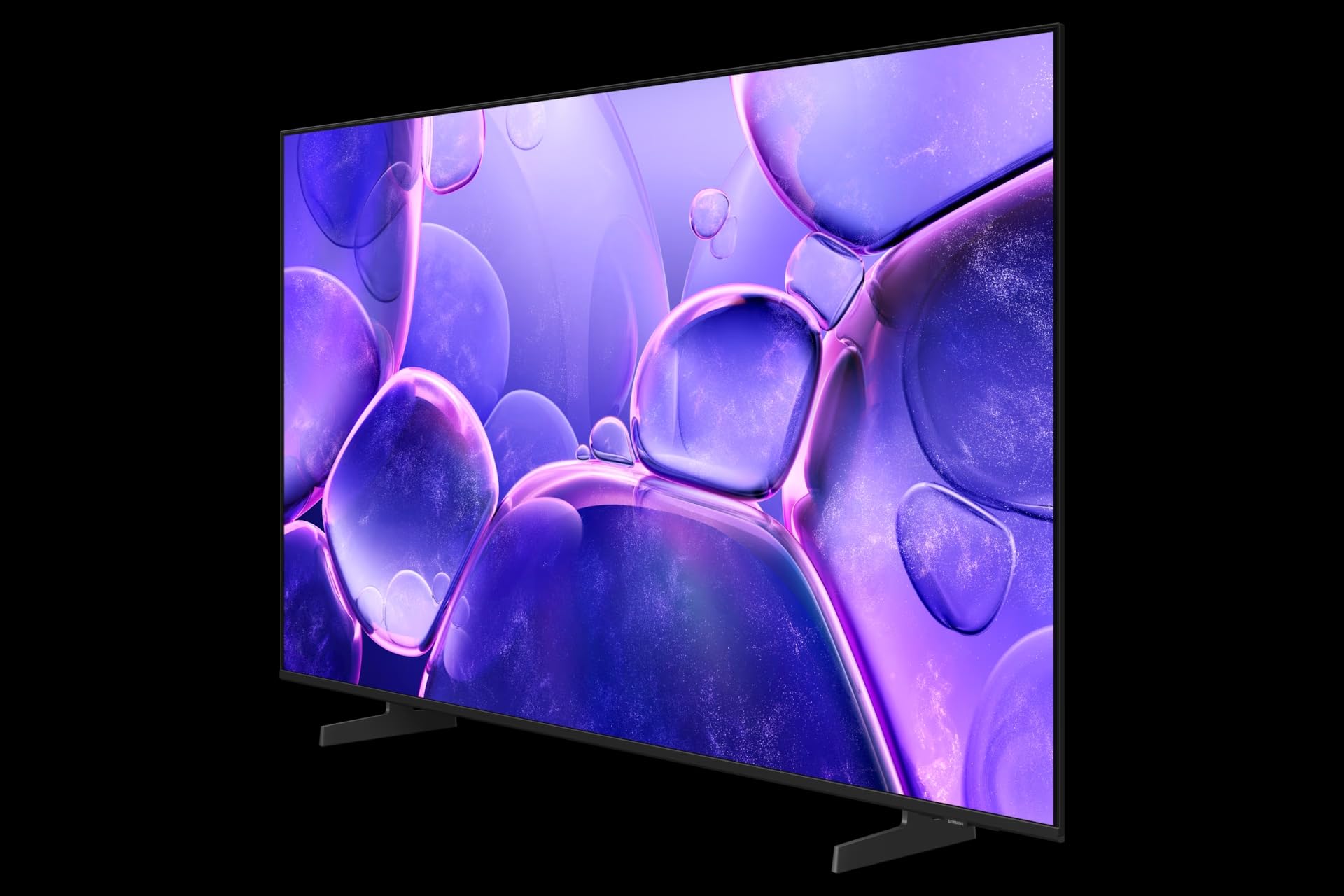
Image: The Samsung Crystal UHD U8079F 4K LED TV shown with its included stand. The screen displays a vibrant image, highlighting its 4K capabilities. The slim bezel and modern design are visible.
4. Setup
4.1 Attaching the Stand
- Carefully place the TV screen-down on a soft, flat surface to prevent damage.
- Assemble the stand neck to the stand base using the provided screws.
- Attach the assembled stand to the back of the TV, aligning the screw holes and securing with the provided screws.
- Ensure the stand is firmly attached before placing the TV upright.
4.2 Wall Mounting (Optional)
If you choose to wall-mount your TV, use a VESA-compliant wall mount kit (sold separately). Follow the instructions provided with your wall mount kit and ensure professional installation for safety.
4.3 Connecting External Devices
4.3.1 Power Connection
Connect the power cable to the TV's power input port, then plug the other end into a wall outlet.
4.3.2 HDMI Connections
Connect external devices such as Blu-ray players, game consoles, or set-top boxes to the HDMI ports on the back of the TV using HDMI cables.
4.3.3 USB Connections
The TV features 2 USB ports. You can connect USB storage devices (e.g., USB flash drives, external hard drives) to play media files or for software updates.
4.3.4 Network Connection (Ethernet & Wi-Fi)
For internet access, connect an Ethernet cable from your router to the TV's LAN port, or connect wirelessly via Wi-Fi through the TV's network settings.
4.4 Initial Setup
After connecting power and turning on the TV for the first time, an on-screen setup wizard will guide you through initial configurations, including language selection, network connection, channel scanning, and Smart Hub setup.
5. Operating Your TV
5.1 Remote Control
The included remote control allows you to navigate the TV's menus and control various functions. Insert the two AAA batteries into the remote control, ensuring correct polarity.
5.2 Basic TV Functions
- Power On/Off: Press the Power button on the remote or the TV.
- Volume Control: Use the Volume Up/Down buttons.
- Channel Selection: Use the Channel Up/Down buttons or enter channel numbers directly (if available on remote).
- Source Selection: Press the Source button to switch between connected devices (HDMI, TV, USB).
5.3 Smart Hub and Smart Features
Your Samsung TV runs on the Tizen operating system, providing access to a wide range of smart features:
- Smart Hub: Access streaming apps, web browser, and other smart services.
- SmartThings: Connect and control compatible smart home devices directly from your TV.
- Gaming Hub: Discover and play cloud games without a console.
- AI Upscaling: The Crystal Processor 4K enhances lower-resolution content to near 4K quality.
- Knox Security: Built-in multi-layered security protects your personal information and connected devices.
5.4 Picture and Sound Settings
Navigate to the TV's settings menu to customize picture and sound options. Adjust brightness, contrast, color, and sharpness for optimal viewing. Select sound modes, adjust equalizer settings, or connect external audio systems.
5.5 Sleep Timer
The TV includes a Sleep Timer feature, allowing you to set a specific time after which the TV will automatically turn off. This can be configured in the TV's system settings.
6. Maintenance
6.1 Cleaning the TV
- Always unplug the TV before cleaning.
- For the screen, gently wipe with a soft, dry microfiber cloth. Do not use alcohol, solvents, or abrasive cleaners.
- For the frame and back panel, use a soft, damp cloth.
6.2 Software Updates
Regularly check for and install software updates to ensure your TV has the latest features and security enhancements. Updates can typically be performed via the TV's settings menu when connected to the internet.
7. Troubleshooting
If you encounter issues with your TV, refer to the following common solutions:
- No Power: Ensure the power cable is securely connected to both the TV and the wall outlet. Test the outlet with another device.
- No Picture/Sound: Check the input source. Ensure external devices are powered on and connected correctly.
- Remote Control Not Working: Replace the batteries. Ensure there are no obstructions between the remote and the TV.
- Poor Picture Quality: Check cable connections. Adjust picture settings. If using an antenna, check its position.
- No Internet Connection: Verify your Wi-Fi password or Ethernet cable connection. Restart your router and modem.
For more detailed troubleshooting, consult the online support resources available on the Samsung website.
8. Specifications
| Feature | Specification |
|---|---|
| Model Number | GU43U8079FU |
| Brand | Samsung |
| Screen Size | 43 Inches (108 cm) |
| Display Technology | LED |
| Resolution | 4K (3840 x 2160) |
| Refresh Rate | 60 Hz |
| Operating System | Tizen |
| Special Features | Crystal Processor 4K, AI Upscaling, SmartThings, Gaming Hub, Knox Security, Sleep Timer |
| Connectivity | Ethernet, Wi-Fi, HDMI, USB (2 ports) |
| Color | Black |
| Dimensions (D x W x H) | 15.7 x 95.8 x 55.9 cm |
| Included Components | Power Cable, Stand, Remote Control |
9. Warranty and Support
Your Samsung TV comes with a standard manufacturer's warranty. For specific warranty terms and conditions, please refer to the warranty card included with your product or visit the official Samsung support website.
For technical assistance, product registration, or to download the latest software and manuals, please visit www.samsung.com/support or contact Samsung customer service in your region.


