Download PDFFree PDF. The Save button below keeps a bookmark and private notes in your account.
JREN Kids Tablet (Model JR-J10) - User Manual
Comprehensive guide for setting up, operating, and maintaining your JREN Kids Tablet.
1. Setup
1.1 Unboxing and Initial Inspection
Carefully remove all components from the packaging. Verify that all items listed in the package contents are present and undamaged. The tablet comes pre-installed in a protective case.
Video: Unboxing the JREN Kids Tablet, showing the tablet, case, and accessories.
The package includes the JREN Kids Tablet, a kid-proof case with a built-in stand, a charging cable, and a power adapter.
1.2 Charging the Tablet
Before first use, fully charge the tablet. Connect the charging cable to the tablet's charging port and the power adapter to a wall outlet. The charging port is located on the side of the tablet. A full charge can take several hours.
Image: JREN Kids Tablet in its protective blue case, showing the screen and overall design.
The tablet is equipped with a 6000mAh battery, providing up to 12 hours of continuous use.
1.3 Powering On/Off
To power on the tablet, press and hold the power button located on the side until the screen illuminates. To power off, press and hold the power button, then select "Power off" from the options that appear on the screen.
1.4 Connecting to Wi-Fi
Once powered on, navigate to the Settings menu. Select "Network & internet," then "Wi-Fi." Choose your desired Wi-Fi network from the list and enter the password if prompted. The tablet supports Wi-Fi 2.4G & 5G.
2. Operating Instructions
2.1 Basic Navigation and App Access
The tablet runs on Android 14 OS. Swipe up from the bottom of the screen to access the app drawer. Tap on app icons to launch them. Use the back, home, and recent apps navigation buttons at the bottom of the screen for easy navigation. The tablet supports Google Play Store for downloading additional apps.
Video: Demonstrating the tablet's interface and accessing the Play Store.
2.2 Parental Control and Kids Content
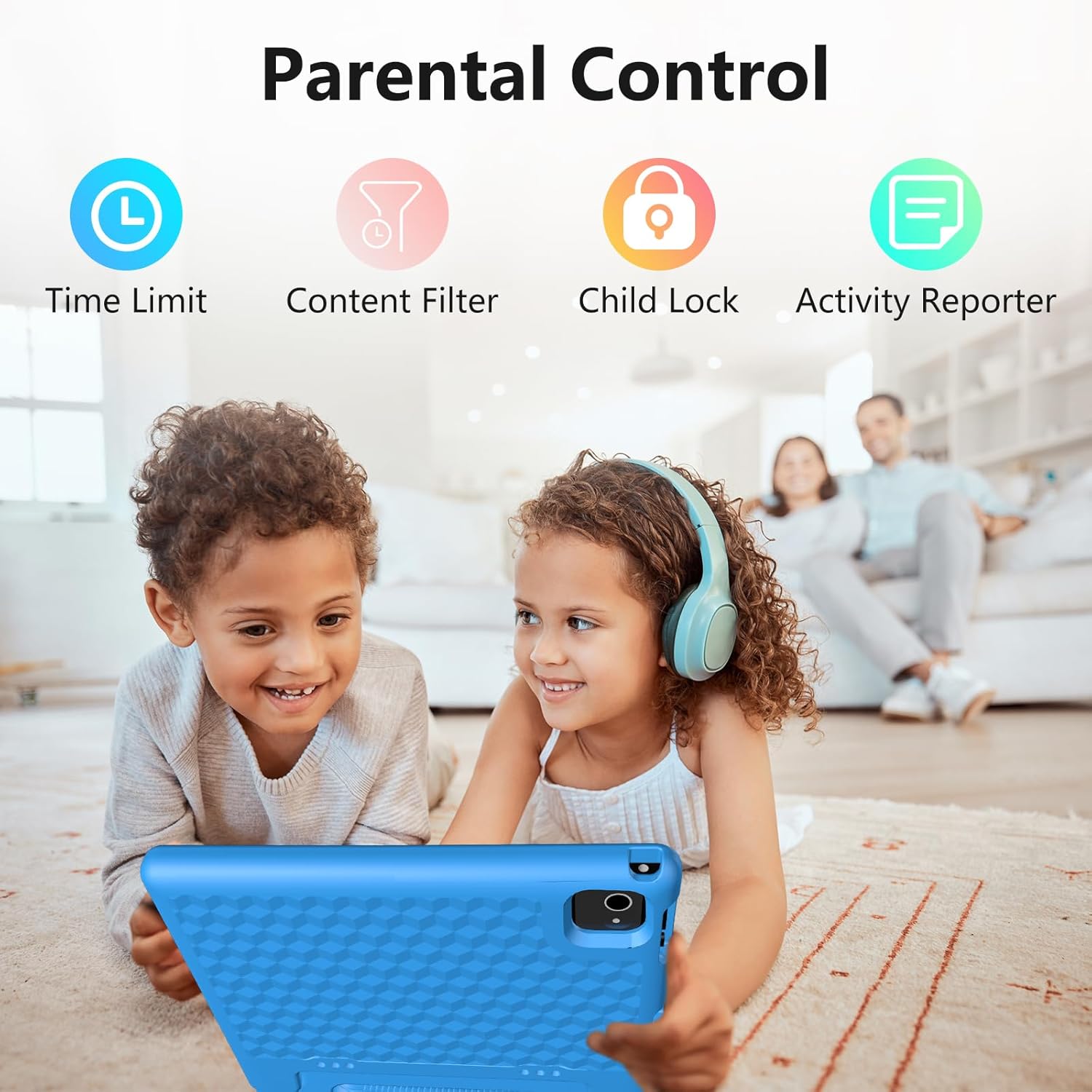
The JREN Kids Tablet includes pre-installed apps like YouTube Kids and Google Kids Space, offering age-appropriate educational content. Utilize Google Family Link for comprehensive parental controls, allowing you to manage screen time, approve app downloads, and filter content directly from your phone.
Image: Two children happily using the JREN Kids Tablet, highlighting parental control features like time limits and content filters.
Image: A young girl engaged with the JREN Kids Tablet, showcasing the Google Kids Space interface for safe and educational apps.
2.3 Using the Cameras
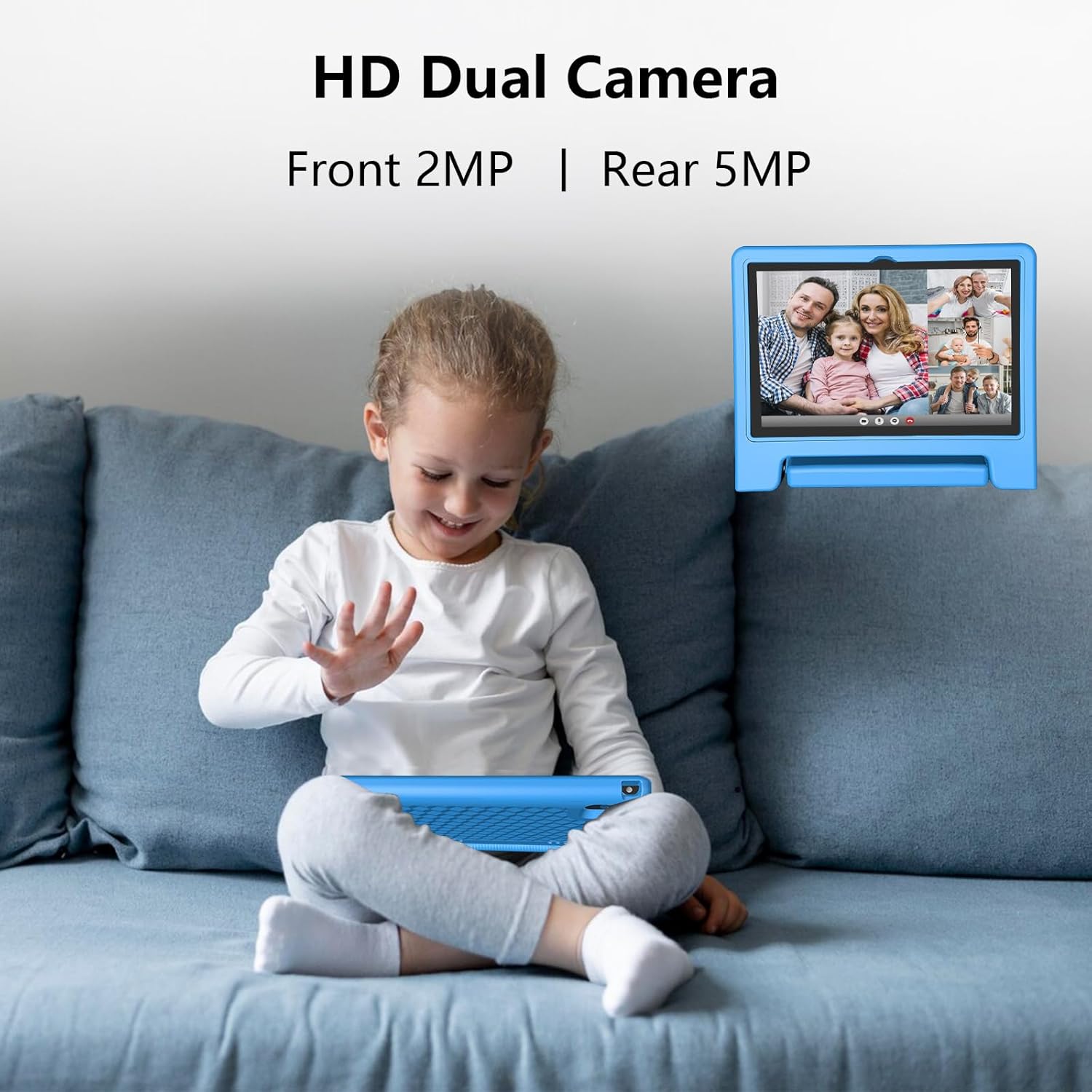
The tablet features a 2MP front camera and a 5MP rear camera. Open the Camera app to take photos or record videos. The kid-proof case includes cutouts for both cameras.
Image: A child using the JREN Kids Tablet for a video call, illustrating the functionality of the front camera.
2.4 Headphone Jack and Storage Expansion
For private listening, plug standard 3.5mm headphones into the headphone jack. The tablet's 64GB internal storage can be expanded up to 1TB using a MicroSD card (not included).
3. Maintenance
3.1 Battery Care
To prolong battery life, avoid completely draining the battery frequently. Charge the tablet when the battery level is low. The 6000mAh battery provides extended usage, making it suitable for travel.
Image: Children using the JREN Kids Tablet during travel, highlighting its long battery life for extended entertainment.
3.2 Cleaning the Tablet
Use a soft, lint-free cloth to clean the screen and exterior of the tablet. Avoid using harsh chemicals or abrasive materials. The kid-proof EVA case can be wiped clean with a damp cloth.
3.3 Kid-Proof Case
The included lightweight EVA case is designed to protect the tablet from drops, scratches, and bumps. The built-in stand allows for hands-free viewing, and the ergonomic handle makes it easy for children to carry.
Image: A child playing with the JREN Kids Tablet, demonstrating the durability and portability of its kid-proof case.
4. Troubleshooting
4.1 Tablet Not Turning On
Ensure the tablet is sufficiently charged. Connect it to the charger for at least 30 minutes.
Press and hold the power button for 10-15 seconds to perform a forced restart.
4.2 Wi-Fi Connection Issues
Verify that Wi-Fi is enabled in the tablet's settings.
Check if other devices can connect to the same Wi-Fi network.
Restart your Wi-Fi router.
Forget the network in tablet settings and reconnect.
4.3 Apps Crashing or Freezing
Close and reopen the app.
Clear the app's cache and data in Settings > Apps.
Ensure the tablet's software is up to date.
5. Specifications
Brand
JREN
Model Name
JR-J10
Operating System
Android 14
Processor
Octa-core CPU, 2 GHz
RAM Memory
4 GB (8GB virtual)
Storage Capacity
64 GB (Expandable up to 1TB via MicroSD)
Screen Size
10.1 Inches
Display Resolution
1280x800 HD
Front Camera
2 MP
Rear Camera
5 MP
Battery Capacity
6000 mAh (up to 12 hours average life)
Connectivity
Wi-Fi (2.4G & 5G), Bluetooth 5.0
Special Features
Kid-Proof Case with Built-in Stand, Parental Control Software, Eye-care mode
Dimensions (L x W x Th)
10.5"L x 10.5"W x 0.6"Th
Item Weight
25 Ounces
6. Warranty & Support
The JREN Kids Tablet comes with a limited warranty. Please refer to the warranty card included in your package for specific terms and conditions. For product support, please visit the manufacturer's website or contact customer service as indicated on the warranty card or product packaging.
You can register your product for warranty at www.jren.us.
Ask about setup, troubleshooting, compatibility, parts, safety, or missing instructions. Manuals+ will review the question and use this page’s manual context to help answer it.