
Introduction
This manual provides detailed instructions for setting up, operating, and maintaining your Ewent EW3243 Wireless Multi-Connection Mouse. This mouse offers versatile connectivity options, including 2.4GHz wireless and Bluetooth 3.0/5.2, allowing connection to up to three devices simultaneously. It features adjustable DPI, silent buttons, and broad compatibility across various operating systems.
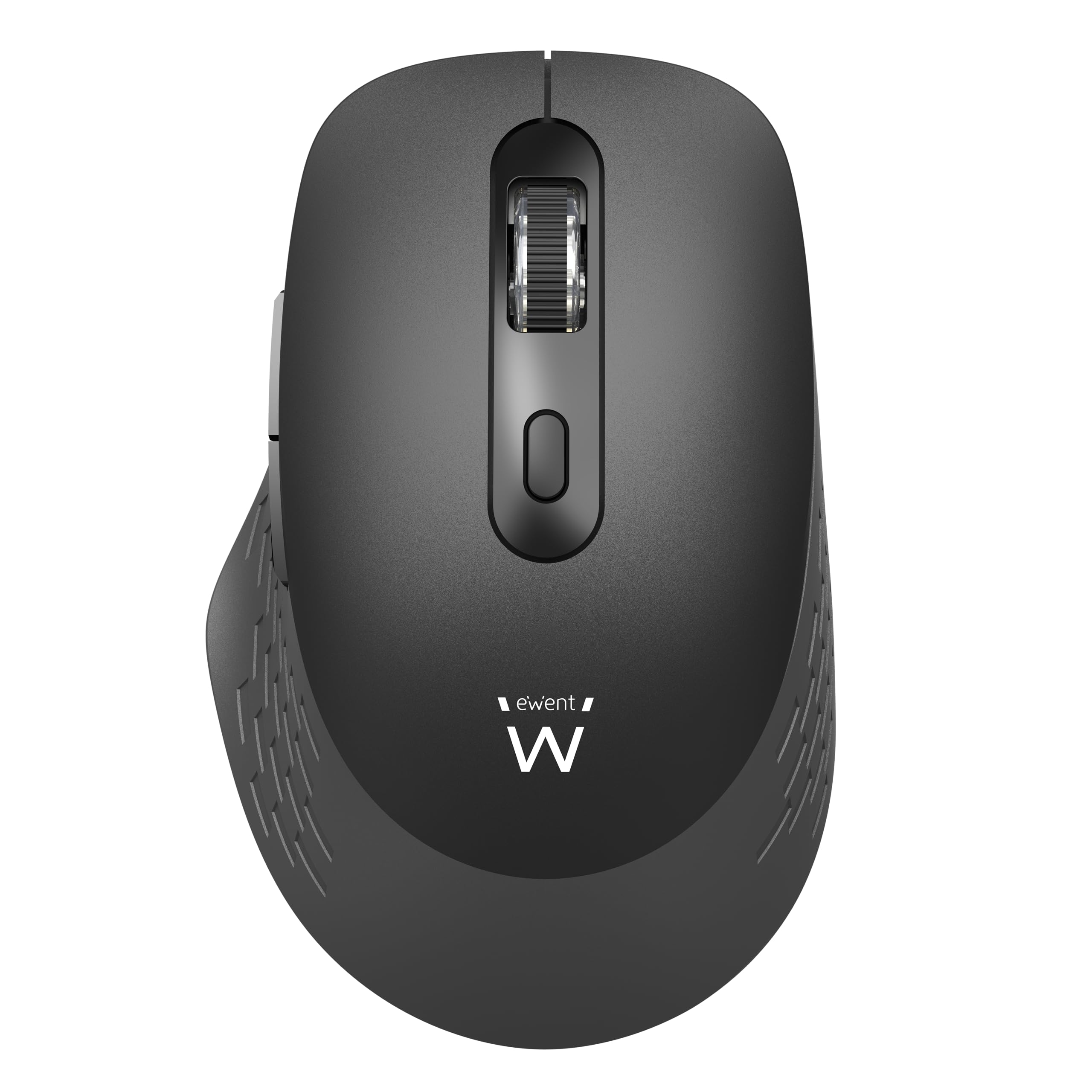
Image: Ewent EW3243 Wireless Multi-Connection Mouse, showcasing its ergonomic design and dark grey finish.
Package Contents
Ensure all items are present in the package:
- Ewent EW3243 Wireless Multi-Connection Mouse
- USB-A Nano Receiver
- USB-C Adapter
- AA Batteries (2x)

Image: The Ewent EW3243 mouse alongside its USB-A nano receiver and USB-C adapter, illustrating the complete package contents.
Setup
1. Battery Installation
- Locate the battery compartment on the underside of the mouse.
- Slide the battery cover open.
- Insert two AA batteries, ensuring correct polarity (+/-).
- Close the battery cover securely.

Image: Underside of the Ewent EW3243 mouse with the battery compartment open, showing the placement of two AA batteries and the USB-A receiver storage slot.
2. Connecting the Mouse
The Ewent EW3243 mouse supports three connection modes: 2.4GHz wireless, Bluetooth 3.0, and Bluetooth 5.2. You can switch between these modes to connect to different devices.
2.1. 2.4GHz Wireless Connection
- Remove the USB-A nano receiver from its storage slot on the bottom of the mouse.
- Plug the USB-A nano receiver into an available USB-A port on your computer. If your device only has USB-C ports, attach the included USB-C adapter to the USB-A receiver, then plug it into a USB-C port.
- Turn on the mouse using the On/Off switch located on the bottom.
- The mouse should automatically connect. The indicator light will show red for 2.4GHz mode.

Image: Diagram showing the Ewent EW3243 mouse connecting to a laptop via the USB-A receiver and also via the USB-C adapter, highlighting its readiness for use.
2.2. Bluetooth Connection (BT 3.0 / BT 5.2)
- Turn on the mouse using the On/Off switch.
- Press and hold the Bluetooth switch button (located on the top of the mouse, below the scroll wheel) for 3 seconds to enter Bluetooth pairing mode. The indicator light will flash green for Bluetooth 1 (BT 5.2) or Bluetooth 2 (BT 3.0).
- On your device (computer, tablet, smartphone), go to Bluetooth settings and enable Bluetooth.
- Search for new devices and select "Ewent EW3243" from the list.
- Once paired, the indicator light will stop flashing and remain green.

Image: An illustration demonstrating the Ewent EW3243 mouse's triple connection capability, allowing switching between 2.4GHz, Bluetooth 5.2, and Bluetooth 3.0 modes to control up to three devices.
Operating Instructions
1. Mouse Layout and Functions

Image: Detailed diagram labeling the parts of the Ewent EW3243 mouse, including silent buttons, scroll wheel, Bluetooth switch, side buttons, and DPI switch, along with key features like wireless range and battery life.
- Left/Right Click Buttons: Silent operation for reduced noise.
- Scroll Wheel: For vertical scrolling.
- DPI Switch Button: Located below the scroll wheel. Press to cycle through DPI settings.
- Bluetooth Switch Button: Located below the DPI switch. Short press to switch between Bluetooth 1 (BT 5.2) and Bluetooth 2 (BT 3.0). Long press (3 seconds) to enter pairing mode for the selected Bluetooth channel.
- Side Buttons: Forward and Back buttons for web browsing and navigation.
- On/Off Switch: Located on the bottom of the mouse to conserve battery.
2. DPI Adjustment
The mouse features adjustable DPI (Dots Per Inch) settings to control cursor sensitivity. Press the DPI switch button to cycle through the available settings: 800, 1600, 2400, and 3200 DPI. Select the sensitivity that best suits your task.
3. Switching Between Connected Devices
The Ewent EW3243 mouse can be connected to up to three devices simultaneously (one via 2.4GHz, two via Bluetooth). To switch between devices:
- To switch between 2.4GHz and Bluetooth modes, long-press the DPI button for 3 seconds. The indicator light will change from red (2.4GHz) to green (Bluetooth).
- To switch between Bluetooth 1 (BT 5.2) and Bluetooth 2 (BT 3.0), short-press the Bluetooth switch button.
4. Power Saving Features
The mouse is designed with intelligent power-saving features to extend battery life:
- Automatic Standby: The mouse will enter standby mode after a period of inactivity.
- Automatic Suspension: For longer periods of inactivity, the mouse will enter a deeper suspension mode.
- Activation: To wake the mouse from standby or suspension, simply move it or press any button.
- On/Off Switch: Use the physical switch on the bottom of the mouse to completely power it off when not in use for extended periods.

Image: Visual representation of the Ewent EW3243 mouse's smart power-saving modes, including active, standby, and automatic suspension, and how to activate it.
Maintenance
- Cleaning: Use a soft, dry cloth to clean the mouse. For stubborn dirt, a slightly damp cloth can be used, but ensure no moisture enters the device. Avoid harsh chemicals or abrasive cleaners.
- Battery Replacement: When the mouse performance degrades or the indicator light signals low battery, replace the two AA batteries as described in the "Battery Installation" section.
- Storage: When not in use for extended periods, turn off the mouse using the On/Off switch and store the USB-A receiver in its dedicated slot on the mouse's bottom to prevent loss.
Troubleshooting
Mouse Not Responding
- Ensure the mouse is turned on.
- Check battery levels and replace if necessary.
- For 2.4GHz connection: Ensure the USB-A receiver is securely plugged into a working USB port. Try a different USB port.
- For Bluetooth connection: Ensure Bluetooth is enabled on your device and the mouse is paired. Try re-pairing the mouse.
- Ensure the mouse is within the 10-meter wireless range of your device.
- Try switching to a different connection mode (2.4GHz, BT1, BT2) to see if the issue persists.
Connection Drops or Lag
- Reduce the distance between the mouse and the receiver/device.
- Remove any potential obstructions or sources of interference (e.g., other wireless devices, large metal objects).
- Ensure the receiver is not plugged into a USB hub or extension cable, if possible, as this can sometimes cause issues.
DPI Not Changing
- Ensure you are pressing the correct DPI switch button (located below the scroll wheel).
- The DPI settings cycle through, so continue pressing until you reach your desired sensitivity.
Specifications
| Brand | Ewent |
| Model Name | EW3243 |
| Connectivity Technology | Bluetooth 3.0, Bluetooth 5.2, 2.4GHz Wireless |
| Movement Detection Technology | Optical |
| DPI Sensitivity | 800 / 1600 / 2400 / 3200 DPI |
| Number of Buttons | 6 (Silent Buttons) |
| Hand Orientation | Ambidextrous |
| Wireless Range | Up to 10 meters |
| Power Source | 2x AA Batteries |
| Compatible Devices | Personal Computer, Laptop, Tablet, Smartphone, Chromebook |
| Operating Systems | Windows, macOS, iOS, Android, ChromeOS |
| Special Features | Triple Connection, Silent Buttons, USB-C Adapter Included, Energy Saving |

Image: An overview of the Ewent EW3243 mouse's broad compatibility, illustrating its connection to laptops, phones, tablets, and PCs, and listing supported operating systems.
Warranty Information
The Ewent EW3243 Wireless Multi-Connection Mouse comes with a 5-year warranty from the date of purchase. This warranty covers defects in materials and workmanship under normal use. Please retain your proof of purchase for warranty claims. For detailed terms and conditions, refer to the official Ewent website or contact customer support.
Customer Support
If you encounter any issues or have questions regarding your Ewent EW3243 mouse that are not addressed in this manual, please visit the official Ewent website for FAQs, driver downloads, and contact information for technical support. You may also refer to the retailer where you purchased the product for assistance.


