
1. Introduction
This manual provides instructions for the ASHATA 5.76 Inch Android E-Reader. It covers device setup, operation, maintenance, and troubleshooting to ensure optimal use of your e-reader.

Image: The ASHATA 5.76 Inch Android E-Reader, showcasing its front display and rear panel.
2. Package Contents
Verify that all items are present in the package:
- 1 x ASHATA E-Reader
- 1 x Protective Case
- 1 x Supply Cord (Type-C USB Cable)
- 1 x User Manual
3. Product Overview and Features
The ASHATA E-Reader is designed for a comfortable reading experience with advanced features:
- Display: 5.76 inch HD display with 920x680 resolution and 198ppi, utilizing e-paper technology for paper-like page turns.
- Comfort: 24 adjustable color temperature settings and enhanced contrast for indoor and outdoor reading, including direct sunlight.
- Customization: Dark mode (white text on black background) and personalized front light.
- Connectivity: Open-source Android system with Wi-Fi and Bluetooth support for third-party apps.
- Storage: 1GB RAM and 32GB ROM, expandable up to 1TB with a Micro Storage Card (not included).
- Processor: Quad-Core CPU for smooth performance.
- Input: Capacitive touch screen and physical page-turn buttons.
- Supported Formats: PDF, EPUB, MOBI, TXT, FB2, DOC, AZW, AZW3, JPG, and more.
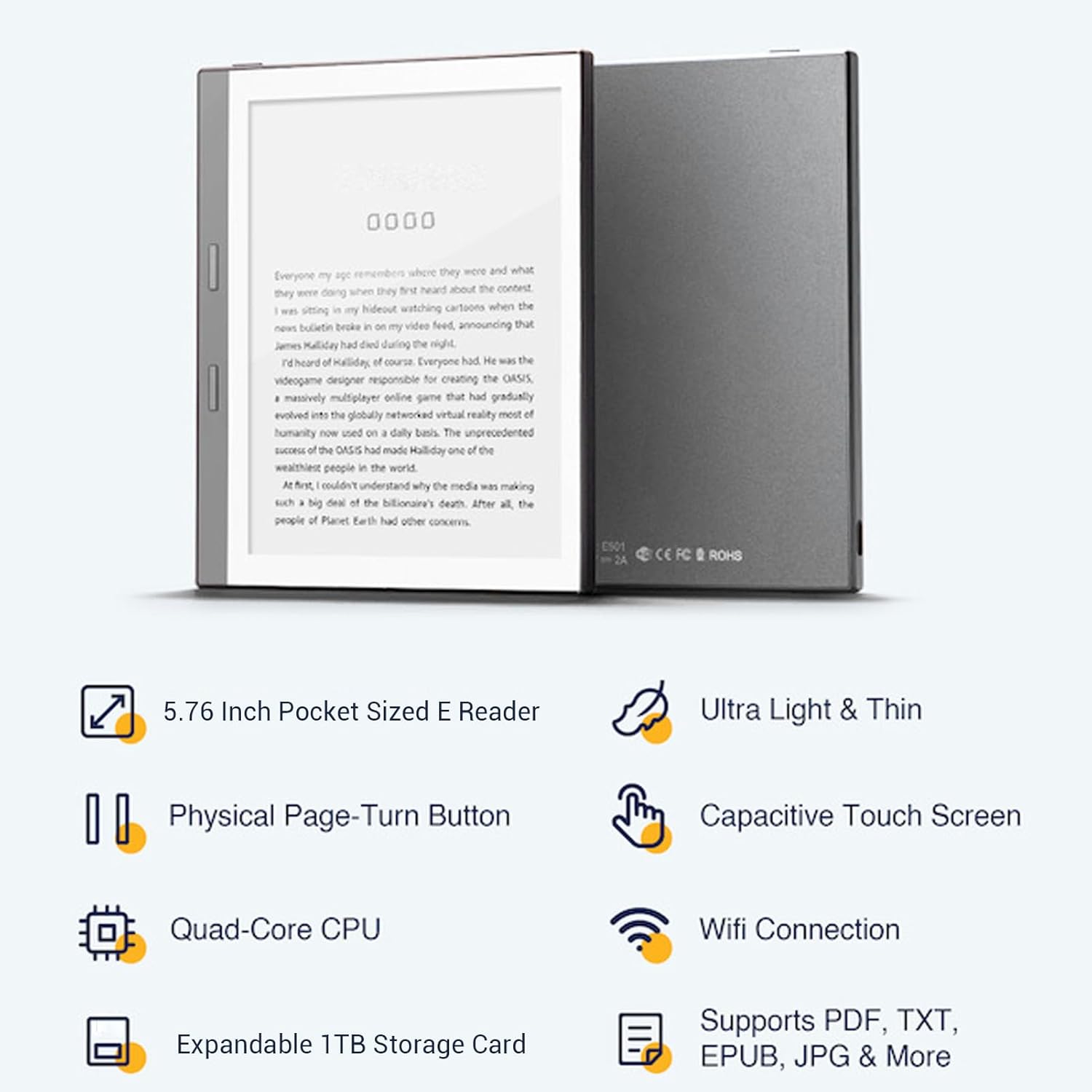
Image: An infographic highlighting features such as 5.76 inch size, ultra-light design, physical page-turn buttons, capacitive touch screen, quad-core CPU, Wi-Fi, 1TB expandable storage, and supported file formats.

Image: The e-reader screen showing various application icons, emphasizing its quad-core processor.
4. Setup
4.1 Charging the Device
Before first use, fully charge the e-reader. Connect the provided Type-C USB cable to the charging port on the device and the other end to a compatible USB power adapter (not included) or a computer's USB port.

Image: A detailed view of the Type-C charging port located on the side of the e-reader.
4.2 Powering On/Off
- To Power On: Press and hold the power button (usually located on the side or top edge) for a few seconds until the screen activates.
- To Power Off: Press and hold the power button until a power-off menu appears, then select 'Power Off'. A short press typically puts the device to sleep.
4.3 Inserting a Micro Storage Card
The device supports expandable storage up to 1TB. Locate the Micro Storage Card slot (often labeled 'SD' or with a card icon) on the side of the e-reader. Gently insert a compatible Micro Storage Card until it clicks into place.

Image: A close-up view of the Micro SD card slot on the e-reader's edge, ready for card insertion.
4.4 Initial Setup
Upon first power-on, the device will guide you through an initial setup process. This typically includes:
- Selecting your preferred language.
- Connecting to a Wi-Fi network for internet access and content downloads.
- Setting the date and time.
5. Operating the E-Reader
5.1 Navigation
- Touchscreen: Navigate menus, select options, and turn pages by tapping or swiping the capacitive touch screen.
- Physical Page-Turn Buttons: Use the dedicated buttons on the side of the device to turn pages forward or backward during reading. These buttons are designed for comfortable use by both left-handed and right-handed users.

Image: The e-reader being held, demonstrating its capacitive touch screen and suitability for both left and right-handed users.

Image: A close-up of the e-reader highlighting its physical page-turn buttons and the option to adjust font size on the screen.
5.2 Reading Experience
- Adjustable Color Temperature: Access display settings to modify the screen's color temperature for optimal visual comfort in various lighting conditions.
- Dark Mode: Enable dark mode for reading with white text on a black background, reducing eye strain in low-light environments.
- Font Customization: Adjust font size, style, and line spacing within your reading application for a personalized experience.
5.3 Connectivity
- Wi-Fi: Connect to wireless networks via the settings menu to download books, browse the internet, and access online services.
- Bluetooth: Pair with Bluetooth headphones or speakers for audio content, such as audiobooks.
5.4 Managing Content and Apps
- Downloading Books: Use pre-installed e-book store applications or transfer files from your computer.
- Installing Third-Party Apps: As an Android-based device, you can install a wide array of compatible third-party reading or utility applications.
- File Management: Organize your books and files using the device's file manager.
6. Maintenance
6.1 Cleaning the Device
- Use a soft, lint-free cloth to gently wipe the screen and body of the e-reader.
- Avoid using harsh chemicals, abrasive cleaners, or excessive moisture.
6.2 Battery Care
- Charge the device regularly, but avoid leaving it fully discharged for extended periods.
- Use only the provided charging cable or a certified compatible Type-C USB cable.
6.3 Software Updates
Periodically check for software updates in the device settings to ensure optimal performance and access to new features. Follow on-screen instructions for installation.
7. Troubleshooting
7.1 Device Not Turning On
- Ensure the battery is charged. Connect the device to a power source and allow it to charge for at least 30 minutes before attempting to power on again.
- Perform a hard reset by holding the power button for 10-15 seconds.
7.2 Screen Freezing or Unresponsive
- Try restarting the device by holding the power button until it powers off, then turn it back on.
- If the issue persists, ensure the device's software is up to date.
7.3 Wi-Fi Connection Issues
- Verify that Wi-Fi is enabled in the device settings.
- Ensure you are within range of a Wi-Fi network and have entered the correct password.
- Restart your Wi-Fi router and the e-reader.
7.4 Cannot Read Certain File Formats
- Confirm that the file format is supported by the e-reader (e.g., PDF, EPUB, MOBI, TXT, FB2, DOC, AZW, AZW3).
- If the format is supported, try opening the file with a different reading application if available.
8. Specifications
| Feature | Specification |
|---|---|
| Model Name | ASHATA1z4euva9p8-11 |
| Screen Size | 5.76 Inches |
| Resolution | 920x680, 198PPI |
| Display Technology | E-Paper |
| RAM | 1GB |
| Internal Storage (ROM) | 32GB |
| Expandable Storage | Up to 1TB (Micro Storage Card, not included) |
| Operating System | Android (Open Source) |
| Connectivity | Wi-Fi, Bluetooth |
| Battery Type | Built-in 1300mAh Li Battery |
| Charging Port | Type-C USB |
| Material | ABS, Electronics |
| Color | Grey |
| Parcel Dimensions | 17.9 x 13.9 x 3.3 cm |
| Item Weight | 410 g |
9. Warranty and Support
Warranty information for your ASHATA E-Reader is typically provided with your purchase documentation. Please refer to the warranty card or contact your retailer for specific details regarding coverage and terms.
For technical support, software updates, or further assistance, please visit the official ASHATA website or contact their customer service department. Contact information can usually be found on the manufacturer's website or in the product packaging.