
1. Introduction
This manual provides essential information for the safe and efficient installation, operation, and maintenance of your GEYA TUYA WIFI Smart Circuit Breaker, model GWS9-W. This device allows for remote control and monitoring of your electrical circuits via the Tuya application, offering advanced protection features and energy management capabilities.
2. Safety Information
WARNING: Electrical shock hazard. Installation and servicing should only be performed by qualified personnel. Always disconnect power before working with electrical circuits.
- Ensure the main power supply is turned off before installation or maintenance.
- Verify all wiring connections are secure and correct according to the wiring diagram.
- Do not operate the device if it appears damaged.
- This device is designed for indoor use in dry environments.
- Adhere to all local electrical codes and regulations.
3. Product Overview
The GEYA GWS9-W is a smart WIFI circuit breaker designed for home automation and enhanced circuit protection. It integrates seamlessly with the Tuya app, providing remote control, energy monitoring, and various safety features.
Key Features:
- Remote Control and Monitoring: Manage your circuit breaker from anywhere using the Tuya app.
- Comprehensive Protection: Includes protection against overvoltage, undervoltage, overcurrent, and high temperatures.
- Adjustable Load Control: Customize current settings (1A-63A) and power (50W-11KW) for optimal energy management.
- Energy Efficiency Tracking: Monitor real-time energy consumption and power usage.
- Custom Scenarios: Define personalized switching states for various home automation needs.
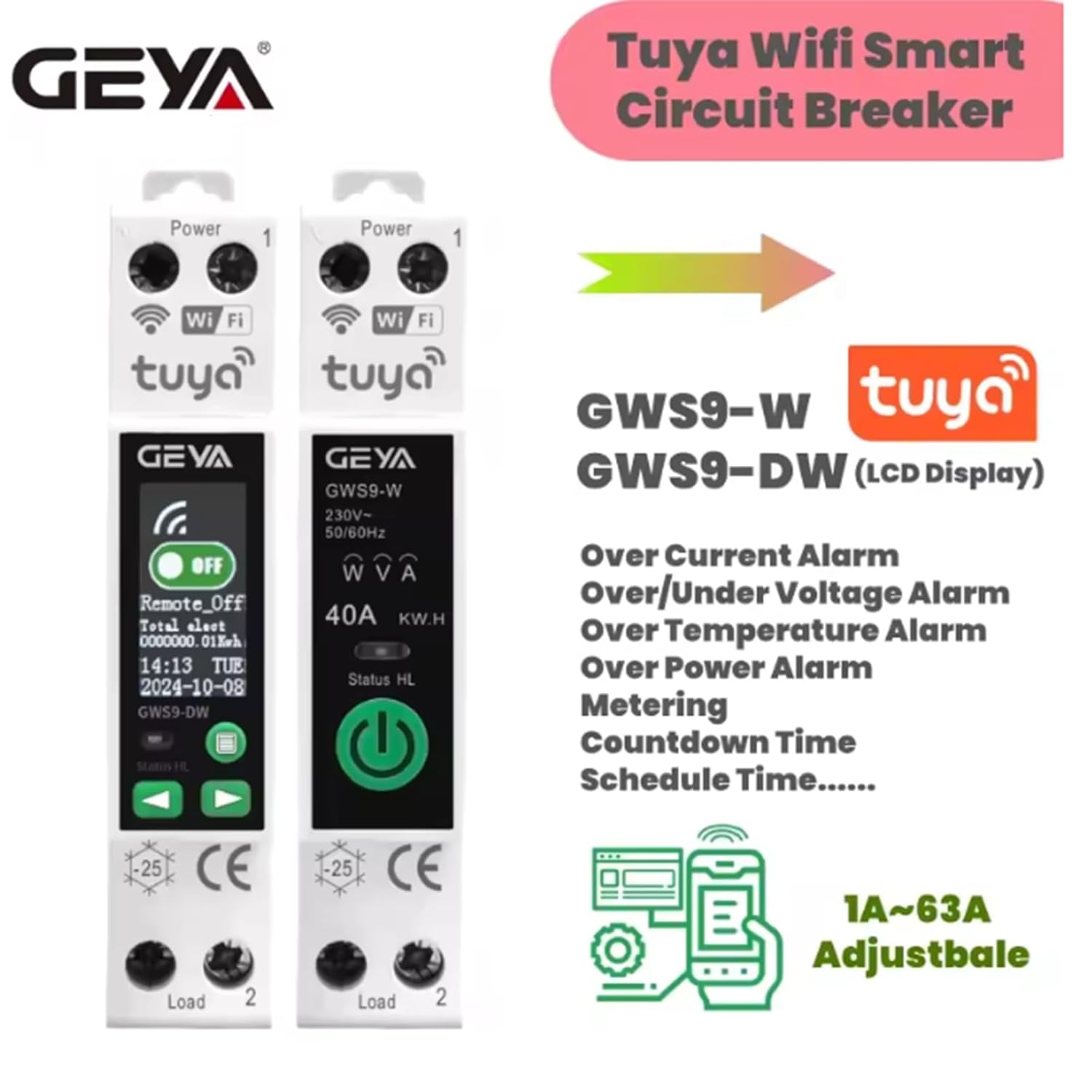
Image: Overview of GWS9-W and GWS9-DW models, highlighting features like overcurrent, over/under voltage alarm, over temperature alarm, over power alarm, metering, countdown, and schedule time.
4. Specifications

Image: Detailed product parameters for GWS9-W and GWS9-DW models, including voltage, current, and communication methods.
| Parameter | Value |
|---|---|
| Rated Working Voltage Range | 90V-240V |
| Number of Poles | 1P+N |
| Max Overcurrent | 63A (3-10s) |
| Rated Current | 1-63A adjustable |
| Communication Method | TUYA WiFi |
| Operating Ambient Temperature | -25°C~70°C |
| Ultimate Short-Circuit Capacity | 500A |
| Electrical Lifespan | ≥10000 operations |
| Mechanical Lifespan | ≥100000 operations |
| Closing Time | <20ms |
| Opening Time | <20ms |
| Display Screen | None (GWS9-DW has LCD) |
| Dimensions (approx.) | 10.2 x 7.5 x 2.2 cm |
| Weight (approx.) | 110 grams |
5. Installation (Setup)
The GWS9-W smart circuit breaker is designed for DIN rail mounting. Follow these steps for proper installation:
- Disconnect Power: Before starting any electrical work, ensure the main power supply to the circuit is completely disconnected at the main breaker or fuse box. Use a voltage tester to confirm no power is present.
- Mount the Device: Snap the GWS9-W onto a standard 35mm DIN rail in your electrical panel.
- Wiring Connections: Refer to the wiring diagram below. Connect the main power supply (Line and Neutral) to the input terminals (marked 'Power' or '1'). Connect the load (the device or circuit you want to control) to the output terminals (marked 'Load' or '2'). Ensure all connections are tight and secure.
- Verify Wiring: Double-check all connections against the diagram to prevent short circuits or damage.
- Restore Power: Once all connections are verified and secure, restore power to the circuit.

Image: Wiring diagram showing connections for main power supply, standby power supply, and load for the GWS9-W circuit breaker.
6. Operating Instructions
6.1. App Setup and Pairing
- Download the Tuya App: Search for "Tuya Smart" or "Smart Life" in your smartphone's app store (iOS or Android) and download it.
- Register/Log In: Open the app and register for a new account or log in with an existing one.
- Add Device: Tap the "+" icon in the top right corner of the app to add a new device. Select "Electrical Engineer" > "Circuit Breaker (Wi-Fi)" or use the auto-scan feature.
- Enter Wi-Fi Details: Ensure your phone is connected to a 2.4GHz Wi-Fi network. Enter your Wi-Fi password when prompted.
- Pairing Mode: The circuit breaker should automatically enter pairing mode (Wi-Fi indicator light blinking rapidly). If not, press and hold the reset button on the device for 5-10 seconds until the Wi-Fi indicator blinks rapidly.
- Complete Pairing: Follow the on-screen instructions in the app to complete the pairing process. Once connected, the Wi-Fi indicator light will become solid.

Image: Tuya app interface displaying real-time monitoring of voltage, current, power, and total consumption, along with settings for voltage (90V-240V) and current (1A-63A).
6.2. Daily Operation and Advanced Settings
- Remote ON/OFF: Use the main switch icon in the Tuya app to remotely turn the circuit breaker ON or OFF.
- Energy Monitoring: View real-time voltage, current, active power, and total energy consumption within the app.
- Protection Settings: Access the device settings in the app to configure protection parameters such as overvoltage, undervoltage, overcurrent, and high-temperature thresholds. You can set these to trigger a trip or an alarm.
- Scheduling and Timers: Set schedules for automatic ON/OFF operations at specific times or create countdown timers.
- Custom Scenarios: Create smart scenes to automate actions based on conditions like time, weather, or other smart devices.

Image: Tuya app interface demonstrating how to add schedules for automatic operation and configure various protection functions like over voltage, under voltage, over load, high power, and high temperature.

Image: Visual representation of the key benefits: remote control via smartphone, comprehensive circuit protection, and timing control for connected devices.
7. Maintenance
The GEYA GWS9-W smart circuit breaker requires minimal maintenance. Follow these guidelines to ensure optimal performance and longevity:
- Regular Cleaning: Periodically clean the exterior of the device with a dry, soft cloth. Do not use abrasive cleaners or solvents.
- Inspect Connections: Annually, or if you suspect an issue, have a qualified electrician inspect the wiring connections to ensure they remain tight and free from corrosion.
- Firmware Updates: Keep the Tuya app updated to the latest version to receive any firmware updates for the device, which may include performance improvements or new features.
- Environmental Conditions: Ensure the device operates within its specified ambient temperature range (-25°C to 70°C) and avoid exposure to excessive moisture or dust.
8. Troubleshooting
| Problem | Possible Cause | Solution |
|---|---|---|
| Device not powering on. | No power to the circuit breaker; incorrect wiring. | Check main power supply. Verify wiring connections according to the diagram. |
| Wi-Fi indicator not blinking during pairing. | Device not in pairing mode. | Press and hold the reset button for 5-10 seconds until the Wi-Fi indicator blinks rapidly. |
| Cannot connect to Tuya app. | Incorrect Wi-Fi password; 5GHz Wi-Fi network; poor signal. | Ensure correct 2.4GHz Wi-Fi password. Move device closer to router. Disable 5GHz band temporarily if necessary. |
| Circuit breaker trips frequently. | Overload, overvoltage, or other protection triggered. | Check connected load for excessive current draw. Verify voltage stability. Adjust protection thresholds in the app if appropriate, or consult an electrician. |
| Remote control unresponsive. | No internet connection; app issue; device offline. | Check home Wi-Fi and internet connection. Restart the Tuya app. Check if the device is showing as 'offline' in the app. |
9. Warranty and Support
GEYA products are manufactured to high-quality standards. For warranty information, please refer to the terms and conditions provided at the point of purchase or contact GEYA customer support directly. Keep your purchase receipt as proof of purchase.
For technical support or further assistance, please visit the official GEYA website or contact their customer service department. Contact details can typically be found on the product packaging or the manufacturer's website.


