
Product Overview
The MLEEDA HDMI KVM Switch allows two computers to share a single HDMI monitor, a keyboard, a mouse, and up to four additional USB 2.0 devices. This device supports video resolutions up to 4K at 60Hz, ensuring high-quality visual output. It is designed for ease of use with plug-and-play functionality, requiring no driver installation.
Key features include:
- Control two computers from one console (monitor, keyboard, mouse).
- Supports Ultra HD 4K@60Hz resolution and is backward compatible with lower resolutions.
- Equipped with four USB 2.0 ports for sharing peripherals like printers, U disks, and other USB devices.
- Compatible with Windows, Mac OS, Linux, and Chrome OS.
- Supports various HDMI source devices including PS5, PS4, TV Box, PC, and Laptops.

Image: The KVM switch connected to two computers, a single monitor, and various USB peripherals, illustrating its function.
Package Contents
Please verify that all items are present in your package:
- 1 x HDMI KVM Switch
- 2 x USB-A to USB-B Cables (1.5M)
- 1 x User Manual

Image: Contents of the package, including the KVM switch, two USB cables, and the user manual.
Setup Instructions
Follow these steps to connect your MLEEDA HDMI KVM Switch:
- Connect the Monitor: Plug your HDMI monitor into the "Monitor HD" port on the KVM switch.
- Connect Computers (PC1 & PC2):
- For PC1: Connect an HDMI cable from your PC1's HDMI output to the "PC 1 HD" input on the KVM switch. Then, connect one of the provided USB-A to USB-B cables from a USB port on PC1 to the "PC 1 USB" input on the KVM switch.
- For PC2: Connect an HDMI cable from your PC2's HDMI output to the "PC 2 HD" input on the KVM switch. Then, connect the second USB-A to USB-B cable from a USB port on PC2 to the "PC 2 USB" input on the KVM switch.
- Connect USB Peripherals: Plug your keyboard, mouse, printer, or other USB 2.0 devices into the available USB 2.0 ports on the front of the KVM switch.
- Power On: Ensure both computers and the monitor are powered on. The KVM switch is typically powered via the USB connections from the computers.

Image: A diagram illustrating the correct connection of HDMI and USB cables from two computers to the KVM switch, and then to a single monitor and shared USB devices.
Setup Demonstration Video
Video: A demonstration of connecting the MLEEDA HDMI KVM Switch, including plugging in HDMI and USB cables from two computers and connecting a monitor and peripherals.
Operating Instructions
To switch between the connected computers, simply press the "Switch" button located on the front panel of the KVM switch. The LED indicators will show which computer is currently active.
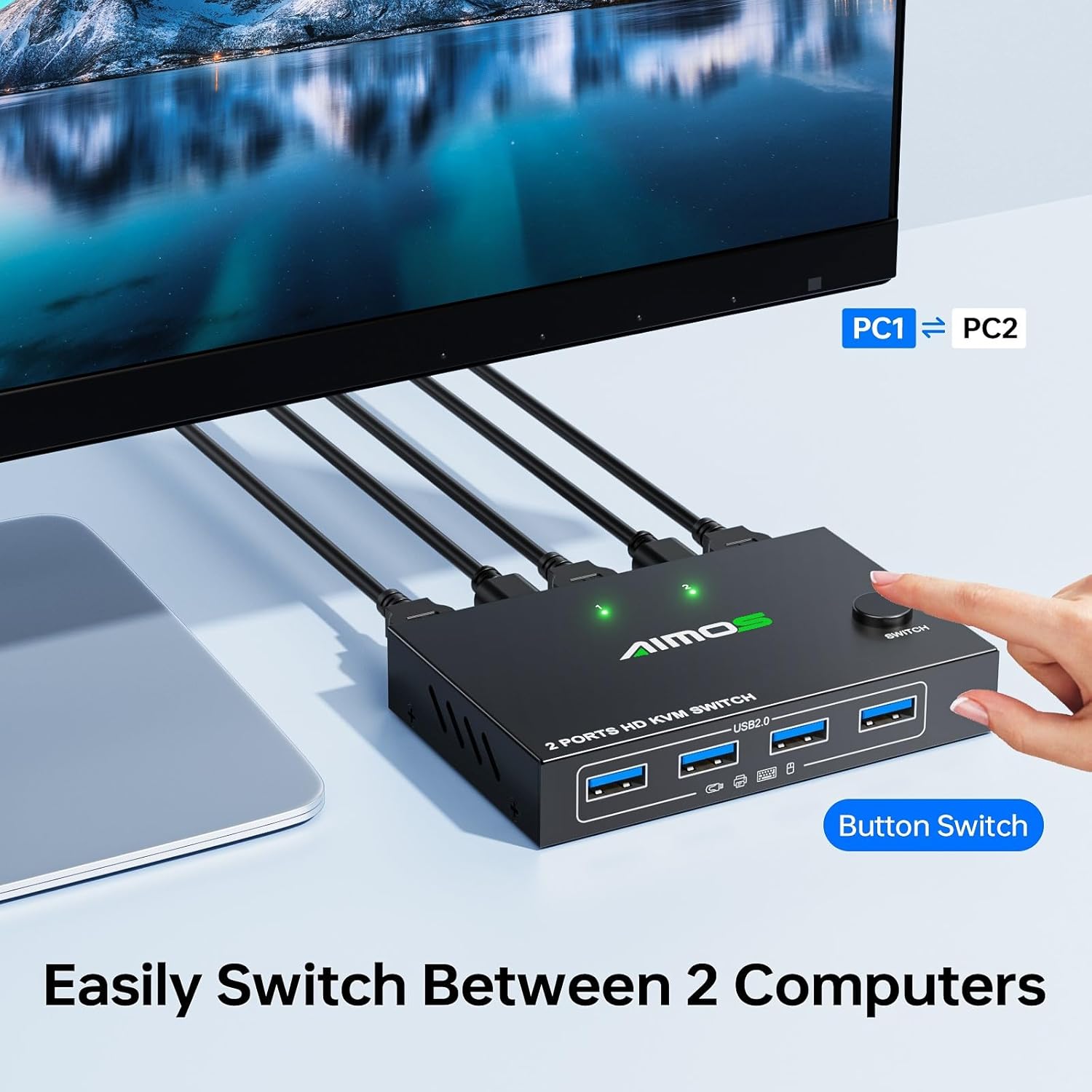
Image: A hand pressing the physical switch button on the KVM device to toggle between PC1 and PC2.
Switching Demonstration Video
Video: A demonstration of switching between two computers using the KVM switch's button, showing the monitor display changing from one computer's desktop to another.
Troubleshooting
- No Display on Monitor:
- Ensure all HDMI cables are securely connected to both the KVM switch and the computers/monitor.
- Verify that the KVM switch is powered on (indicated by LED lights).
- Try restarting the computers and the monitor.
- Test the HDMI cables directly between the computer and monitor to rule out cable issues.
- Keyboard/Mouse Not Responding:
- Ensure the USB-A to USB-B cables are securely connected from both computers to the KVM switch.
- Verify that the keyboard and mouse are plugged into the correct USB 2.0 ports on the KVM switch.
- Try connecting the keyboard/mouse directly to the computer to confirm they are functional.
- Some specialized gaming keyboards/mice may require direct connection or specific drivers; try a standard keyboard/mouse first.
- Intermittent Connection Issues:
- Check all cable connections for looseness.
- Ensure the KVM switch is placed in a well-ventilated area to prevent overheating.
- If using long cables, ensure they are high-quality and meet HDMI 2.0 specifications for 4K@60Hz.
Specifications
| Brand | MLEEDA |
| Model Number | 2 PC 1 Monitor |
| Video Resolution | Up to 4K@60Hz (backward compatible with 4K@30Hz, 2560*1440@120Hz) |
| USB Ports | 4 x USB 2.0 ports |
| Control Method | Push Button |
| Operating Voltage | 5 Volts |
| Current Rating | 2 Amps |
| Dimensions (L x W x H) | 3.94 x 2.56 x 0.71 inches |
| Item Weight | 5.1 ounces |
| Material | Metal |
| International Protection Rating | IP54 |
Maintenance
To ensure the longevity and optimal performance of your KVM switch, follow these maintenance guidelines:
- Cleaning: Use a soft, dry cloth to clean the exterior of the device. Avoid using liquid cleaners or aerosols, which may damage the internal components.
- Environment: Place the KVM switch in a cool, dry, and well-ventilated area. Avoid direct sunlight, high temperatures, and high humidity.
- Cable Management: Ensure cables are not excessively bent or strained, which can lead to damage or signal loss.
- Power: Disconnect the device from power sources before cleaning or if it will be unused for an extended period.
Warranty and Support
MLEEDA provides a 1-year warranty for this HDMI KVM Switch. Additionally, lifetime technical support is available to assist you with any questions or issues you may encounter.
For technical assistance or warranty claims, please contact MLEEDA customer support. Our professional after-sales service team aims to respond within 12 hours.
Please refer to the contact information provided on the MLEEDA official website or your purchase documentation for specific support channels.

