
1. Overview
The Apple 2025 iPad 11-inch Wi-Fi 128GB (Model A3354) is a powerful and versatile tablet designed for a wide range of tasks, from creative work to entertainment and productivity. This renewed premium device offers a stunning Liquid Retina display, a robust A16 Bionic chip, and advanced connectivity options. It is professionally inspected, tested, and cleaned by Amazon-qualified suppliers, ensuring it works and looks like new.
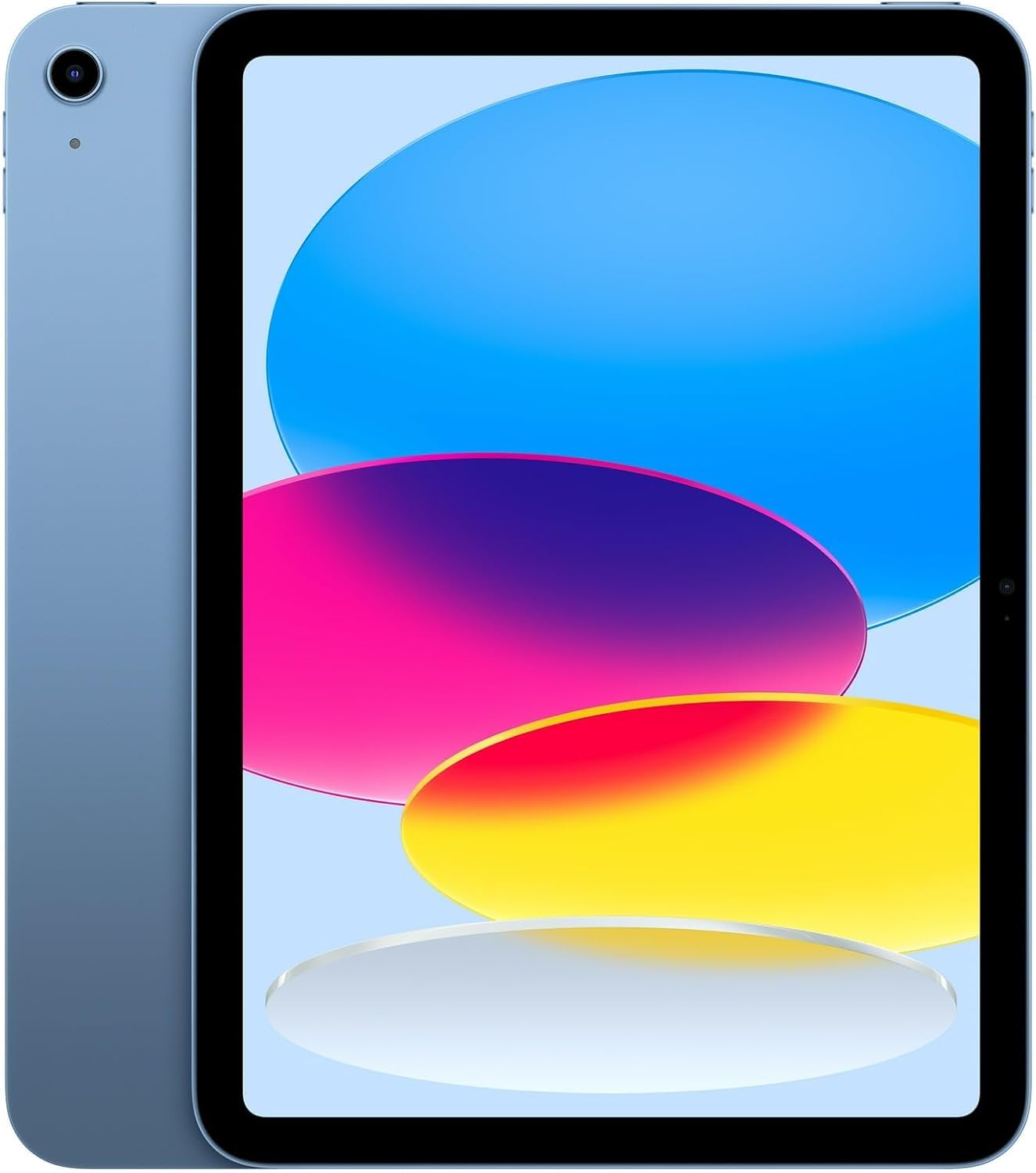
Figure 1: Apple 2025 iPad 11-inch Wi-Fi 128GB (Blue)
This iPad features an all-screen design, a 12MP Ultra Wide front camera with Center Stage, and a 12MP Wide back camera capable of 4K video recording. It supports the 1st generation Apple Pencil and the Magic Keyboard Folio, enhancing its utility for various applications.
2. Setup
Follow these steps to set up your new Apple iPad:
- Power On: Press and hold the Top button (also Touch ID) until the Apple logo appears.
- Initial Configuration: Follow the on-screen instructions to select your language, region, and connect to a Wi-Fi network.
- Data & Privacy: Review the Data & Privacy information.
- Touch ID & Passcode: Set up Touch ID using the Top button and create a passcode for security.
- Transfer Apps & Data: Choose to restore from an iCloud Backup, Mac or PC, or set up as a new iPad.
- Apple ID: Sign in with your Apple ID. If you don't have one, you can create one.
- Software Updates: Ensure your iPad is running the latest iPadOS version.
The iPad comes with a charger. Connect the USB-C cable to the iPad's USB-C port and the power adapter to a wall outlet to charge the device.
Video 1: Unboxing and initial setup of the Apple iPad A16 (2025 Release).
3. Operating
Basic Navigation
- Home Screen: Swipe up from the bottom edge of the screen to go to the Home screen.
- Control Center: Swipe down from the top-right corner to access quick settings like Wi-Fi, Bluetooth, and brightness.
- App Switcher: Swipe up from the bottom edge and pause in the middle of the screen to see open apps.
- Volume Buttons: Use the buttons on the side to adjust audio volume.
Display and Performance
The 11-inch Liquid Retina display offers vibrant colors and sharp details, perfect for media consumption and creative tasks. True Tone technology automatically adjusts the display's color temperature to match ambient light, providing a comfortable viewing experience in any environment. The A16 Bionic chip ensures smooth performance for demanding applications, multitasking, and graphics-intensive games.
Video 2: Discussion on the value and performance of the iPad A16.
Cameras
- Front Camera: The 12MP Ultra Wide front camera is positioned on the landscape edge, ideal for video calls. It features Center Stage, which automatically keeps you centered in the frame during video calls.
- Rear Camera: The 12MP Wide back camera allows for high-quality photos and 4K video recording at 24, 25, 30, or 60 fps.
Connectivity
The iPad supports Wi-Fi 6 for fast wireless internet access. Optional 5G cellular connectivity is available for internet access on the go (requires a compatible data plan).
Accessories
The iPad is compatible with the 1st generation Apple Pencil for note-taking, drawing, and marking up documents. It also supports the Magic Keyboard Folio, which includes a comfortable typing experience and a trackpad, transforming your iPad into a laptop-like device.
Video 3: Review of an iPad case with keyboard, trackpad, and magnetic stand.
4. Maintenance
Battery Life & Charging
The iPad offers up to 10 hours of battery life for surfing the web on Wi-Fi or watching videos. To charge, use the included USB-C charger. For optimal battery health, avoid extreme temperatures and keep the software updated.
Cleaning
To clean your iPad, use a soft, lint-free cloth. Avoid abrasive materials, aerosols, or cleaning sprays. For stubborn smudges, lightly dampen the cloth with water. Do not submerge the iPad in water.
Software Updates
Regularly check for and install iPadOS updates to ensure your device has the latest features, security enhancements, and performance improvements. Go to Settings > General > Software Update.
5. Troubleshooting
If you encounter issues with your iPad, try the following steps:
- Restart iPad: Press and hold the Top button and either Volume button until the power off slider appears. Drag the slider, then wait for your iPad to turn off. To turn it back on, press and hold the Top button until you see the Apple logo.
- Check Wi-Fi Connection: Ensure your iPad is connected to a stable Wi-Fi network. Go to Settings > Wi-Fi.
- Update Software: Make sure your iPadOS is up to date (see Maintenance section).
- Reset Settings: If problems persist, you can reset all settings without erasing content. Go to Settings > General > Transfer or Reset iPad > Reset > Reset All Settings.
- Contact Support: If issues cannot be resolved, refer to the Warranty & Support section for further assistance.
6. Specifications
| Feature | Specification |
|---|---|
| Brand | Apple |
| Model Name | iPad (A16) |
| Item Model Number | A3354 |
| Operating System | iPadOS 18 |
| Standing Screen Display Size | 11 Inches |
| Max Screen Resolution | 2360 x 1640 Pixels |
| Processor | Apple A16 Bionic chip (3.46 GHz) |
| Memory Storage Capacity | 128 GB |
| Average Battery Life | 10 Hours |
| Item Weight | 1.05 pounds |
| Product Dimensions | 9.79 x 7.07 x 0.28 inches |
| Color | Blue |
| What's in the Box | Charger |
7. Warranty & Support
This renewed premium product is eligible for a replacement or refund within 90 days of receipt if you are not satisfied. For detailed warranty information and support, please refer to the Amazon Renewed Guarantee documentation provided with your purchase or visit the official Apple Support website.
- Online Support: Visit support.apple.com/ipad for comprehensive guides, troubleshooting, and contact options.
- Amazon Renewed Guarantee: For information regarding the 90-day refund or replacement policy, please check your Amazon Renewed purchase details.


