
Portronics POR-3029
Portronics Toad 36 Wireless Mouse User Manual
Model: POR-3029
Introduction
Thank you for purchasing the Portronics Toad 36 Wireless Mouse. This manual provides detailed instructions for setting up, operating, and maintaining your device. Please read this manual thoroughly before use to ensure optimal performance and longevity of your mouse.
Safety Information
- Keep the device away from water and other liquids.
- Do not expose the device to extreme temperatures or direct sunlight.
- Avoid dropping or subjecting the device to strong impacts.
- Do not attempt to disassemble or repair the device yourself. Contact authorized service personnel.
- Dispose of batteries according to local regulations.
Package Contents
Please check the package for the following items:
- 1 x Portronics Toad 36 Wireless Mouse
- 1 x USB Receiver
- 1 x USB Charging Cable
- 1 x User Documentation (this manual)
Product Overview
Familiarize yourself with the various parts and functions of your Portronics Toad 36 Wireless Mouse.

Figure 1: Top-down view of the Portronics Toad 36 Wireless Mouse.

Figure 2: Diagram illustrating the 6-button layout of the mouse, including Left Key, Right Key, Scroll Wheel, Forward, Backward, and DPI Adjustment button.
- Left Click Button: Standard left mouse button.
- Right Click Button: Standard right mouse button.
- Scroll Wheel: For scrolling up and down, and acts as a middle click button.
- DPI Adjustment Button: Cycles through different DPI sensitivity settings.
- Forward Button: Navigates forward in web browsers or file explorers.
- Backward Button: Navigates backward in web browsers or file explorers.
- USB Receiver Slot: Located at the bottom of the mouse for storing the 2.4GHz USB receiver.
- Power Switch: On/Off switch located on the bottom.
- Type-C Charging Port: Located at the front of the mouse for charging.
Setup
Follow these steps to set up your Portronics Toad 36 Wireless Mouse:
- Retrieve the USB Receiver: Locate the USB receiver stored in the compartment at the bottom of the mouse.
- Connect the Receiver: Plug the USB receiver into an available USB port on your computer (laptop or desktop).

Figure 3: The USB receiver plugged into a laptop, establishing 2.4 GHz wireless connectivity with the mouse.
- Power On the Mouse: Flip the power switch located on the bottom of the mouse to the "ON" position.
- Automatic Connection: The mouse will automatically connect to the USB receiver. No additional drivers are typically required for Windows, macOS, Android, or iOS devices.
Operating Instructions
Basic Usage
The Portronics Toad 36 functions like a standard wireless mouse. Move the mouse on a flat surface to control the cursor on your screen. Use the left and right click buttons for primary interactions.
Adjusting DPI Sensitivity
The mouse features adjustable DPI settings, allowing you to change cursor speed and precision. Press the DPI Adjustment Button (located behind the scroll wheel) to cycle through the available DPI levels: 800, 1200, and 1600 DPI.

Figure 4: Illustration of the adjustable DPI settings (800, 1200, 1600 DPI) for customized cursor speed.
Using Side Buttons
The Forward and Backward buttons on the side of the mouse are typically used for navigation in web browsers or file explorers. Press the front side button to go forward and the rear side button to go backward.
Ergonomic Design and Quiet Clicking
The mouse is designed with ergonomic thumb support for comfortable prolonged usage, reducing wrist fatigue. It also features quiet clicking for a noise-free user experience.
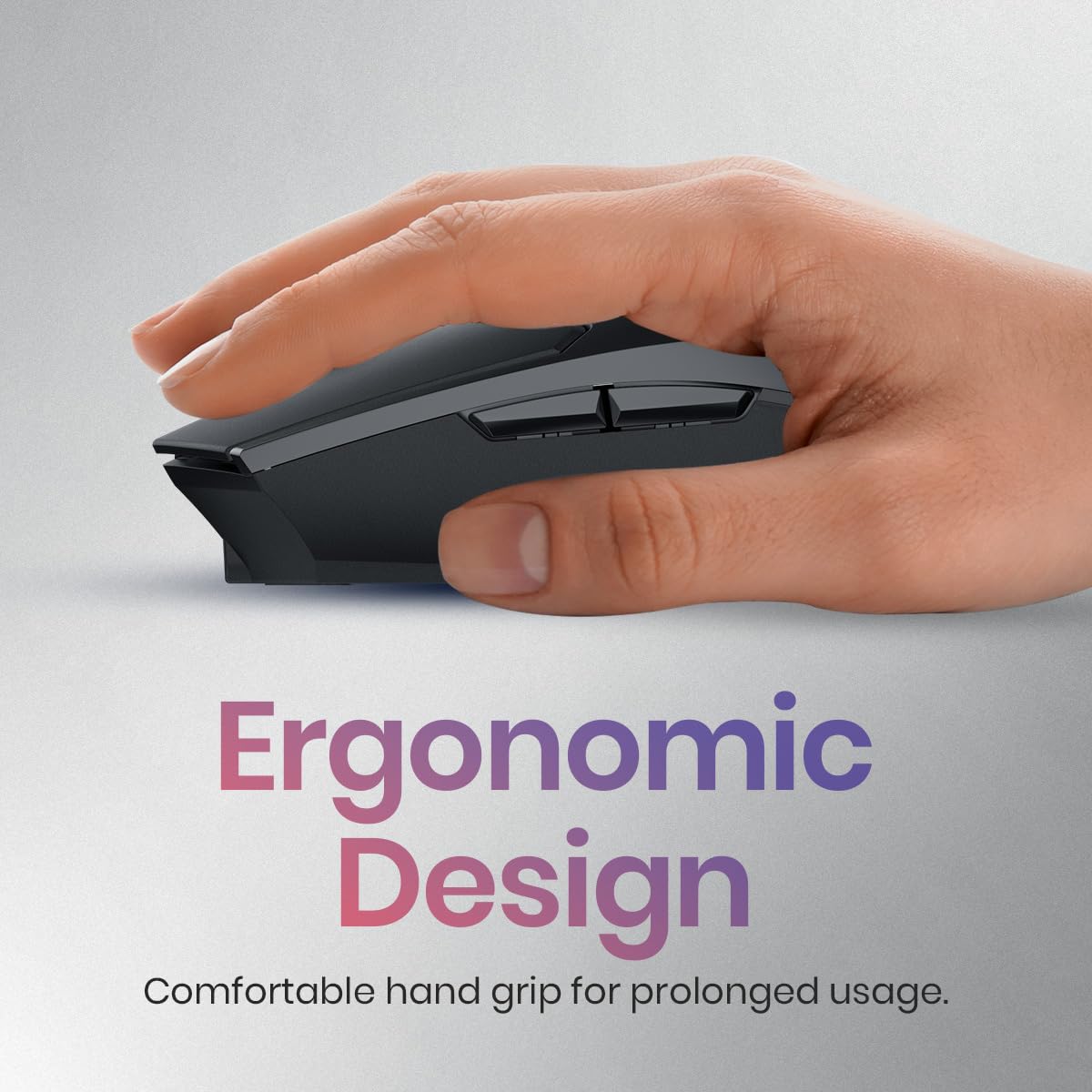
Figure 5: The ergonomic design of the mouse, providing a comfortable hand grip for extended use.

Figure 6: The quiet clicking feature ensures noise-free operation for a comfortable user experience.
Charging the Mouse
The Portronics Toad 36 Wireless Mouse comes with a built-in rechargeable battery. When the battery is low, the mouse may exhibit sluggish performance or stop responding.
- Connect the Charging Cable: Insert the USB Type-C end of the included charging cable into the charging port at the front of the mouse.
- Connect to Power Source: Plug the USB-A end of the charging cable into a USB power adapter (not included), a computer's USB port, or a power bank.
- Charging Indicator: An indicator light on the mouse will typically illuminate during charging and turn off or change color when fully charged.
- Charging Time: Allow sufficient time for the mouse to fully charge before disconnecting.

Figure 7: The mouse connected to a USB Type-C charging cable, indicating its rechargeable capability.
Maintenance
- Cleaning: Use a soft, dry cloth to wipe the surface of the mouse. For stubborn dirt, slightly dampen the cloth with water or a mild cleaning solution. Do not use harsh chemicals or abrasive materials.
- Storage: When not in use for extended periods, turn off the mouse to conserve battery life. Store it in a cool, dry place away from direct sunlight.
- USB Receiver: Keep the USB receiver in its designated slot on the mouse when not in use to prevent loss.
Troubleshooting
| Problem | Possible Cause | Solution |
|---|---|---|
| Mouse not responding. | Mouse is off; Low battery; USB receiver disconnected; Driver issue. | Ensure mouse is ON. Charge the mouse. Re-insert USB receiver into a different port. Restart computer. |
| Cursor movement is erratic or slow. | Low battery; Dirty optical sensor; Unsuitable surface; Incorrect DPI setting. | Charge the mouse. Clean the optical sensor. Use on a smooth, non-reflective surface. Adjust DPI setting. |
| Buttons not working. | Software conflict; Physical damage. | Restart computer. Test on another device. If issue persists, contact support. |
| Wireless connection unstable. | Interference from other devices; Receiver too far from mouse. | Move mouse closer to receiver. Avoid placing receiver near other wireless devices (e.g., Wi-Fi router). |
Specifications
| Model Name | Portronics Toad 36 |
| Model Number | POR-3029 |
| Connectivity | 2.4 GHz Wireless (USB Receiver) |
| Buttons | 6 (Left, Right, Scroll Wheel, DPI, Forward, Backward) |
| DPI Settings | 800 / 1200 / 1600 DPI (Adjustable) |
| Tracking Technology | Optical |
| Battery Type | Built-in Rechargeable Battery (800 mAh Lithium) |
| Charging Port | USB Type-C |
| Compatibility | Windows, macOS, Android, iOS |
| Dimensions (LxWxH) | 12.6 x 8.5 x 0.1 cm (approx.) |
| Weight | 130 g |
| Country of Origin | China |

Figure 8: Approximate dimensions and weight of the Portronics Toad 36 Wireless Mouse.
Warranty and Support
The Portronics Toad 36 Wireless Mouse comes with a 12-month warranty from the date of purchase. This warranty covers manufacturing defects and malfunctions under normal use.
The warranty does not cover:
- Damage caused by misuse, abuse, or negligence.
- Damage caused by unauthorized repair or modification.
- Normal wear and tear.
- Damage caused by accidents or natural disasters.
For warranty claims, technical support, or any inquiries, please contact Portronics customer service:
- Email: help@portronics.com
- Phone: +91 9555-245-245
- Manufacturer/Packer Address: Portronics Digital Private Limited, Ground Floor and First Floor, Property No. D 8 Upper Basement, Sector 8, Noida, Gautam Buddha Nagar, Uttar Pradesh, 201301
Please retain your purchase receipt as proof of purchase for warranty purposes.
Related documentsPOR-3029


Ask a question about this manual
Ask about setup, troubleshooting, compatibility, parts, safety, or missing instructions. Manuals+ will review the question and use this page’s manual context to help answer it.