
Introduction
This manual provides detailed instructions for the operation and maintenance of your DigiLand 10.1 Inch Tablet, Model DL1036. Please read this guide thoroughly to ensure proper usage and to maximize your tablet's performance. Keep this manual for future reference.
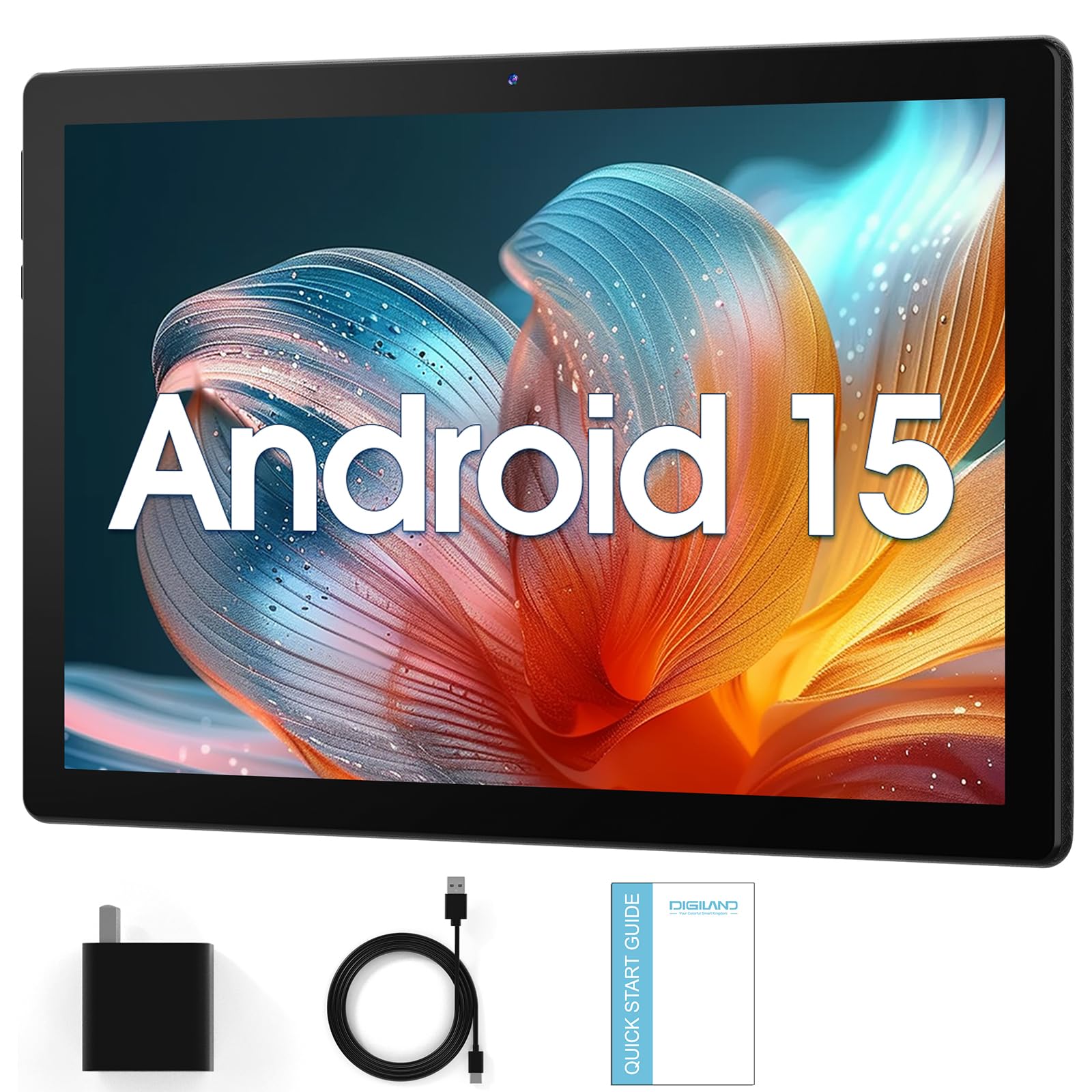
Image: Front view of the DigiLand 10.1 Inch Tablet.
What's in the Box
Upon opening your DigiLand tablet package, verify that all the following items are included:
- DigiLand 10.1 Inch Tablet (Model DL1036)
- USB Cable
- 5V/2A Adapter (US standard)
- Instruction Manual (this document)
- Warranty Card

Image: Contents of the DigiLand tablet packaging, including the tablet, USB cable, power adapter, and documentation.
Setup
1. Powering On/Off
- To Power On: Press and hold the Power button located on the side of the tablet until the DigiLand logo appears on the screen.
- To Power Off: Press and hold the Power button until the power options menu appears. Select "Power off" and confirm.
- To Restart: From the power options menu, select "Restart" and confirm.
2. Charging the Tablet
Before first use, fully charge your tablet. Use only the provided USB cable and 5V/2A adapter.
- Connect the USB cable to the tablet's Type-C port.
- Connect the other end of the USB cable to the power adapter.
- Plug the power adapter into a wall outlet.
- The battery icon on the screen will indicate charging status.
3. Initial Setup
When you power on the tablet for the first time, you will be guided through the initial setup process:
- Select your preferred language.
- Connect to a Wi-Fi network. This is essential for downloading apps and system updates.
- Sign in with your Google account or create a new one.
- Follow the on-screen prompts to complete the setup.
4. Inserting a MicroSD Card
The tablet supports storage expansion up to 128GB via a TF (MicroSD) card.
- Locate the MicroSD card slot on the side of the tablet.
- Carefully insert the MicroSD card into the slot until it clicks into place.
- The tablet will detect the card and may prompt you to format it for use. Follow the on-screen instructions.
Operating Your Tablet
1. Basic Navigation (Touch Gestures)
- Tap: Touch the screen once to select an item, open an app, or press a button.
- Touch & Hold: Press and hold an item to access additional options or move it.
- Swipe: Drag your finger across the screen to scroll through pages, lists, or switch between home screens.
- Pinch-to-Zoom: Place two fingers on the screen and move them apart to zoom in, or together to zoom out.
2. Connecting to Wi-Fi
To access the internet, connect your tablet to a Wi-Fi network.
- Go to Settings > Network & internet > Wi-Fi.
- Turn on Wi-Fi. The tablet will scan for available networks.
- Select your desired network from the list.
- If prompted, enter the network password and tap Connect.
3. Bluetooth Pairing
Connect wireless accessories like headphones or speakers via Bluetooth 5.0.
- Go to Settings > Connected devices > Bluetooth.
- Turn on Bluetooth.
- Ensure your Bluetooth device is in pairing mode.
- Select your device from the list of available devices and follow any on-screen prompts to complete pairing.
4. Camera Usage
Your tablet features a 5MP rear camera and a 2MP front camera for photos and video calls.
- Open the Camera app.
- Tap the camera icon to switch between front and rear cameras.
- Tap the shutter button to take a photo or start/stop video recording.
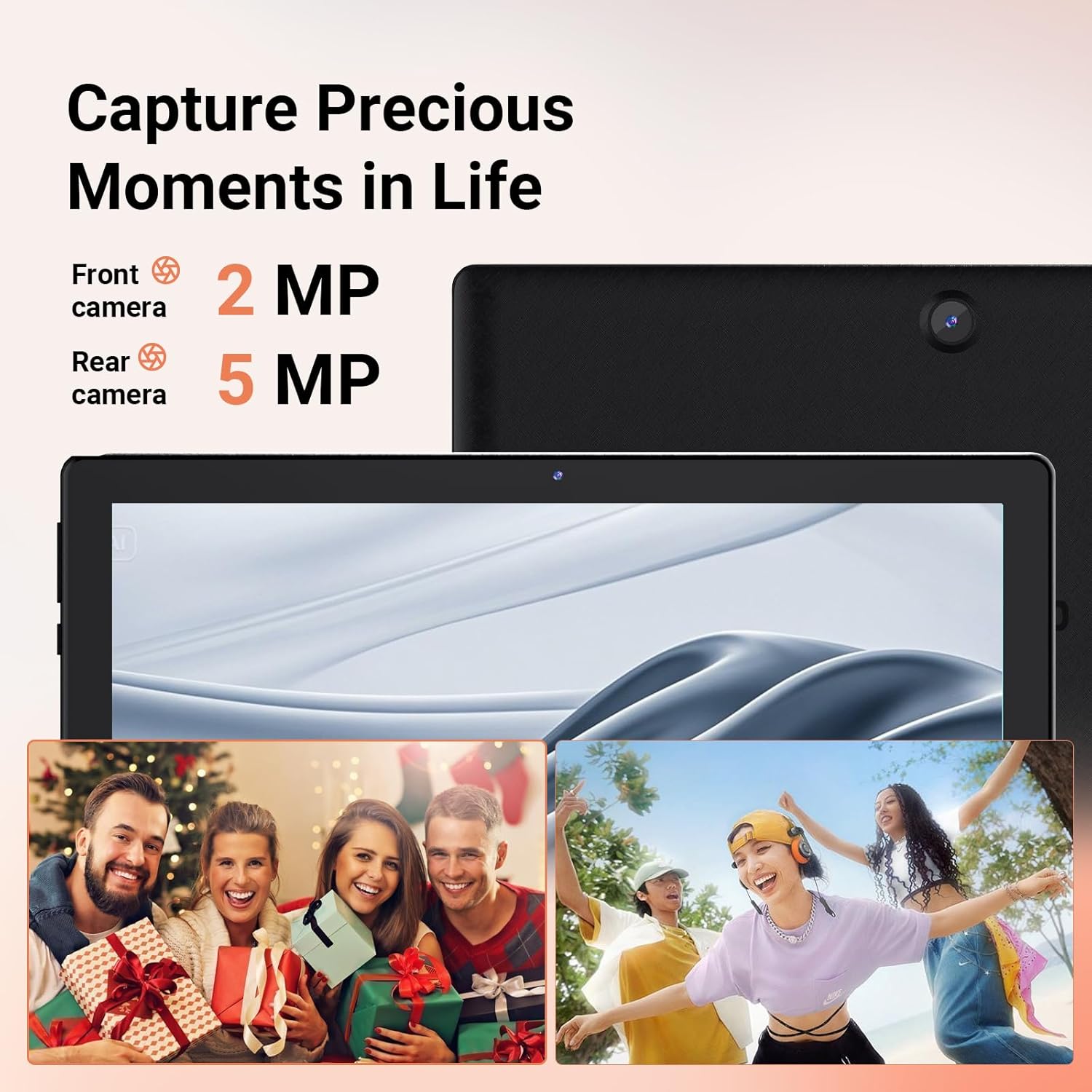
Image: Close-up of the tablet's rear camera and a visual representation of its front camera, highlighting its photo capabilities.
5. Managing Storage
The tablet comes with 32GB of internal storage, expandable via MicroSD card.
- To check storage usage: Go to Settings > Storage.
- To free up space: Uninstall unused apps, delete unnecessary files, or move files to a MicroSD card.

Image: The tablet display showing various applications, illustrating its multi-app capability.
6. Using Dual Speakers
The tablet is equipped with dual 1W speakers for enhanced audio output.
- Adjust volume using the Volume buttons on the side of the tablet or through the on-screen volume controls.
- For private listening, connect headphones via the 3.5mm audio jack or Bluetooth.
7. Split-Screen Multitasking
Android 15 Go edition supports split-screen multitasking, allowing you to use two apps simultaneously.
- Open the first app you want to use.
- Tap the Recent Apps button (usually a square icon) to view open applications.
- Touch and hold the icon of the first app at the top of its card, then drag it to the top or bottom of the screen.
- Select the second app from the Recent Apps list to fill the other half of the screen.
Maintenance
1. Cleaning the Device
To maintain the tablet's appearance and functionality:
- Use a soft, lint-free cloth to wipe the screen and body.
- Avoid using harsh chemicals, abrasive cleaners, or aerosol sprays.
- Do not spray cleaners directly onto the tablet.
2. Battery Care
Proper battery care can extend the lifespan of your tablet's battery:
- Avoid extreme temperatures, as they can degrade battery performance.
- Do not leave the tablet fully charged or fully discharged for extended periods.
- Use only the original charger or a certified compatible charger.

Image: The tablet displaying a racing game, emphasizing its long-lasting 6000mAh battery for extended use.
3. Software Updates
Regular software updates provide security enhancements and new features.
- Ensure your tablet is connected to Wi-Fi and has sufficient battery charge before performing updates.
- To check for updates: Go to Settings > System > System update.
Troubleshooting
If you encounter issues with your tablet, refer to the following common solutions:
| Problem | Solution |
|---|---|
| Tablet does not turn on | Ensure the tablet is charged. Connect it to the charger for at least 30 minutes, then try powering on again. If it still doesn't turn on, perform a forced restart by holding the power button for 10-15 seconds. |
| Slow performance or freezing | Close unused apps, clear app caches, restart the tablet, or check for system updates. Consider uninstalling large or unnecessary applications. |
| Wi-Fi connection issues | Restart your Wi-Fi router and the tablet. Forget the network in tablet settings and reconnect. Ensure you are within range of the Wi-Fi signal. |
| Apps crashing or not responding | Clear the cache and data for the problematic app (Settings > Apps > [App Name] > Storage > Clear cache/Clear data). Reinstall the app if the issue persists. |
| Battery drains quickly | Reduce screen brightness, close background apps, disable unnecessary features like Bluetooth or GPS when not in use. Check battery usage in Settings to identify power-hungry apps. |
Factory Reset
If troubleshooting steps do not resolve the issue, a factory reset may be necessary. This will erase all data on your tablet, so back up important files first.
- Go to Settings > System > Reset options.
- Select Erase all data (factory reset).
- Confirm your decision and follow the on-screen instructions.
Specifications
Key technical specifications for the DigiLand 10.1 Inch Tablet (Model DL1036):

Image: An infographic highlighting the tablet's key features including Android 15 Go, 10.1-inch HD display, 6GB RAM, 32GB ROM, 4-core processor, Bluetooth 5.0, 6000mAh battery, 2MP front camera, 5MP rear camera, and dual-band Wi-Fi.
- Model: DL1036
- Operating System: Android 15 Go edition
- Processor: ARM Cortex-A73 + Quad-core A53 CPU (1.75GHz)
- RAM: 6GB (3GB physical + 3GB virtual expansion)
- Internal Storage: 32GB ROM
- Expandable Storage: Up to 128GB via TF (MicroSD) card
- Display: 10.1-inch IPS HD (1280x800)
- Brightness: 270cd/m²
- Contrast Ratio: 800:1
- Rear Camera: 5MP
- Front Camera: 2MP
- Battery: 6000mAh (22.8Wh)
- Battery Life: Approximately 6.5 hours of use (up to 10 hours in some specifications)
- Connectivity: Wi-Fi 5/ac (2.4GHz + 5GHz), Bluetooth 5.0, Type-C, OTG
- Audio: Dual 1W Speakers
- Dimensions: 9.59 x 6.78 x 0.39 inches (24.36 x 17.22 x 0.99 cm)
- Weight: 1.07 pounds (481.5g)
Warranty and Support
Warranty Information
Your DigiLand tablet comes with a warranty. Please refer to the included Warranty Card for specific terms, conditions, and duration of coverage. Keep your proof of purchase for warranty claims.
Customer Support
For technical assistance, troubleshooting beyond this manual, or warranty inquiries, please contact DigiLand customer support. Contact details can typically be found on the warranty card, the official DigiLand website, or through your retailer.
- Before contacting support, have your tablet's model number (DL1036) and serial number ready.
- You may also visit the DigiLand Store on Amazon for additional product information and resources.


