
Introduction
The Maxcom Smartwatch FW64 Oxygen 2 is a sophisticated wearable device designed to enhance your daily life with advanced features for wellness and style. It boasts a vibrant AMOLED display, comprehensive sleep analysis, and robust activity tracking capabilities. This manual provides detailed instructions to help you set up, operate, maintain, and troubleshoot your smartwatch effectively.
Package Contents
Before you begin, please ensure all items are present in the package:
- Maxcom Smartwatch FW64 Oxygen 2
- Charging Cable
- User Manual (this document)
Setup
1. Initial Charging
Before first use, fully charge your smartwatch. Connect the charging cable to the charging port on the back of the watch and plug the other end into a USB power adapter (not included). The watch display will indicate charging status. A full charge typically takes approximately 2 hours.
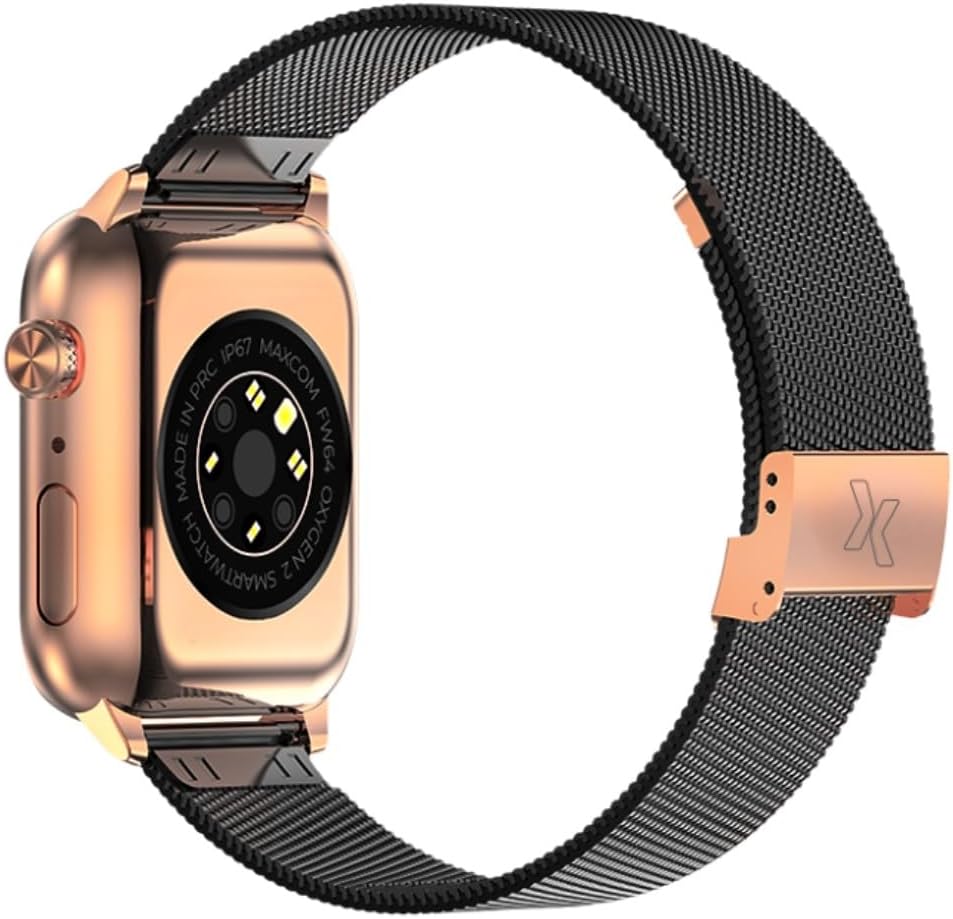
Image: Rear view of the smartwatch, highlighting the charging contacts and various sensors. This area is where the charging cable connects.
2. Powering On/Off
- To Power On: Press and hold the side button for a few seconds until the Maxcom logo appears.
- To Power Off: Press and hold the side button, then select "Power Off" on the screen.

Image: Side profile of the smartwatch, illustrating the location of the physical button (crown) used for power and navigation.
3. App Installation and Pairing
- Download the official Maxcom smartwatch application from your smartphone's app store (iOS App Store or Google Play Store).
- Enable Bluetooth on your smartphone.
- Open the Maxcom app and follow the on-screen instructions to create an account or log in.
- Select "Add Device" or "Pair New Device" within the app.
- The app will search for available devices. Select "FW64 Oxygen 2" from the list.
- Confirm the pairing request on both your smartphone and the smartwatch.
Operating Instructions
1. Navigating the Interface
- Touchscreen: Swipe left, right, up, or down to navigate through menus and widgets. Tap to select an item.
- Side Button: Press once to return to the home screen or wake the display. Press and hold for power options or to access a quick menu.
2. Watch Faces and Always-on Display
The FW64 Oxygen 2 features a vibrant AMOLED display. You can customize your watch face:
- Changing Watch Faces: Long-press on the current watch face, then swipe left or right to browse pre-installed options. More designs are available in the Maxcom app.
- Custom Watch Faces: Use the Maxcom app to create personalized watch faces.
- Always-on Display (AOD): Enable AOD in the watch settings to keep the time visible without activating the full screen. Note that AOD may consume more battery.

Image: Front view of the smartwatch display, showcasing a watch face with activity metrics like steps, kilometers, calories, and the current time.
3. Activity Tracking
The smartwatch tracks various activities:
- Steps: Automatically counts your daily steps.
- Distance: Estimates distance covered based on steps.
- Calories: Calculates calories burned during activity.
- Heart Rate: Monitors your heart rate throughout the day. Access real-time heart rate data from the watch or app.
- Sport Modes: Select a specific sport mode (e.g., walking, running) from the watch menu to get more accurate tracking for duration, heart rate, and distance during your workout.
4. Sleep Analysis
Wear your smartwatch to bed for automatic sleep tracking. The FW64 Oxygen 2 monitors your sleep patterns, detecting deep sleep, light sleep, REM stages, and awakenings. View detailed sleep reports in the Maxcom app to understand and improve your sleep quality.
5. Notifications
Once paired with your smartphone, the smartwatch can display notifications for calls, messages, and app alerts. Ensure notification permissions are granted in both your phone's settings and the Maxcom app.
Maintenance
1. Cleaning
- Wipe the watch screen and body with a soft, lint-free cloth.
- For stubborn dirt, slightly dampen the cloth with water. Avoid using harsh chemicals or abrasive materials.
- Clean the charging contacts regularly to ensure proper charging.
2. Water Resistance (IP67)
The Maxcom FW64 Oxygen 2 is rated IP67, meaning it is protected from dust and can withstand immersion in water up to 1 meter for up to 30 minutes. It is suitable for daily use and light splashes, but it is not recommended for swimming, showering, or diving. Prolonged exposure to water or use in hot water may damage the device.
3. Battery Care
- Charge the device regularly, avoiding complete discharge.
- Do not expose the smartwatch to extreme temperatures.
- Use only the provided charging cable.
Troubleshooting
- Watch not turning on: Ensure the watch is fully charged. Connect it to the charger for at least 30 minutes.
- Cannot pair with phone:
- Ensure Bluetooth is enabled on your phone and the watch.
- Make sure the watch is within Bluetooth range of your phone.
- Restart both your phone and the smartwatch.
- Try unpairing and re-pairing the device through the Maxcom app.
- Inaccurate activity data:
- Ensure the watch is worn snugly on your wrist, about one finger's width above your wrist bone.
- Clean the sensors on the back of the watch.
- Update the Maxcom app and watch firmware to the latest versions.
- Short battery life:
- Disable features like Always-on Display if not essential.
- Reduce screen brightness.
- Limit the number of app notifications.
- Ensure the watch firmware is up to date.
- Watch unresponsive: Try a force restart by pressing and holding the side button for approximately 10-15 seconds until the device restarts.
Specifications
| Brand | Maxcom |
| Model Number | 2069775 (FW64 Oxygen 2) |
| Color | Gold |
| Display Type | AMOLED |
| Water Resistance | IP67 |
| Product Dimensions | 10 x 7 x 10 cm |
| Product Weight | 180 g |
| Special Features | AMOLED Display, Unique Watch Faces, Sleep Analysis, Activity Tracking (Steps, Heart Rate, Calories, Distance) |
Warranty and Support
Warranty information for the Maxcom Smartwatch FW64 Oxygen 2 is typically provided with your purchase documentation or can be found on the official Maxcom website. For technical support, troubleshooting assistance beyond this manual, or warranty claims, please contact Maxcom customer service or visit their official support portal.
Please retain your proof of purchase for warranty purposes.


