
Phomemo M832D
Phomemo M832D Portable Printer User Manual
Model: M832D
Introduction
This user manual provides comprehensive instructions for the operation and maintenance of your Phomemo M832D Portable Printer with Touchscreen and its accompanying carrying case. Please read this manual thoroughly before using the product to ensure proper function and longevity.
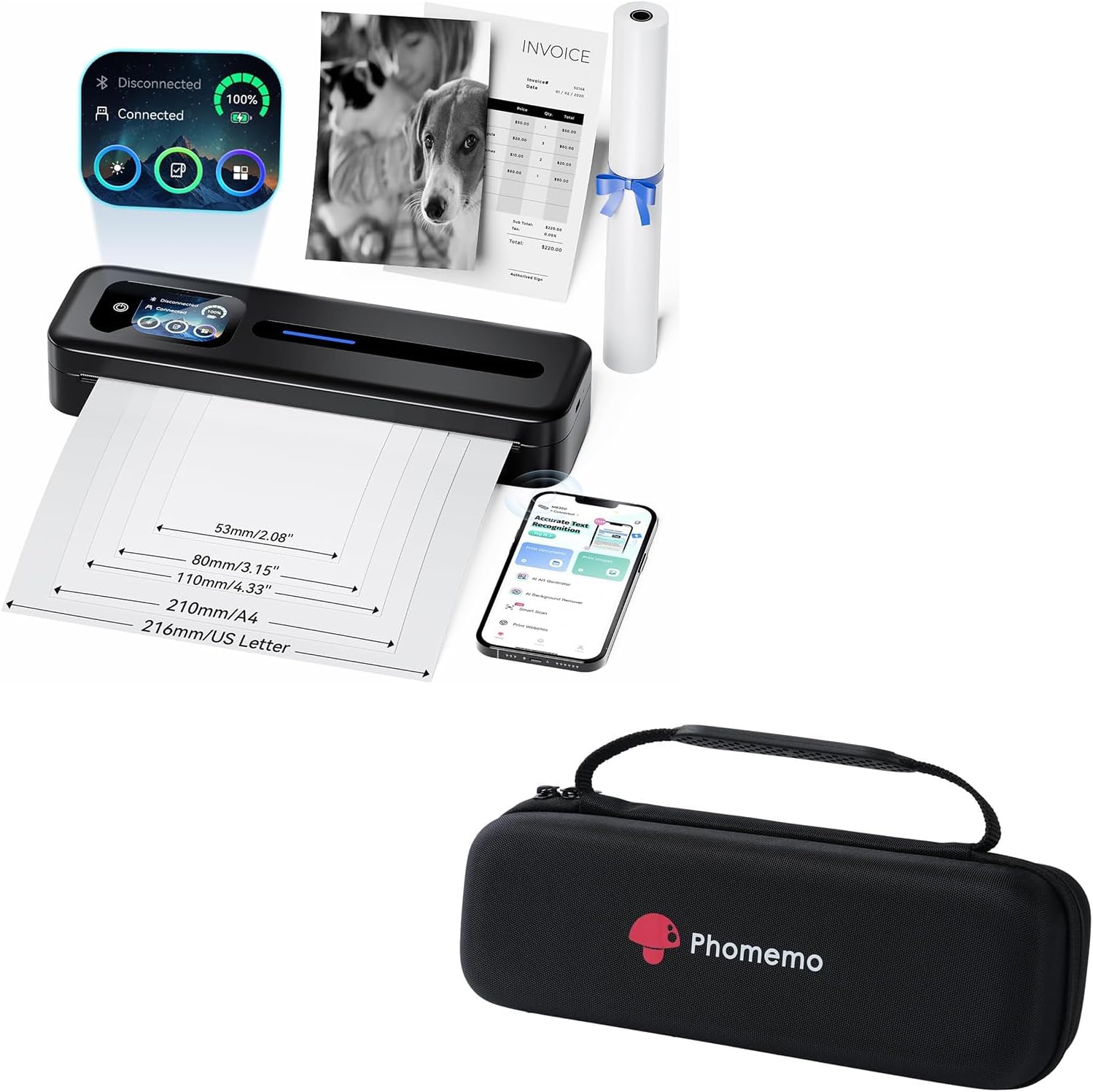
Image: The Phomemo M832D portable printer, showing its compact design, along with the included carrying case. Various paper sizes are indicated, and a smartphone displaying the companion app is also visible.
Safety Information
- Do not expose the printer to extreme temperatures, direct sunlight, or high humidity.
- Avoid dropping or subjecting the printer to strong impacts.
- Use only specified thermal paper. Other paper types may damage the print head.
- Keep out of reach of children.
- Do not disassemble or attempt to repair the printer yourself. Contact customer support for assistance.
- Ensure the printer is turned off before cleaning or when not in use for extended periods.
Package Contents
Please check the package contents upon opening to ensure all items are present:
- Phomemo M832D Portable Printer
- Phomemo Carrying Case
- USB-C Charging Cable
- User Manual (this document)
- Sample Thermal Paper Roll
Product Overview
Phomemo M832D Printer

Image: A close-up view of the Phomemo M832D printer's smart display, highlighting its power display, connection status, and user guide interface. The display shows battery level, Bluetooth and USB connection status, and icons for various functions.
The Phomemo M832D features an intuitive touchscreen display for easy operation. Key components include:
- Touchscreen Display: Shows battery level, connection status (Bluetooth/USB), and paper feed information.
- Power Button: Turns the printer on/off.
- Paper Feed Slot: Where thermal paper is inserted for printing.
- USB-C Port: For charging and connecting to computers.
Phomemo Carrying Case

Image: The black Phomemo carrying case, designed to protect the portable printer. It features a durable exterior and a prominent Phomemo logo.
The included carrying case provides protection and portability for your printer and accessories. It features:
- Durable Exterior: Protects against impacts and scratches.
- Padded Interior: Secures the printer and prevents movement.
- Zipper Closure: Keeps contents secure.
- Built-in Hand Strap: For easy carrying.
Setup
1. Charging the Printer
Before first use, fully charge the printer. Connect the supplied USB-C cable to the printer's USB-C port and the other end to a compatible USB power adapter (not included) or a computer's USB port. The touchscreen display will indicate charging status.

Image: An illustration showing the Phomemo M832D printer's internal battery, highlighting its 2600mAh capacity, ability to print 200+ sheets, and 30-hour standby time. The touchscreen displays battery percentage.
2. Loading Paper
The M832D printer supports various thermal paper types and sizes. Ensure the paper is inserted correctly for optimal printing.
- Open the paper compartment cover.
- Insert the thermal paper with the printable side facing up. For roll paper, ensure it unrolls from the top. For folded or single sheets, align them straight.
- Gently push the paper until the printer automatically feeds it into position. The touchscreen will confirm paper detection.
- Close the paper compartment cover.

Image: The Phomemo M832D printer with a sheet of paper being fed, illustrating the supported paper widths: 53mm/2.08", 80mm/3.15", 110mm/4.33", 210mm/A4, and 216mm/US Letter.
3. Connecting to Your Device
Bluetooth Connection (for Mobile/Tablet)
- Download the "Phomemo" app from your device's app store (iOS/Android).
- Turn on the Phomemo M832D printer.
- Enable Bluetooth on your mobile device.
- Open the Phomemo app and follow the on-screen instructions to search for and connect to your printer. The printer's name will typically appear as "M832D-XXXX".
- Once connected, the Bluetooth icon on the printer's touchscreen will indicate a successful connection.
USB-C Connection (for Computer)
For Windows or macOS computers, connect the printer using the supplied USB-C cable. You may need to install the printer driver from the official Phomemo website. Bluetooth connection is not supported for computers.
Operating Instructions
Using the Touchscreen Display
The touchscreen provides quick access to essential information and settings:
- Battery Indicator: Displays current battery percentage.
- Connection Status: Shows if the printer is connected via Bluetooth or USB.
- Paper Status: Indicates if paper is loaded correctly or if there's a paper jam.
- Settings Icon: Accesses basic printer settings.
Printing from Mobile Devices (via Phomemo App)
- Ensure the printer is connected via Bluetooth to your mobile device.
- Open the Phomemo app.
- Select the type of content you wish to print (e.g., document, image, web page).
- Adjust print settings such as density or size within the app, if available.
- Tap the print button to initiate printing.
Printing from Computers (via USB-C)
- Connect the printer to your computer using the USB-C cable.
- Ensure the printer driver is installed.
- Open the document or image you wish to print on your computer.
- Select "Print" from the application's menu.
- Choose "Phomemo M832D" from the list of available printers.
- Adjust print preferences as needed (e.g., paper size, orientation).
- Click "Print".

Image: A comparison demonstrating the print quality of the Phomemo M832D (300 dpi) versus other printers (203 dpi), showing clearer and faster output from the M832D. A woman and a dog are depicted in the printed images.
Maintenance
Cleaning the Printer
- Turn off the printer and disconnect it from power before cleaning.
- Use a soft, dry, lint-free cloth to wipe the exterior of the printer.
- For the print head, gently wipe with a cotton swab lightly dampened with isopropyl alcohol. Allow to dry completely before use.
- Do not use abrasive cleaners or solvents.
Battery Care
- Charge the printer regularly, even if not in frequent use, to maintain battery health.
- Avoid fully discharging the battery frequently.
- Store the printer in a cool, dry place when not in use for extended periods.
Carrying Case Care
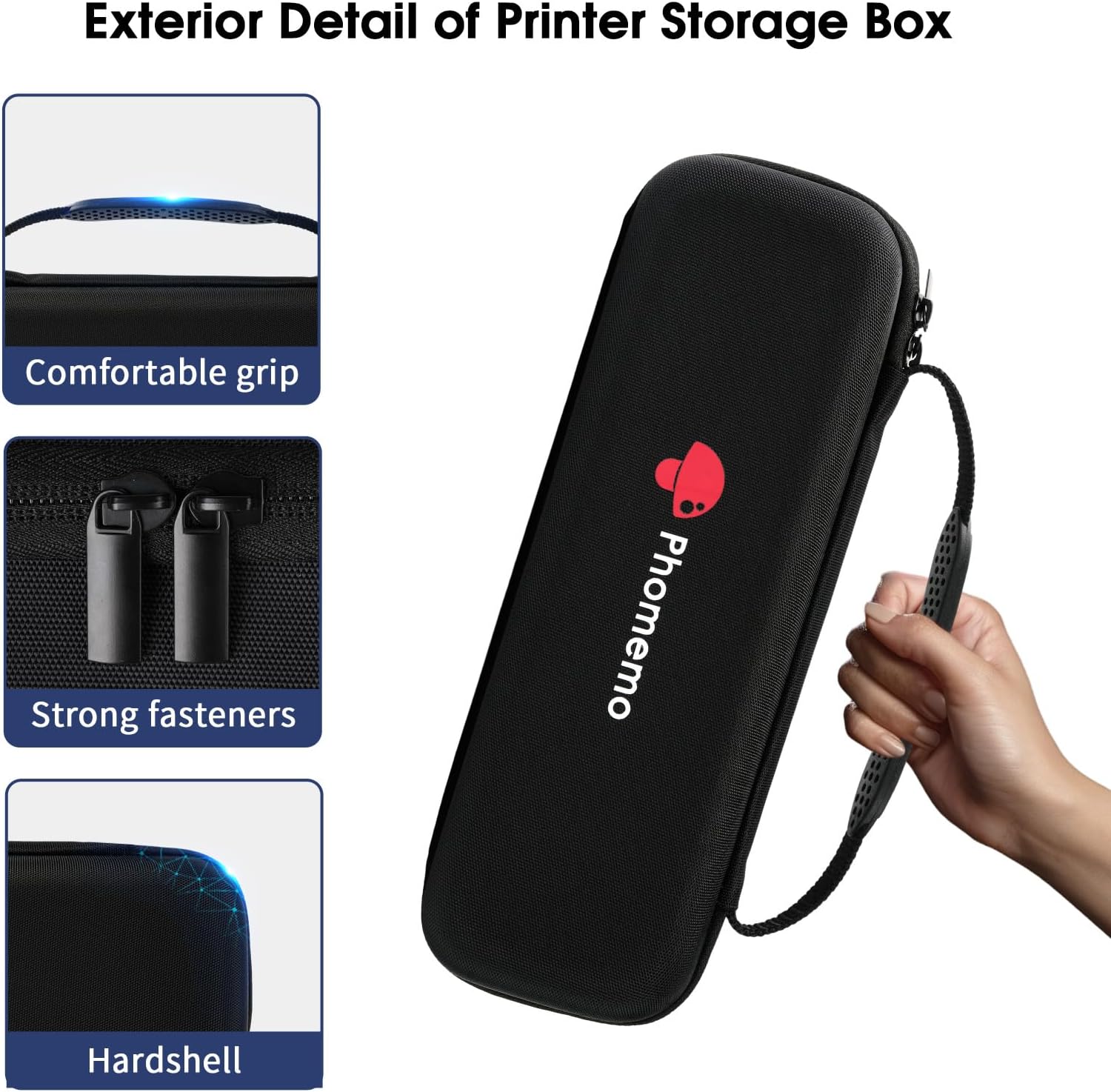
Image: A detailed view of the Phomemo carrying case, highlighting its comfortable grip, strong fasteners (zippers), and hardshell construction for durability.
- Wipe the exterior of the case with a damp cloth if it gets dirty.
- Do not machine wash or tumble dry the case.
- Ensure the case is dry before storing the printer inside.
Troubleshooting
| Problem | Possible Cause | Solution |
|---|---|---|
| Printer does not turn on. | Low battery or power issue. | Charge the printer using the USB-C cable. Ensure the power adapter is working. |
| Cannot connect via Bluetooth. | Bluetooth is off, printer is out of range, or app issue. | Ensure Bluetooth is enabled on your device. Move closer to the printer. Restart the Phomemo app and the printer. |
| Paper jam or misfeed. | Paper incorrectly loaded or foreign object. | Turn off the printer. Carefully remove any jammed paper. Reload paper correctly, ensuring it's straight. |
| Poor print quality. | Low battery, incorrect paper, or dirty print head. | Charge the printer. Ensure you are using thermal paper. Clean the print head as per maintenance instructions. |
| Printer not recognized by computer. | Driver not installed or USB cable issue. | Install the latest driver from the Phomemo website. Try a different USB-C port or cable. |
Specifications
| Feature | Detail |
|---|---|
| Model | M832D |
| Printing Technology | Thermal Inkless Printing |
| Connectivity | Bluetooth (for mobile/tablet), USB-C (for computer) |
| Supported Paper Sizes | 8.5" x 11" US Letter, A4, 2.08" (53mm), 3.15" (80mm), 4.33" (110mm) |
| Supported Paper Types | Thermal roll paper, folded thermal paper, single-sheet thermal paper |
| Battery Capacity | 2600mAh |
| Continuous Printing | Up to 200 pages (on a single charge) |
| Weight | Approx. 1.5 lb |
| Dimensions (Printer) | Approx. 10.39" x 3.07" x 1.77" |

Image: A person holding the Phomemo M832D printer, illustrating its compact size and light weight (1.5 lbs). Dimensions of 10.39" length, 3.07" width, and 1.77" height are shown.
Warranty and Support
Phomemo products come with a standard manufacturer's warranty. Please refer to the warranty card included in your package or visit the official Phomemo website for detailed warranty terms and conditions.
For technical support, troubleshooting assistance, or warranty claims, please contact Phomemo customer service through their official website or the contact information provided in your product packaging.
Online Resources:
Related documentsM832D

Ask a question about this manual
Ask about setup, troubleshooting, compatibility, parts, safety, or missing instructions. Manuals+ will review the question and use this page’s manual context to help answer it.