
1. Introduction
This manual provides detailed instructions for the proper installation, operation, and maintenance of your ZWP Replacement Motor Hand Remote Control, designed for Okin Okimat II Refined Hospital Beds. Please read this manual thoroughly before using the product to ensure safe and efficient operation.
2. Safety Information
Always follow basic safety precautions when using electrical appliances to reduce the risk of fire, electric shock, and personal injury.
- Ensure the power to the hospital bed is disconnected before connecting or disconnecting the remote control.
- Do not expose the remote control to water or excessive moisture.
- Do not attempt to open or repair the remote control yourself. Refer all servicing to qualified personnel.
- Keep the remote control out of reach of children and pets.
- Use only with compatible Okin Okimat II Refined Hospital Beds.
3. Product Overview
The ZWP Replacement Motor Hand Remote Control is designed for intuitive control of Okin Okimat II Refined Hospital Beds. It features a durable ABS construction and soft silicone buttons for comfortable and reliable use.

Figure 3.1: Front and back view of the ZWP Replacement Motor Hand Remote Control. This image displays the overall design and form factor of the remote, highlighting its ergonomic shape.
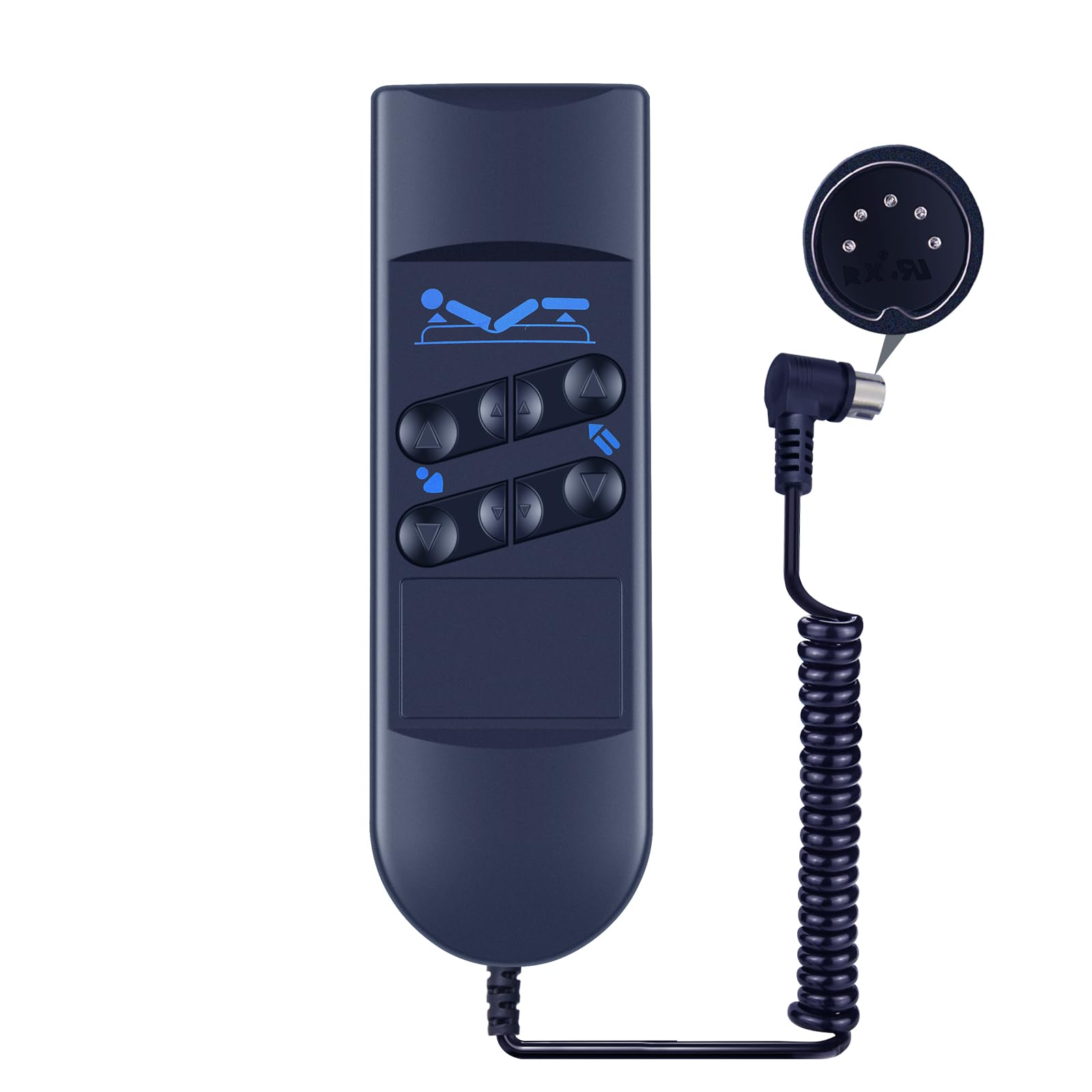
Figure 3.2: Close-up view of the remote control's buttons and material. The image emphasizes the soft silicone buttons and the durable ABS environmental protection material used in its construction, ensuring quality and user comfort.
Key Features:
- Compatible with Okin Okimat II Refined Hospital Beds.
- Made of high-quality ABS material for durability.
- Soft silicone buttons for comfortable tactile feedback.
- No programming required; plug-and-play functionality.
- Includes an extension cord for convenient use.
4. Setup Instructions
Setting up your ZWP Replacement Motor Hand Remote Control is a simple process. No complex programming is required.
- Locate the Control Port: Identify the remote control input port on your Okin Okimat II Refined Hospital Bed's motor unit. This port is typically a multi-pin jack.
- Ensure Power Off: For safety, ensure the hospital bed's main power supply is disconnected or turned off before proceeding.
- Connect the Remote: Carefully align the connector of the ZWP remote control (or its extension cord) with the input port on the bed's motor unit. Gently push until it is securely seated. Do not force the connection.
- Restore Power: Once the remote is securely connected, restore power to the hospital bed.
- Test Functionality: Test all buttons on the remote control to ensure proper operation of the bed's adjustments.
The remote control comes with an extension cord to provide ample reach for user convenience.
5. Operating Instructions
The ZWP Replacement Motor Hand Remote Control features intuitive buttons for adjusting your Okin Okimat II Refined Hospital Bed. Familiarize yourself with the button layout and their corresponding functions.

Figure 5.1: Detailed view of the remote control buttons and their corresponding bed adjustment icons. This image illustrates the functions for head, foot, and overall bed position adjustments.

Figure 5.2: Another perspective of the remote control, emphasizing the button layout and the visual cues for each function. Users should refer to these icons for specific bed adjustments.
Button Functions:
- Head Up/Down: Use the buttons with the head icon (upper body raised) and arrows to raise or lower the head section of the bed.
- Foot Up/Down: Use the buttons with the foot icon (lower body raised) and arrows to raise or lower the foot section of the bed.
- Overall Bed Up/Down: Use the buttons with the full bed icon and arrows to raise or lower the entire bed frame. (Note: Not all Okin Okimat II models may support full bed height adjustment via remote. Refer to your bed's specific features.)
- Zero Gravity/Flat: Some remotes may feature a dedicated button (often with a 'Z' or flat bed icon) to return the bed to a flat position or a pre-set zero-gravity position.
Press and hold the desired button to continuously adjust the bed. Release the button to stop the movement.
6. Maintenance
Proper care and maintenance will extend the life of your remote control.
- Cleaning: Wipe the remote control with a soft, dry, or slightly damp cloth. Do not use abrasive cleaners, solvents, or harsh chemicals. Ensure no liquid enters the remote.
- Storage: Store the remote control in a dry place, away from direct sunlight and extreme temperatures.
- Avoid Drops: While durable, avoid dropping the remote control, as this can damage internal components.
7. Troubleshooting
If you experience issues with your remote control, refer to the following common problems and solutions:
| Problem | Possible Cause | Solution |
|---|---|---|
| Remote control does not respond. | Loose connection to the bed's motor unit. | Ensure the remote control's connector is fully and securely plugged into the bed's control port. |
| Remote control does not respond. | No power to the hospital bed. | Check if the hospital bed is plugged into a working power outlet and if its main power switch is on. |
| Only some buttons work. | Specific bed functions not supported by your Okin Okimat II model. | Consult your hospital bed's original manual to confirm supported features. |
| Buttons feel sticky or unresponsive. | Dirt or debris under the buttons. | Clean the remote control as described in the Maintenance section. |
If the problem persists after trying these solutions, please contact customer support.
8. Specifications
| Brand | ZWP |
| Compatibility | Okin Okimat II Refined Hospital Beds |
| Material | High-quality ABS, Soft Silicone Buttons |
| Color | Black |
| Special Feature | Ergonomic design |
| Package Dimensions | 6.8 x 2.3 x 1 inches |
| Item Weight | 2.08 ounces |
| Max Number of Supported Devices | 1 (the hospital bed) |
9. Customer Support
For any questions, concerns, or assistance with your ZWP Replacement Motor Hand Remote Control, please do not hesitate to contact our customer support team. We are committed to helping you resolve any issues you may encounter.
Please refer to your purchase documentation or the seller's contact information for the most direct way to reach support.