
1. Introduction
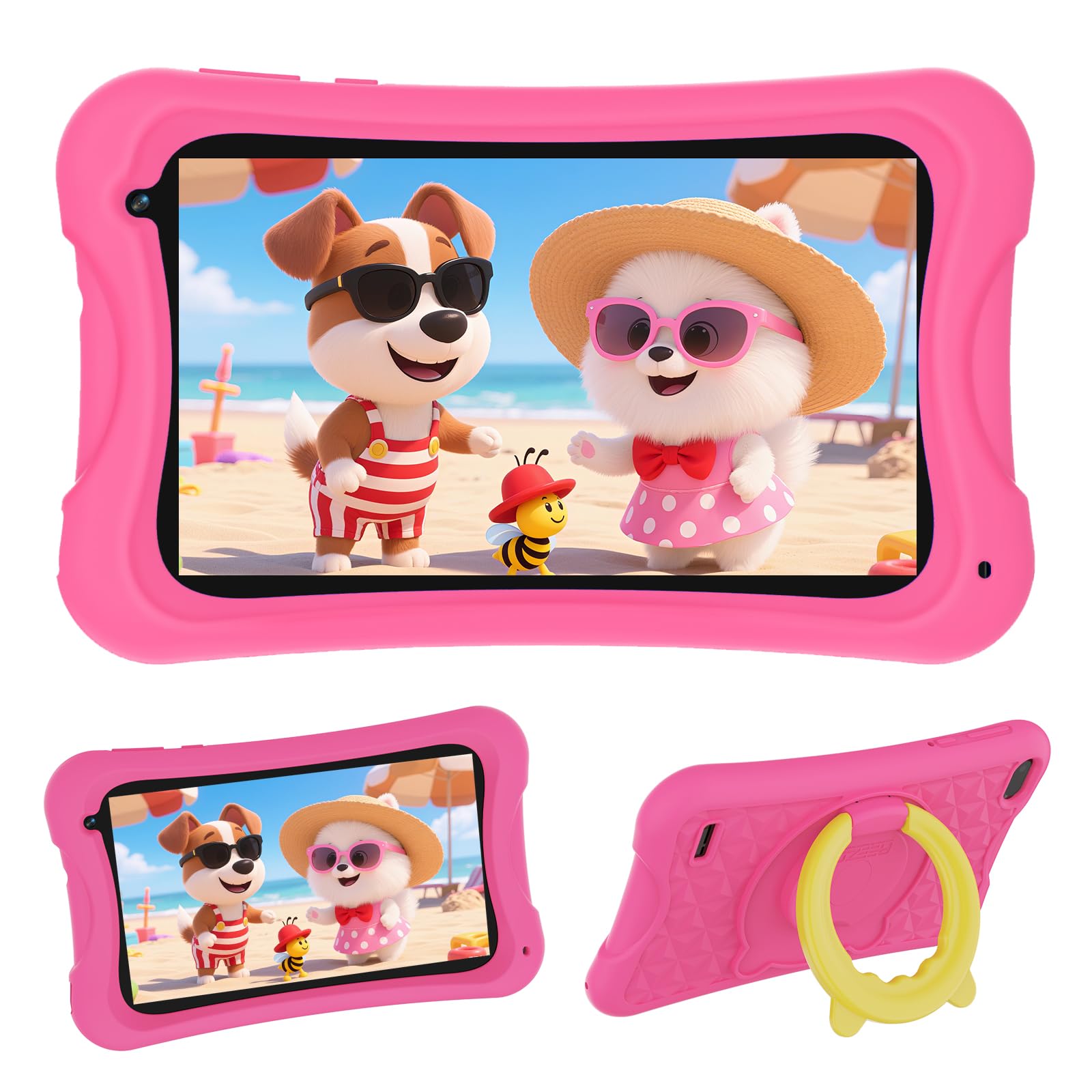
Welcome to your new DigiLand Android Kids Tablet. This 7-inch tablet is specifically designed for children aged 3-12, featuring Android 13 GO, robust parental controls, and a durable design. This manual provides essential information for the proper setup, operation, and maintenance of your device, ensuring a safe and engaging experience for your child.
2. What's in the Box
Please check the package contents to ensure all items are present:
- DigiLand Android Kids Tablet (7-inch)
- Protective Silicone Case
- USB-C Charging Cable
- Power Adapter

3. Setup
3.1 Initial Charge
Before using the tablet for the first time, ensure it is fully charged. Connect the provided USB-C charging cable to the tablet's USB-C port and the power adapter to a standard electrical outlet. The battery indicator on the screen will show the charging status. A full charge typically takes approximately 3.5 hours.
3.2 Power On/Off
- To Power On: Press and hold the power button (located on the side of the tablet) until the screen lights up and the DigiLand logo appears.
- To Power Off: Press and hold the power button until a menu appears on the screen. Select "Power off" and confirm.
3.3 Basic Configuration
Upon first power-on, you will be guided through the initial setup process:
- Language Selection: Choose your preferred language.
- Wi-Fi Connection: Connect to an available Wi-Fi network. This is essential for downloading apps and accessing online content.
- Google Account Setup: Sign in with an existing Google account or create a new one. This account is necessary for accessing the Google Play Store and other Google services.
- Parental Controls: Configure the built-in parental control features to customize content access and screen time limits for your child. These settings can be adjusted later.
4. Operating the Tablet
4.1 Basic Navigation
The tablet operates on Android 13 GO, providing a user-friendly interface:
- Home Screen: Swipe left or right to navigate between different home screens.
- Open Apps: Tap on an app icon to launch it.
- Navigation Bar: Use the on-screen navigation buttons (Back, Home, Recent Apps) typically located at the bottom of the display.
4.2 Parental Controls
The DigiLand Kids Tablet features robust parental control options to ensure a safe and educational experience:
- Screen Time Management: Set daily time limits for tablet usage.
- App Management: Restrict access to specific applications or allow only pre-approved apps.
- Content Filtering: Filter web content and app store access to age-appropriate material.
- Usage Reports: Monitor your child's tablet activity.
Access these settings through the "Parental Controls" app or within the main "Settings" menu.
4.3 Wi-Fi Connection
To connect your tablet to a wireless network:
- Go to Settings > Network & internet > Wi-Fi.
- Toggle the Wi-Fi switch to the On position.
- Select your desired Wi-Fi network from the list of available networks.
- If prompted, enter the network password and tap Connect.
4.4 Bluetooth Pairing
To pair the tablet with a Bluetooth device (e.g., headphones, speakers):
- Go to Settings > Connected devices > Bluetooth.
- Toggle the Bluetooth switch to the On position.
- Ensure your Bluetooth device is in pairing mode.
- Select the device name from the list of available devices to initiate pairing.
4.5 Camera Usage
The tablet is equipped with dual cameras for capturing moments:
- Front Camera: 2 Megapixels, suitable for video calls.
- Rear Camera: 5 Megapixels, for taking photos and videos.
Open the "Camera" app from the home screen to access camera functions. Tap the shutter button to take a photo or switch to video mode to record.

4.6 Storage Management
The tablet comes with 32GB of internal storage, which can be expanded up to 256GB using a microSD card (sold separately). To manage your storage:
- Go to Settings > Storage.
- View storage usage by categories (Apps, Images, Videos, Audio, etc.).
- Insert a microSD card into the designated slot to expand storage capacity.

5. Maintenance
5.1 Cleaning
To keep your tablet in optimal condition:
- Use a soft, lint-free cloth to gently wipe the screen and the body of the tablet.
- Avoid using abrasive cleaners, solvents, or aerosol sprays, as these can damage the screen and finish.
5.2 Battery Care
Proper battery care helps extend the lifespan of your tablet's 3000mAh battery:
- Avoid exposing the tablet to extreme temperatures (very hot or very cold).
- If storing the tablet for an extended period, ensure it is charged to about 50% before turning it off.
- Use only the provided charging cable and adapter to prevent damage.
5.3 Protective Case
The included colorful silicone case is designed to protect the tablet from accidental drops, bumps, and spills. Ensure the case is properly fitted around the tablet at all times for maximum protection.

6. Troubleshooting
This section addresses common issues you might encounter with your DigiLand Kids Tablet.
6.1 Tablet Not Turning On
- Check Battery: Ensure the tablet has sufficient battery charge. Connect the charger and wait for at least 10-15 minutes before attempting to power on again.
- Forced Restart: Press and hold the power button for 10-15 seconds to perform a forced restart.
6.2 Slow Performance
- Close Background Apps: Swipe up from the bottom of the screen and clear all unused applications running in the background.
- Clear App Cache: Go to Settings > Apps > [Select App] > Storage & cache > Clear cache.
- Check Storage: Ensure there is sufficient free internal storage. Delete unnecessary files or move them to a microSD card.
- Expand RAM: If your model supports it, consider utilizing the extended RAM feature (e.g., 2GB+2GB extended RAM) through system settings for improved multitasking.
6.3 Wi-Fi Connection Issues
- Restart Devices: Restart both your tablet and your Wi-Fi router.
- Forget Network: Go to Settings > Network & internet > Wi-Fi, tap on the problematic network, and select "Forget." Then, attempt to reconnect.
- Signal Strength: Ensure the tablet is within a reasonable range of your Wi-Fi router for a strong signal.
6.4 Apps Not Downloading/Updating
- Internet Connection: Verify that your tablet has a stable internet connection.
- Storage Space: Check for available storage space. Apps may fail to download or update if storage is full.
- Clear Play Store Cache: Go to Settings > Apps > Google Play Store > Storage & cache > Clear cache and Clear data.
7. Specifications
| Feature | Detail |
|---|---|
| Standing Screen Display Size | 7 Inches |
| Screen Resolution | 600x1024 |
| Max Screen Resolution | 1024 |
| Operating System | Android 13 GO |
| Processor Brand | A523, Octa core, Cortex A55@1.8 GHz, 22nm |
| Flash Memory Size (ROM) | 32 GB |
| RAM | 4GB (2GB+2GB extended) |
| Expandable Storage | Up to 256GB (via microSD card) |
| Wireless Type | 802.11n (Wi-Fi) |
| Bluetooth | 5.0 |
| Average Battery Life | 3.5 Hours (3000mAh) |
| Front Camera | 2 Megapixels |
| Rear Camera | 5 Megapixels |
| Item Weight | 1.43 pounds |
| Product Dimensions (LxWxH) | 7.4 x 0.39 x 4.25 inches |
| Color (for this variant) | Pink |
8. Warranty and Support
For detailed warranty information, terms, and conditions, please refer to the documentation included with your purchase or visit the official DigiLand website. In case of technical issues or support inquiries, please contact DigiLand customer service directly. Keep your purchase receipt as proof of purchase for any warranty claims.