
1. Introduction
This manual provides detailed instructions for the installation, operation, and maintenance of your Haudio 10.1 Inch Carplay Screen. Please read this manual thoroughly before using the product to ensure proper functionality and safety. Keep this manual for future reference.
2. Product Overview
2.1 Key Features
- 10.1 Inch HD Touch Screen: 1280*720P resolution for clear visuals.
- Wireless CarPlay & Android Auto: Seamless smartphone integration for navigation, music, and calls.
- Mirror Link: Supports iOS Airplay and Android Cast for screen mirroring.
- Bluetooth 5.0: Stable connection for hands-free calls and audio streaming.
- Siri & Google Assistant: Smart voice control for various functions.
- GPS Navigation: Real-time smart car navigation system.
- FM/AM/RDS Radio: Built-in tuner for radio reception.
- Built-in EQ/DSP: For enhanced audio experience.
- HD Backup Camera Support: For safer reversing.
2.2 What's in the Box
- Haudio Android Car Radio (1)
- Power Cord (2)
- 4Pin-USBS Cable (1)
- 6Pin-USBS Cable (1)
- Rear Camera Interface Cable (1)
- GPS Antenna (1)
- 20Pin-RCA Antenna (1)
- Mounting Screws (6)
- User Manual (1)
- Rear View Camera (1)
- Brackets (2)

Image: Haudio 10.1 Inch Carplay Screen showing its dimensions and included accessories.
2.3 Specifications
| Specification | Value |
|---|---|
| Product Dimensions | 1.87 x 9.9 x 5.76 inches |
| Item Weight | 1.43 pounds |
| Item Model Number | RAM 4GB+ROM 64GB |
| Connectivity Technology | Bluetooth |
| Controller Type | Android |
| Special Feature | FM Tuner |
| Compatible Devices | Smartphone |
| Total HDMI Ports | 1 |
| Connector Type | RCA |
| Audio Output Mode | Stereo |
| Surround Sound Channel Configuration | 5.1 |
| Video Encoding | H.264, H.265/HEVC |
3. Safety Information
Always prioritize safety during installation and operation. Improper installation can lead to vehicle damage or personal injury. Consult a professional if you are unsure about any steps.
- Ensure the vehicle's power is disconnected before starting installation.
- All wire connections must be fully insulated with electrical tape to prevent short circuits.
- Do not operate the device in a way that distracts you from driving.
- Ensure all cables are securely routed and do not interfere with vehicle controls.
4. Setup & Installation
4.1 Wiring Connections
Refer to the wiring diagrams below for proper connection of the power cables and other components. Different cars may require specific power cable adapters.
Video: Detailed tutorial on the installation and wiring of the car stereo system.
Video: Car Stereo Installation tutorial, showing the process of connecting the unit.
4.1.1 Power Cable Connection
Connect the provided power cable to the vehicle's wiring harness. If your vehicle requires a dedicated power cable, ensure you use the correct adapter.
4.1.2 GPS Antenna Installation
Connect the GPS antenna to the designated port on the rear of the unit. Position the antenna in a location with a clear view of the sky for optimal signal reception.
4.1.3 Rear View Camera Installation (Optional)
If installing the optional rear view camera, connect its video output to the 'BACK' input on the main unit. Connect the camera's power to the vehicle's reverse light circuit and its ground to a chassis ground point. Ensure the reversing trigger line is connected to the vehicle's reverse signal wire.
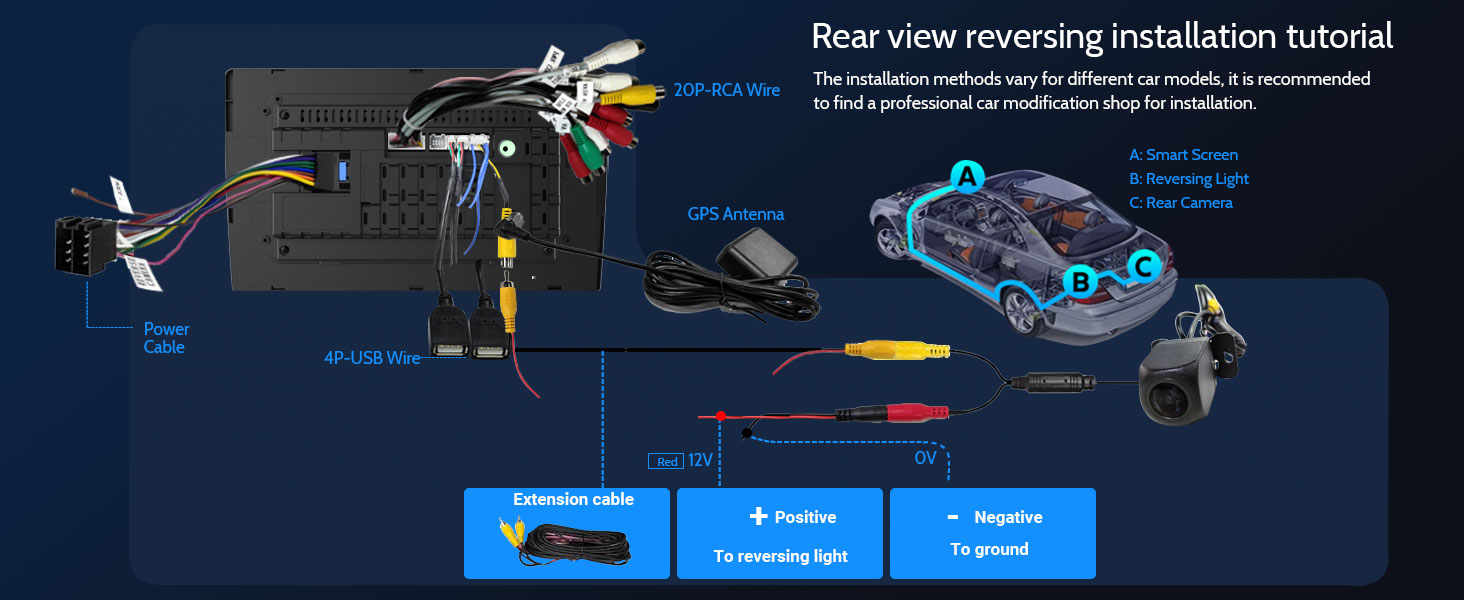
Image: Rear view camera installation tutorial diagram.
Video: Reversing image removal and installation video for the backup camera.
4.2 Physical Installation
Once all wiring is complete, carefully mount the Haudio Carplay Screen into your vehicle's dashboard opening. Secure it using the provided brackets and screws.
5. Operating Instructions
5.1 Basic Operations
Press the power button to turn the unit on or off. Adjust volume using the dedicated buttons or on-screen controls. The 10.1-inch 1280*720P IPS touch screen provides intuitive control.
Video: 10.1" Touch Screen Functional Demonstration, showcasing various UI themes, EQ/DSP settings, and system information.
5.2 Wireless CarPlay & Android Auto
Connect your smartphone wirelessly to access Apple CarPlay or Android Auto. This allows for seamless integration of your phone's navigation, music, and communication features directly on the car stereo display.

Image: Displaying Wireless Apple CarPlay, Android Auto, and Mirror Link functionalities.
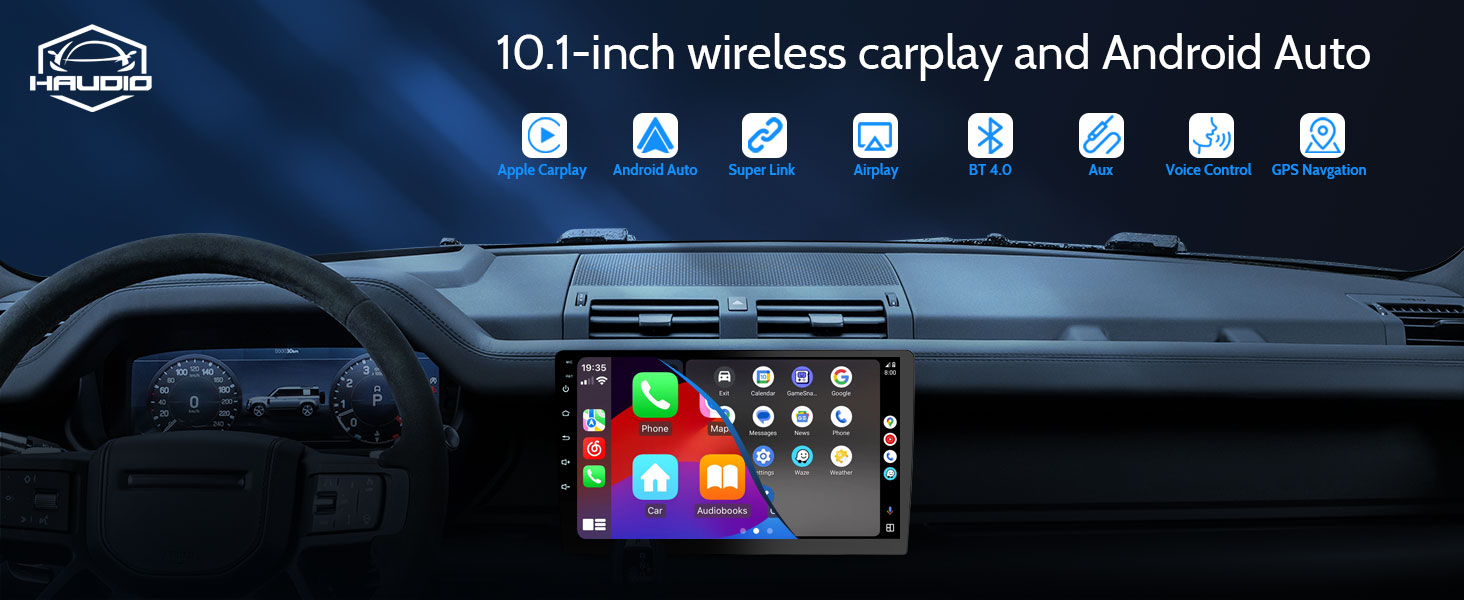
Image: Overview of 10.1-inch wireless CarPlay and Android Auto capabilities.
5.3 Mirror Link (Airplay & Android Cast)
Use the Mirror Link function to cast your smartphone's screen directly to the car stereo. This is ideal for viewing videos or other content from your phone.
Video: Mirror Link Tutorial, demonstrating how to connect and use the screen mirroring feature.
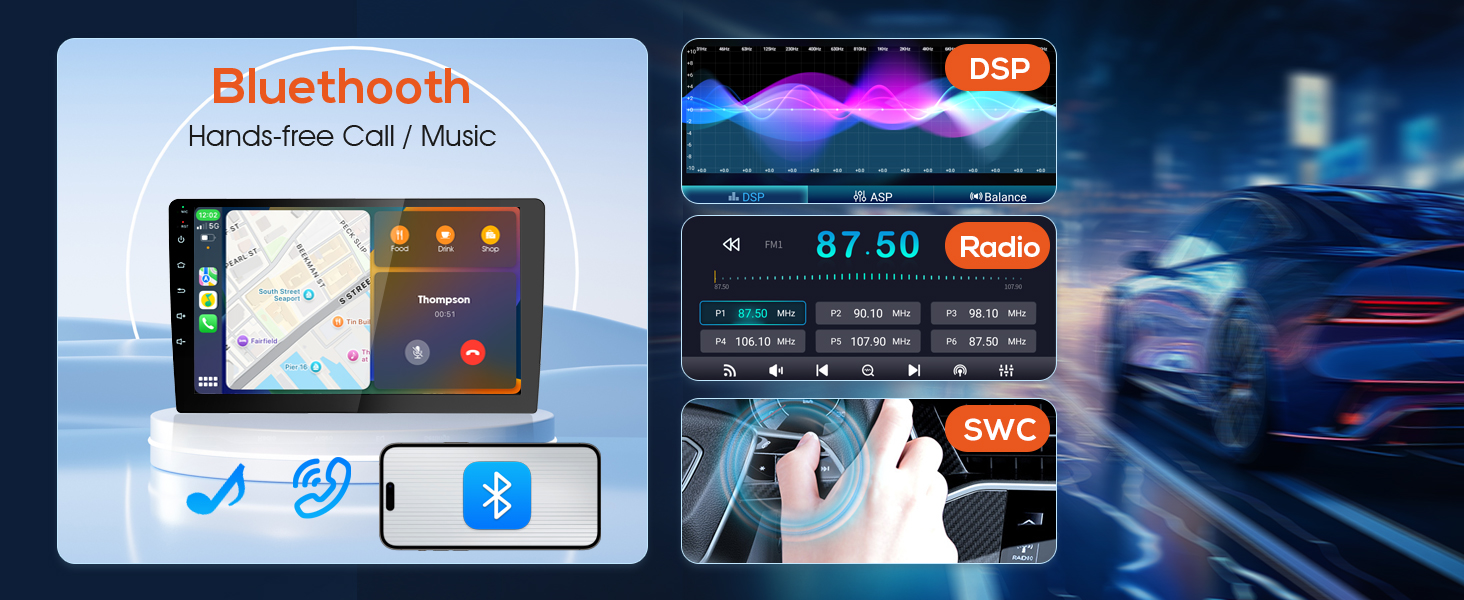
Image: Playing videos with Mirror Link from an iPhone and Android device.
5.4 Navigation
Utilize the integrated GPS navigation system for real-time directions. The system connects with your smartphone for up-to-date map information without additional fees.

Image: Live Map Navigation with voice assistant functionality.
Video: Wireless Double Din Car Stereo demonstrating voice navigation and music playback while driving.
5.5 Bluetooth (Calls & Music)
The unit features Bluetooth 5.0 for stable connections. Make hands-free calls and stream music directly from your smartphone to the car stereo speakers.

Image: Hands-Free Calling with Siri and Google Assistant.
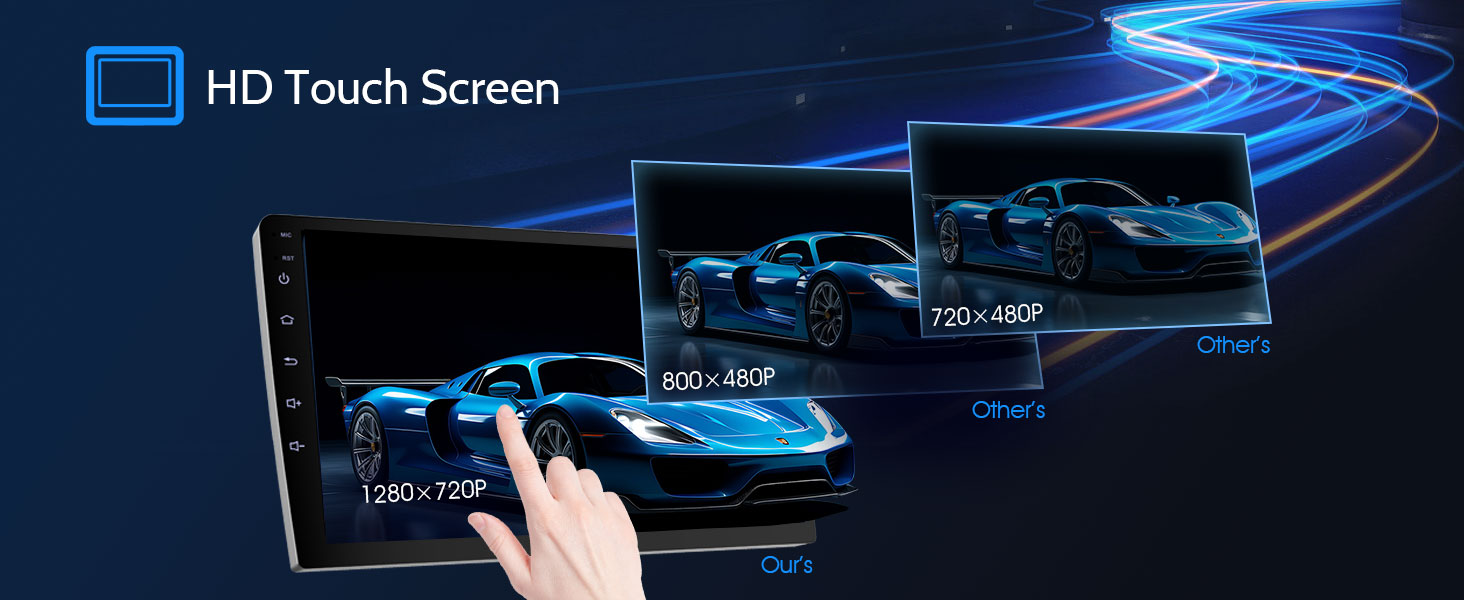
Image: Bluetooth for hands-free calls and music, with DSP and Steering Wheel Control (SWC) features.
5.6 Radio (FM/AM/RDS)
Access FM and AM radio stations. The RDS (Radio Data System) feature provides additional information like station names and song titles where available.
5.7 Media Playback
Play videos and audio files from various sources. The unit supports Picture-in-Picture (PIP) mode, allowing you to view video while using other functions.

Image: High Fidelity Sound Quality experience.
5.8 Voice Control
The built-in clear microphone allows you to interact with Siri or Google Assistant for hands-free operation of calls, messaging, music playback, and more.

Image: Smart voice control supporting Siri and Google Assistant.
5.9 Split Screen Functionality
The split-screen feature allows you to run two applications simultaneously, such as navigation and music, for enhanced multitasking.
5.10 Rear View Camera Display
When the vehicle is in reverse, the screen automatically displays the feed from the connected HD backup camera, providing a wide view for parking assistance.

Image: HD Backup Camera with night vision and wide viewing angle.
6. Maintenance
To ensure the longevity and optimal performance of your Haudio Carplay Screen, follow these maintenance guidelines:
- Cleaning: Use a soft, dry cloth to clean the screen and exterior. Avoid abrasive cleaners or solvents.
- Temperature: Avoid exposing the unit to extreme temperatures, both hot and cold.
- Software Updates: Periodically check for software updates from the manufacturer to ensure the latest features and bug fixes.
- Cable Connections: Regularly check all cable connections to ensure they are secure and free from damage.
7. Troubleshooting
If you encounter issues with your Haudio Carplay Screen, refer to the following common troubleshooting steps:
7.1 No Power
- Check the power cable connections to ensure they are secure.
- Verify the vehicle's fuse related to the car stereo is not blown.
- Ensure the vehicle's ignition is on.
7.2 No Sound
- Check the volume level on the unit and your smartphone.
- Ensure all speaker wires are correctly connected.
- Verify the audio output mode settings (e.g., Bluetooth, FM, AUX).
7.3 CarPlay/Android Auto Not Connecting
- Ensure Bluetooth and Wi-Fi are enabled on your smartphone.
- Restart both the car stereo and your smartphone.
- Check for any software updates for the car stereo or your phone's operating system.
7.4 Rear View Camera Not Displaying
- Check the video input cable connection from the camera to the unit.
- Ensure the camera's power and ground connections are correct.
- Verify the reversing trigger line is properly connected to the vehicle's reverse signal.
8. Warranty and Support
Your Haudio 10.1 Inch Carplay Screen comes with a manufacturer's warranty. Please refer to the warranty card included in your packaging for specific terms and conditions. For technical support, product inquiries, or warranty claims, please contact Haudio customer service through the retailer where you purchased the product or visit the official Haudio website.
Haudio is committed to providing quality products and customer satisfaction. We recommend registering your product online to receive updates and support.

